> For the complete documentation index, see [llms.txt](https://morphic.com/docs/llms.txt). Markdown versions of documentation pages are available by appending `.md` to page URLs; this page is available as [Markdown](https://morphic.com/docs/ar/how-tos/extend-video.md).
# توسيع الفيديو
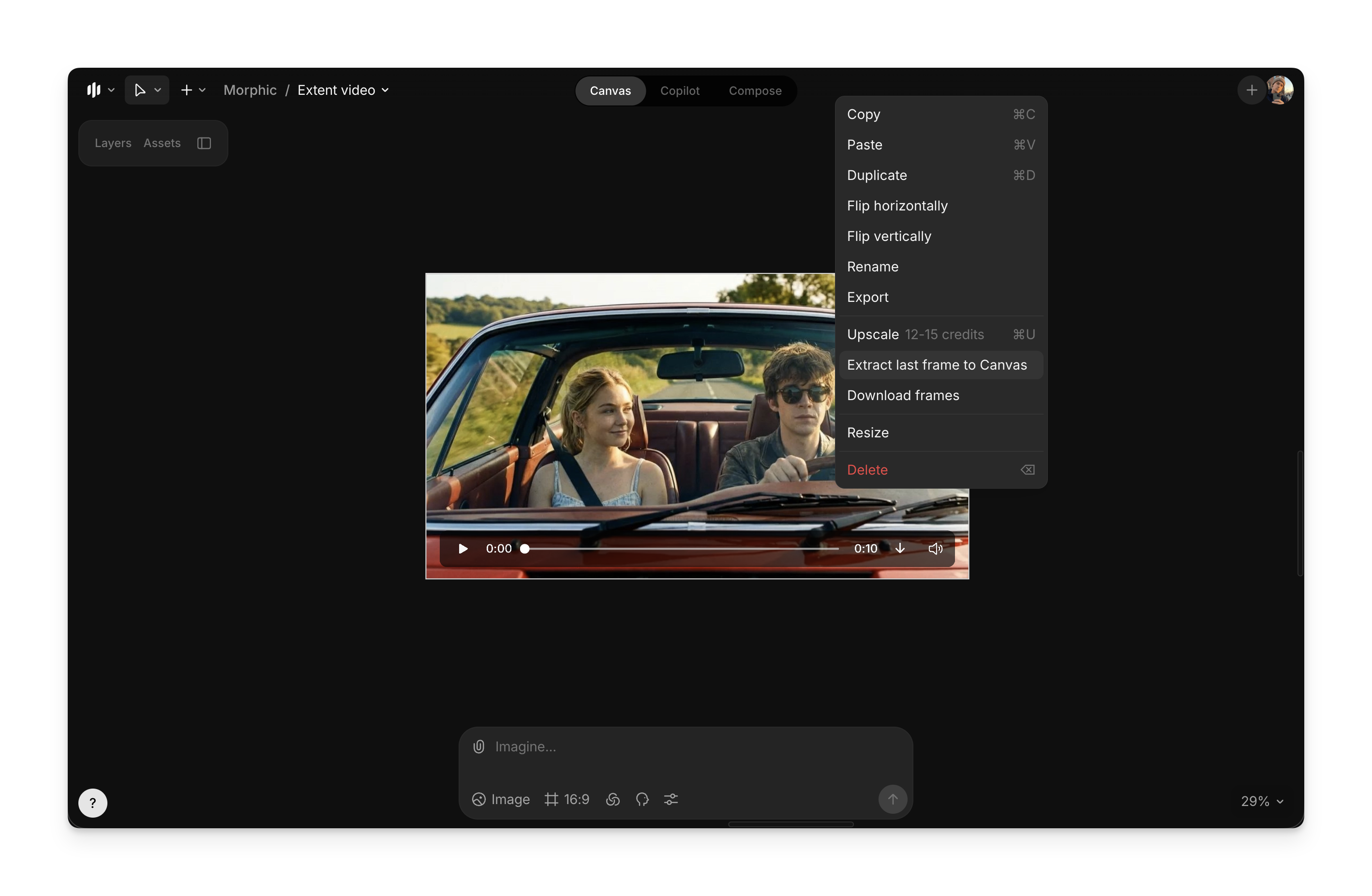
يمكنك الآن توسيع مقاطع الفيديو الخاصة بك باستخدام ميزة «استخراج آخر إطار إلى اللوح» على Morphic باستخدام الذكاء الاصطناعي. إنها طريقة بسيطة لإنشاء لقطات أطول من آخر إطار مع اتساق بصري.
إليك دليلًا خطوة بخطوة حول كيفية توسيع الفيديوهات باستخدام «استخراج الإطار الأخير إلى Canvas» في Morphic:
1. ارفع أو أنشئ الفيديو الذي تريد توسيعه على Canvas
2. انقر بزر الفأرة الأيمن على الفيديو واختر «استخراج الإطار الأخير إلى Canvas»
3. استخدم الإطار المستخرج حديثًا كإطار بداية، ثم شغّل [صورة إلى فيديو](/docs/ar/video/image-to-video.md) لإنشاء مقطع لاحق يمدّد الفيديو
الإطار المستخرج على اليمين
صورة إلى فيديو
4. كرر الخطوتين 2 و3 حسب الحاجة لإنشاء مقاطع إضافية يمكن دمجها معًا
5. بمجرد أن تصبح لديك جميع المقاطع، انتقل إلى [التجميع](/docs/ar/compose.md) لدمجها معًا
6. اسحب وأفلت جميع المقاطع التي تم إنشاؤها من قسم الأصول إلى الخط الزمني
7. صدّر الفيديو النهائي المدمج باستخدام زر التصدير في أعلى اليمين (بدقة تصل إلى 4K)
### استخرج أي إطار، وليس الأخير فقط
يأخذ «استخراج الإطار الأخير إلى Canvas» دائمًا الإطار النهائي. ولإخراج لحظة محددة بدلًا من ذلك، استخدم «استخراج الإطار إلى Canvas».
إليك شرحًا سريعًا حول كيفية استخراج الإطار الحالي من فيديو في Morphic:
{% embed url="" %}
1. انقر على الفيديو في Canvas لتحديده
2. حرّك مؤشر التشغيل في أسفل الشاشة إلى الإطار الذي تريده
3. انقر بزر الفأرة الأيمن على الفيديو واختر «استخراج الإطار إلى Canvas»
يظهر الإطار على Canvas كصورة مستقلة، جاهزة للتعديل أو للاستخدام كمرجع أو لإدخالها في عملية توليد أخرى.
بهذه الطريقة يمكنك استخدام «استخراج الإطار الأخير إلى Canvas» في Morphic لإنشاء لقطات ممتدة باتساق بصري بسهولة.
***
إذا واجهت أي مشكلة أو كانت لديك أي أسئلة، فلا تتردد في التواصل معنا. يسعدنا مساعدتك. راسلنا على [**support@morphic.com**](mailto:support@morphic.com)**.**
---
# Agent Instructions
This documentation is published with GitBook. GitBook is the documentation platform designed so that both humans and AI agents can read, navigate, and reason over technical content effectively. Learn more at gitbook.com.
## Querying This Documentation
If you need additional information that is not directly available in this page, you can query the documentation dynamically by asking a question.
Perform an HTTP GET request on the current page URL with the `ask` query parameter, and the optional `goal` query parameter:
```
GET https://morphic.com/docs/ar/how-tos/extend-video.md?ask=&goal=
```
`ask` is the immediate question: it should be specific, self-contained, and written in natural language.
`goal` is optional and describes the broader end goal you are ultimately trying to accomplish on behalf of the user. GitBook uses it to tailor the answer towards what is most useful for that goal.
The response will contain a direct answer to the question and relevant excerpts and sources from the documentation.
Use this mechanism when the answer is not explicitly present in the current page, you need clarification or additional context, or you want to retrieve related documentation sections.