# Creating motion comics

Here's how to create a motion comic from scratch on Morphic.

<figure><img src="https://3522324598-files.gitbook.io/~/files/v0/b/gitbook-x-prod.appspot.com/o/spaces%2FoPhHCbNZdzW70rakoLhf%2Fuploads%2FYC5E18VSbWq0FdZvG9Xs%2F1-ezgif.com-video-to-gif-converter.gif?alt=media&#x26;token=d6edd4c9-9221-42ce-aab9-166e150c223f" alt=""><figcaption></figcaption></figure>

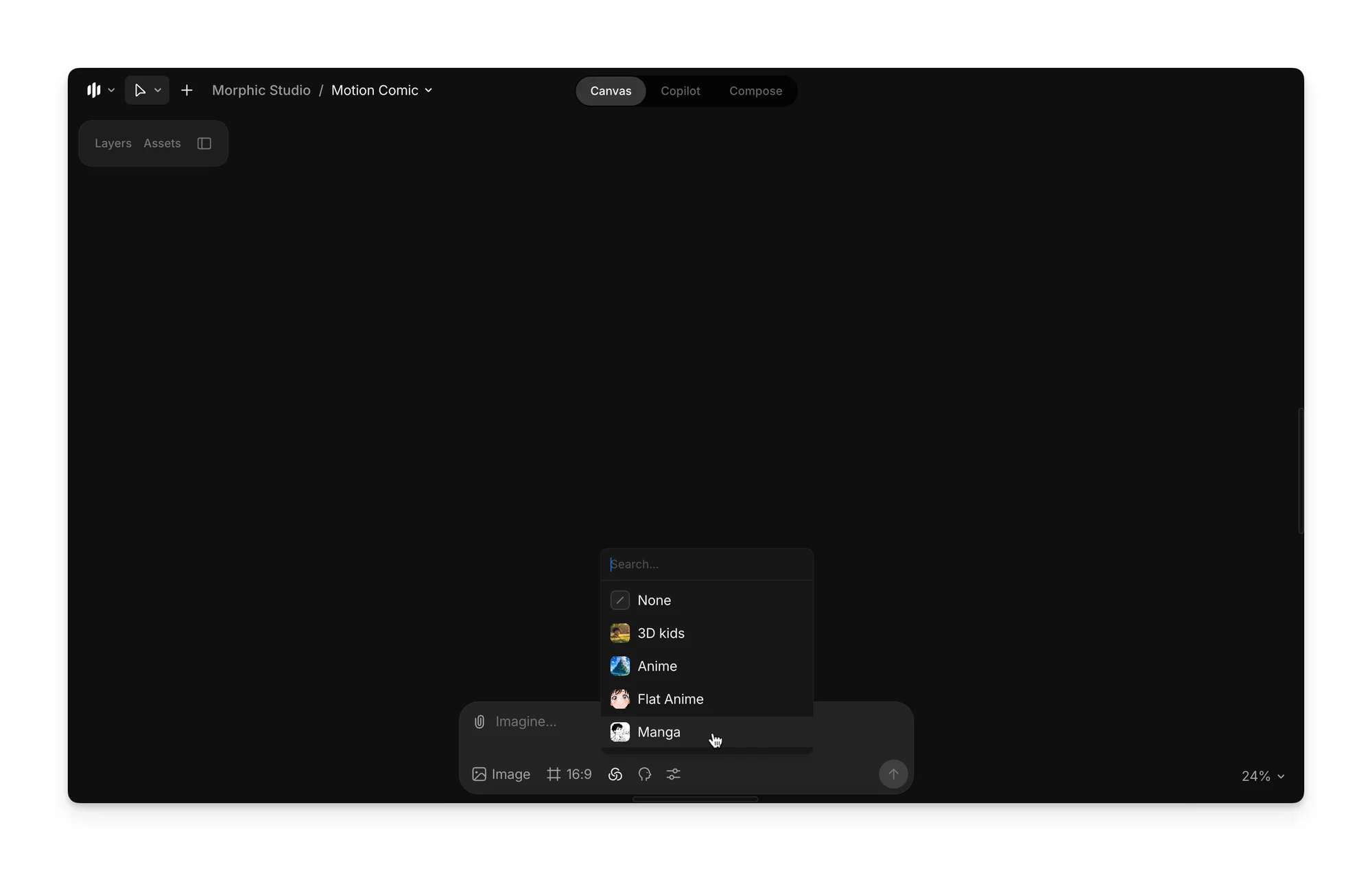
1. From the prompt bar, select Manga as the style model. You can select your own [custom style model](https://morphic.com/docs/essentials/style-models) if you have trained one.

<figure><img src="https://3522324598-files.gitbook.io/~/files/v0/b/gitbook-x-prod.appspot.com/o/spaces%2FoPhHCbNZdzW70rakoLhf%2Fuploads%2Fdbng6N8wa7dSg7SldFkP%2FCleanShot%202025-09-05%20at%2006.26.46%402x.png?alt=media&#x26;token=3c497182-50e4-45ce-9fec-abec5396c6b9" alt=""><figcaption></figcaption></figure>

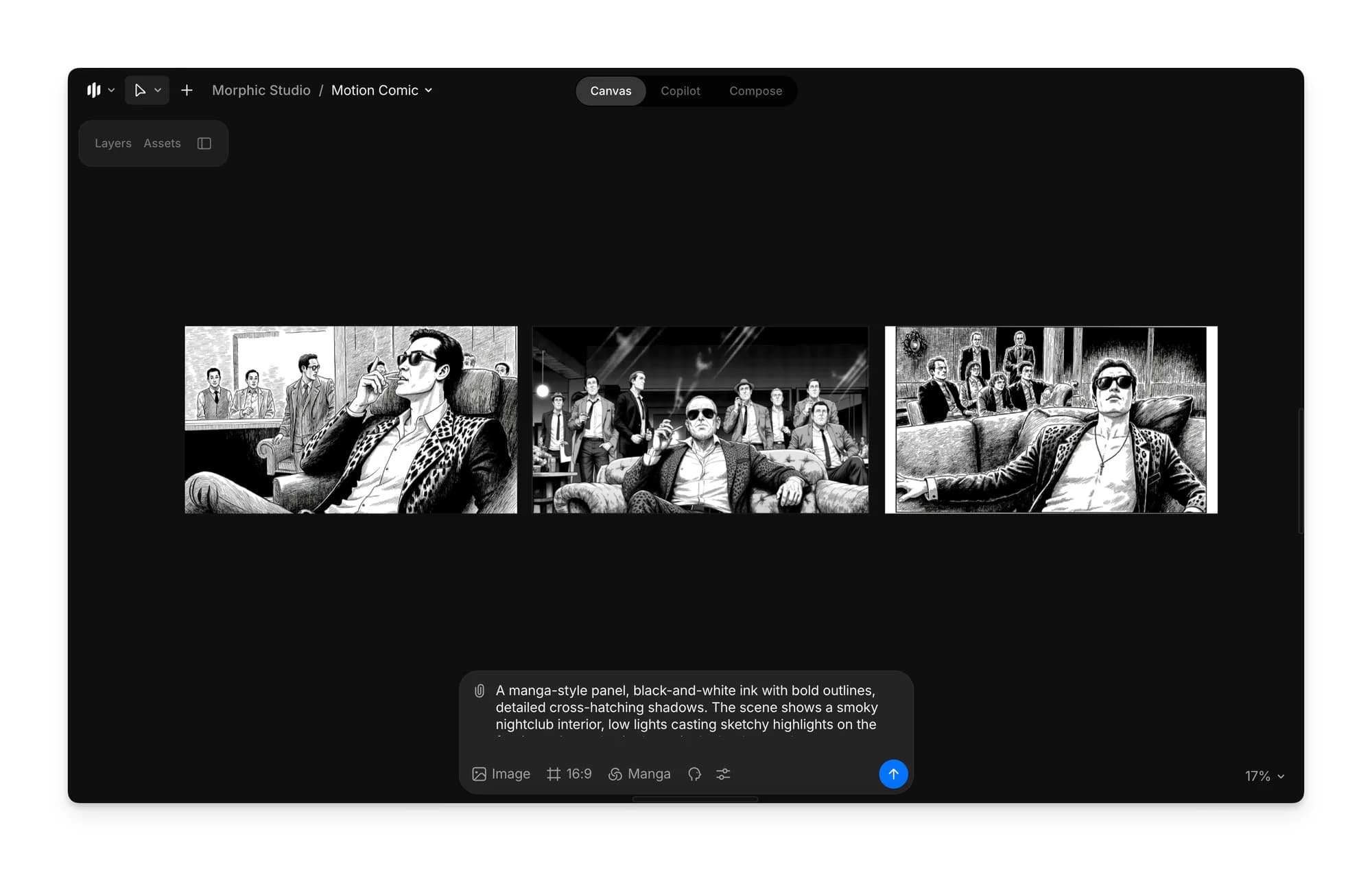
2. Enter a prompt to generate the images for your motion comic, then click Generate.

<figure><img src="https://3522324598-files.gitbook.io/~/files/v0/b/gitbook-x-prod.appspot.com/o/spaces%2FoPhHCbNZdzW70rakoLhf%2Fuploads%2FSOuu10ShNCIaUvXVukWe%2FCleanShot%202025-09-05%20at%2006.27.52%402x.png?alt=media&#x26;token=36a51942-4464-4cef-8f34-3f48881160c9" alt=""><figcaption></figcaption></figure>

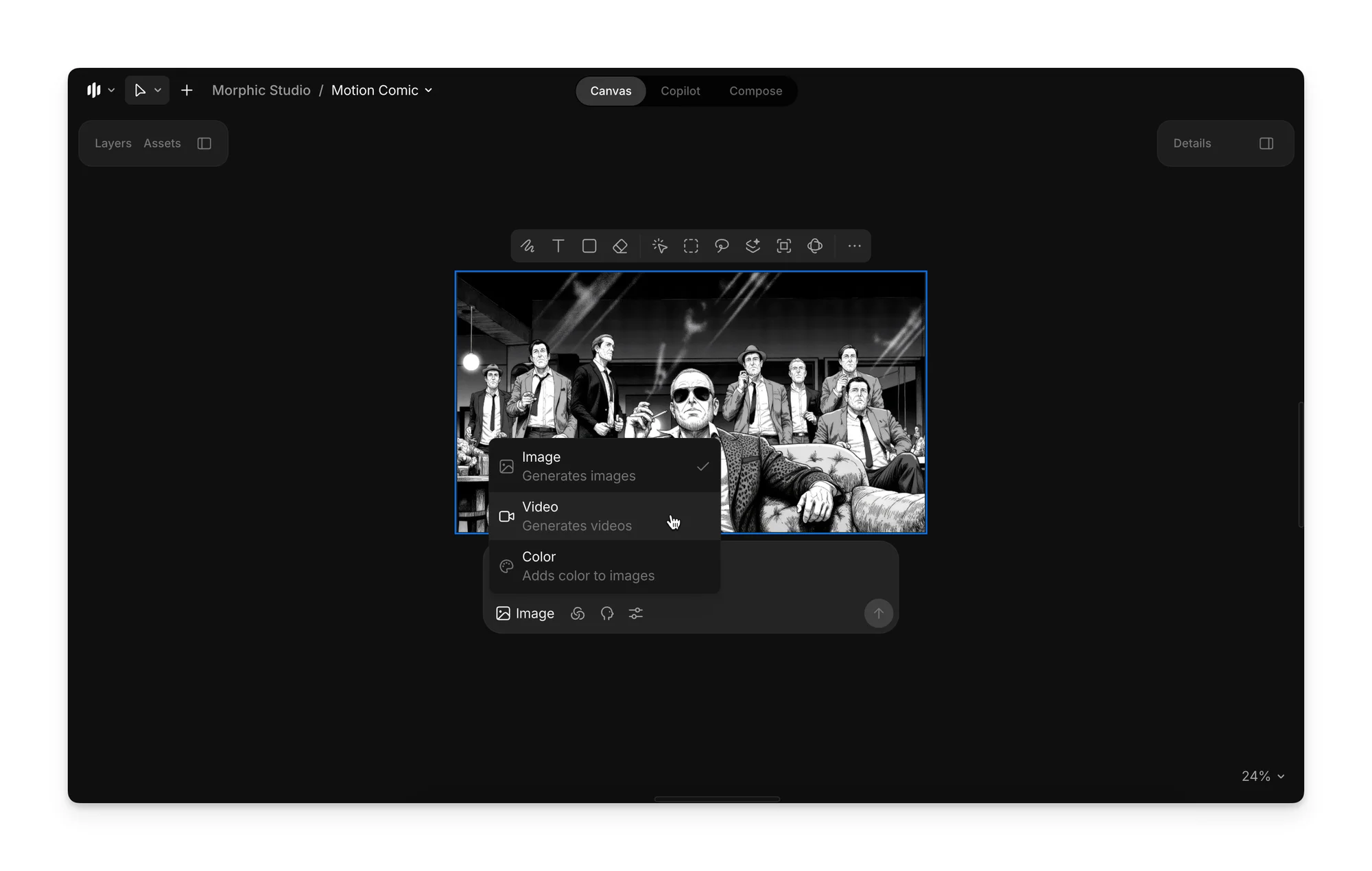
3. Once you’ve chosen an image to continue with, select it and switch to Video Mode.
<figure><img src="https://3522324598-files.gitbook.io/~/files/v0/b/gitbook-x-prod.appspot.com/o/spaces%2FoPhHCbNZdzW70rakoLhf%2Fuploads%2FgcVgkh8hUTWWUzkxQBvh%2FCleanShot%202025-09-05%20at%2006.28.46%402x.png?alt=media&#x26;token=50aec3ea-8cbc-4464-b938-6e4729a25f5f" alt=""><figcaption></figcaption></figure>

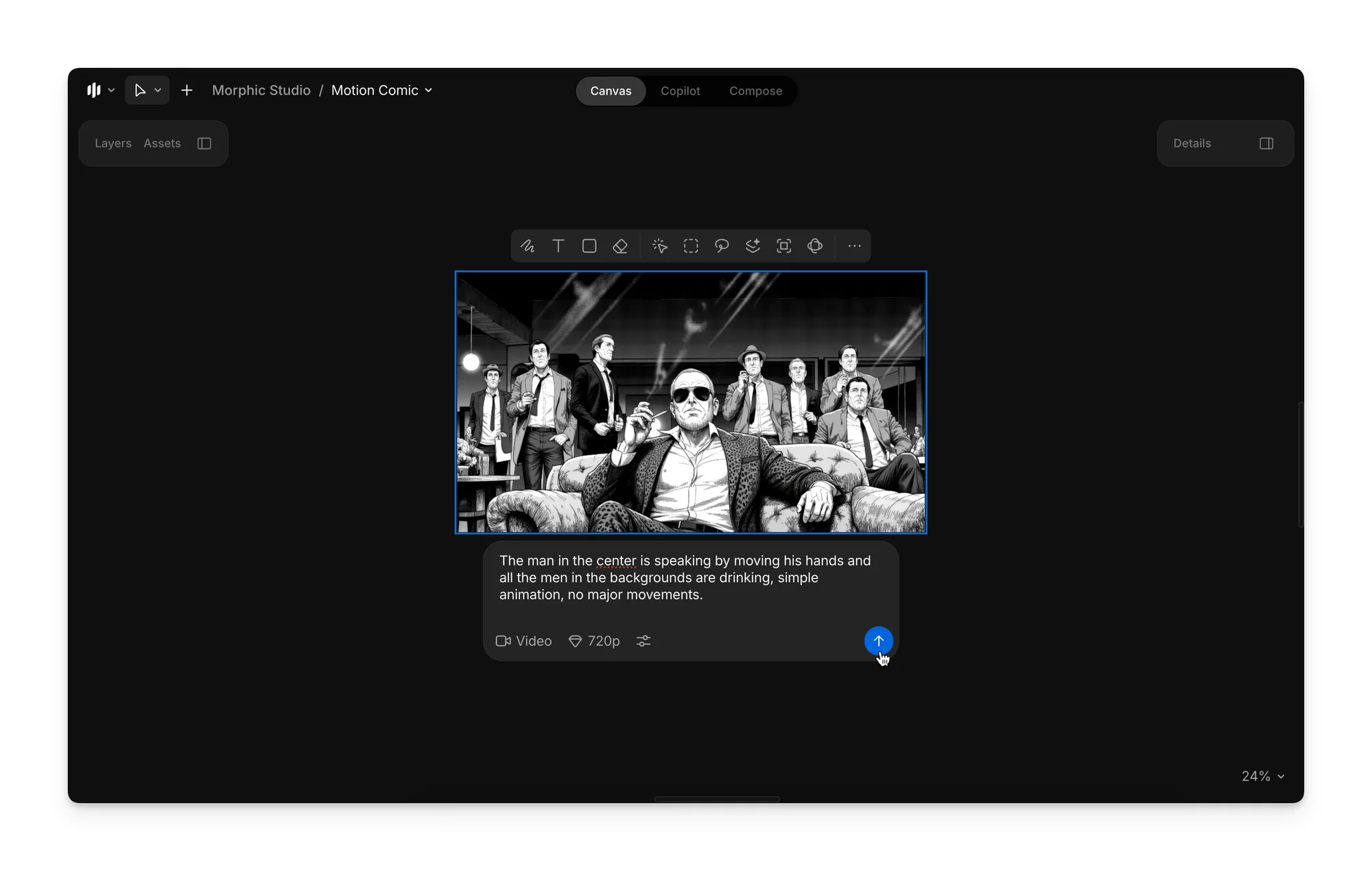
4. Enter the prompt describing the animation you’d like to see, and click Generate to create your first video.

<figure><img src="https://3522324598-files.gitbook.io/~/files/v0/b/gitbook-x-prod.appspot.com/o/spaces%2FoPhHCbNZdzW70rakoLhf%2Fuploads%2F9oe06IC67TWoXTzj465P%2FCleanShot%202025-09-05%20at%2006.30.18%402x.png?alt=media&#x26;token=0e0837e5-d6ac-4a21-bf8c-9df92114afcb" alt=""><figcaption></figcaption></figure>

5. Select the first image again, switch back to Image Mode, and enter a prompt describing the desired changes to generate a new image.
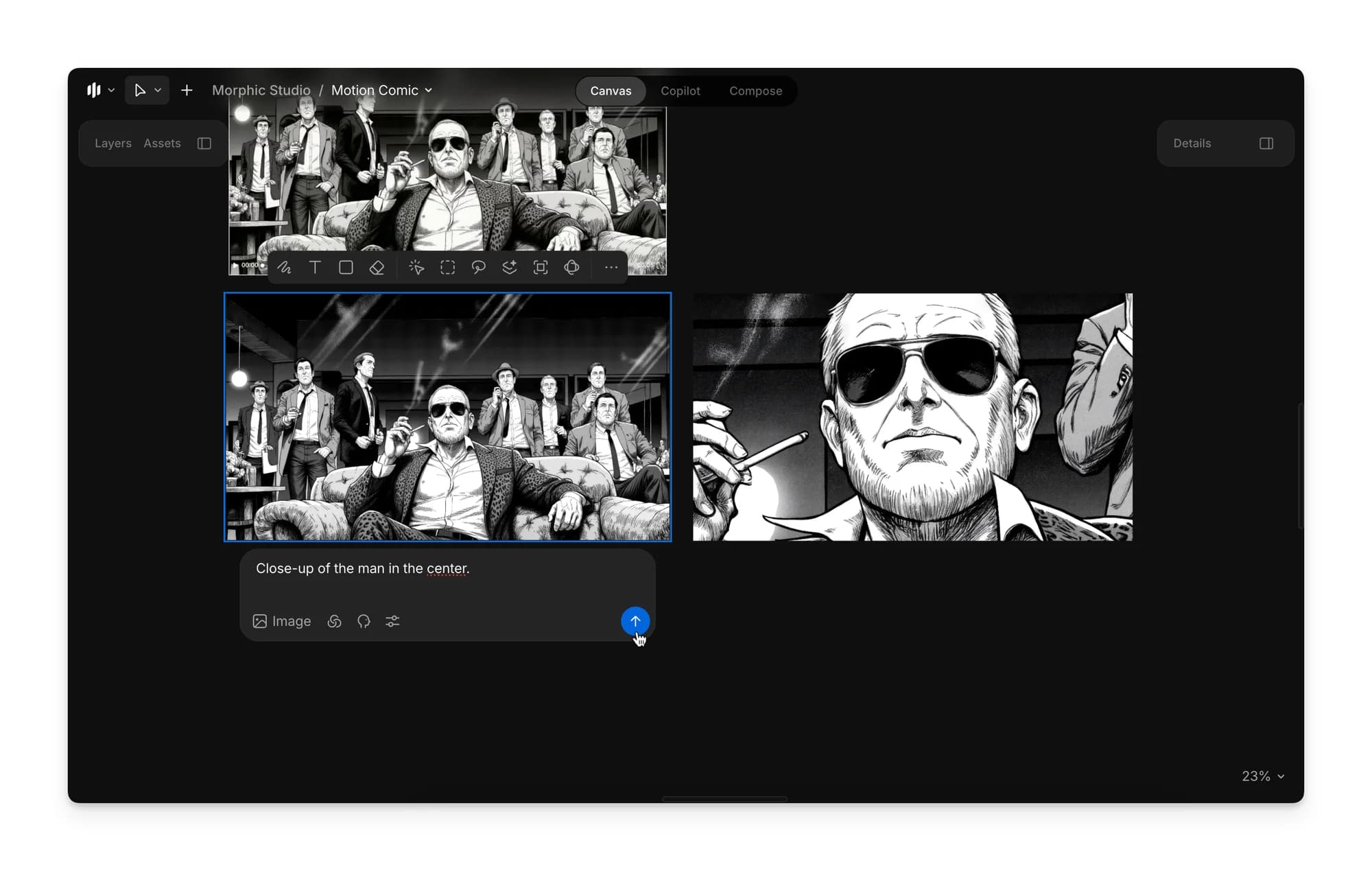
<figure><img src="https://3522324598-files.gitbook.io/~/files/v0/b/gitbook-x-prod.appspot.com/o/spaces%2FoPhHCbNZdzW70rakoLhf%2Fuploads%2FtK52SriDw3PAnlfXGEhv%2FCleanShot%202025-09-05%20at%2006.40.30%402x.png?alt=media&#x26;token=2b7e1691-a27c-459e-a300-cb73ef417bb0" alt=""><figcaption></figcaption></figure>

6. Repeat step 4 to animate this new image and generate a second video.
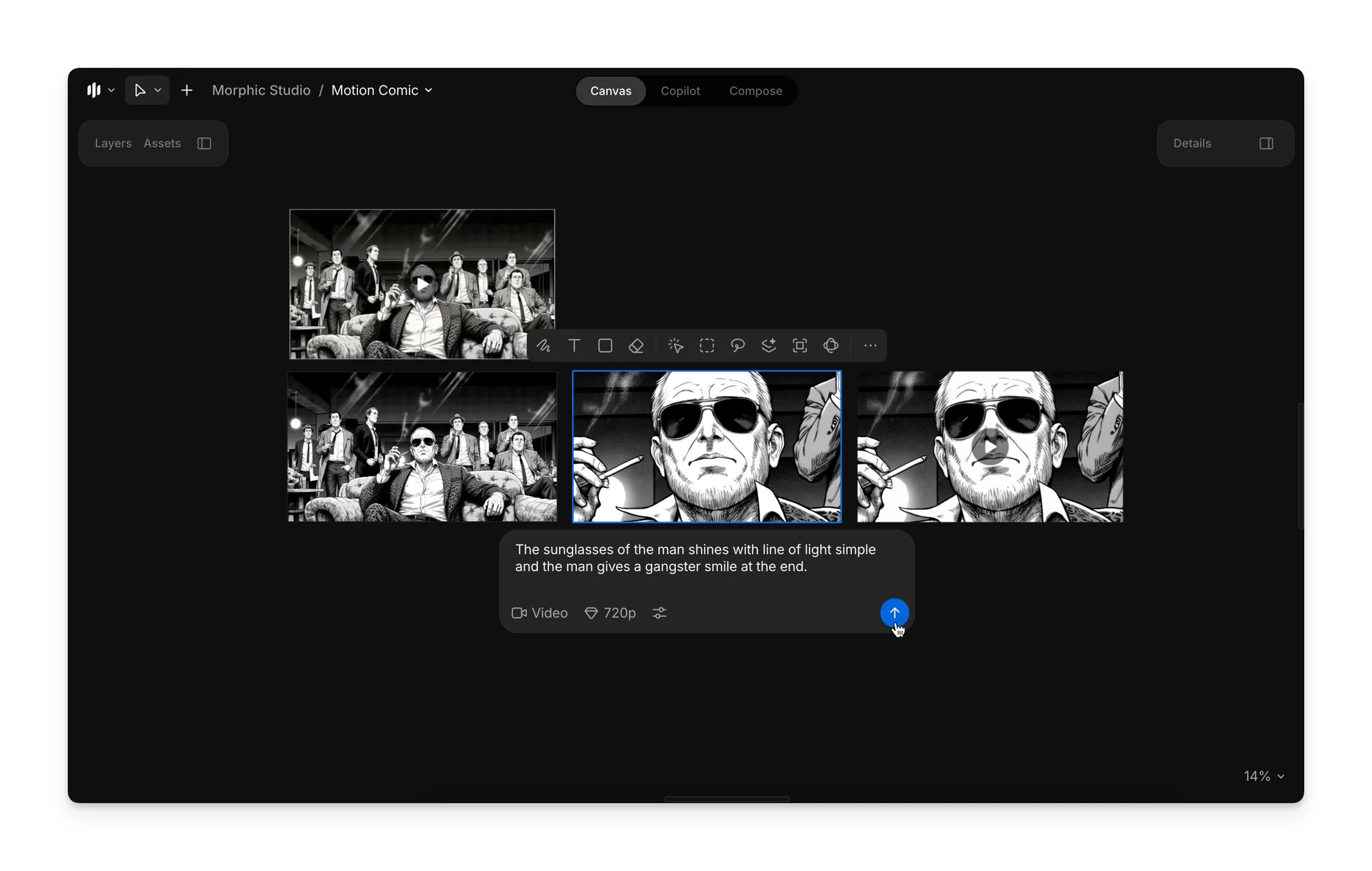
<figure><img src="https://3522324598-files.gitbook.io/~/files/v0/b/gitbook-x-prod.appspot.com/o/spaces%2FoPhHCbNZdzW70rakoLhf%2Fuploads%2Fz2r25Egtz38Iti3OMj6u%2FCleanShot%202025-09-05%20at%2006.54.18%402x.png?alt=media&#x26;token=01558604-ad6d-4398-8fcd-ffa6bc8e0b7d" alt=""><figcaption></figcaption></figure>

7. Repeat step 5 to create another new image, then step 4 again to animate it and generate a third video.
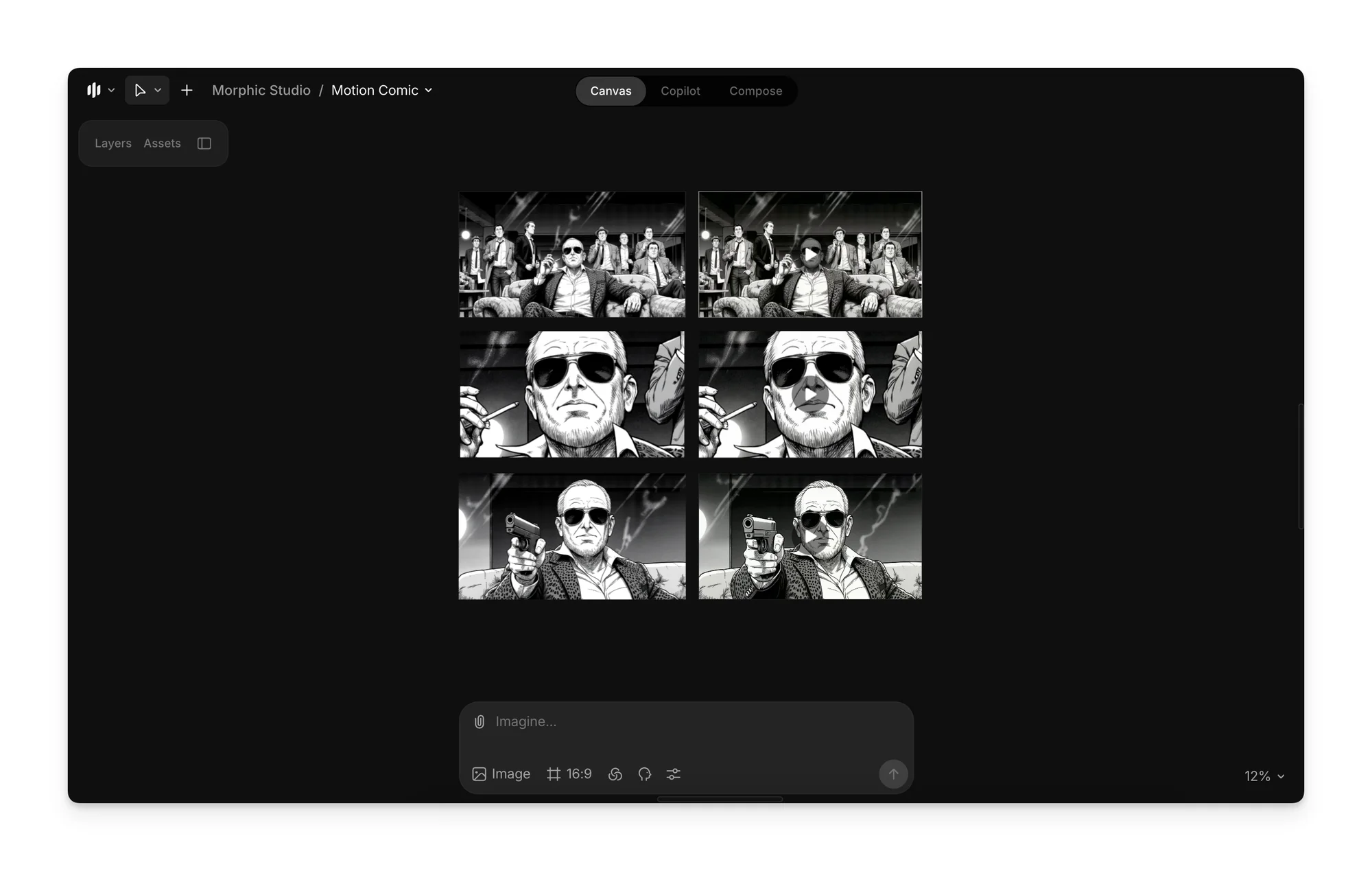
<figure><img src="https://3522324598-files.gitbook.io/~/files/v0/b/gitbook-x-prod.appspot.com/o/spaces%2FoPhHCbNZdzW70rakoLhf%2Fuploads%2Fe5nDHgh3iyrILXmdGJqF%2FCleanShot%202025-09-05%20at%2006.41.49%402x.png?alt=media&#x26;token=d10f1bcf-8993-42d7-b8fd-2335f9f53447" alt=""><figcaption></figcaption></figure>

8. You’ll now have three different images and three corresponding videos. Stitch these three videos together to create your final motion comic output:

<figure><img src="https://3522324598-files.gitbook.io/~/files/v0/b/gitbook-x-prod.appspot.com/o/spaces%2FoPhHCbNZdzW70rakoLhf%2Fuploads%2F3tMlVdjn6srkrnlBjJJh%2FMotioncomic-ezgif.com-video-to-gif-converter.gif?alt=media&#x26;token=177e7bd9-45c4-4fd7-841d-3f6310fde718" alt=""><figcaption></figcaption></figure>

This is perfect for adding cinematic flow to your manga or custom style artwork. It lets you go from static images to motion comic storytelling effortlessly.

***

If you have any trouble or have any questions, feel free to reach out. We're happy to help, write to us at [**support@morphic.com**](mailto:support@morphic.com)**.**


---

# Agent Instructions: Querying This Documentation

If you need additional information that is not directly available in this page, you can query the documentation dynamically by asking a question.

Perform an HTTP GET request on the current page URL with the `ask` query parameter:

```
GET https://morphic.com/docs/how-tos/creating-motion-comics.md?ask=<question>
```

The question should be specific, self-contained, and written in natural language.
The response will contain a direct answer to the question and relevant excerpts and sources from the documentation.

Use this mechanism when the answer is not explicitly present in the current page, you need clarification or additional context, or you want to retrieve related documentation sections.