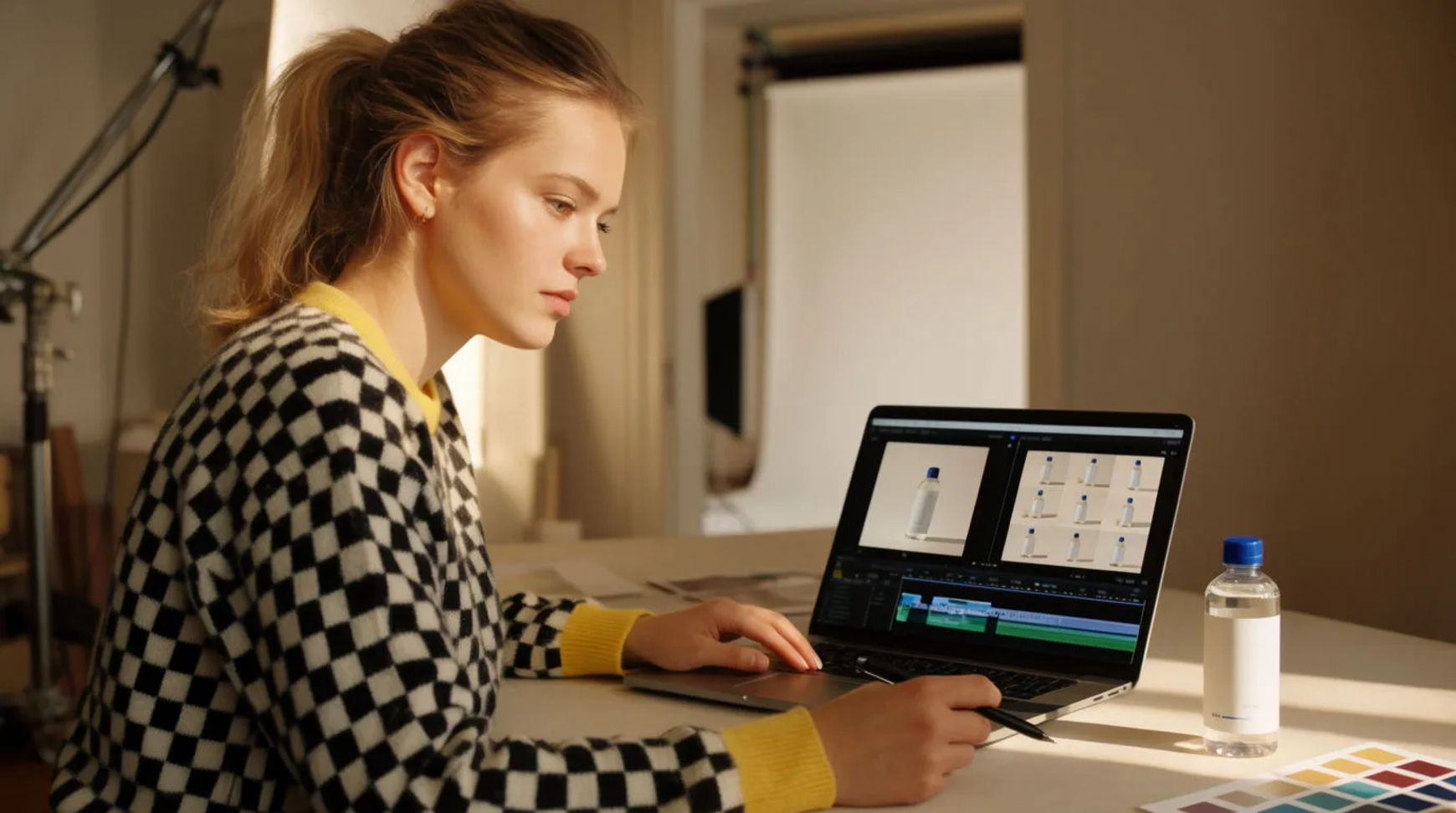
Ecommerce teams scale product video without reshoots by starting from the product stills they already have and generating motion, scenes, and per-SKU variants in one AI platform instead of booking the studio again for every format. The workflow is short: start from the stills, generate motion and scenes, make variants per SKU and format, then export at scale. Because every step lives in the same project, a catalog that used to mean a reshoot for each new placement becomes a batch you regenerate from images you own.
Steps at a glance
- Start from the product stills you have
- Generate motion and scenes
- Make variants per SKU and format
- Export the set at scale
- Keep a product reference sheet so accuracy holds
How ecommerce teams produce product video from stills, step by step
Start from the product stills you have
Begin with the catalog images already shot and approved rather than scheduling a session. A clean product still is the input the platform works from, so the asset you have becomes the starting frame of a moving shot. This is the part that stays deliberate, because choosing the right hero image and the look you are after is where a product page either sells or stalls. Pass the still in as a reference so the item that moves is the item you sell.
Generate motion and scenes
Turn each still into motion: a slow rotation, a lifestyle scene, a hand reaching in, a camera push that shows a detail. Direct the shot like a filmmaker by naming the light, the move, and the mood, because a directed prompt is the difference between a clip that looks generated and one that looks shot. If a take drifts, adjust one thing and regenerate rather than starting over, so the motion you sign off on stays true to the product.
Make variants per SKU and format
The volume a catalog asks for stops being a series of small productions. Swap the reference to the next colorway and the same scene re-runs for that SKU; reframe the master for vertical, square, and feed as a parameter rather than a reshoot; add captions in another market's language as a step in the same project. A hundred SKUs across three placements becomes a batch instead of a hundred bookings.
Export the set at scale
Bring the shots onto the Compose timeline, add a music bed or a short voiceover, set per-clip volume, and export the whole set. Because it all lives in one platform, a merchandiser's note becomes a regeneration the same afternoon rather than a reshoot next month. A paid plan exports at higher resolution for the store, the ads, and the marketplace listings.
Here are a few of the finished product shots this produces, each generated from a still rather than reshot:
Product spin
Lifestyle scene
SKU variant
Reshoot every variant versus regenerate
The saving is less about any single clip and more about how the catalog changes when new formats stop meaning new bookings. Here is the shift, honestly drawn.
| Stage | Reshoot every variant | Regenerate |
|---|---|---|
| A new format | Another studio day | The same afternoon |
| Next SKU | A fresh setup | Swap the reference |
| Vertical cut | A re-crop or reshoot | A reframe parameter |
| A revision | A reshoot next month | A regeneration today |
| Best used for | Hero films, real talent | Catalog motion at scale |
Put it together
Scaling product video is not about filming faster; it is about removing the reshoot so one still can carry a whole catalog. Start from the images you own, generate the motion, vary per SKU and format, then export the set in the same place. The saving that matters most is that new placements stop starting from a booking, which is where a growing store either keeps its catalog current or falls behind. The lowest-risk way to feel it is to turn one best-selling product's stills into a full format set and compare the cost against a reshoot. The AI product video generator is the fastest place to turn a still into motion, and making a 360 product spin covers directing a rotation that reads as shot.