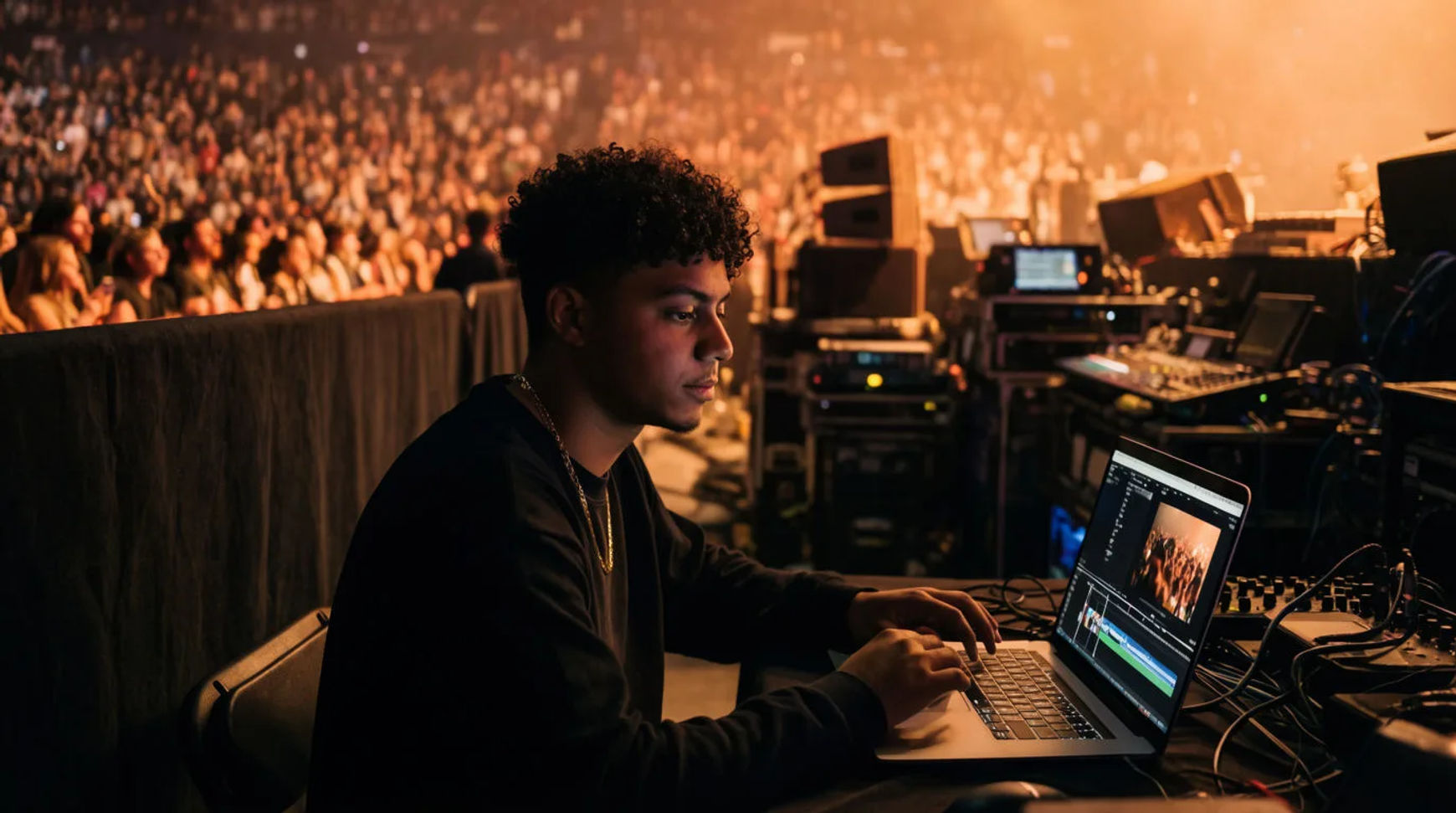
Event companies produce sizzle reels and recap videos with AI by pulling the best moments from their raw footage, then generating the motion, music, and voiceover around them inside one platform instead of handing the whole job to a booked editor. The workflow is short: gather the best moments, generate extra motion and b-roll, add music and a voiceover, then cut the reel and export. Because every step lives in the same project, a highlight reel that used to mean an edit booked days out becomes a same-day turnaround while the show still matters.
Steps at a glance
- Gather the best moments from the raw footage
- Generate extra motion and b-roll to fill the gaps
- Add music and a voiceover
- Cut the reel and export in every format you need
- Keep a reference sheet so the look holds across the cut
How event companies produce a sizzle reel, step by step
Gather the best moments from the raw footage
Start with the ten seconds that sell the whole show. Pull the crowd reactions, the reveal, the keynote line that landed, and the wide shots that set the scale. This is the part that stays human, because it is where an editor's eye actually earns its keep. Written as a shot list, the highlights become a spine you build the reel around rather than hours of footage you scrub through every time.
Generate extra motion and b-roll to fill the gaps
Where the floor crew missed a shot or a transition needs connective tissue, generate matching b-roll from a brief: an establishing sweep of the venue, a slow push on the stage, a texture shot to bridge two moments. Direct it like a filmmaker, naming the light and the camera move, so the generated shots sit next to your real footage instead of standing out from it. The gaps close without a second shoot.
Add music and a voiceover
Lay a music bed under the cut, then generate a voiceover in the read the reel needs, driving, warm, or matter-of-fact, without booking a booth. A sponsor line or a date change becomes a regeneration you make yourself rather than a note you send out and wait on. A paid plan exports at higher resolution for client delivery.
Cut the reel and export in every format you need
Bring the moments and b-roll onto the Compose timeline, set the per-clip volume against the music, add transitions, and cut to the beat. Then export the versions the job asks for: the hero sizzle, a shorter teaser, and a vertical cut for social, each a reframe or a trim of the same project rather than a fresh edit. One event ships as a whole set of deliverables.
Here are a few of the finished pieces this produces, each cut from event footage and generated b-roll:
Sizzle reel
Venue b-roll
Recap cut
Manual edit versus AI-assisted
The saving is less about any single clip and more about how the turnaround changes when the reel stops moving between apps and vendors. Here is the shift, honestly drawn.
| Stage | Manual edit | AI-assisted |
|---|---|---|
| First cut | A booked edit, days out | The same day |
| Missing b-roll | A second shoot | Generated from a brief |
| Music and voice | Licensing and a booth | A step in the same file |
| Channel versions | A re-edit each | A reframe or a trim |
| Best used for | The hero highlight cut | Recaps, teasers, socials |
Put it together
Producing a sizzle reel with AI is not about replacing the editor's eye; it is about removing the handoffs between shoot, edit, music, and voice so the reel ships while the event still matters. Gather the best moments, generate the b-roll that bridges them, add music and a voiceover in the same place, then cut and export the whole set of versions. The turnaround that matters is idea to delivered reel, which is where an event company either wins the next booking or misses the window. The text-to-video generator is the fastest place to generate the b-roll a cut needs, and how to make an AI video covers directing a shot so it matches your real footage.