What you need
- A clip with the stand-in in it. One short shot per job. Cut a longer take into shots first.
- A reference image of the finished object, seen from roughly the angle the camera sees the stand-in.
- A Morphic paid plan. Editing an existing clip by instruction is on paid plans.
- The rights to the footage, and the consent of the people in it.
How do I replace a grey box stand-in with a finished object using AI?
Grey boxing means filming with a plain grey stand-in where a digital object will go, so the actors have something to hold and look at and the camera has something to frame. On Morphic the swap is an edit of your own clip by instruction.
Shoot the take with the stand-in
Put a plain grey box, block or pole where the finished object will be, close to its real size, and let the actors and the camera work around it. A matte stand-in in one flat colour is easy to name in an instruction because nothing else in the frame looks like it. Keep the shot short and the stand-in in view.
Make a reference image of the object
Generate the finished object on Morphic or upload your own design, plainly lit, from roughly the angle the camera sees. The edit takes more than one reference image, so add a second angle if the object turns during the shot.
Attach the clip and name the swap
Start a chat with Copilot on Morphic, attach the clip and the reference image, and say what replaces what, for example "Replace the grey box on the trolley in Video 1 with the wooden sea chest in Image 1 and keep everything else as shot". Set the chat to 'Ask before generating' and nothing is charged until you approve the run.
Review the result against the plate
Play the result beside the original. It should have the same length, the same cuts and the same motion, with the object where the box was. Look hardest at the frames where a hand touches the object or something passes in front of it. If a run misses, change the wording or the reference image and run it again. Each run is a new render and uses credits.
Cut it in Compose
Put the finished shot on the Compose timeline where the plate was, grade it to sit with the shots around it, and export. A teammate in your workspace can pin a note to the exact frame that needs another pass.
Grey box stand-ins, replaced
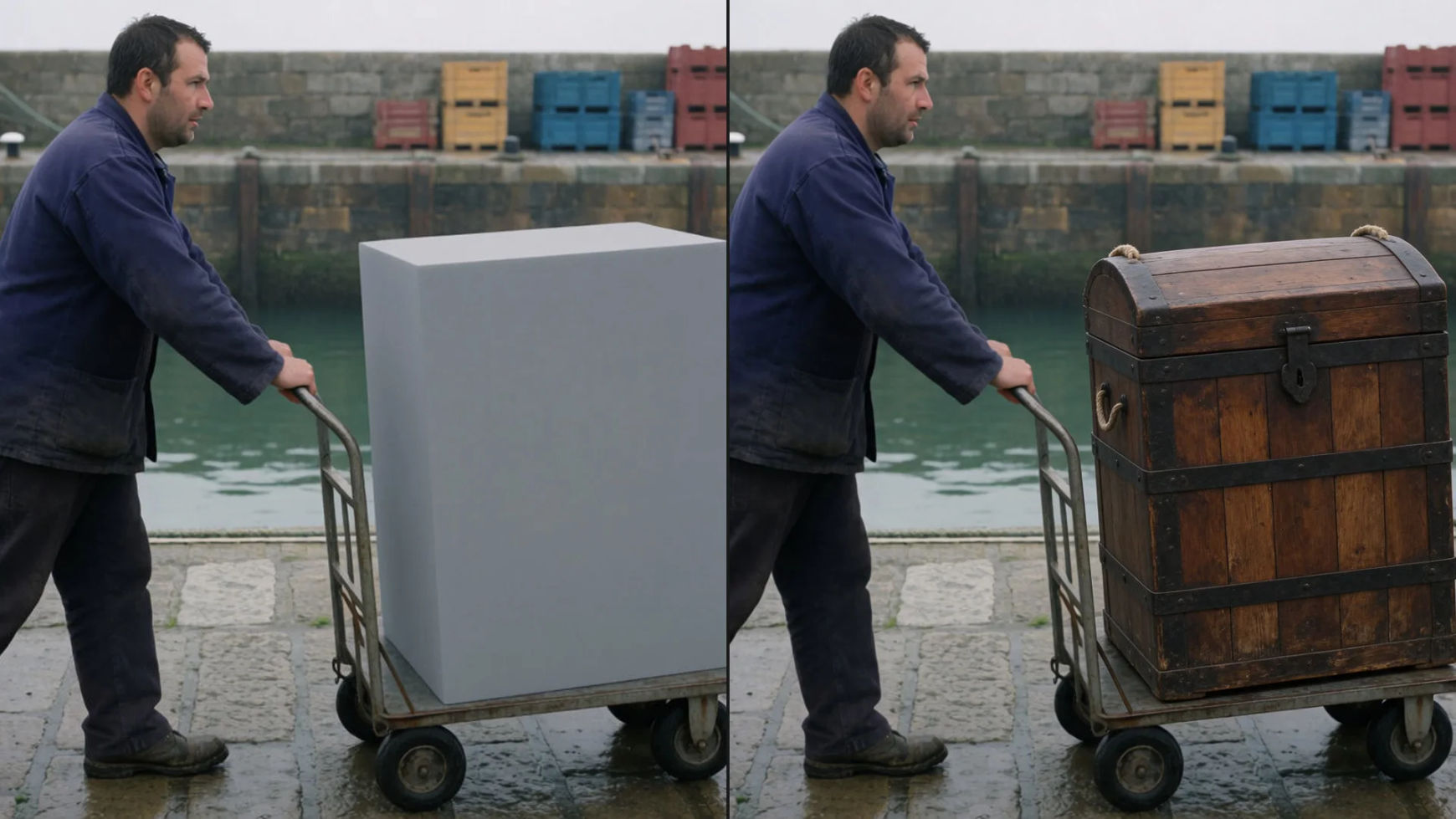
Two takes shot with a grey stand-in, and the same takes after the swap. The length, the cuts and the motion come from the original.
Stand-in
Finished object
A dock worker wheels a grey box along the quay on a hand trolley. After the edit it is a rope-bound wooden sea chest. The push along the quay and the tracking camera are the ones that were filmed.
Tips and common mistakes
- Match the size on set. A stand-in close to the real size of the object keeps hands, shadows and eyelines believable after the swap.
- Name it the way the camera sees it. "The grey box on the trolley" is clearer than "the prop". Then say what must stay: "keep everything else as shot".
- One shot per job. Cut the scene into shots, edit the ones with the stand-in, and put them back in order in Compose.
- Light for the finished object. Relight on Morphic is an image tool, so do not plan to fix the light of the plate afterwards. If the object should glow, put a practical light where it will be.
- Review every run. The edit redraws the shot, and some runs miss. Check contact points and anything that crosses in front of the object before the shot goes in the cut.
- Know where it stops. In a hand-built composite the stand-in is tracked, painted out and replaced with an object that is modelled, lit and rendered to match, shot by shot. An instruction edit gives you a first version on your own plate from one sentence and one image. For a hero shot that needs control down to the pixel, use that version as previz or as the brief for your compositor.
Other ways to replace a stand-in
- A stand-in person. To replace a person, use Morphic Recast, as in how to replace a person in a video and how to recast a film scene.
- The background, with the object left alone. See how to change the background of a video or the AI green screen tool.
- Take the stand-in out. If nothing should replace it, remove the object from the video.
- Isolate it. For a mask that follows the stand-in through the clip, ready for a grade or a layer in Compose, use AI rotoscoping.
- Other effects. The AI VFX generator covers the wider toolset, the effect library has prompts to copy, and the glossary explains visual effects (VFX).
الأسئلة الشائعة
Shoot the take with the stand-in, then give Morphic the clip and a reference image of the finished object and name the swap in a sentence. Morphic edits the clip by instruction and keeps its length, its cuts and its motion. Review the result against the plate, then cut it in Compose.
Filming with a plain grey stand-in in the place of an object that will be added later. The stand-in gives the actors something to hold and an eyeline, and gives the camera something to frame. In post the stand-in is replaced with the finished object.
Yes. The edit runs on a clip you upload, with reference images showing what the new object should look like. It is on paid plans, one short shot per job. Use footage you have the rights to, with the consent of the people in it.
The edit keeps the length, the cuts and the motion of the clip you upload. It still redraws the shot, so compare the result with the plate and rerun it if the object slips or a detail around it changes.
Yes, in Compose, the timeline editor inside Morphic. Replace the plate with the finished shot, cut, grade, add sound and export. On paid plans Compose can also export the timeline as a project for the desktop editing apps most post teams already use.
Yes, inside your workspace. Teammates pin comments to an exact frame on the Compose timeline and can draw on the frame, and several people can edit the same timeline live. Live collaboration is on the Pro plan and above.