Coast path at walking pace
A wide tracking shot travelling with a walker along a grassy coast path, the sea running flat and open behind them.
Editar prompt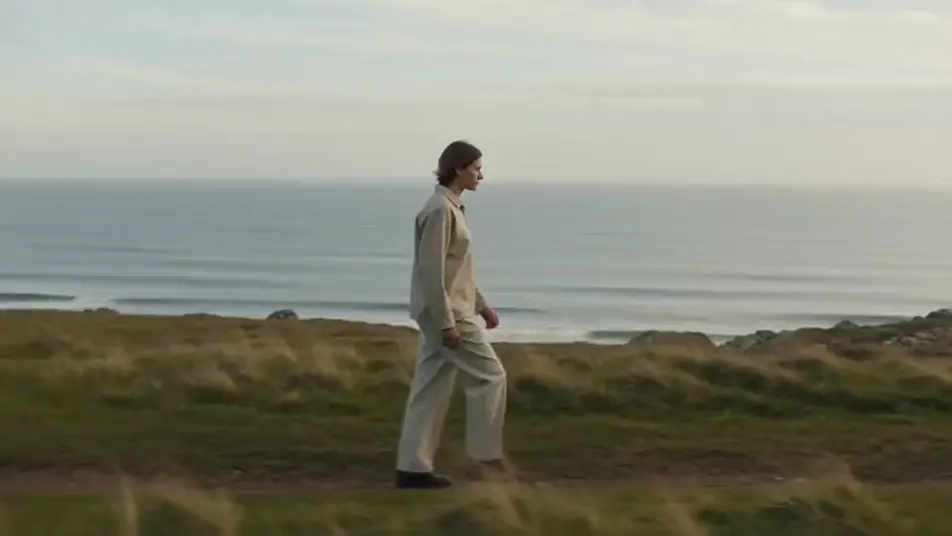
Generate walking stock footage in Morphic's AI video generator: boots working a gravel trail, or a figure walking away down a tree-lined lane. Cut the selects on Compose.
A wide tracking shot travelling with a walker along a grassy coast path, the sea running flat and open behind them.
Editar promptA long lens locked off on a straight empty road as a figure walks toward camera out of the heat shimmer, slowly resolving into focus.
Editar prompt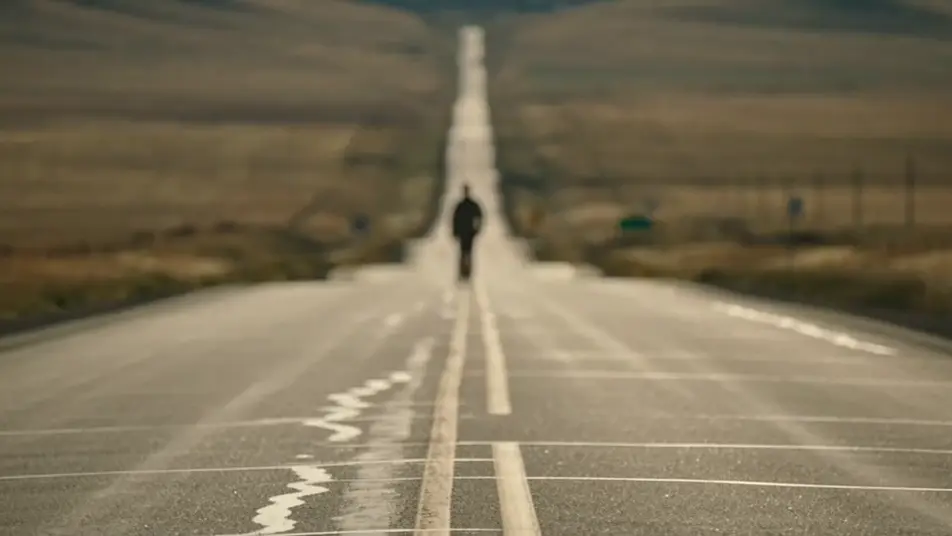
A high frame on a bright pavement holding a walker and their long shadow, the camera craning down and tracking as the shadow keeps pace.
Editar prompt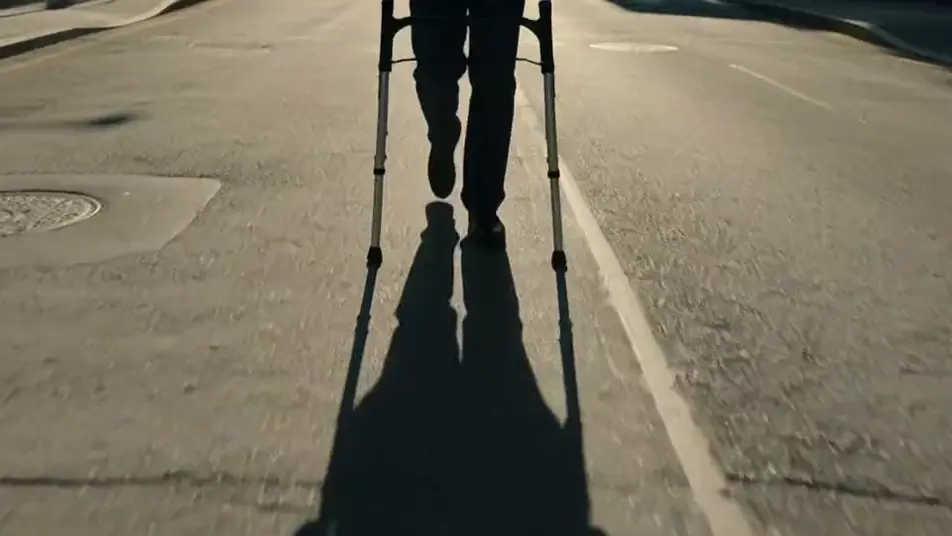
A group of walkers strung out along a ridge line under a big sky, the camera following from behind and letting them pull ahead.
Editar prompt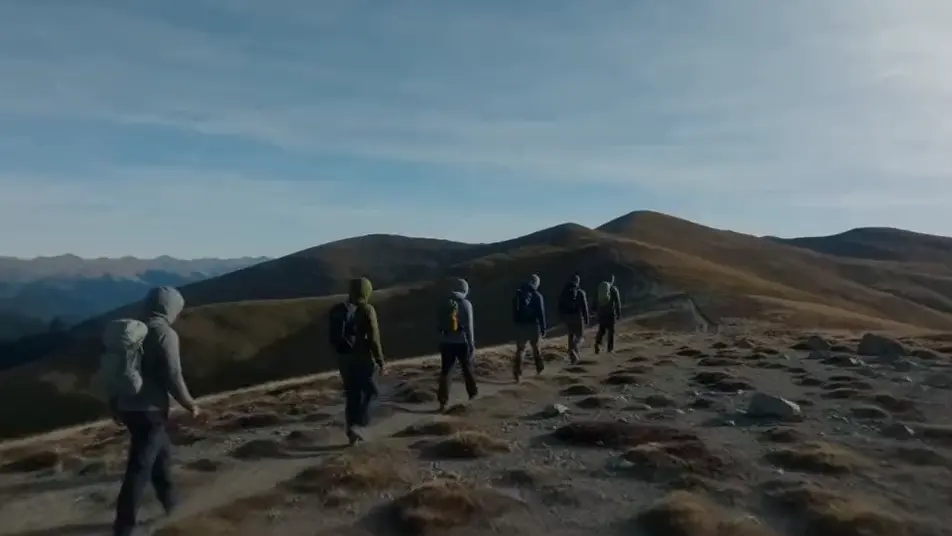
Escreva a cena de walking stock footage que você quer, em poucas palavras.
A Morphic gera um clipe cinematográfico e pronto para uso no seu Canvas em segundos.
Ajuste o prompt, gere novas variações e depois baixe ou compartilhe a cena.

Dramatize any text conversation into a cinematic multi-shot video.
Cinematic time-freeze short film for any scene

Generate a professional film title card from scratch, with optional cinematic animation.
Photo of any real-estate becomes a cinematic renovation timelapse video with construction SFX and music.
One image to a 9-scene cinematic video.
Drop in a photo of yourself. Get a 12-second cinematic movie with animation and a matched soundtrack.
AI woman walking stock video
Browse woman walking stock video and generate your own shots at the length, ratio and look the cut needs. Morphic makes video, image, voice and sound.
AI running stock video
Browse running stock video and generate your own shots at the exact length, ratio and look the cut needs. Morphic makes video, image, voice and sound.
AI people stock footage
Browse people stock footage and generate your own shots at the exact length, ratio and look the cut needs. Morphic makes video, image, voice and sound.
AI road stock footage
Browse road stock footage and generate your own shots at the exact length, ratio and look the cut needs. Morphic makes video, image, voice and sound.
Comece grátis hoje mesmo, com a opção de fazer upgrade ou cancelar quando quiser.
Basic
2400 mensal créditos
1 apenas usuário
Todos os modelos
Workflows
Standard
3625 mensal créditos
1 apenas usuário
Todos os modelos
Workflows
Pro
6350 compartilhado mensal créditos
1 usuário
Todos os modelos
Workflows
Max
24650 compartilhado mensal créditos
1 usuário
Todos os modelos
Workflows
Enterprise
Para limites maiores
Personalizado
termos de preços e cobrança

Free
Para experimentar
$0
grátis para sempre