Qu'est-ce qu'un clip fan-cam de diffusion sportive ?
Un clip fan-cam de diffusion sportive est une courte vidéo générée par IA qui place une personne au sein d'une diffusion sportive en direct : foule de stade, éclairage de diffusion, badge « LIVE » et nombre de spectateurs, cadré comme si un véritable cadreur l'avait surprise dans les tribunes. La même énergie qu'un moment sur écran géant ou qu'une fan cam K-pop, mais construit à partir d'une seule photo fixe.
Photo d'entrée et résultat fan-cam par IA

Résultat : la même personne placée dans une tribune de Formule 1 avec un badge LIVE, un nombre de spectateurs et un cadrage de caméra de diffusion
Le visage et la tenue restent les mêmes. Le monde autour change pour devenir une diffusion en direct.
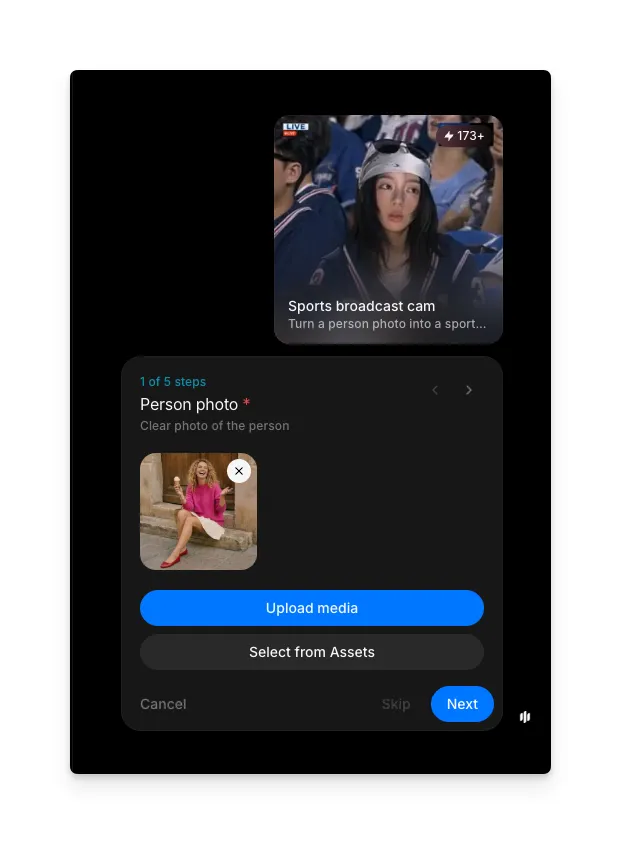
Téléchargez une photo de portrait nette
Ouvrez le workflow « Sports broadcast cam ». La première étape demande la personne qui apparaîtra dans le clip fan-cam. Téléchargez une photo depuis votre appareil ou choisissez-en une parmi vos ressources Morphic.
Utilisez une photo de face avec le visage clairement visible et un bon éclairage. L'IA utilise le visage comme point d'ancrage pour tout le clip, donc un portrait net donne un résultat plus net.
Choisissez le sport et la région de diffusion
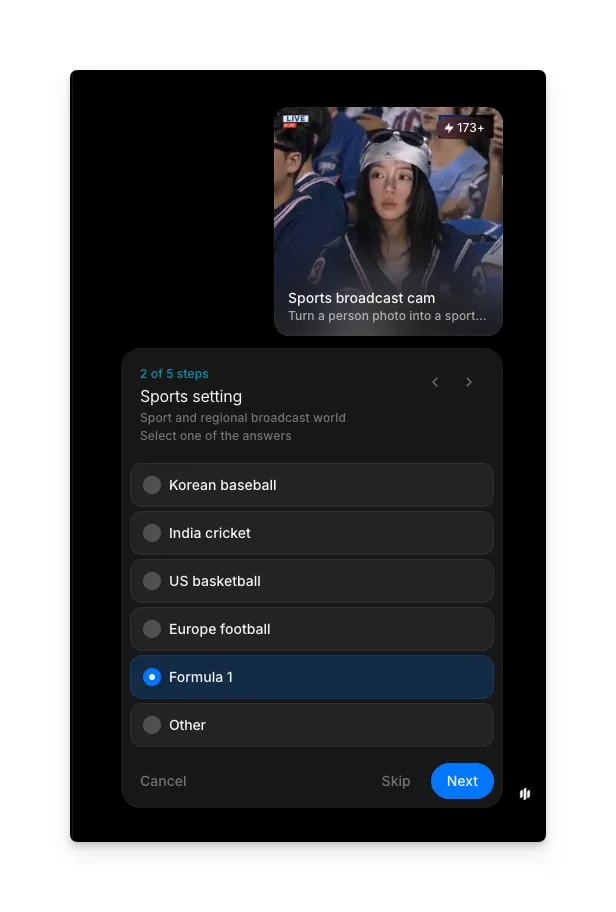
Choisissez dans quel univers de diffusion sportive le clip doit se situer. Cette étape est facultative ; ignorez-la et l'IA choisira un sport adapté à la photo.
Cinq préréglages couvrent les diffusions les plus regardées : baseball coréen (KBO), cricket indien (look IPL), basketball américain (salle NBA), football européen (stade UEFA) et Formule 1 (tribune). Choisissez « Other » pour saisir votre propre sport, ligue ou style de diffusion. Votre choix définit la foule, le stade, l'éclairage et les graphiques à l'écran.
| Réglage sportif | Ce que vous obtenez | Idéal pour |
|---|---|---|
| Baseball coréen | Stade KBO, couleurs vives de la foule, ambiance de diffusion en plein jour | Fan cams de baseball et clips de supporters KBO |
| Cricket indien | Stade façon IPL, projecteurs, drapeaux, incrustation de diffusion | Fan cams de cricket et clips de jour de match IPL |
| Basketball américain | Salle NBA, foule en bord de terrain, angle de diffusion depuis la ligne de touche | Fan cams de basketball et clips de salle en jour de match |
| Football européen | Stade façon UEFA, foule qui chante, couleurs du club | Fan cams de supporters de football et clips de jour de derby |
| Formule 1 | Tribune de F1, éclairage de jour de course, ambiance de circuit | Fan cams de F1 et clips de week-end de course |
| Other | Décrivez n'importe quel sport, ligue ou style de diffusion | Sports de niche ou looks de ligue spécifiques |
Ajoutez un indice d'équipe ou de ligue
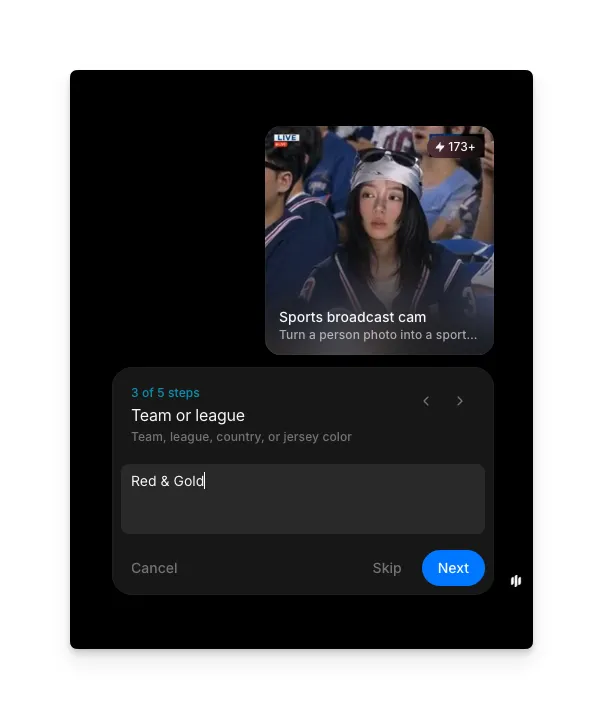
Saisissez un court détail pour orienter le look de l'équipe : un nom de club, un pays, une ligue ou une couleur de maillot. Cette étape est facultative, laissez-la donc vide pour laisser l'IA choisir.
Deux ou trois mots suffisent. « Rouge et or », « Ferrari » ou « Brésil » fonctionnent tous. L'IA utilise l'indice pour colorer la foule, les maillots et les graphiques de diffusion sans verrouiller le clip sur un logo réel.
Définissez la durée du clip
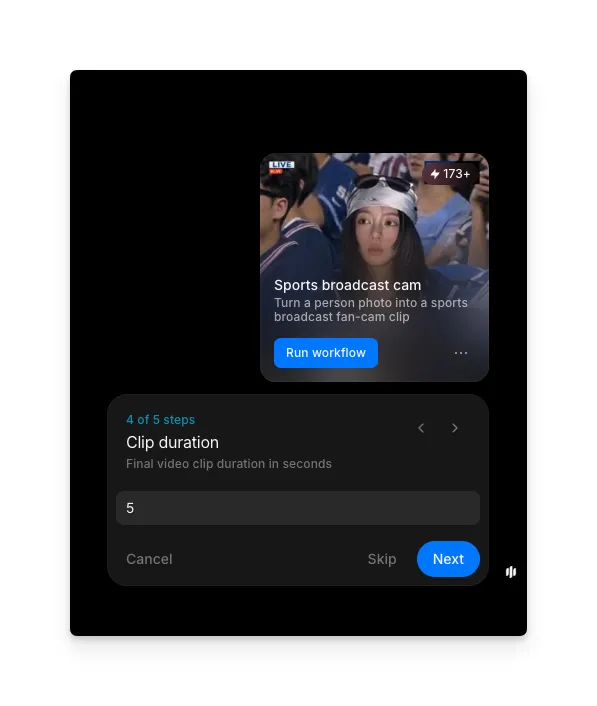
Indiquez combien de secondes le clip fan-cam doit durer. Cette étape est facultative ; ignorez-la pour utiliser la durée par défaut.
Les clips courts d'environ 5 secondes fonctionnent bien pour les Reels, les Shorts et TikTok, et se lisent comme un rapide moment « repéré à la télé ». Les clips plus longs donnent à la caméra de diffusion plus de temps pour balayer le visage et la foule, ce qui convient aux montages de temps forts.
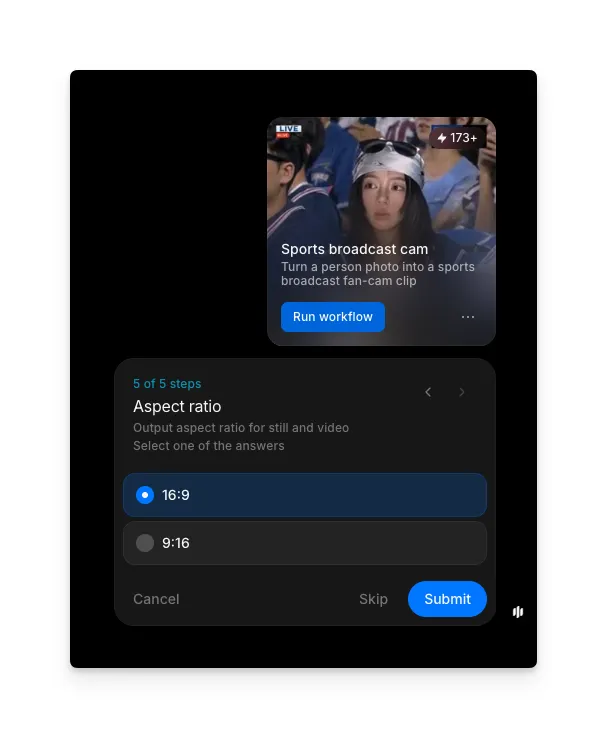
Choisissez le format d'image
Choisissez comment le clip fan-cam doit être cadré. Cette étape est facultative également, ignorez-la donc pour utiliser le réglage par défaut.
Choisissez 16:9 pour une ambiance de diffusion télé et les lecteurs en paysage comme YouTube. Choisissez 9:16 pour les Reels, les Shorts, TikTok et les Stories afin que le visage ne soit pas recadré sur un téléphone. Pour publier sur les deux, lancez le workflow deux fois, une fois par format.
Questions fréquentes
Un portrait de face, net et bien éclairé donne le meilleur résultat fan-cam. Les selfies au téléphone, les photos posées et les recadrages de photos plus grandes fonctionnent tous. Évitez les images très sombres, les filtres lourds ou les photos où le visage est caché, car l'IA utilise le visage comme point d'ancrage pour tout le clip.
Oui. Choisissez « Other » dans l'étape de réglage sportif et saisissez le sport, la ligue et le style de diffusion souhaités. L'IA suit la description pour définir la foule, le stade et l'incrustation.
Un court indice suffit. Les couleurs de maillot, un pays, un nom de ligue ou un nom de club fonctionnent tous. L'indice oriente les couleurs de la foule et les graphiques de diffusion sans verrouiller le clip sur un logo réel.
Environ 5 secondes est la durée idéale pour les publications sociales et se lit comme un rapide plan télé. Choisissez une durée plus longue si vous voulez un mouvement de caméra plus cinématographique sur le visage et la foule.
Oui. Lancez le workflow une fois pour chaque format d'image. Le 16:9 convient aux flux de diffusion et aux lecteurs en paysage ; le 9:16 convient aux Reels, aux Shorts, à TikTok et aux Stories sans recadrer le visage.