How to prompt ChatGPT Images 2.0
The way you write your prompt directly shapes the output. GPT Image 2 processes language sequentially, so the words at the beginning of your prompt carry the most visual weight. Here is a prompting framework for getting the best results.
1. Lead with the visual style
The first words set the aesthetic direction for the entire image. Name a specific style before describing anything else. Burying the style at the end reduces its influence on the output.
| Without guideline | With guideline |
|---|---|
| An old man selling fruit at a market, make it look cinematic and moody | A matte painting style wide shot of an elderly vendor arranging pomegranates at an open-air market stall, overcast sky, diffused grey light, puddles reflecting the awning above, muted earth tones with pops of deep red |
The first prompt buries the style in a vague afterthought ("make it look cinematic and moody"). The second prompt opens with "matte painting style wide shot," which locks the entire aesthetic before anything else is described.
Try the improved version:
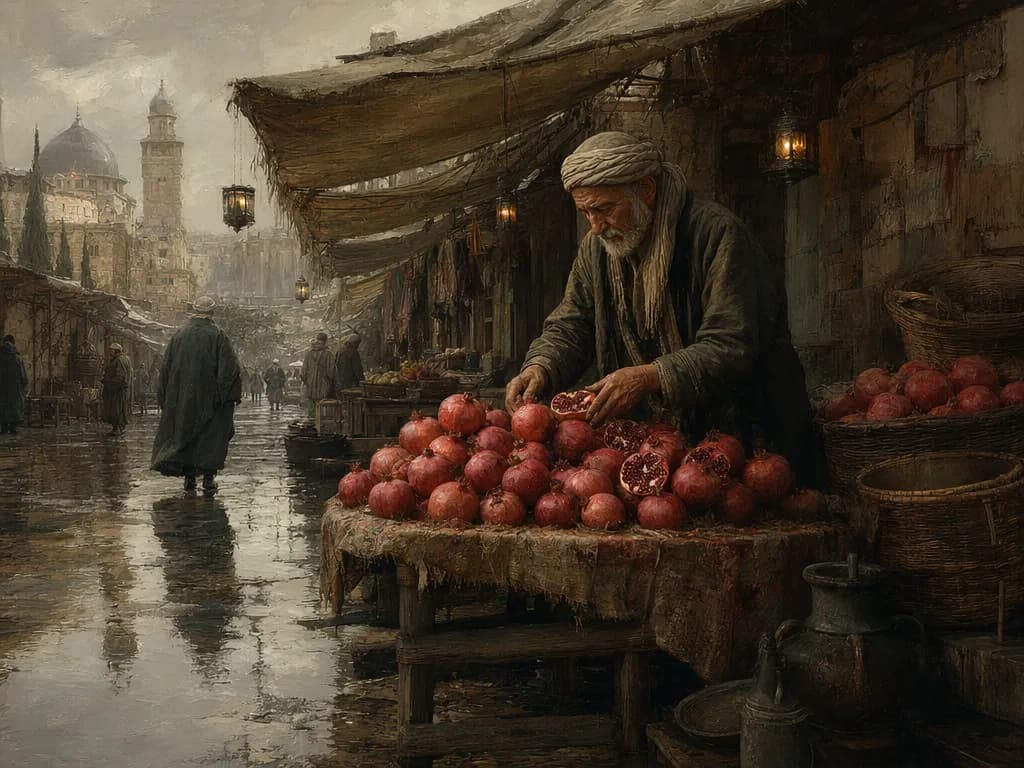
A matte painting style wide shot of an elderly vendor arranging pomegranates at an open-air market stall, overcast sky, diffused grey light, puddles reflecting the awning above, muted earth tones with pops of deep red
2. Follow a consistent prompt order
Write prompts in a consistent structure: background or scene first, then the subject, then key details, then constraints. For complex requests, use short labeled segments rather than one long paragraph.
| Prompt element | What to include | Example |
|---|---|---|
| Scene / background | Setting, environment, surfaces | A marble bathroom countertop next to a window with frosted glass |
| Subject | The main object or person | A skincare bottle labeled 'Dew Drop Serum' with a minimalist leaf logo |
| Details | Position, colors, materials, text | Placed slightly off-center, frosted glass bottle, pale green liquid visible inside |
| Constraints | Lighting, depth of field, what to avoid | Soft diffused morning light through the frosted window, shallow depth of field, no other products on the counter |
| Without guideline | With guideline |
|---|---|
| A skincare bottle on a bathroom counter, the label says Dew Drop Serum with a leaf on it, nice lighting, clean look | Scene: A marble bathroom countertop next to a window with frosted glass. Subject: A skincare bottle labeled 'Dew Drop Serum' with a minimalist leaf logo, placed slightly off-center. Details: Frosted glass bottle, pale green liquid visible inside, water droplets on the marble surface. Constraints: Soft diffused morning light through the frosted window, shallow depth of field, no other products on the counter. |
The first prompt jumps between details randomly. The second uses labeled segments so the model processes each element in order.
Try the improved version:
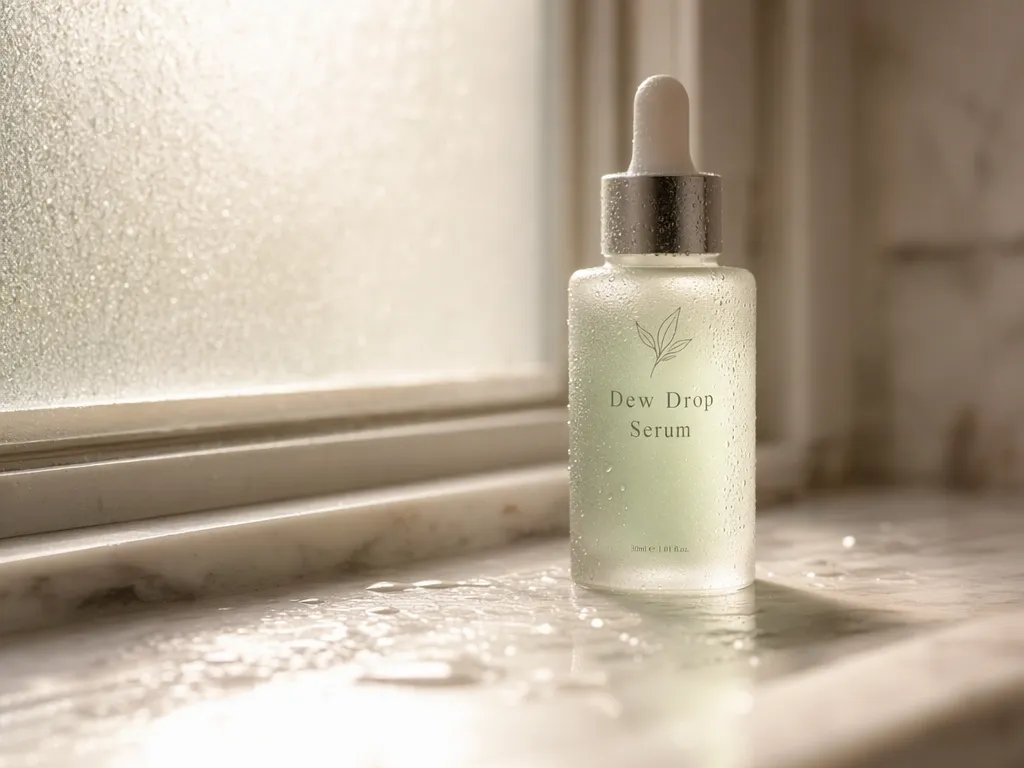
Scene: A marble bathroom countertop next to a window with frosted glass. Subject: A skincare bottle labeled 'Dew Drop Serum' with a minimalist leaf logo, placed slightly off-center. Details: Frosted glass bottle, pale green liquid visible inside, water droplets on the marble surface. Constraints: Soft diffused morning light through the frosted window, shallow depth of field, no other products on the counter.
3. Put exact text in quotation marks
When you want text rendered inside the image, enclose it in double quotes within the prompt. This signals the model to render the exact characters you specified. Always pair quoted text with a strict spatial direction to improve placement accuracy.
| Without guideline | With guideline |
|---|---|
| A neon sign that says open late above a window, glowing red | A glowing red neon sign reading "OPEN LATE" centered at the top of the window, cursive lettering, warm red glow reflecting on the glass below |
The first prompt leaves the text unquoted, which means the model may render "Open Late," "OPEN late," or something else entirely. The second prompt quotes the exact text and specifies where it should appear.
Try the improved version:
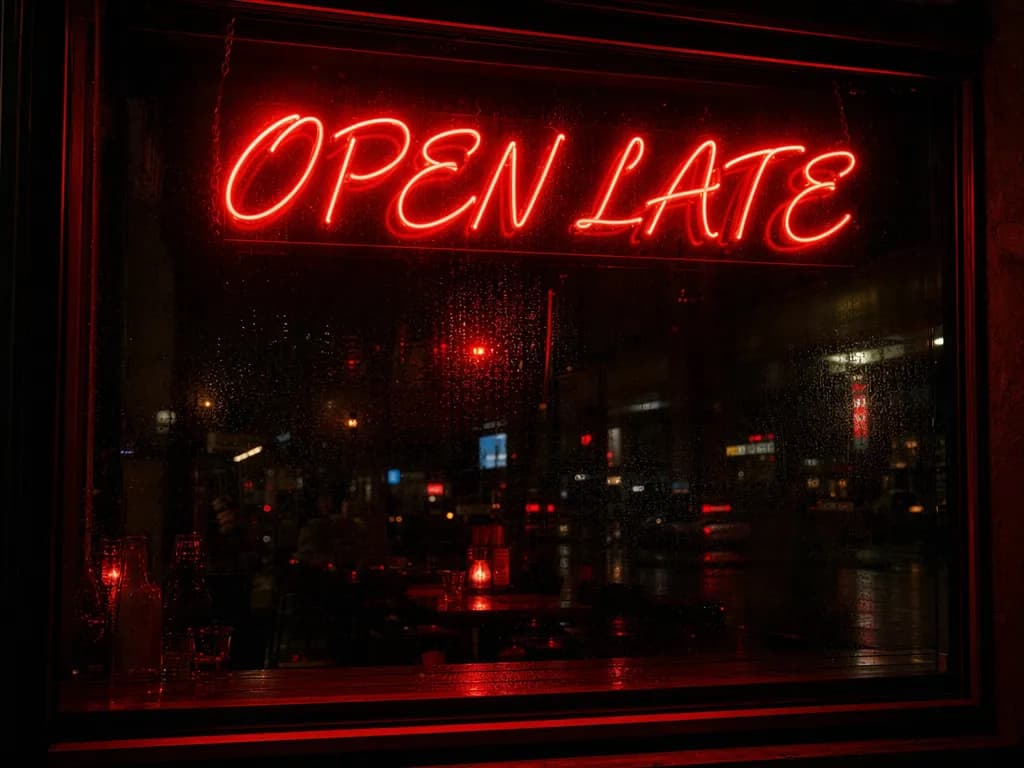
A glowing red neon sign reading "OPEN LATE" centered at the top of the window, cursive lettering, warm red glow reflecting on the glass below
4. Specify lighting explicitly
Name both the light type and its direction rather than using vague terms like "good lighting." Specific lighting setups give GPT Image 2 a physics-based reference to follow.
| Without guideline | With guideline |
|---|---|
| A portrait of a woman in a cafe, good lighting, warm mood | A portrait of a woman sitting by a cafe window, soft natural daylight from the left, warm tungsten fill from overhead pendant lights, gentle shadows on the right side of her face |
The first prompt gives the model no lighting information to work with. The second names two light sources, their directions, and the resulting shadow behavior.
Try the improved version:
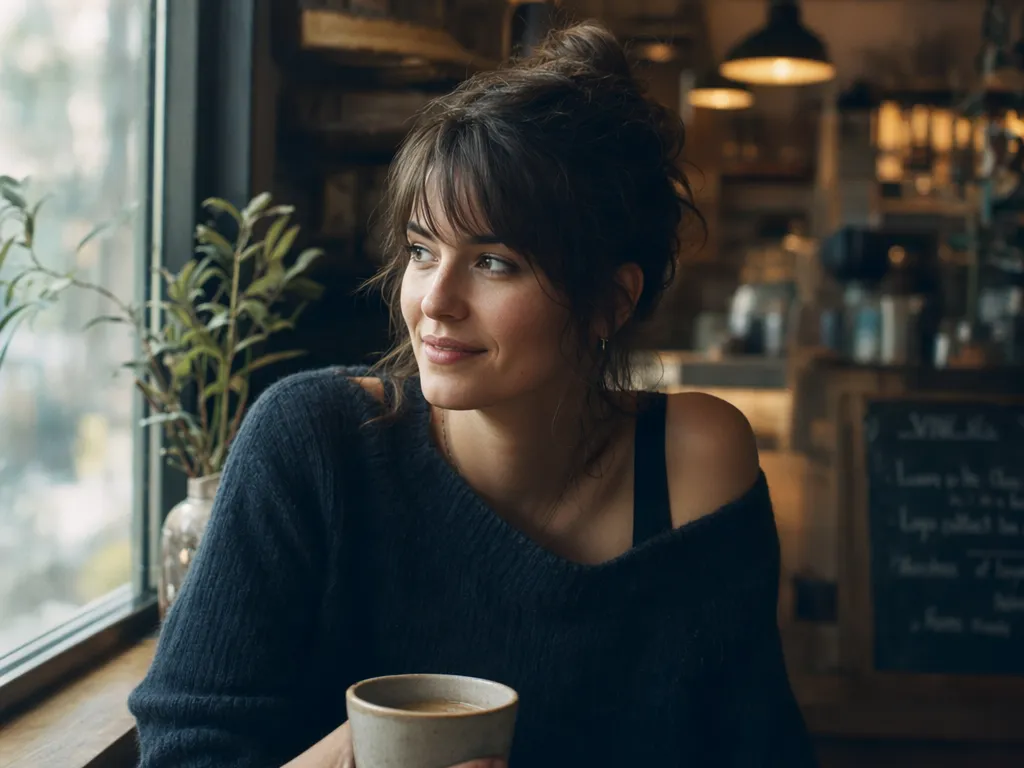
A portrait of a woman sitting by a cafe window, soft natural daylight from the left, warm tungsten fill from overhead pendant lights, gentle shadows on the right side of her face
5. Describe the photograph, not the fantasy
For photorealistic output, describe lens, framing, time of day, light source, texture, surface wear, and ordinary background detail. One clean generation pass can produce believable realism when the prompt locks the camera behavior and environment.
| Without guideline | With guideline |
|---|---|
| A chef cooking in a restaurant kitchen, realistic, professional atmosphere | A photorealistic candid shot of a female chef in a stained white coat plating a dish at a steel pass, steam rising from a pot behind her, harsh overhead fluorescent mixed with warm heat lamp glow from the pass, shallow depth of field, scuffed floor tiles and a crumpled ticket strip pinned to the rail in the background |
The first prompt describes a mood ("professional atmosphere"). The second describes what a camera would actually see: specific clothing wear, surface imperfections, multiple light sources, and background clutter that make a photo feel real.
Try the improved version:
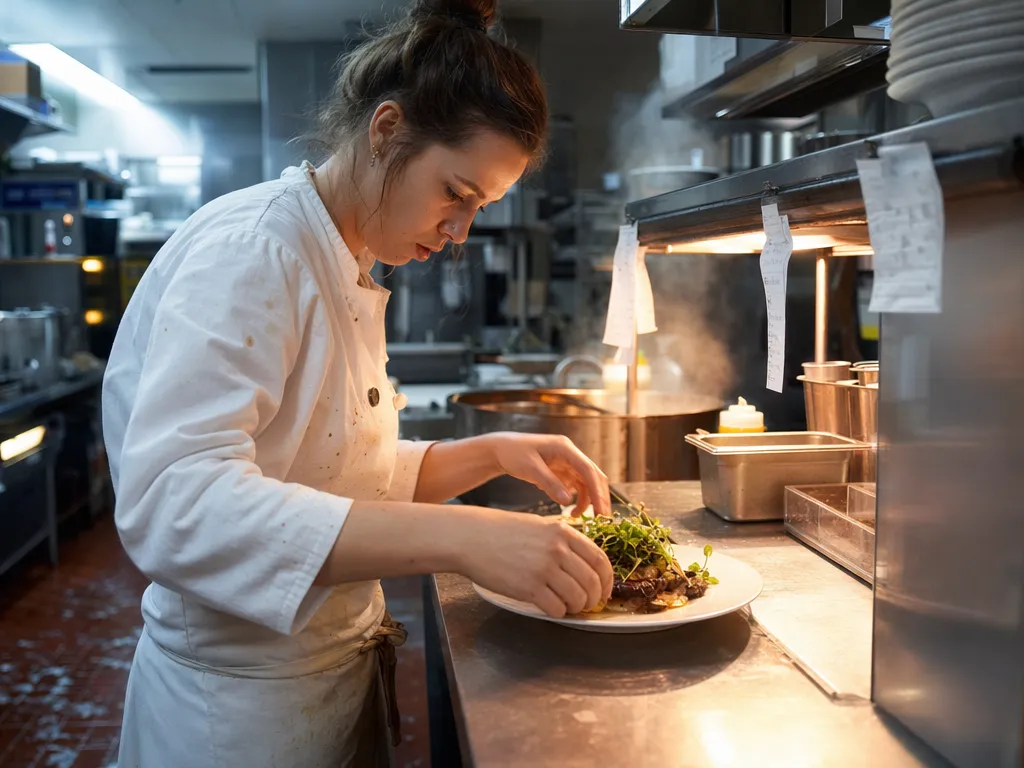
A photorealistic candid shot of a female chef in a stained white coat plating a dish at a steel pass, steam rising from a pot behind her, harsh overhead fluorescent mixed with warm heat lamp glow from the pass, shallow depth of field, scuffed floor tiles and a crumpled ticket strip pinned to the rail in the background
6. Use two-column logic for edits
When editing an existing image, structure your prompt with clear separation between what should change and what should stay locked. Use this table as a framework:
| Element | Instructions | Example |
|---|---|---|
| Change | Describe exactly what should be different | Swap the background to a tropical beach at sunset |
| Preserve | List what must remain untouched | Keep the person's face, identity, pose, outfit, and lighting on the subject identical |
| Constraints | Specify what to avoid | No extra objects, no changes to the product label, no logo drift |
| Without guideline | With guideline |
|---|---|
| Change the background to a beach | Change: Replace the studio background with a tropical beach at sunset, golden hour light on the horizon. Preserve: Keep the person's face, expression, pose, outfit, and body proportions exactly as they are. Keep the lighting on the subject consistent. Constraints: No additional people or objects in the scene, no changes to skin tone or hair color. |
The first prompt gives the model freedom to reinterpret everything. The second locks down what stays the same, so only the background changes.
ChatGPT Images 2.0 do's and don'ts
| Do | Don't |
|---|---|
| Put exact text in quotation marks in your prompt | Leave text unquoted and expect the model to guess spelling |
| Name a specific lighting type and direction ("natural fluorescent lighting," "soft window light from the left") | Use "good lighting" or skip lighting entirely |
| Describe lens, framing, time of day, and light source for photorealistic output | Rely on vague style words ("beautiful," "high quality," "professional") |
| Pair quoted text with strict spatial directions ("centered at the top of the window") | Assume the model will place text where you want it |
| Lead your prompt with the visual style before the subject | Bury the style at the end of a long prompt |
| Upload reference images when editing, and label each by role | Describe an existing image from memory instead of uploading it |
| Use two-column logic for edits: specify what changes and what stays locked | Give open-ended edit instructions without preserving constraints |
| Follow a consistent prompt order: scene, subject, details, constraints | Write one long unstructured paragraph for complex requests |
What's new in ChatGPT Images 2.0
GPT Image 2 is not just an incremental update over its predecessor. The biggest architectural change is the integration of reasoning capabilities into the image generation process. When used with thinking or pro modes, the model can break down complex visual requests, consider spatial relationships, and produce more accurate compositions on the first attempt.
The model also incorporates world knowledge up to December 2025, which means it can reference recent brands, products, cultural moments, and design trends without needing you to describe them from scratch. Earlier image models had no awareness of the world outside their training data, which made them unreliable for anything time-sensitive.
Compared to DALL-E 3, which was bolted onto ChatGPT as a separate tool, GPT Image 2 is natively integrated into the GPT-4o architecture. This gives it tighter prompt understanding, better instruction following, and the ability to handle multi-part prompts that would have confused earlier models.
ChatGPT Images 2.0 capabilities
Accurate text rendering across multiple languages
GPT Image 2 renders text with what OpenAI calls "unprecedented accuracy." The model handles small lettering, dense paragraphs, text on curved surfaces, and non-Latin scripts including Chinese, Japanese, Korean, Hindi, and Bengali. Packaging labels, street signs, UI buttons, infographic annotations, and multilingual marketing materials come out legible on the first generation. Earlier models frequently garbled or misspelled text inside images, making manual correction a standard part of the workflow. GPT Image 2 removes that step for the vast majority of use cases.
Image editing from reference uploads
Upload an existing image and describe what you want changed. The model can swap a background, update label text, adjust lighting conditions, or place a product into a different setting while preserving the details you did not mention. You can also upload multiple reference images to guide the output toward a specific look, composition, or character appearance. This makes GPT Image 2 useful not just for generating from scratch but for iterating on existing assets.
Product photography with brand consistency
Generate product shots where the brand name on the label, the ingredient list on the back, and the logo on the cap are all spelled correctly and visually consistent. Run the same prompt with different scenes or angles and the model maintains your color palette and typography across every variation. For e-commerce teams that need a full catalog to look unified without reshooting, this means generating multiple product images from a single prompt session.
UI and app mockup generation
GPT Image 2 can produce images that look like real software interfaces: browser windows, mobile app screens, dashboards, navigation menus, and data visualizations with correct labels. The text rendering accuracy extends to UI elements like buttons, tab labels, and form fields, making the output useful for wireframing concepts, creating documentation screenshots, or visualizing app ideas before writing any code.
Character consistency across multiple shots
Lock a character, product, or brand asset and keep it visually identical across multiple generations. Faces, outfits, proportions, and distinguishing details stay consistent while backgrounds, poses, and scenes change. This is useful for storyboards, campaign variants that need a recurring character, and multi-shot social media content where visual continuity matters.
Multiple output formats and compression control
Output is available in PNG, JPEG, or WebP with adjustable compression from 0 to 100% for JPEG and WebP. This means files come out sized and formatted for your specific use case, whether that is a high-fidelity PNG for print or a compressed WebP for web performance, without running them through another conversion tool.
Photorealistic output at up to 2K resolution
The model produces images with natural lighting, authentic material textures, and realistic skin tones at up to 2K resolution (2560x1440). The warm color cast and smooth, plasticky look common in earlier AI image models is replaced by output that reads closer to studio photography. Aspect ratio support ranges from 3:1 (ultra-wide) to 1:3 (ultra-tall), covering formats from banners and presentation slides to mobile screens and vertical social posts. Higher resolutions are technically possible but OpenAI considers results above 2K experimental.
ChatGPT Images 2.0 technical specifications
| Specification | Details |
|---|---|
| Text rendering | High accuracy across Latin, CJK (Chinese, Japanese, Korean), Hindi, and Bengali scripts |
| Maximum resolution | 2K (2560x1440) reliable, higher resolutions experimental |
| Preset sizes | 1024x1024, 1536x1024, 1024x1536, or custom dimensions (both edges must be multiples of 16) |
| Aspect ratios | 3:1 to 1:3 (ultra-wide to ultra-tall) |
| Output formats | PNG (default), JPEG, WebP |
| Quality levels | Low, medium, high, auto |
| Compression | 0-100% adjustable (JPEG and WebP) |
| Images per request | Up to 10 |
| Input images | Supports reference uploads for editing |
| Model architecture | Natively integrated into GPT-4o with visual reasoning |
ChatGPT Images 2.0 use cases
-
Creators and freelancers: Generate client-ready product mockups, social media graphics, and concept images in seconds. Refine through follow-up prompts or reference image edits instead of multiple revision rounds with a designer.
-
E-commerce and marketing teams: Create product shots with accurate labels, social media graphics with embedded promotional text, and infographics with data annotations. Text rendering and brand consistency across multiple shots reduce the manual post-editing that earlier models required.
-
Designers and product teams: Produce UI mockups, wireframe concepts, and app screen visualizations with realistic content and correct typography. Useful for stakeholder presentations, design reviews, and idea validation before committing to production work.
-
Content teams: Generate blog illustrations, newsletter visuals, multilingual marketing materials, and educational infographics with accurate text and data labels directly, reducing the back-and-forth between content writers and designers.
FAQs
ChatGPT Images 2.0, also referred to as GPT Image 2, is OpenAI's image generation and editing model released in April 2026. It succeeds GPT Image 1.5 and is natively built into the GPT-4o architecture. The model generates images from text prompts, edits existing images, and renders text inside images with high accuracy across Latin, CJK, Hindi, and Bengali scripts.
GPT Image 2 introduces reasoning capabilities into image generation for the first time, allowing it to analyze complex prompts more deeply. It is natively integrated into GPT-4o rather than being a separate tool like DALL-E 3. Text rendering is dramatically improved, image editing from reference uploads is more precise, and the model incorporates world knowledge up to December 2025.
GPT Image 1.5 balanced speed and quality, making it a good fit for fast iteration. GPT Image 2 takes a quality-first approach, prioritizing photorealism, text accuracy, and output fidelity. It also adds reasoning capabilities for the first time, allowing it to break down complex prompts more effectively, and incorporates world knowledge up to December 2025.
Yes. Upload one or more reference images and describe the changes you want. The model can modify backgrounds, text, objects, lighting, and composition while preserving the parts of the image you did not reference in your prompt.
OpenAI highlights strong text rendering in Latin scripts as well as Chinese, Japanese, Korean, Hindi, and Bengali. Text renders correctly on curved surfaces, at small sizes, and inside dense layouts like multilingual marketing materials and product packaging.
GPT Image 2 outputs in PNG (default), JPEG, or WebP with adjustable compression from 0 to 100% for JPEG and WebP. The model supports flexible image sizes with both preset options (1024x1024, 1536x1024, 1024x1536) and custom dimensions up to 2K resolution.
Yes. The model can lock a character, product, or brand asset and keep it visually identical across multiple generations. Faces, outfits, proportions, and details stay consistent while backgrounds and scenes change, which is useful for storyboards, campaigns, and multi-shot content.