What is AI color grading?
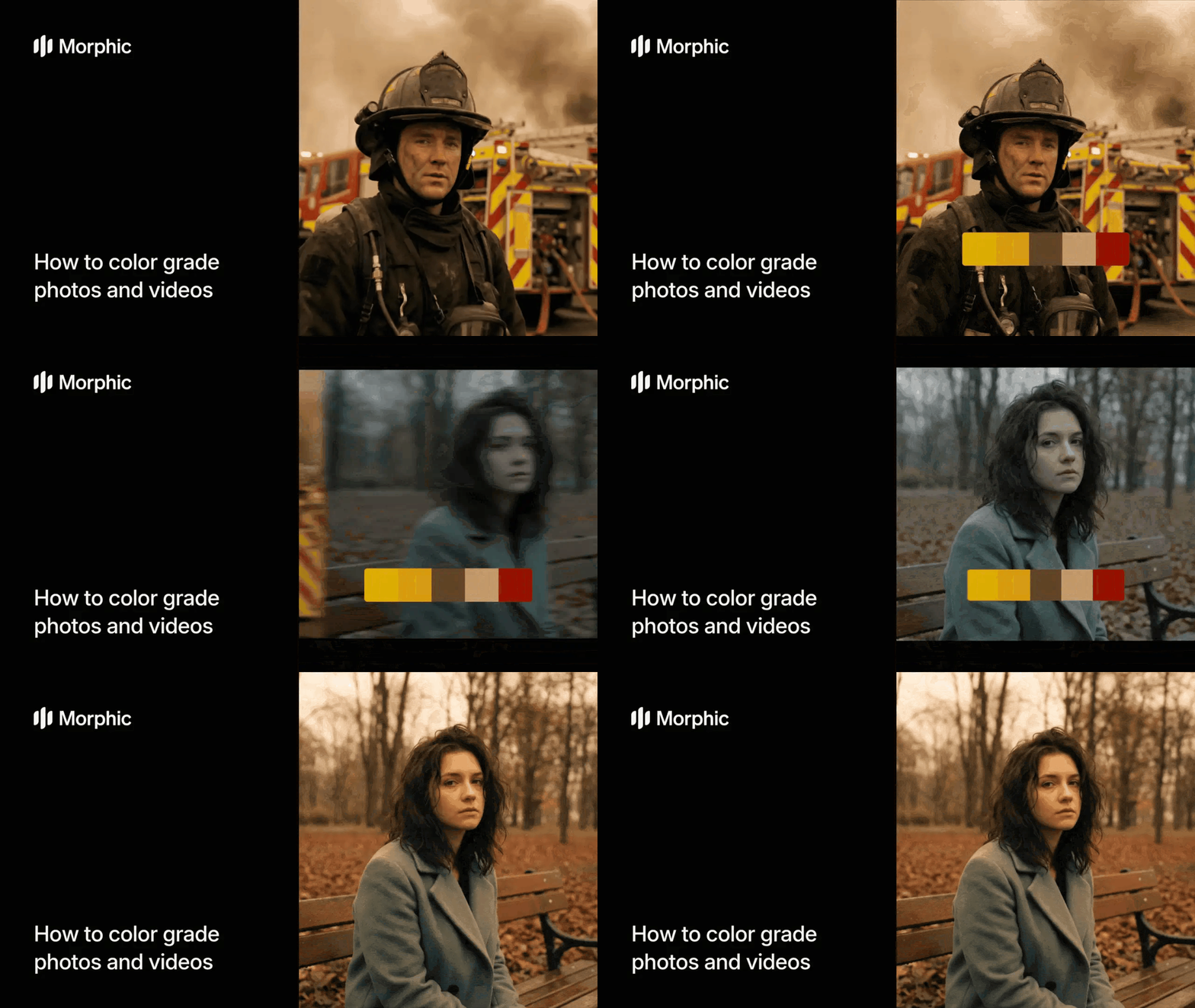
AI color grading analyzes the tonal qualities, color palette, contrast curve, and overall mood of a reference image, then transfers those characteristics to your target footage or photos. Unlike preset filters that apply the same generic adjustment to every image, AI color grading adapts to the source material, maintaining proper exposure and skin tones while shifting the overall look to match your reference.
Morphic's template accepts any reference image, whether a film still, a photograph you admire, a mood board, or a color science reference, and applies its look faithfully to your content.
Choose your color reference
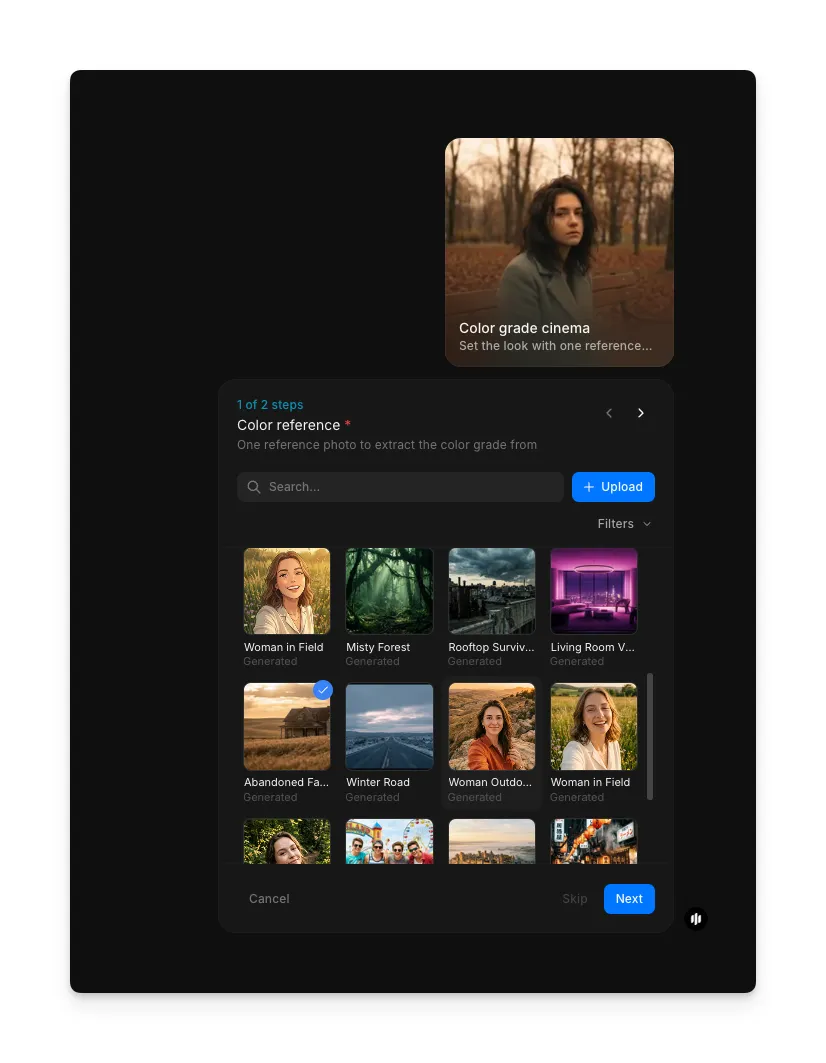
Open the "Color grade cinema" workflow. In the "Color reference" step, browse or search the gallery of reference images to find a look that matches the mood you want. You can also upload your own reference image using the Upload button. The reference you select defines the color grade that will be applied to your footage.
| Reference type | What it is | Best for |
|---|---|---|
| Film still | A frame from a movie or series with a look you like | Achieving a cinematic feel that matches a specific director or cinematographer |
| Photograph | An existing photo with the mood and tones you want | Matching a consistent editorial or brand aesthetic |
| Custom mood board | A composite image showing your desired color palette | Defining a unique look that does not reference a single source |
| Color science reference | A technical reference card or color chart | Precise color matching for product photography or scientific imaging |
Add your frames to grade
In the "Frames to grade" step, browse the gallery or upload the photos you want graded. Select the images you want to apply the color grade to, then click "Run workflow." Morphic applies the color grade from your reference to each selected frame, adapting to each image's exposure and content while maintaining the overall look.

What makes great color grading
| Quality | What it means | Why it matters |
|---|---|---|
| Mood consistency | Every image evokes the same emotional tone | Inconsistent mood across a gallery or film breaks the viewer's immersion |
| Proper exposure | Highlights and shadows are preserved, not crushed | Over-grading that loses detail looks amateur and damages the image |
| Color harmony | Complementary tones work together naturally | Clashing colors or unnatural skin tones distract from the content |
| Batch consistency | The grade looks identical across all files in a set | Visible variation between frames or photos ruins a professional sequence |
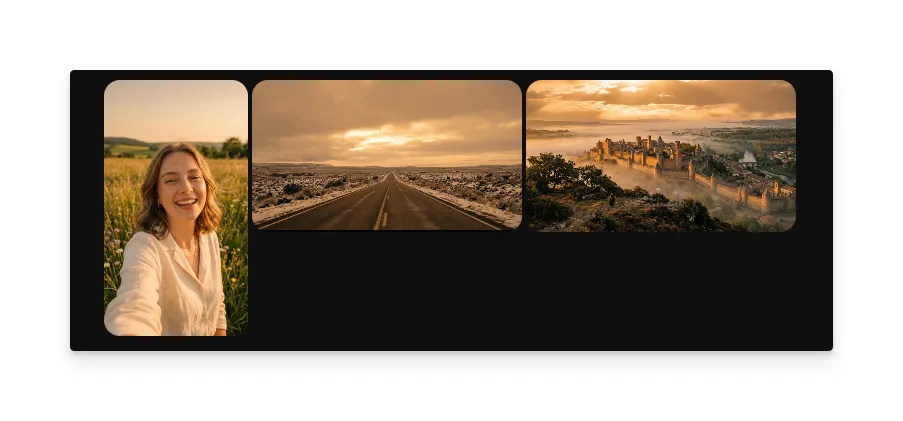
The workflow handles exposure compensation, skin tone protection, and cross-file consistency automatically, so your grade looks intentional and polished across every image.
Morphic vs manual color grading
| Morphic color grade | Manual color grading | |
|---|---|---|
| Time per batch | Minutes vs days | Hours to days depending on volume |
| Cost | Available on Morphic | Professional rates for a colorist |
| Skill required | Upload a reference image | Advanced knowledge of color science and grading software |
| Consistency | Identical grade across all files automatically | Manual matching between files introduces variation |
| Iteration | Change reference and regenerate instantly | Re-grade entire project from scratch |
| Software | None required | DaVinci Resolve, Lightroom, or similar tools |
FAQs
Yes. The workflow accepts images from any camera, including smartphones. Phone photos often have different color profiles than dedicated cameras, and Morphic accounts for this when applying the grade. The results are consistent regardless of the source device.
Run the workflow separately for each scene or group of images, using a different reference image each time. This lets you create distinct looks for different chapters, locations, or moods within the same project while keeping each group internally consistent.
No. Color grading only adjusts tonal values, color balance, contrast, and saturation. It does not alter the composition, subject matter, or structure of your images. Your original content remains exactly as shot, just with a different color treatment applied.
Yes. You can select multiple images in the "Frames to grade" step and the workflow applies your chosen color reference to all of them in a single run.
The color grade workflow is available on Morphic. You can run the workflow multiple times as needed.