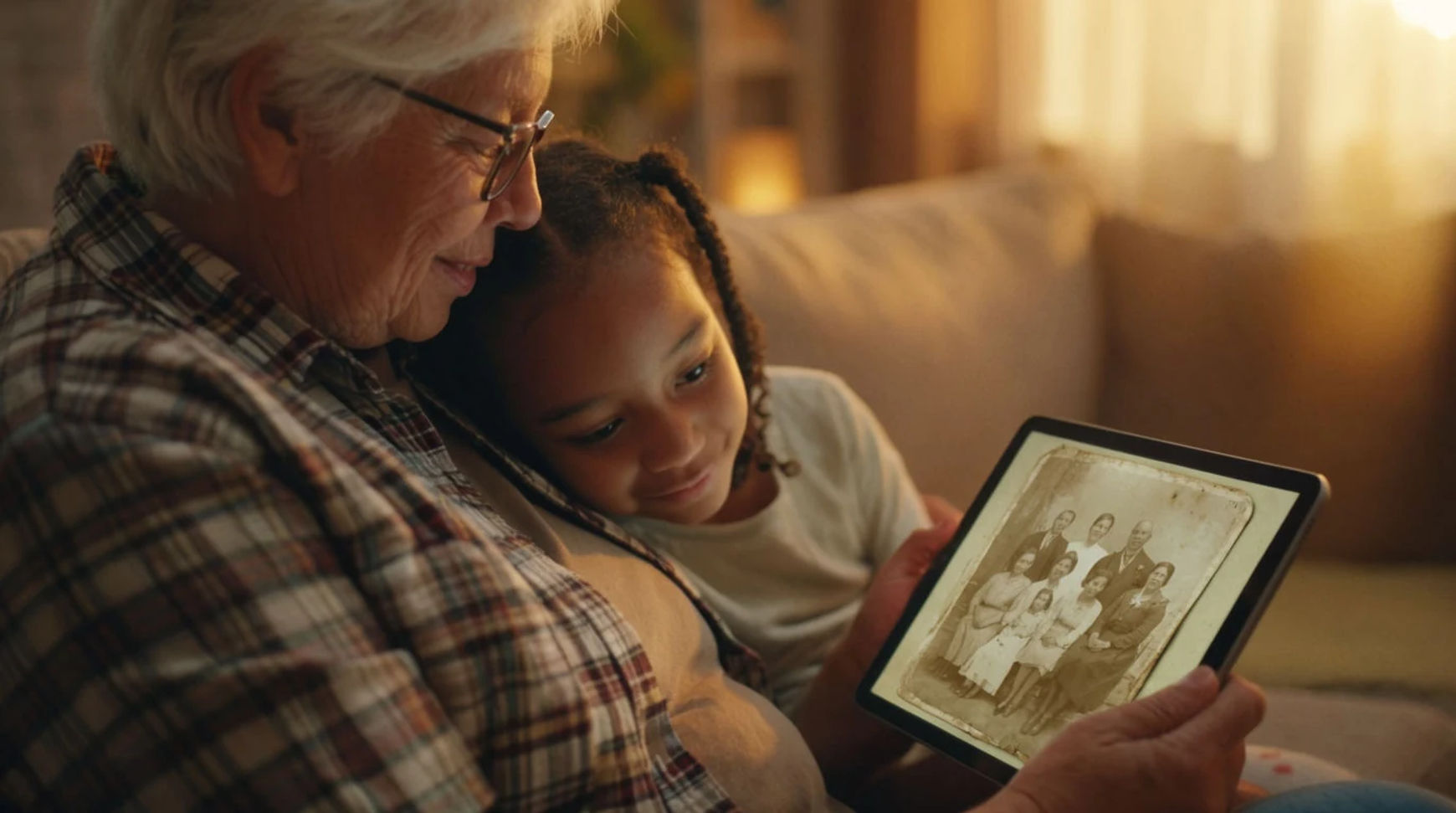
To turn an old family photo into a video memory, upload the photo to Morphic, describe the motion you want in plain language, and generate. The model brings the still to life with a few seconds of subtle movement. Keep the motion gentle to protect the likeness, then add a music bed on the Compose timeline and export. It works from the photo you already have, and the whole craft is restraint.
Steps at a glance
- Scan or upload your old photo
- Restore it first if it is damaged
- Ask for gentle, subtle motion
- Add a music bed on Compose
- Export and share the memory
Bring an old photo to life, step by step
Start with the best scan you have
Use a clear scan or photo of the print, since sharp focus on the face matters far more than raw resolution. If the picture is scratched, faded, or torn, restore and enhance it first (a paid feature) so the animation works from a clean frame rather than amplifying the damage in every one. A good starting image is the single biggest factor in a believable result, so it is worth spending a moment to get the best version of the photo you have before anything moves.
Ask for gentle motion
Upload the photo and describe the movement in plain words, keeping it subtle, like "gentle life in the eyes, a soft breath, a slow push toward the faces." Name the motion and its pace rather than asking for a lot of it. Subtle movement is what protects the likeness; the more dramatic the motion you request, the more a familiar face begins to drift and the less it feels like the person you remember. Restraint is not a limitation here, it is the entire technique.
Generate and keep the take that holds
Generate a couple of variations and watch them at full size. Keep the seconds that stay convincing and set the rest aside, which is normal, not a failure. If a face warps or an edge wobbles, you asked for too much motion, so dial it back and regenerate rather than adding more detail. A memory only needs a few good seconds, and the quietest take is almost always the one that lands.
Add music and assemble on Compose
Bring one or several animated photos onto the Compose timeline, order them, and lay a single piece of music underneath so the separate stills read as one short sequence. A handful of animated photos becomes a one-minute memory this way. Then export: a paid plan exports at higher resolution for something a family will keep and share.
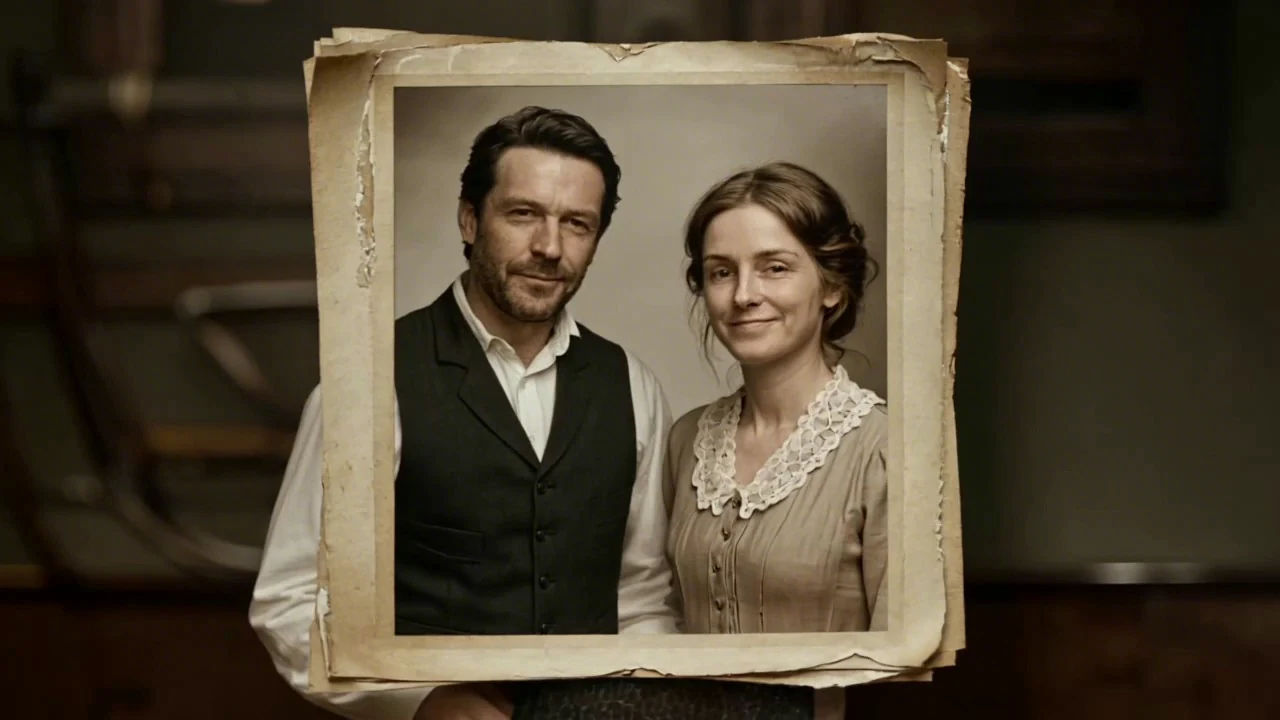
Here is the same photograph before and after, one frozen and one gently moving:
Which motion suits which photo
Different pictures call for different movement. This is the quickest way to choose: match the motion to what the photo actually is, and keep it small.
| Photo type | Best motion | Avoid |
|---|---|---|
| Portrait / close-up | A soft breath, gentle life in the eyes, a slow push-in | Head turns or big smiles on cue |
| Group photo | One very slow drift toward the faces | Animating each person separately |
| Damaged or faded | Restore first, then the gentlest motion | Animating before repairing the scan |
| Full scene or landscape | Drifting light, a slow zoom | Moving the camera through the scene |
Put it together
An old photo becomes a memory in four moves: start from a clean scan, ask for gentle motion, keep the take that holds, and lay a single piece of music underneath. Treat these as memory pieces rather than new footage. The model animates the photo you give it, so what you get back is that picture, gently moving, not a reenactment. Pick the one photograph you have always wished you could sit inside a moment longer, and start there. For the general technique, how to make an AI video from a photo covers choosing motion by photo type, and the image-to-video generator is the tool itself.