Cockpit launch sequence at dawn
Tight cockpit shot, console glow on the pilot visor, hydraulic clamps releasing, launch alarm pulsing red, steam venting past the canopy.
Edit prompt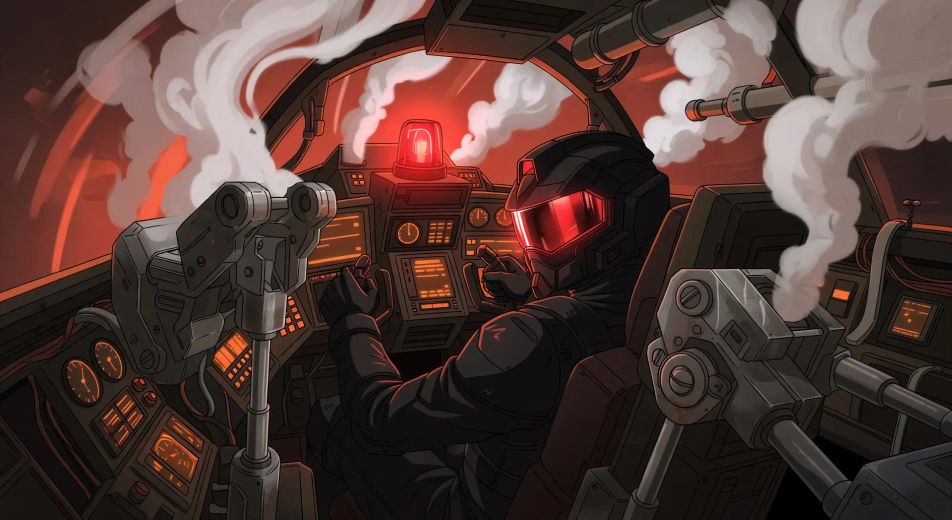
Direct hangar-grade hardware in your browser with Morphic's Mecha AI video generator. Generate a cockpit launch as clamps drop or a fallen frame against a skyscraper, add pilot voiceover with Speech, then lock the cel-shaded weight with Video Style Transfer.
Tight cockpit shot, console glow on the pilot visor, hydraulic clamps releasing, launch alarm pulsing red, steam venting past the canopy.
Edit promptTwo Mecha frames trading missile salvos above a neon-lit cityscape at dusk, contrails crossing, lock-on reticles flashing across the cockpit HUD.
Edit prompt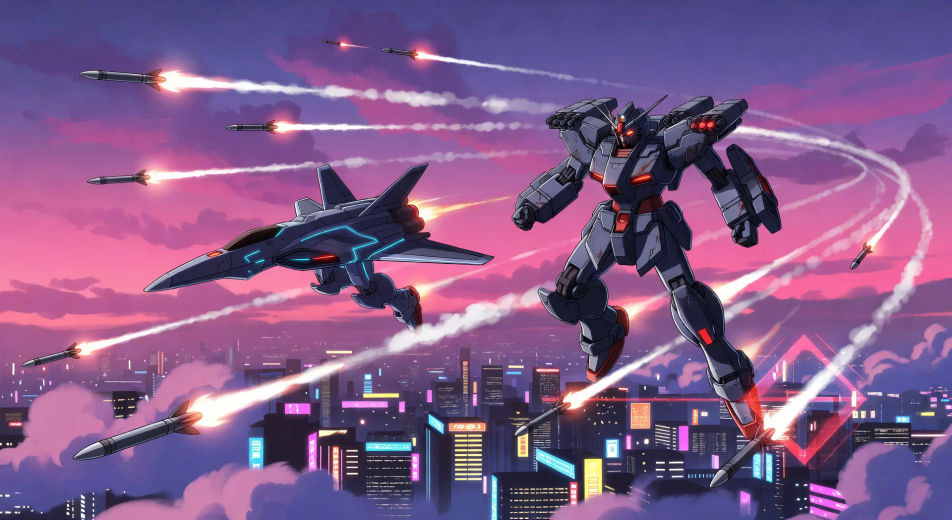
Wide ground-level shot, fallen Mecha frame slumped against a half-collapsed skyscraper, smoke columns rising, civilians small at the foreground edge.
Edit prompt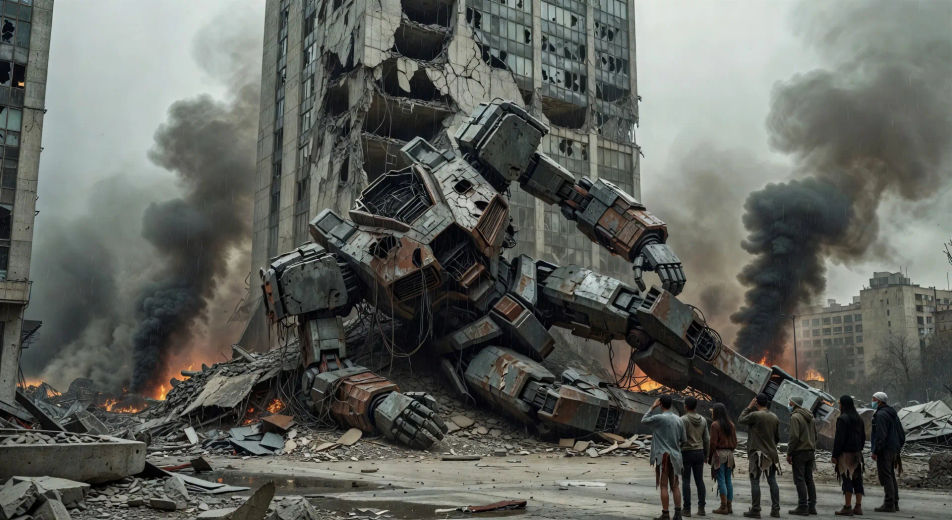
Vast underground hangar, four Mecha frames in launch cradles, orange floor lights, gantry crews moving along catwalks, steam pooling at floor level.
Edit prompt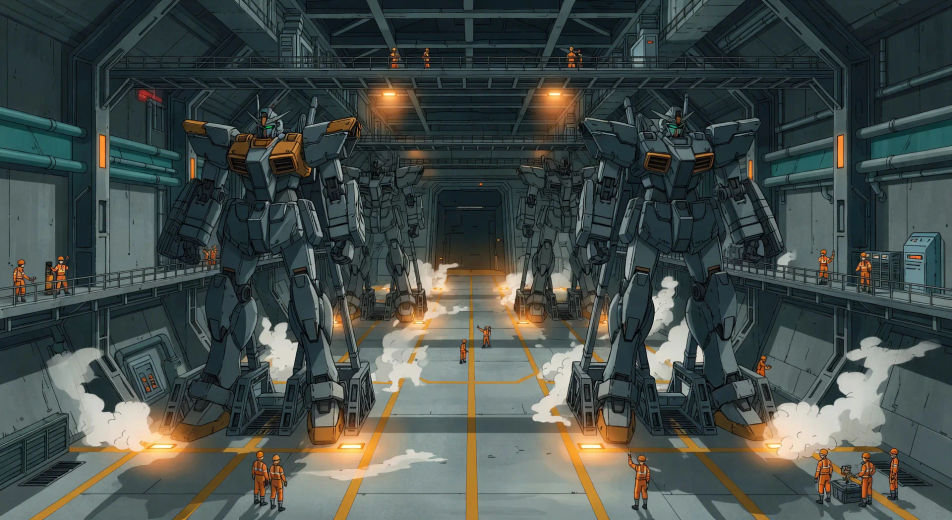
Write the Mecha scene you want, in plain words.
Morphic generates a cinematic, frame-ready clip on your canvas in seconds.
Tweak the prompt, regenerate variations, then download or share the shot.
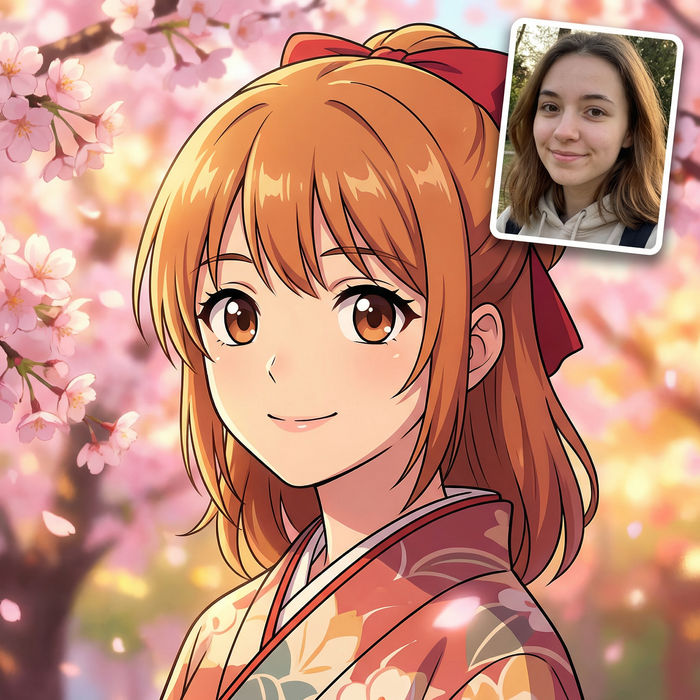
Pick any anime illustration as your style guide. Apply its look to any image.
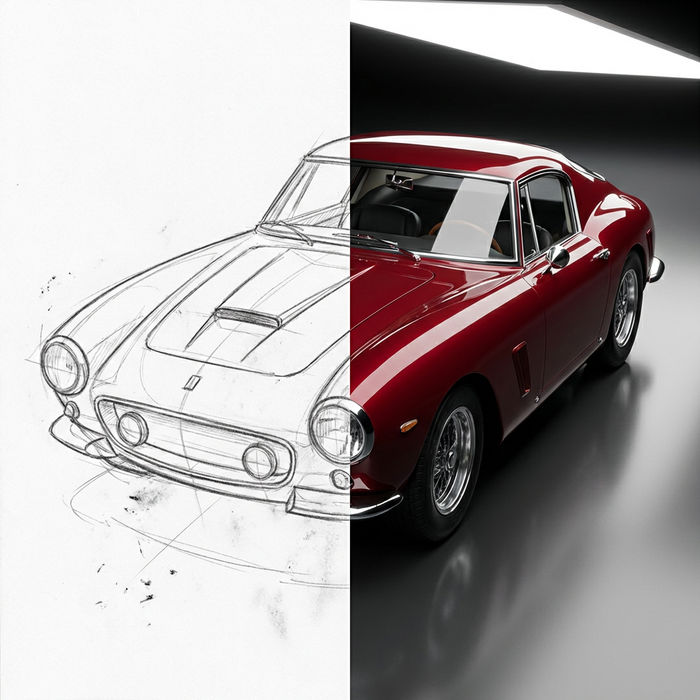
Turn any sketch or drawing into a finished render.
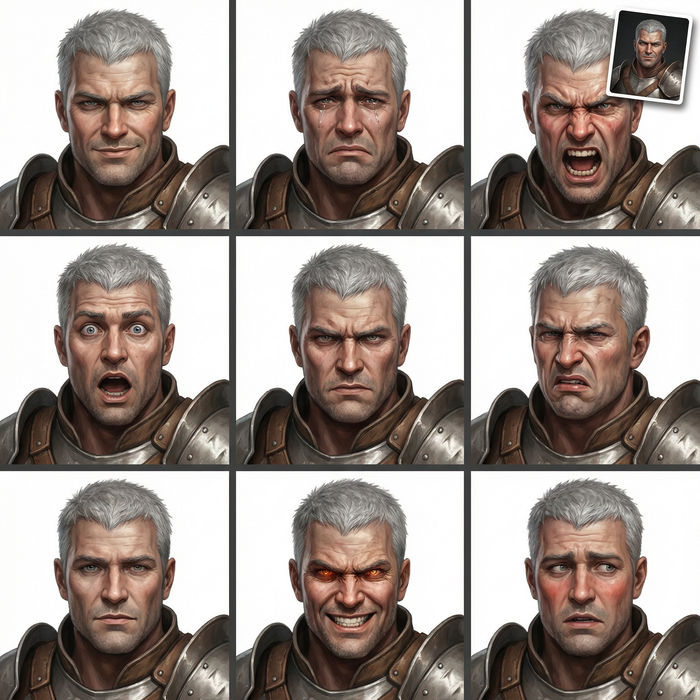
Take any character image and generate 6 distinct facial expressions on a single reference sheet.
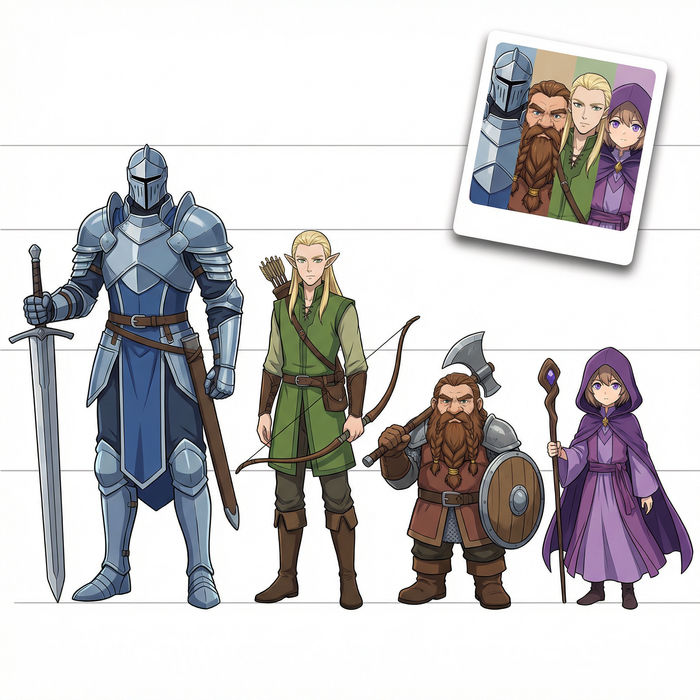
All your characters on a single lineup image, side by side with height comparison.
Turn any photo or description into an animated chibi sprite. Dance, jump, wave, attack, and more.
Upload a character image and make it dance in any style.
Anime AI Videos
Create Anime videos with Morphic. Slice-of-life scenes, Mecha shots, magical-girl transformations, and full Anime episodes generated from a single prompt.
Anime AI Videos
Create Anime fight scenes, sword duels, magic battles, and Mecha clashes with Morphic. Generate, animate, narrate, and score scenes from a single prompt.
Cyberpunk anime AI Videos
Create cyberpunk anime videos with Morphic. Neon Tokyo streets, cracked visors, body augmentation, and rain-slicked rooftop standoffs generated from a prompt.
Anime Style AI Videos
Generate anime style videos on Morphic. Cel shading, clean linework, expressive characters, and dynamic scenes from plain-language prompts.
Get started for free today, with the option to upgrade or cancel anytime.
Basic
2400 monthly credits
1 user only
All models
Workflows
Standard
3625 monthly credits
1 user only
All models
Workflows
Pro
6350 shared monthly credits
1 user
All models
Workflows
Max
24650 shared monthly credits
1 user
All models
Workflows
Enterprise
For higher limits
Custom
pricing and billing terms
Free
For playing around
$0
forever free