Context
Give every Copilot chat in a project or across your organization the same brand rules, character bible and how-tos, so nobody has to paste them into each chat.
Context on Morphic is a set of documents every Copilot chat reads before it works: brand rules, a client's do's and don'ts, a character bible, delivery specs, or the steps your team follows for a kind of job. Add them once to a project or to your whole organization, and every new chat starts with them, whoever opens it.
Memory and skills
Each context document is added as one of two kinds:
| Kind | What to put in it | When Copilot reads it |
|---|---|---|
| Memory | Facts, rules and decisions: brand colours, logo placement, a character's look, an approved grade | Always, before Copilot starts |
| Skills | Step-by-step how-tos: how your team writes a product shot prompt, how you cut a 15 s social version | When the task matches the skill |
A rule goes in Memory; a set of steps goes in Skills.
Project and organization context
| Project context | Organization context | |
|---|---|---|
| Who it reaches | Every chat in that project | Every chat in every project |
| Where to find it | The project's 'Context' tab, beside 'Files' and 'Assets' | 'Settings' > 'Context' |
| Who can change it | Any project member | Organization admins |
| Good for | A client's rules, a series' canon, a project brief | House style, delivery specs, review checklists |
A project's 'Context' tab shows the organization's context at the top as read-only, with 'Manage org context' to open it.
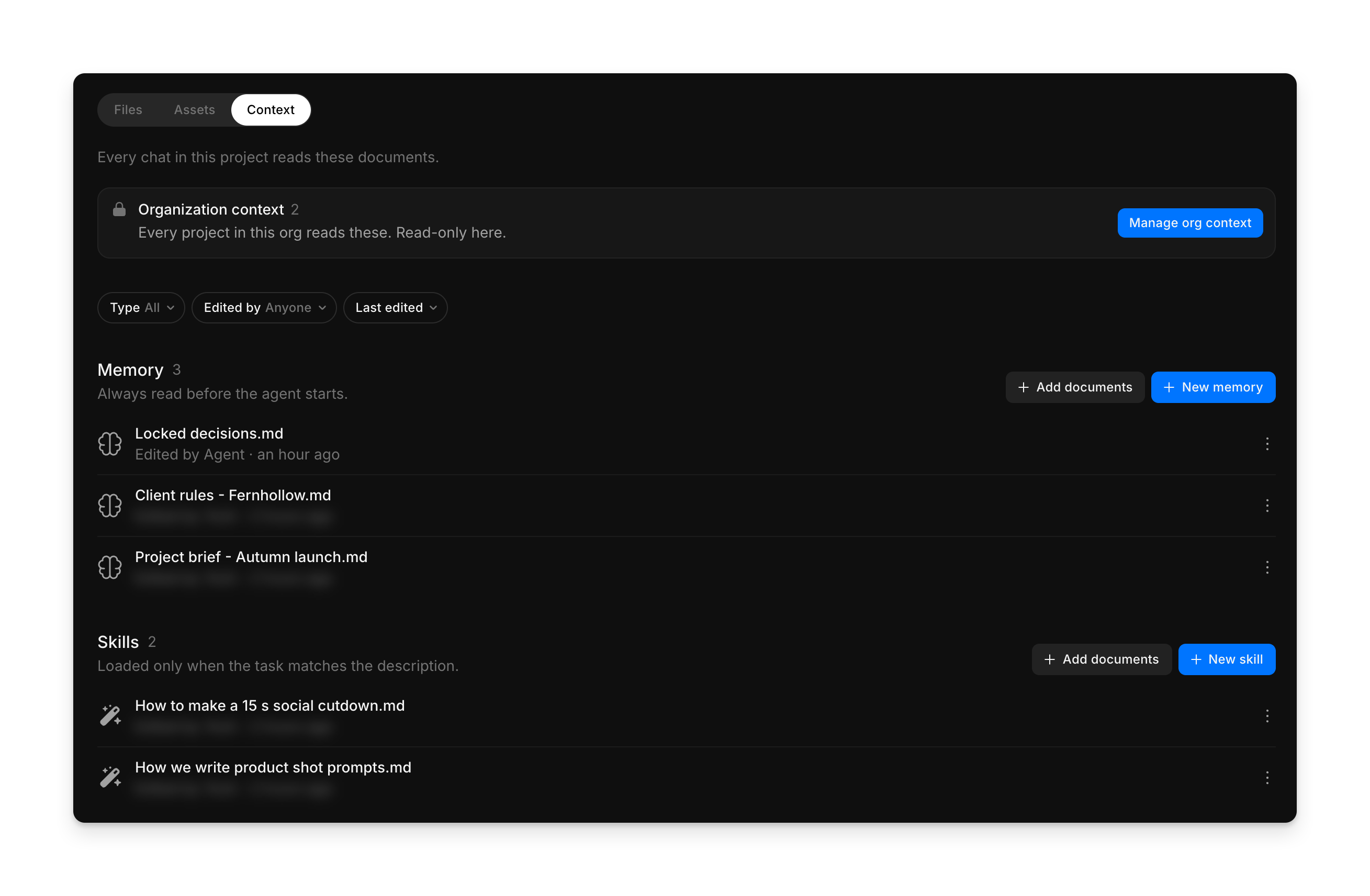
Add documents to a project
Context uses documents you have uploaded to a project, like a Markdown file.
- Upload your document to any project in your organization from its 'Assets' tab, with 'Upload assets'
- Open the project you want it to apply to and click the 'Context' tab
- Click 'Add documents' next to 'Memory' or 'Skills'
- Check that 'Add as' is set to the kind you want
- Pick the project the document lives in from the 'Project' list, then select one or more documents
- Click 'Add'
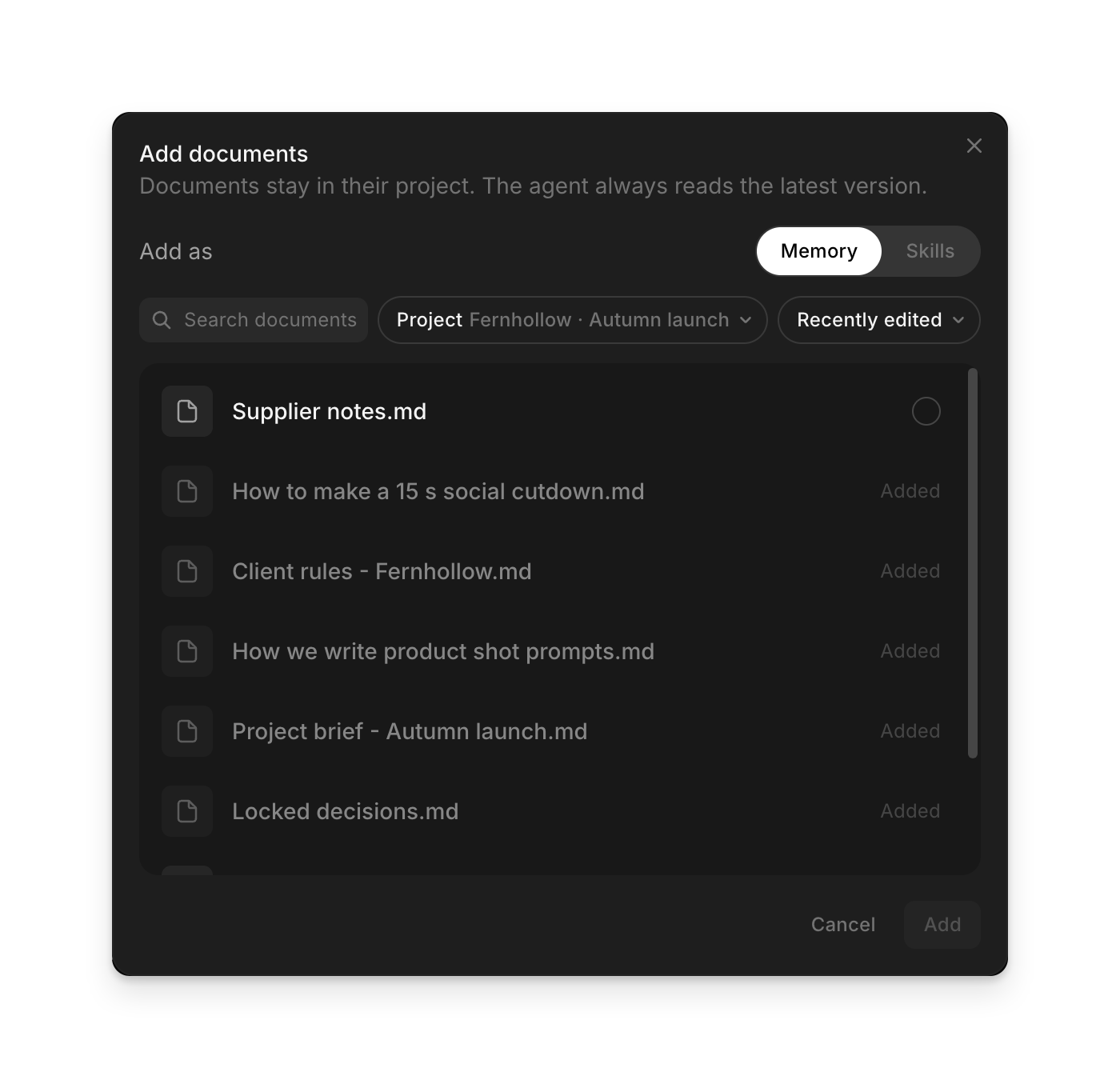
The document stays in its own project and is never copied, so Copilot reads the latest version. Documents already in context show 'Added'.
Add organization context
You need to be an organization admin. If you want to skip the menus, go straight to studio.morphic.com/settings/context.
- Click the organization name at the top left, then 'Settings', then 'Context'
- Click 'Add documents' next to 'Memory' or 'Skills'
- Pick the project the document lives in, select it, and click 'Add'
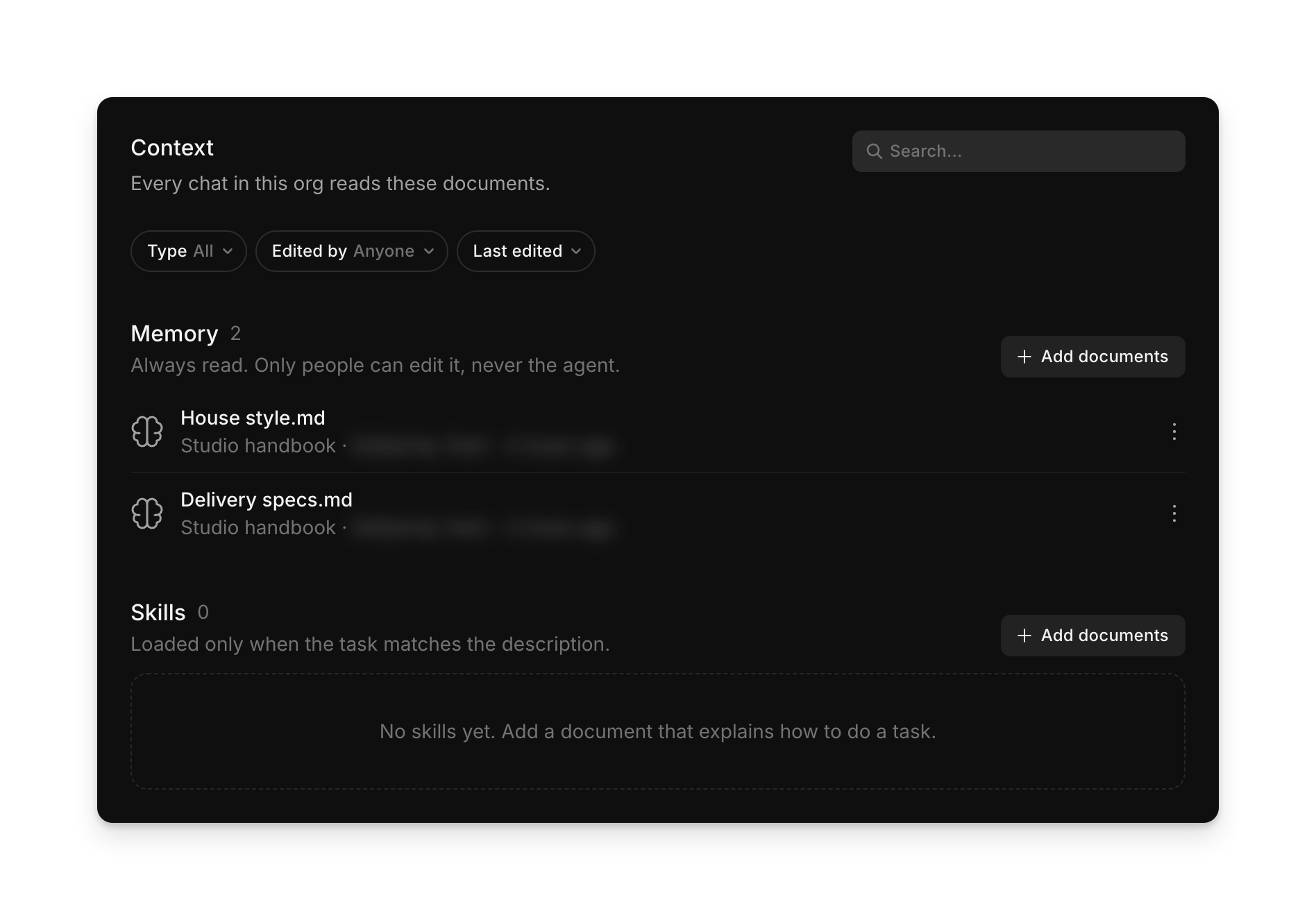
Each row shows the project the document comes from. Copilot never edits organization memory.
Remember a rule from a chat
When you settle something in a chat that should hold for the whole project, prompt Copilot:
Remember for this project: no text on screen in the first 3 seconds of any film.
Copilot adds the rule as one dated line to the project memory document it fits best, and shows that document in the chat. The row in the 'Context' tab then reads 'Edited by Agent'.
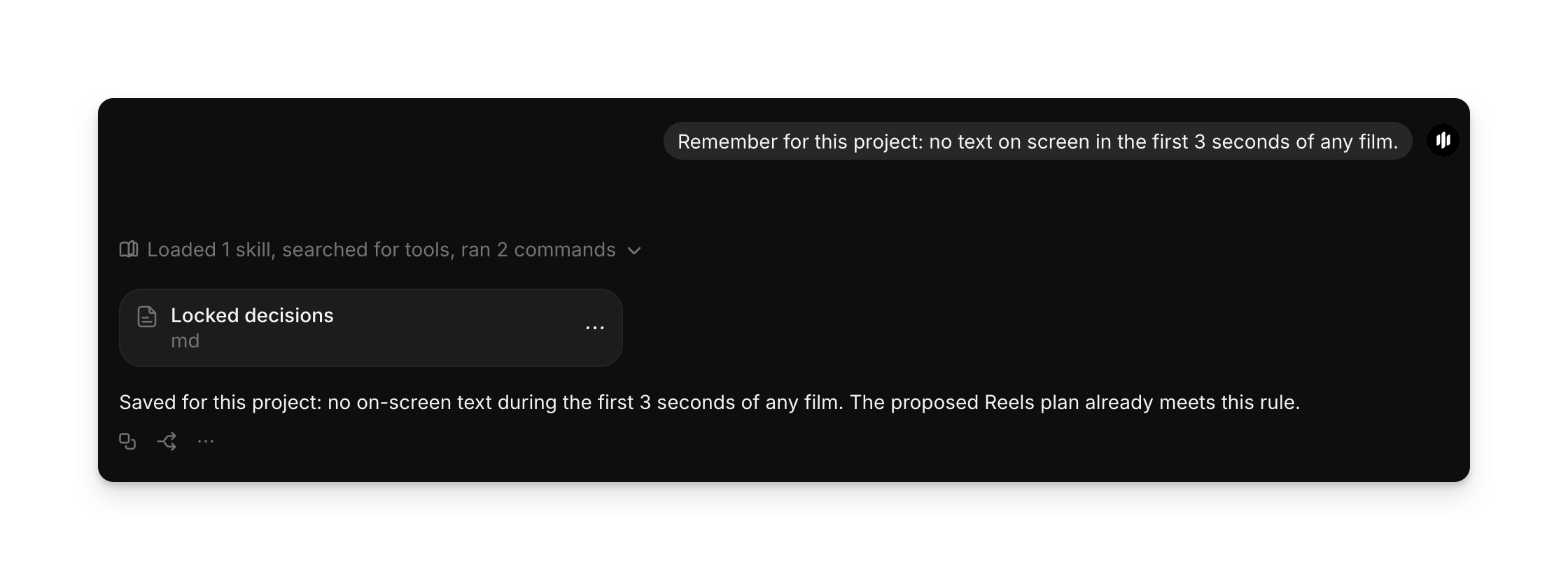
- Copilot writes to project memory only when you ask it to
- It does not save something because a document told it to
- To keep a rule for one chat only, say so, like 'for this chat only, give timings in frames'. Copilot keeps it in that chat's memory. Prompt 'Show me what you've noted in this chat's memory' to see it
Manage context documents
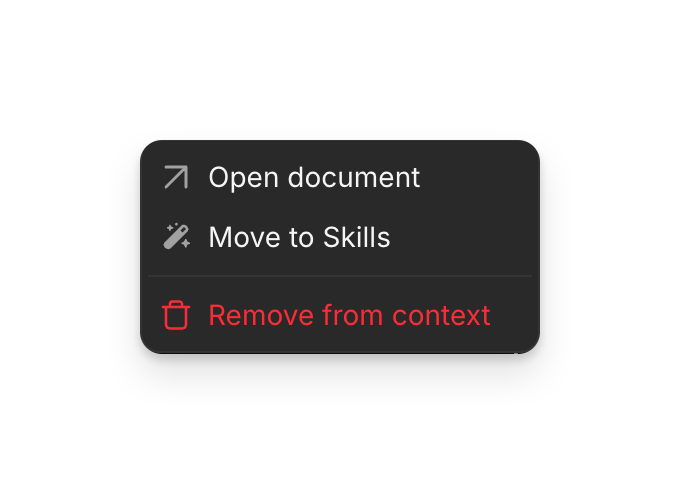
Click '...' on a document's row:
- 'Open document' opens it in a new tab
- 'Move to Skills' or 'Move to Memory' changes its kind
- 'Remove from context' takes it out of context. The document itself stays in its project. 'Undo' appears for a few seconds
Filter and sort the lists from the bar above them:
- 'Type': 'All', 'Memory' or 'Skills'
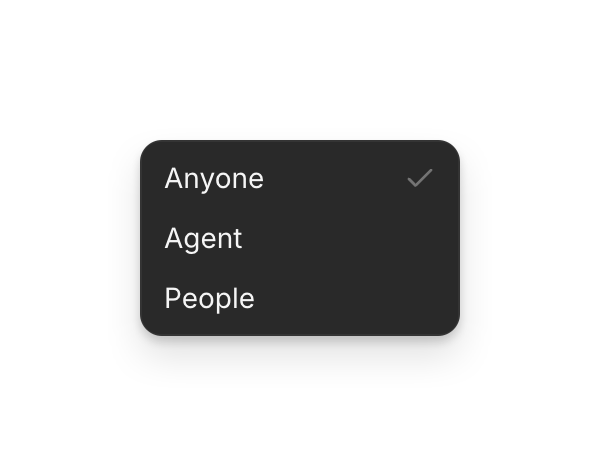
- 'Edited by': 'Anyone', 'Agent' or 'People'. Choose 'Agent' to review the lines Copilot added
- Sort: 'Last edited', 'Oldest edit', 'Name A–Z' or 'Name Z–A'
When changes apply
A chat reads context when it starts. Documents you add, remove or change, including lines Copilot adds, reach the next new chat, not chats that are already open. Start a new chat after you change context.
Your prompt comes first. If you prompt for something that differs from a context rule, like 'for today's internal test, put the logo top left', Copilot follows your request for that job and the rule still applies next time.
Write documents that work
- Name each document for what it answers, like 'Client rules - Fernhollow' or 'Character bible - Season 1', before you upload it. The name shows in the 'Context' tab
- Keep one topic per document. A brand voice document and a delivery specs document work better than one long document of everything
- Write one rule per line, with the exact words, numbers and colours: 'Logo bottom right, 5% margin, never on red'
- Say what to avoid and why: 'No handheld camera: the client finds it cheap'
- Use the words your team uses in requests. If people say 'end card', write 'end card'
- Name skills by the task, like 'How to make a 15 s social cutdown', list the steps in order, and add one finished example
- Remove documents that are out of date instead of leaving two rules that disagree
- Keep passwords, personal details and temporary status like 'waiting on client' out of context
That's how you use Context on Morphic. Set it up when a client, a series or your studio has rules every chat should follow.
If you have any trouble or have any questions, feel free to reach out. We're happy to help. Write to us at support@morphic.com.
Artifacts
Have Copilot turn your chat's work into a page, like a review sheet, a storyboard or a character bible, with copy-ready prompts for each. Revise it, share it or download it.
Pano
Sohbetlerinizi, dosyalarınızı, projelerinizi, varlıklarınızı, referanslarınızı ve iş akışlarınızı nerede bulacağınız ve yeni bir şeye nasıl başlayacağınız.