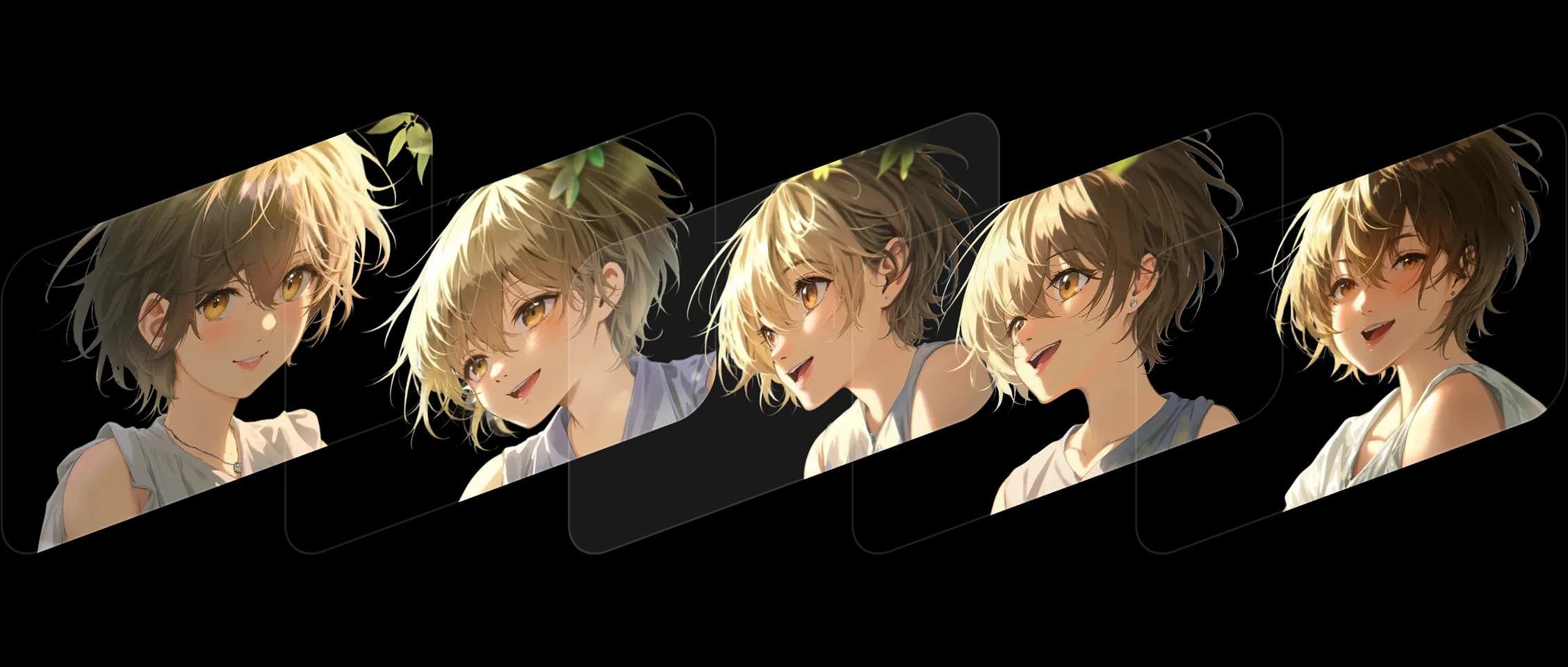
프레임을 선택하고 순서를 설정하면 Morphic이 스타일과 스토리의 일관성을 유지하면서 중간을 채웁니다.
각 전환이 부드럽게 흐르며 장면에 생명을 불어넣는 세부 사항과 표현을 보존합니다. 디지털 아트부터 실사 스틸까지 모든 스타일에서 아름답게 작동합니다.
Morphic은 변경 사항을 애니메이션화할 뿐만 아니라 이해합니다. 색상, 구성, 감정이 전체적으로 충실하게 유지됩니다.
몇 개의 정지 프레임을 움직이는 샷으로 바꿨습니다. 제 작품이 살아나는 것을 보는 것 같았습니다.
Morphic 내에서 Frames to Video가 어떻게 작동하는지 확인하세요.
크리에이터가 두 프레임만 업로드하여 만든 작품입니다.

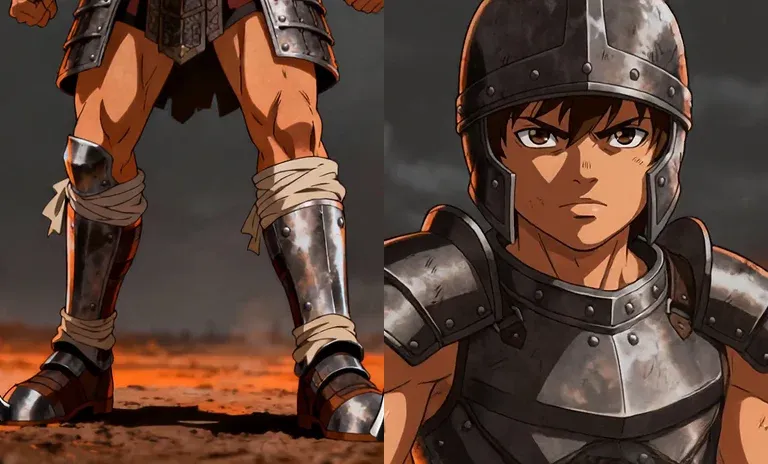
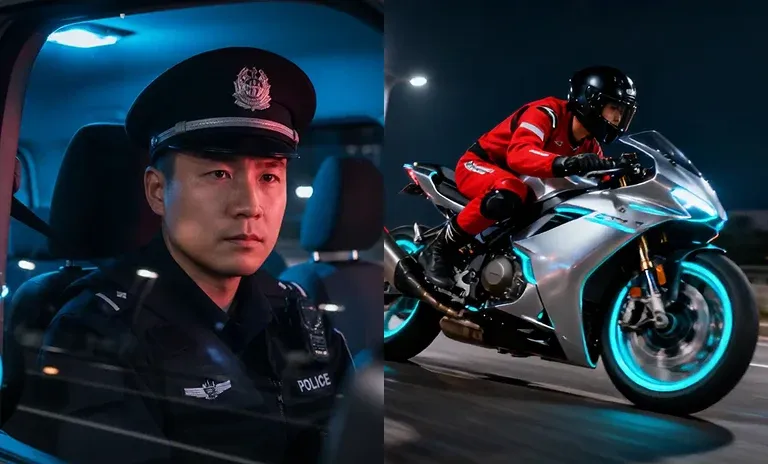
입력 프레임을 보려면 호버하세요
Morphic에서는 정지와 움직임을 연결하는 도구를 만듭니다. Frames to Video 기능은 그 비전을 계속하여 정지된 순간을 연속적인 스토리로 바꿉니다. 지금 시도
Frames to Video FAQs
What is Frames to Video?
Give a first and a last frame plus the motion between them, and Morphic generates one clip. You direct the beats of the shot.
How many frames can I use?
Two on every model. Morphic Edit (Flux 3) and FLUX 3 Max take up to ten, with the extra frames landing as keyframes.
Can I control the motion between the frames?
Yes. The frames fix the beats and you describe the motion the model fills in between them.
Which models support more than two frames?
Morphic Edit and FLUX 3 Max accept up to ten frames.
Is Frames to Video the same as animating a still?
It turns your key frames into a moving clip by generating the in-between motion, so you set the start and end rather than animating a single image.
What is it best for?
Precise shots where the first and last frame are fixed and you want to control the motion in between.