Grok Imagine Video 1.5 complete guide: prompts and features

The complete Grok Imagine Video 1.5 guide on Morphic: best practices, a prompting guide with examples, features and use cases, and the technical specs.

Grok Imagine Video 1.5 complete guide: prompts and features

Grok Imagine Video 1.5 is xAI's image-to-video model, and it generates native synchronized audio with the motion, so dialogue, sound effects, and music arrive in the same pass. This guide covers what it does, the technical specs, how to get the best results, and how to prompt it. Everything here runs on Morphic, alongside image, music, and audio generation.

Grok Imagine Video 1.5 features and capabilities

FeatureWhat it doesBest for
Native synchronized audioDialogue, effects, ambience, and music generate with the motion, in syncTalking heads, product spots, music clips
Animate a still imageTurns a still into motion while holding its light, color, and texturePhotos, product shots, artwork
Video extensionContinues from the last frame into a longer sequenceStory sequences, longer beats
Reference-guided generationHolds a character or style across clips via reference imagesConsistent characters, style-locked series
Prompt following + camera controlShot type, camera move, and timing cues land as writtenStoryboard previews, precise shots

Native synchronized audio

Audio is generated together with the video in a single pass: spoken dialogue with lip-sync, sound effects, ambient background, and music. You describe the sound in the same prompt as the motion, so there is no separate audio step.

Animate a still image

An image you provide is used as the first frame, and the model animates outward from it. The original lighting, color, and detail are kept rather than regenerated, which suits animating photos, product shots, or finished artwork.

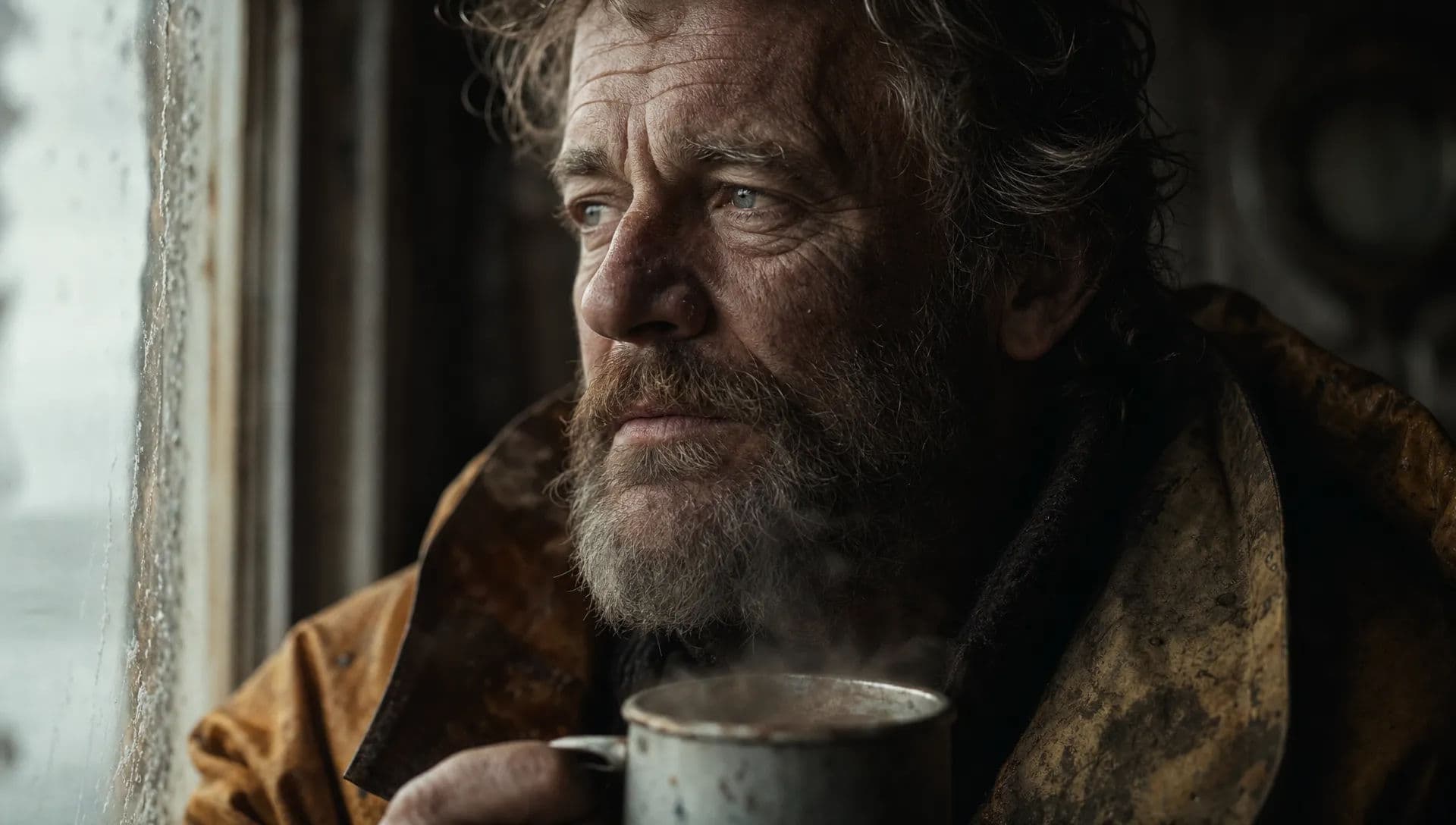
The still image used as the starting frame for Grok Imagine Video 1.5
The starting image.

Video extension

An existing clip can continue from its final frame to make a longer shot, keeping the same subject, lighting, and motion. Repeat the step to build a multi-part sequence from one starting clip.

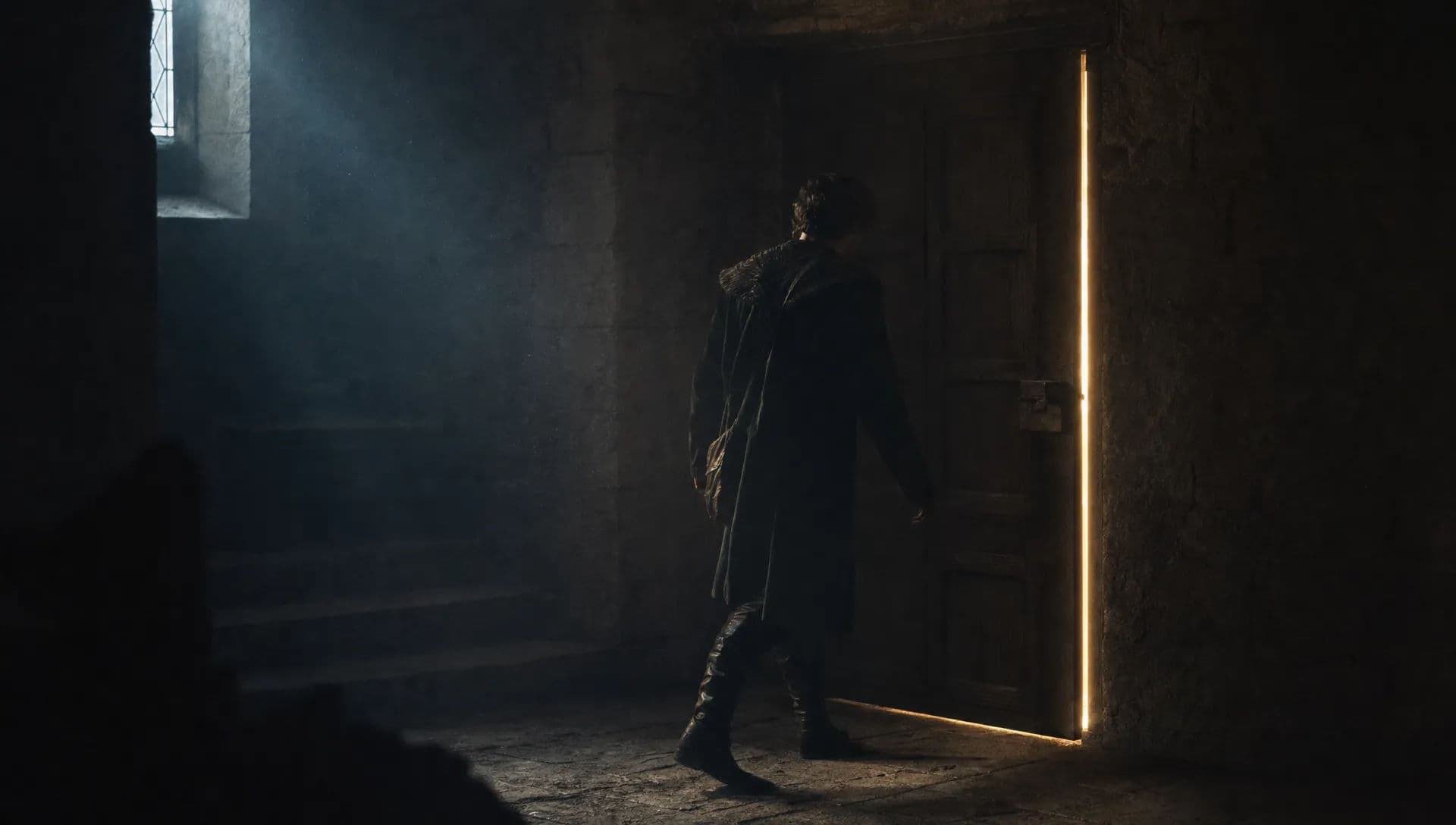
The last frame of the first clip, where the extension continues from
The last frame the extension continues from.

Reference-guided generation

Reference images guide the style and character without fixing the first frame. The model carries that look into new shots, which keeps a character or visual style consistent across separate generations.

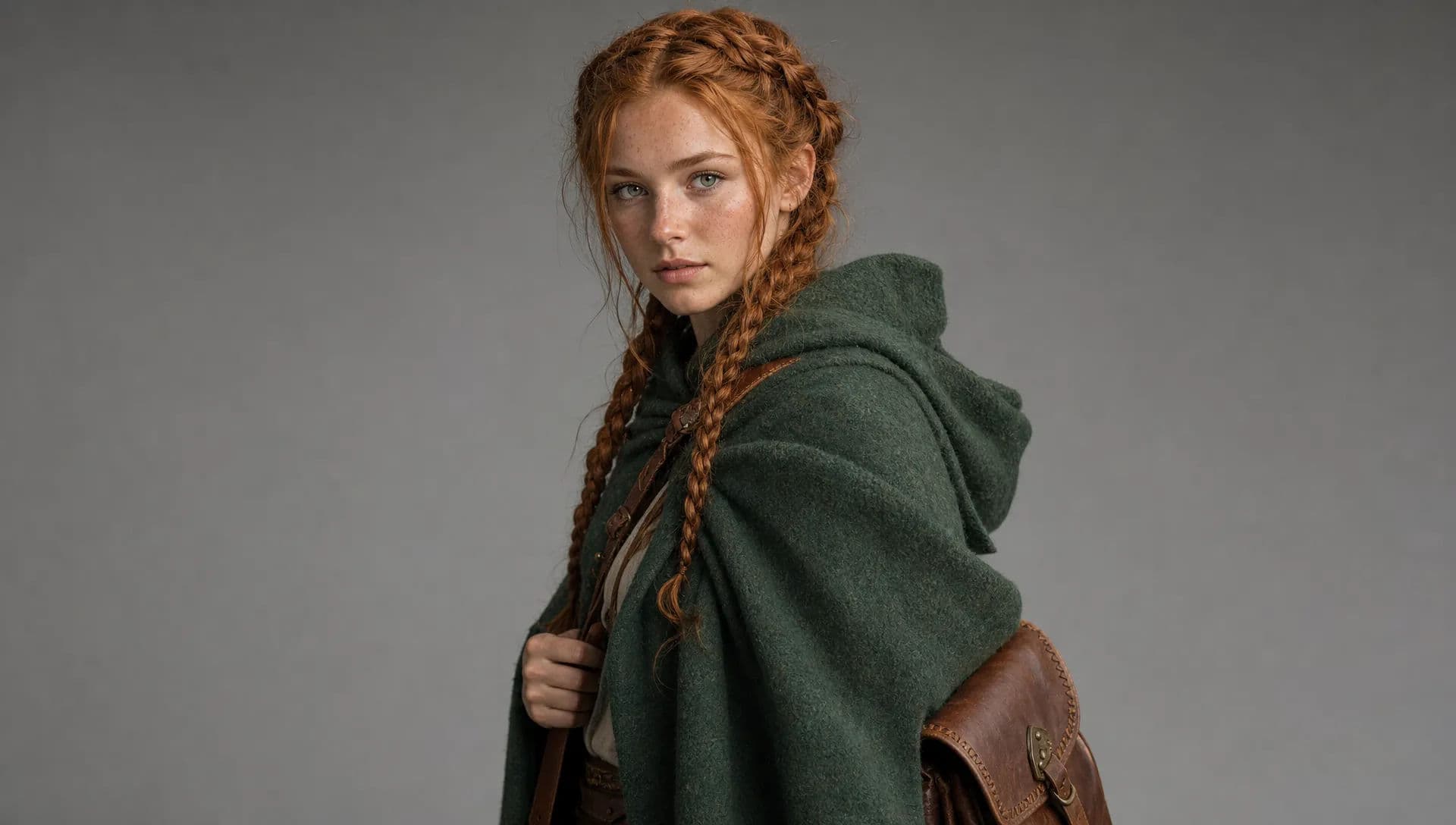
The reference image steering character and style for Grok Imagine Video 1.5
The reference image.

Strong prompt following and camera control

The model follows detailed direction, including the shot type, a specific camera move such as a dolly or pan, and timing for when an action happens. That makes a planned shot more predictable to reproduce.

Grok Imagine Video 1.5 technical specs

SpecGrok Imagine Video 1.5
ProviderxAI
ModesImage-to-video, text-to-video, reference-to-video, video editing, video extension
AudioNative, synchronized (dialogue, effects, ambience, music)
Resolution480p or 720p
Duration1 to 15 seconds
Frame rate24 fps
Aspect ratios16:9, 9:16, 4:3, 3:4, 3:2, 2:3, 1:1

How to get the best out of Grok Imagine Video 1.5

The model rewards a strong starting frame and a clear, motion-focused brief. A few practices carry most of the quality:

  • Start from a still. Generate or attach a 16:9 image first, then animate it. A good first frame is the single biggest lever on the result.
  • Keep the motion prompt short and specific. Name the action and one camera move; let the image carry the composition and style.
  • Always name the audio. Dialogue, sound effects, ambience, or music, in plain language, so the model generates sound with the motion instead of a silent clip.
  • One action per clip. Pack a single beat into a few seconds and use video extension for longer sequences.
  • For talking characters, use a front-facing portrait with the mouth in frame and keep lines short for clean lip-sync.
  • Use reference images when a look or a character has to stay steady across clips.

Grok Imagine Video 1.5 prompt guide

A strong prompt reads like a short shot brief, not a caption. Two things drive the result: a clear list of what the shot contains, and concrete wording instead of vague wording.

What goes in a prompt

ElementWhat to includeExample
SubjectWho or what is in frame, described concretelya presenter in a charcoal sweater
MotionWhat moves, and howshe smiles and looks to camera
CameraShot type plus one movemedium shot, slow push-in
AudioDialogue, effects, ambience, or musicshe says, 'Welcome'; soft room tone
DurationClip length and aspect ratio5 seconds, 16:9

Weak vs strong prompts

Name the camera, the motion and its timing, and the audio rather than leaving them to chance.

FocusWeakStrong
CameraA woman in a city at nightHandheld tracking shot following a woman through rain-slicked streets, neon reflections, shallow depth of field
Motion and timingThe door opens and someone walks inThe door swings open slowly, a figure steps through after a beat, then the camera settles
AudioA chef plating a dishClose-up of a chef plating a dish, steam rising. Audio: pan sizzle, soft kitchen ambience, and 'Service.'

Settings to know

SettingNotes
Duration1 to 15 seconds; keep one action per clip
Resolution480p or 720p
Aspect ratioFollows your input image, or set 16:9, 9:16, or 1:1
Reference imagesAdd them to hold a style or character across clips
Longer sequencesUse video extension to continue from the last frame

Common mistakes

  • Leaving the prompt silent: always write at least one sound cue.
  • Vague camera: "cinematic" tells the model nothing; name the shot and the move.
  • Too much in one clip: one action per clip, then extend.

자주 묻는 질문

How do I get the best results from Grok Imagine Video 1.5?

Start from a strong 16:9 still, keep the motion prompt short and specific, name one camera move, and always include an audio cue. Keep one action per clip and use video extension for longer sequences.

Does Grok Imagine Video 1.5 generate audio?

Yes. Audio generates natively with the video and stays in sync with the motion. A single generation can include lip-synced dialogue, sound effects, ambience, and music, with no separate audio pass.

What inputs does Grok Imagine Video 1.5 accept?

An image plus a text prompt for image-to-video, or a text prompt alone for text-to-video. You can also pass reference images to guide style and character, and continue or modify an existing clip with video extension and editing.

How long are Grok Imagine Video 1.5 clips and what resolution?

Clips run from 1 to 15 seconds at 480p or 720p, 24 fps. For image-to-video the aspect ratio follows your input image, and you can set a ratio for landscape, square, or vertical delivery.

How is Grok Imagine Video 1.5 different from the original Grok Imagine?

The original Grok Imagine is xAI's cross-modal model spanning text-to-image, image edits, and several video paths. Grok Imagine Video 1.5 is the dedicated video release, tuned for image-to-video with native synchronized audio, lip-synced dialogue, and video extension.

chair
스토리에 생명을 불어넣으세요
다운로드도 설치도 필요 없습니다. Morphic을 사용해 아이디어를 아름답게 만들어진 스토리로 변환하는 성장하는 크리에이터 커뮤니티에 참여하세요.