What can Bernini do? Editing, subject-to-video, and generation
| Capability | What it does | Best for |
|---|---|---|
| Consistency-locked editing | Adds, removes, or alters elements in a clip while untouched regions stay frozen | Object add/remove, clean retouches |
| Reference-guided editing | Applies a reference image or a second clip to the source video | Garment swaps, product or screen insertion |
| Subject-to-video | Places a person or character from reference images into a new scene | Avatars, character work, serialized content |
| Motion editing | Changes what a subject is doing inside a clip | Re-posing an action without re-shooting |
| Unified image + video | One model spans text-to-image, image editing, text-to-video, and video editing | Stills and motion from one prompt language |
Consistency-locked editing
Because the planner settles the semantics before the renderer paints, Bernini holds the parts of a clip you didn't ask to change. Name the edit, then name what stays fixed, and untouched regions keep still across the whole video with no flicker or drift. It is the model's strongest editing trait.
Reference-guided editing
Feed a reference image or a second clip and Bernini applies it to the source video. Swap a garment onto a moving subject from a single still, or insert a product or on-screen video so it tracks the original footage. The rest of the source clip stays intact around the change.
Subject-to-video
Pass reference images and refer to each by index in the prompt (image0, image1), saying which subject or attribute comes from which. Bernini carries the subject into a new scene with the face recognizable as it moves, its standout result in ByteDance's subject-to-video evaluations.
Motion editing
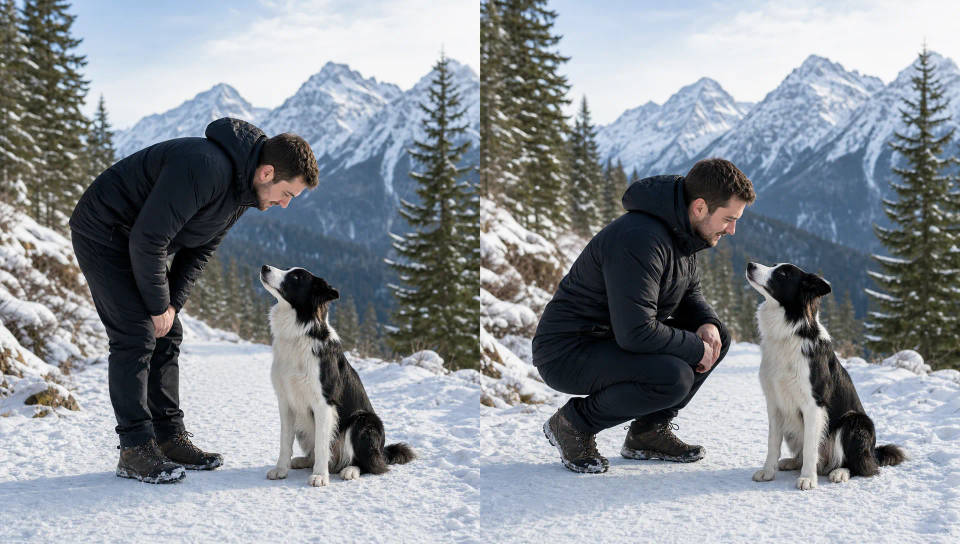
Change what a subject is doing inside an existing clip, a person crouches instead of bending over, while their identity, the framing, the lighting, and the background stay put. It re-blocks an action without re-shooting the take.
Unified image + video
One model spans text-to-image, image editing, text-to-video, and video editing, so a still and a moving edit come from the same prompt language. You learn one way to instruct it and apply it across both formats.
Bernini use cases
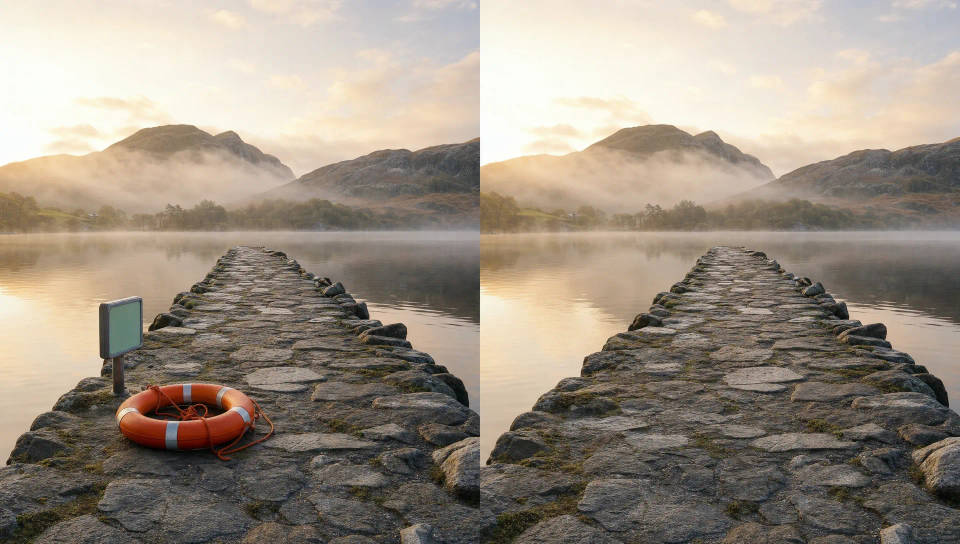
Clean up footage you already shot
Remove a distraction, add a missing element, or restyle a detail in a real clip, without re-shooting it. The consistency lock keeps the rest of the shot identical.
Build a character that recurs
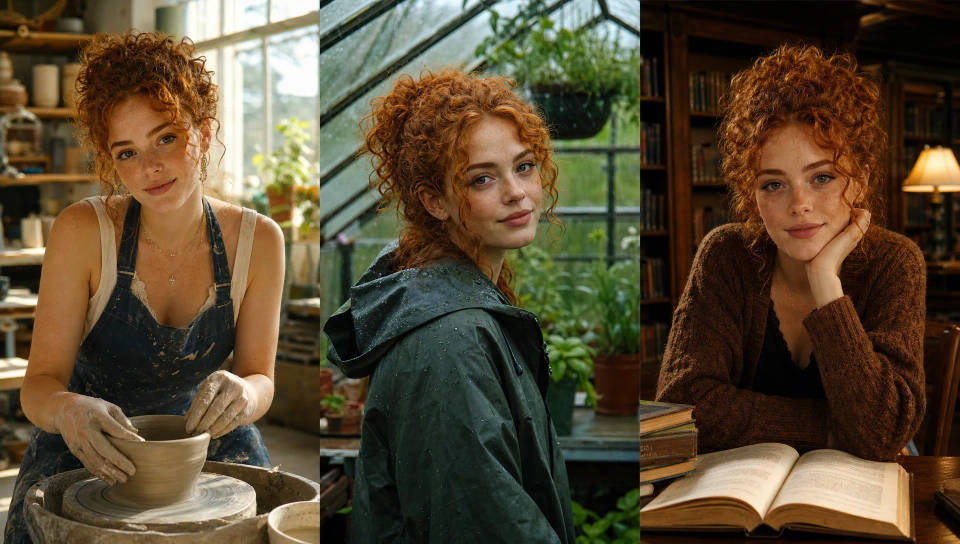
Keep the same face across episodes, ads, or an avatar series. Subject-to-video carries a person's identity from a few reference images into new scenes.
Try-on and product placement
Swap a garment onto a moving subject from a reference image, or drop a product or an on-screen video into a shot, with the source clip kept intact.

Change a performance
Re-block an action or adjust a subject's motion in a take, instead of filming it again, while identity, framing, and lighting stay fixed.
How to prompt Bernini
Two habits carry most of the quality on Bernini.
- Write an instruction, not just a description. For edits you are changing an existing clip, so the prompt is a directive: what to add, remove, or alter, and where. For generation (text-to-video, text-to-image) you describe the whole scene as usual.
- Name what changes, then name what stays. The renderer can touch any region, so the most reliable edits state the change and then pin everything that should not move. That second habit is the consistency lock, covered next.
A detailed, structured instruction beats a terse one. Bernini's planner does better when you spell out size, placement, materials, and how the new element's lighting matches the scene, rather than leaning on a one-liner.
The consistency lock: edit one thing, keep the rest
The renderer holds untouched regions well, but only if the prompt tells it what they are. The pattern is to state the edit precisely, then list everything that must stay unchanged, ending on "unchanged." Removal works the same way, describe the fill, then lock the surroundings.
| Edit | Weak | Strong |
|---|---|---|
| Add an object | Put a snowman in the video | Add a three-snowball snowman in the mid-right ground beside the dog, carrot nose and coal buttons, matching the overcast light and soft shadows. Keep the dog, road, and trees unchanged. |
| Garment swap | Change the shirt | Replace the outer shirt with the one in the reference image, worn with realistic drape. Keep the pose, camera, lighting, background, and motion exactly as they are. |
| Subject-to-video | Use these references in a beach video | The statue from image0, in the shorts from image3, on the bench from image4 at sunset, gently swaying to music. Keep the statue's stone body from image0 and the beach scene from image4 unchanged. |
Skip the lock and the model is free to redraw the background. Spend a sentence on it and the edit reads as native to the original shot.
Common Bernini prompt mistakes (and how to fix them)
- No lock: name what stays unchanged, or the edit bleeds into the rest of the frame.
- A terse instruction: describe the new element fully, its size, placement, materials, and lighting, instead of a three-word command.
- Vague references: for subject-to-video, reference each image by index (image0, image1) and say which attribute comes from which, rather than "use these references."
- Motion edits that move identity: when changing motion, pin the person, wardrobe, position, and camera so only the action changes.
- Expecting 4K: the default render is 480p at 16fps, tuned for editing fidelity over resolution. Judge it on how cleanly it holds the untouched regions.
Bernini specs and architecture
| Spec | Bernini |
|---|---|
| Provider | ByteDance |
| Architecture | MLLM planner (Qwen2.5-VL) + 14B DiT renderer (Wan2.2) |
| Modes | Text-to-image, image editing, text-to-video, video editing, motion editing, reference editing, subject-to-video |
| Resolution | 480p (default) |
| Frame rate | 16 fps |
| License | Apache 2.0, open weights |
FAQs
State the change precisely, then explicitly lock everything that should stay unchanged, the subject, camera, lighting, background, and shadows. Write detail rather than a one-liner, and make one edit per pass.
It is the phrasing habit that makes Bernini's editing shine. After you describe the edit, you pin the untouched regions as unchanged. Bernini holds those regions well, but only if the prompt tells it what they are.
Pass several reference images and refer to each by index in the prompt (image0, image1, image2). State which subject or attribute comes from which image, then describe the new scene and the motion.
Text alone for generation, a video plus text for editing and motion editing, a video plus a reference image or clip for reference-guided edits, and a set of reference images plus text for subject-to-video.
The default render setting is 480p at 16fps. The release prioritizes editing fidelity and consistency over maximum resolution, and higher settings are possible at greater compute cost.