What is AI lip sync?
AI lip sync is a technology that uses artificial intelligence to automatically synchronize mouth movements in an image or video with an audio track. The AI analyzes the audio waveform, identifies phonemes and speech timing, and maps the corresponding mouth shapes onto the face frame by frame. Filmmakers, marketers, content creators, and educators use it to dub videos, create talking-head ads, animate characters with dialogue, and localize content into new languages without reshooting.
Traditional lip sync required frame-by-frame manual animation or expensive motion capture setups. AI lip sync reduces that process to a few clicks. You provide the face (as a photo or video clip) and the audio, and the AI generates a video where the character appears to naturally speak the words.
What you need before you start
Creating an AI lip sync video requires three things: a face to animate, an audio track to sync to, and a Morphic account. The face can be a video clip or a still image depending on which model you choose. The audio should be clean dialogue with minimal background noise.
| Input | What works best | What to avoid |
|---|---|---|
| Video (Sync V3, Seedance 2.0) | Face clearly framed, mouth visible throughout, limited head movement, natural motion | Fast cuts, extreme angles, face partially hidden or out of frame |
| Image (LTX 2.3, Veed Fabric) | High-resolution photo, face looking toward camera, even lighting across the face | Blurry photos, side profiles, faces partially cropped or in shadow |
| Audio | Clean dialogue, single speaker, consistent volume, minimal background noise | Overlapping voices, heavy music behind speech, low-quality recordings with static |
A good rule of thumb: if you can clearly see the mouth and clearly hear the words, the AI will produce a clean sync.
How to create AI lip sync videos with Morphic
Follow these six steps to generate a lip sync video from start to finish.
Open Morphic
Go to Morphic and either open an existing file or click "New file" to create one under a project. Your canvas is where everything happens, from attaching references to generating the final output.
Switch to video mode and select lip sync
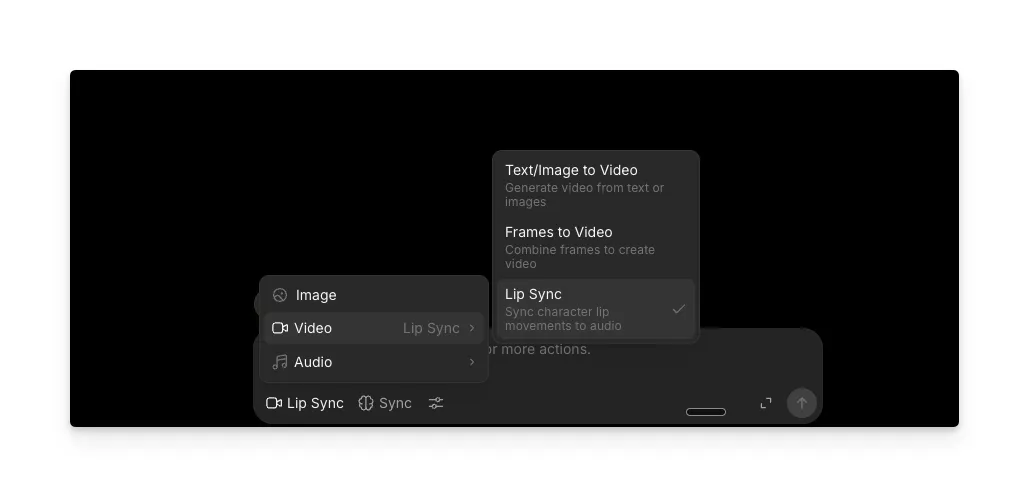
Head to the global prompt bar at the bottom of the canvas. Switch the mode to Video, then select Lip Sync from the options. This tells Morphic you want to sync mouth movements to audio rather than generate a video from scratch.
Choose your AI model
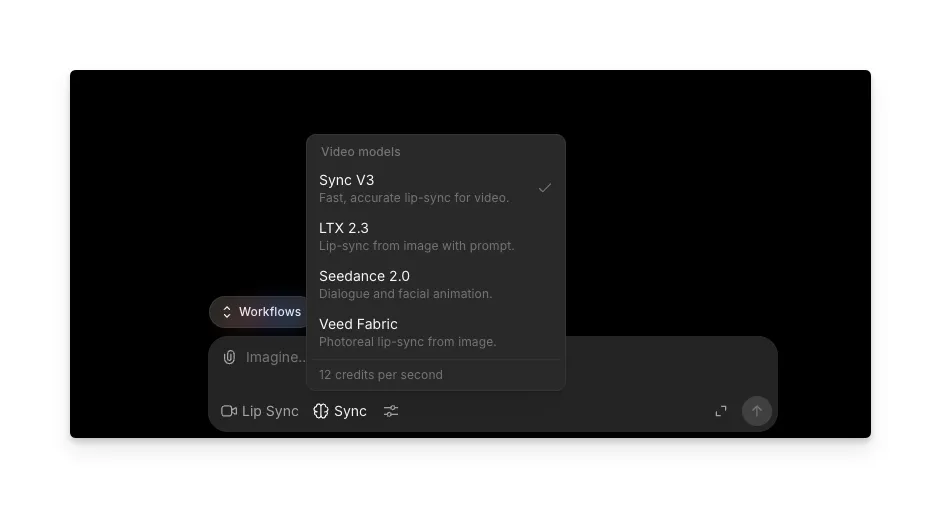
Morphic gives you four lip sync models. Each one handles different input types and produces different results.
| Model | Input type | Best for |
|---|---|---|
| Sync V3 | Video | Fast, accurate lip sync for real footage and dialogue-driven scenes |
| LTX 2.3 | Image | Generating a lip sync video from a still photo using a text prompt |
| Seedance 2.0 | Video | Dialogue and facial animation for animated or stylized characters |
| Veed Fabric | Image | Photorealistic lip sync from a still image with natural facial movement |
If you're working with existing footage, Sync V3 delivers fast results with precise sync. If you only have a photo and want to turn it into a talking character, LTX 2.3 or Veed Fabric will animate the face for you. For animated or stylized content, Seedance 2.0 is the best fit.
Attach your image or video, plus audio
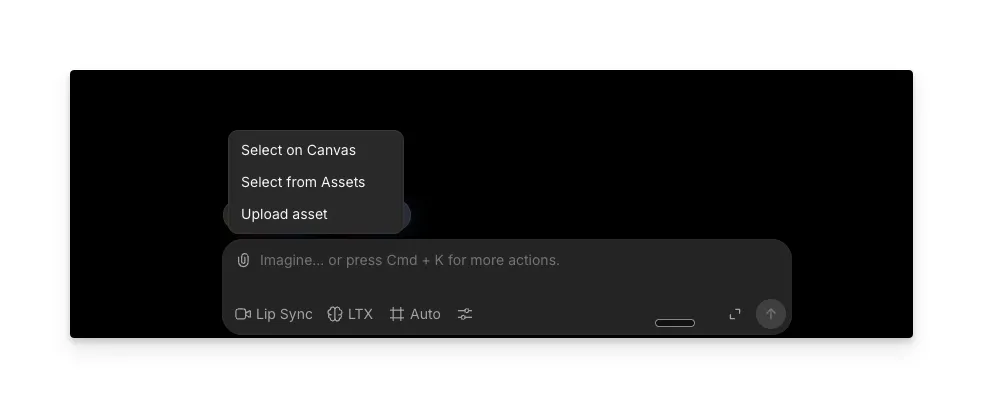
Click the paper clip icon in the prompt bar to attach your references. You have three options:
- Select on Canvas to pick references already placed on your canvas
- Select from Assets to choose from your assets library
- Upload asset to upload a file from your device
Attach your image or video first, then add the audio file you want it synced to.
Add a prompt (optional)
You can type a prompt with extra direction for the generation, or leave the prompt bar empty and let the AI work from the inputs alone.
One important note: if you're using Seedance 2.0, you need to add a prompt of at least 3 characters before generating. Something as simple as "create a lip sync" works. LTX 2.3 also benefits from a descriptive prompt since it uses the text to guide how the image is animated.
Generate
Click generate and wait for the output. Processing time depends on the length of the audio and the model you selected. Once it's ready, preview the result directly on your canvas and download or continue editing from there.
The quality of your output depends heavily on the quality of your inputs. If the sync looks off, revisit the tips below and check whether your audio or source material could be improved.
Tips for better AI lip sync results
Small improvements to your input files make a noticeable difference in the final output. These tips apply across all four models.
- Frame the face clearly. For video input, keep the mouth visible throughout the entire clip. For image input, use a front-facing photo with the face taking up a good portion of the frame.
- Use clean audio. Background noise, overlapping voices, and heavy music behind dialogue all weaken the sync. Record in a quiet environment or clean up the audio before uploading.
- Match the audio tone to the character. A high-energy, fast-paced voiceover on a calm, neutral portrait can look mismatched even when the lip sync itself is technically accurate. The voice and the visual should feel like they belong together.
- Keep audio and video close in length. Large gaps between the duration of your audio and video force the AI to stretch, loop, or trim the content, which softens the final result.
- Limit head movement in the source video. Limited, natural motion gives the sync its cleanest landing. Fast head turns and extreme angles make it harder for the AI to track and animate the mouth accurately.
- Always include a prompt for Seedance 2.0. Even a basic three-word prompt like "create a lip sync" is required for this model. Adding more descriptive direction improves the result.
- For image-based lip sync, go high resolution. The more detail the AI has to work with in the source photo, the more natural the animated facial movement will look.
AI lip sync use cases
| Use case | What you can do | Who it's for |
|---|---|---|
| Dubbing and translation | Localize videos into new languages without reshooting. Swap the audio track, re-sync the lip movements, and publish in a new market. | YouTube creators, brands with international campaigns, production teams dubbing film or series content |
| Marketing and ads | Produce talking-head ads, product demos, and UGC-style content from a single shoot. Swap scripts and regenerate variations without additional production costs. | Marketing teams, e-commerce brands, agencies running multilingual campaigns |
| Film and animation dialogue | Sync dialogue to animated characters, AI-generated scenes, or stylized footage. Prototype dialogue scenes and create animatics with synced speech. | Filmmakers, animators, short film and web series creators |
| Training and education | Update training videos when scripts change without re-filming. Record the new narration and re-sync it to existing footage in minutes. | L&D teams, course creators, companies with onboarding or compliance content |
| Social media content | Turn a single photo into a talking video, create clips that follow trending audio, or repurpose footage with new voiceovers. | TikTok, Reels, and Shorts creators, social media managers, solo content creators |
FAQs
Modern AI lip sync achieves frame-by-frame phoneme mapping, producing results that closely match natural speech patterns. Accuracy depends on your inputs. Clean audio with a single speaker and a clearly visible face produces the most natural-looking sync. Low-quality audio or partially obscured faces will weaken the result regardless of which tool you use. On Morphic, choosing the right model for your input type (video vs. image) also improves accuracy significantly.
Yes. Some AI models can generate a lip sync video from a single still photo by animating the face to match an audio track. On Morphic, both LTX 2.3 and Veed Fabric accept image input. Upload a photo, attach the audio, and the AI produces a video where the person in the photo appears to speak the words. This is useful when you don't have video footage but need a talking character for an ad, social post, or presentation.
Yes. AI lip sync is language-agnostic because it maps audio waveforms to mouth shapes rather than interpreting the meaning of specific words. Upload audio in any language, dialect, or accent, and the AI will synchronize the lip movements accordingly. This makes it practical for video translation and content localization across markets.
Yes, though results vary by model. Models designed for photorealistic footage may struggle with heavily stylized or cartoon characters. On Morphic, Seedance 2.0 is built specifically for animated and stylized content, making it the best choice for syncing dialogue to characters that aren't photorealistic.
Several platforms offer AI lip sync, but if you want multiple models, image and video input support, and the ability to combine lip sync with voice generation and video editing in one place, Morphic is a strong option. Open any file, switch to Video mode, select Lip Sync, and you can start generating immediately. Paid plans give you higher resolution output and faster processing, which makes a real difference when you're producing lip sync videos regularly or working with longer clips.