Frames to Video
Wählen Sie zwei oder mehr Frames einer Szene, um automatisch die Zwischenbilder zu generieren und ein Video zu erstellen.
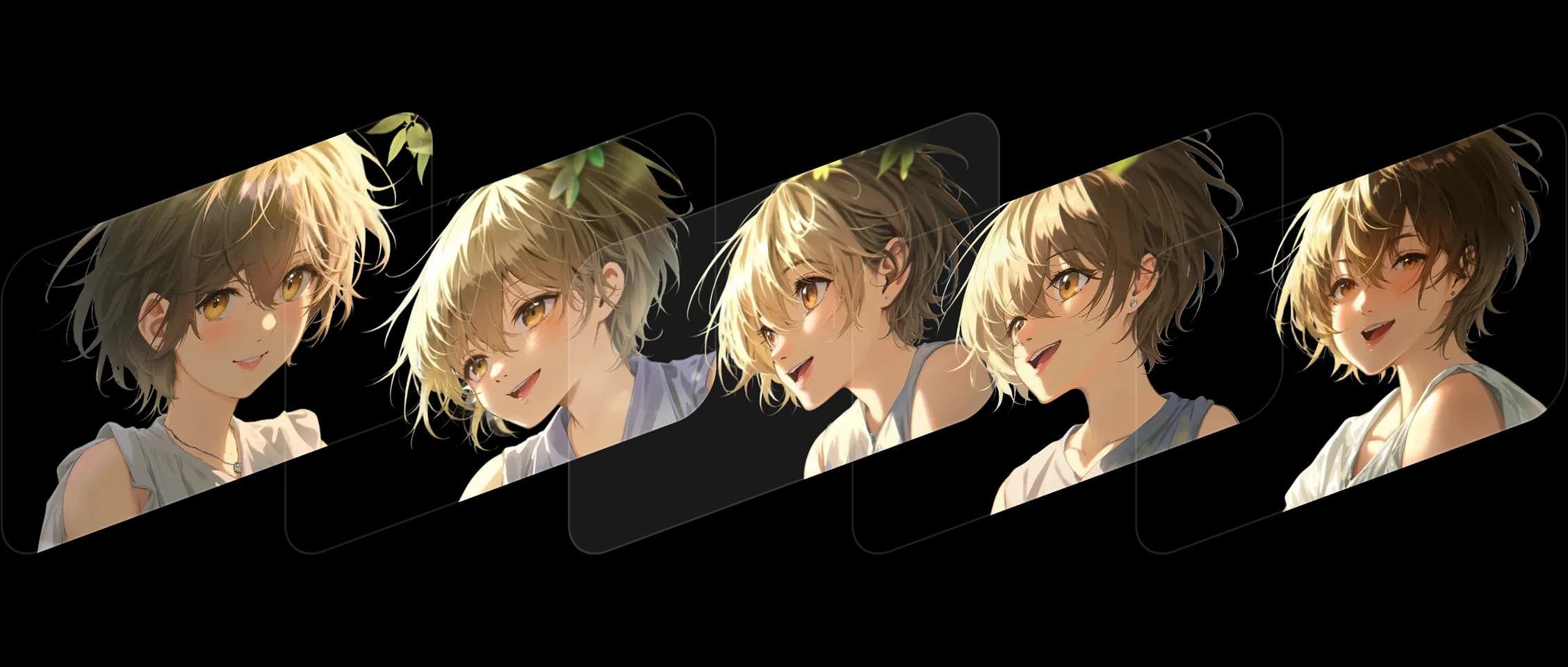
Wählen Sie Ihre Bilder, legen Sie die Reihenfolge fest, und Morphic füllt die Zwischenbilder, während Stil und Geschichte konsistent bleiben.
Jeder Übergang fließt sanft und bewahrt die Details und Ausdrücke, die Ihre Szene lebendig machen. Es funktioniert stilübergreifend, von digitaler Kunst bis zu Realfilm-Standbildern.
Morphic animiert Änderungen nicht nur, es versteht sie. Farben, Komposition und Emotionen bleiben durchgehend stimmig.
Ich habe aus wenigen Standbildern eine bewegte Aufnahme gemacht. Es fühlte sich an, als würde meine Kunst lebendig.
Sehen Sie, wie Frames to Video in Morphic funktioniert.
So sieht es aus, wenn Creator nur zwei Bilder hochladen.

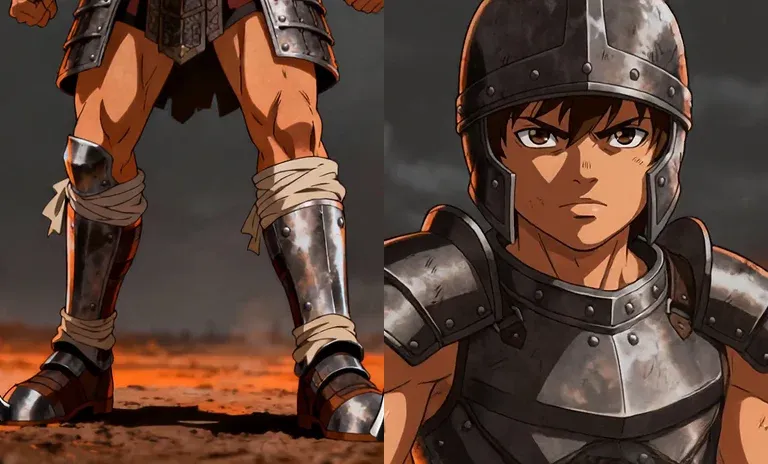
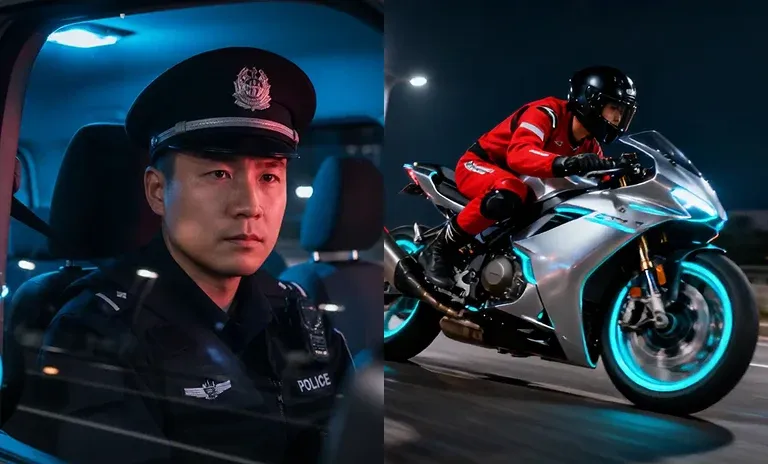
Bewegen Sie die Maus darüber, um die Ausgangsbilder zu sehen
Bei Morphic bauen wir Tools, die Stillstand und Bewegung verbinden. Frames to Video setzt diese Vision fort und verwandelt stille Momente in fortlaufende Geschichten. Jetzt ausprobieren