Hands walking through a task
A wide desk shot of a user's hands working at a keyboard and trackpad with the monitor's soft glow behind, the interface never legible, the task carried by the hands.
Prompt bearbeiten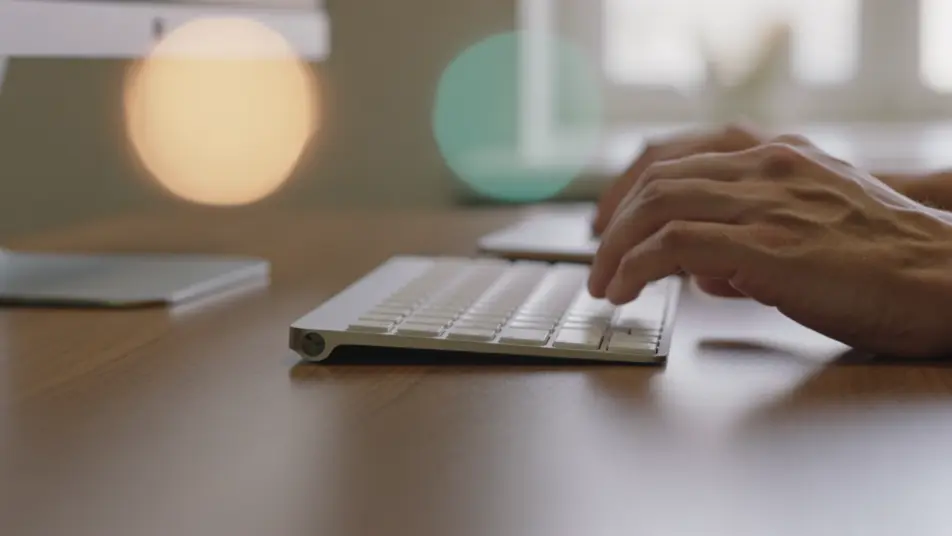
Direct a help centre video in your browser with Morphic's help centre video generator, so each article carries a short clip that shows the steps. Render a screen walkthrough, a single-task how-to, and a quick answer to a common question in one style. Voice it with Speech, then assemble the clips into an article-ready video on Compose.
A wide desk shot of a user's hands working at a keyboard and trackpad with the monitor's soft glow behind, the interface never legible, the task carried by the hands.
Prompt bearbeitenA bright flat-style frame where plain type and a simple diagram answer one common question, elements sliding in on cue with a calm steady pace and a friendly palette held throughout.
Prompt bearbeiten
A wide frame of a user at a desk whose expression turns from frustration to relief as a problem is resolved, the screen a soft glow, the fix shown through the human response.
Prompt bearbeiten
A wide over-the-shoulder pan across a desk as a user's hands navigate, the monitor a soft glow blooming behind, framing where a feature lives without any legible interface.
Prompt bearbeiten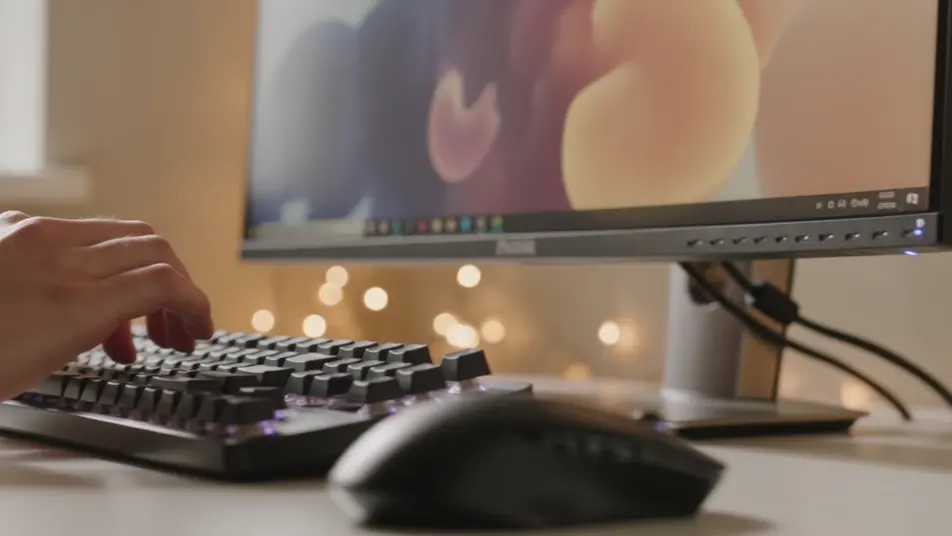
Beschreiben Sie die help centre video-Szene, die Sie möchten, in einfachen Worten.
Morphic generiert in Sekunden einen filmreifen Clip auf Ihrer Canvas.
Passen Sie den Prompt an, generieren Sie Varianten und laden Sie die Aufnahme herunter oder teilen Sie sie.

Dramatize any text conversation into a cinematic multi-shot video.
Cinematic time-freeze short film for any scene

Generate a professional film title card from scratch, with optional cinematic animation.
Photo of any real-estate becomes a cinematic renovation timelapse video with construction SFX and music.
One image to a 9-scene cinematic video.

Describe a first-person scenario. Get sequential POV frames animated into video clips with audio.
AI Knowledge base videos
Knowledge base video, produced in-house on Morphic. Build concept explainers, step-by-step how-tos, and short answer clips, no crew or shoot day required.
AI Onboarding tutorial videos
Onboarding tutorial video, produced in-house on Morphic. Build a welcome intro, a setup walkthrough, and a first-task run. Publish the same day.
AI Software walkthrough videos
Make a software walkthrough video from a description with Morphic. Build guided UI tours, feature spotlights, and click-path demos in-house, ready for web.
AI Integration demo videos
Integration demo video, produced in-house on Morphic. Show the setup, the data moving between apps, and a workflow running end to end. No crew.
Starten Sie noch heute kostenlos, mit der Option, jederzeit zu upgraden oder zu kündigen.
Basic
2400 monatliche Credits
1 Nutzer
Alle Modelle
Workflows
Standard
3625 monatliche Credits
1 Nutzer
Alle Modelle
Workflows
Pro
6350 gemeinsame monatliche Credits
1 Nutzer
Alle Modelle
Workflows
Max
24650 gemeinsame monatliche Credits
1 Nutzer
Alle Modelle
Workflows
Enterprise
Für höhere Limits
Individuell
Preis- und Abrechnungsbedingungen

Free
Zum Ausprobieren
$0
dauerhaft kostenlos