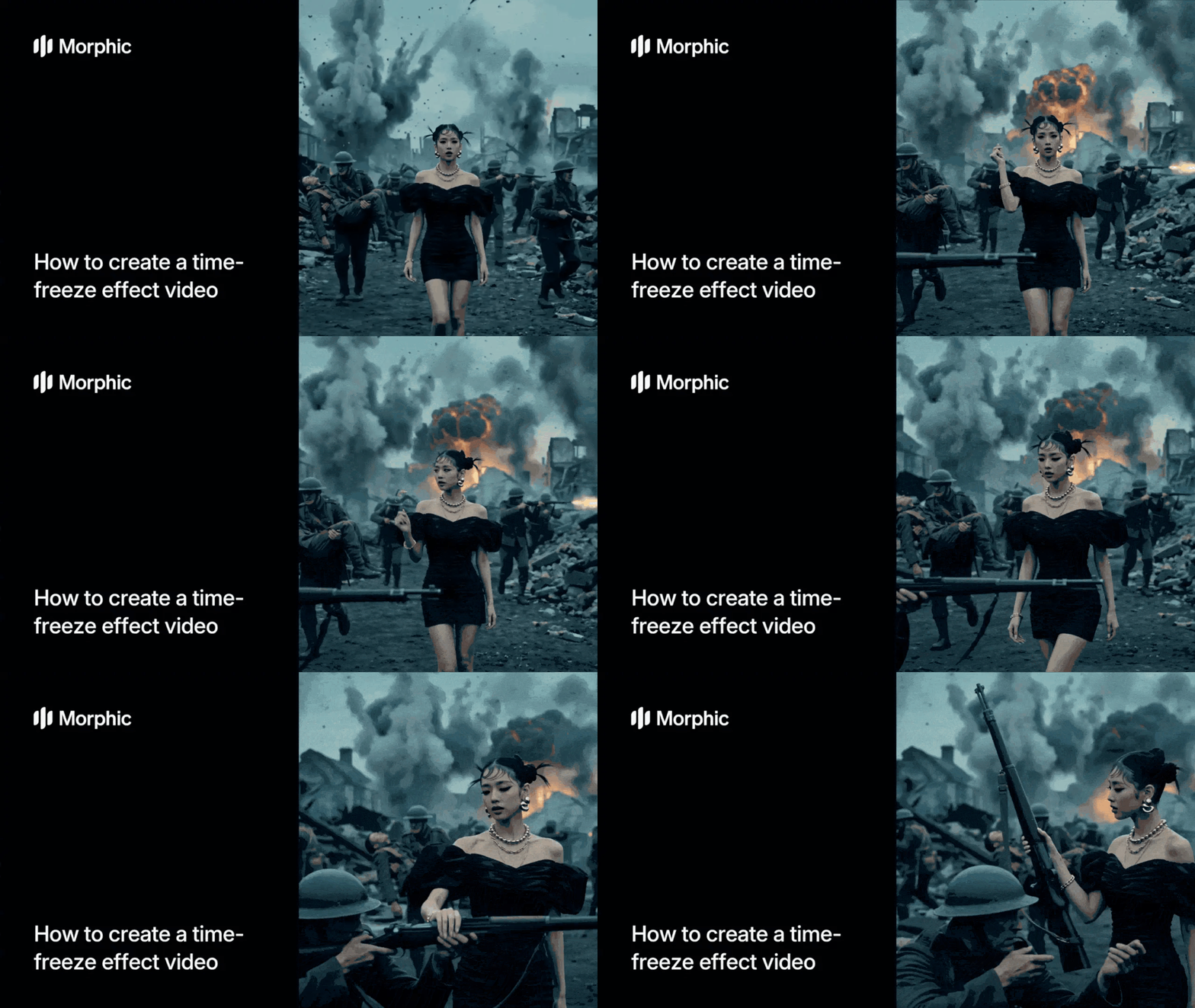
What is a time-freeze effect?
A time-freeze effect is a cinematic technique where action in a scene halts mid-motion while the camera continues to move, revealing depth, detail, and drama that a normal shot cannot. The frozen moment becomes the focal point, and the camera's movement turns a single instant into a memorable beat. You've seen it in films like The Matrix, Inception, and most modern superhero trailers.
The workflow runs through nine guided steps. Only three are mandatory: the reference image, the scene location, and the chaos event. The remaining six are optional: fill them in for finer control, or skip them to let the workflow make its own choices.
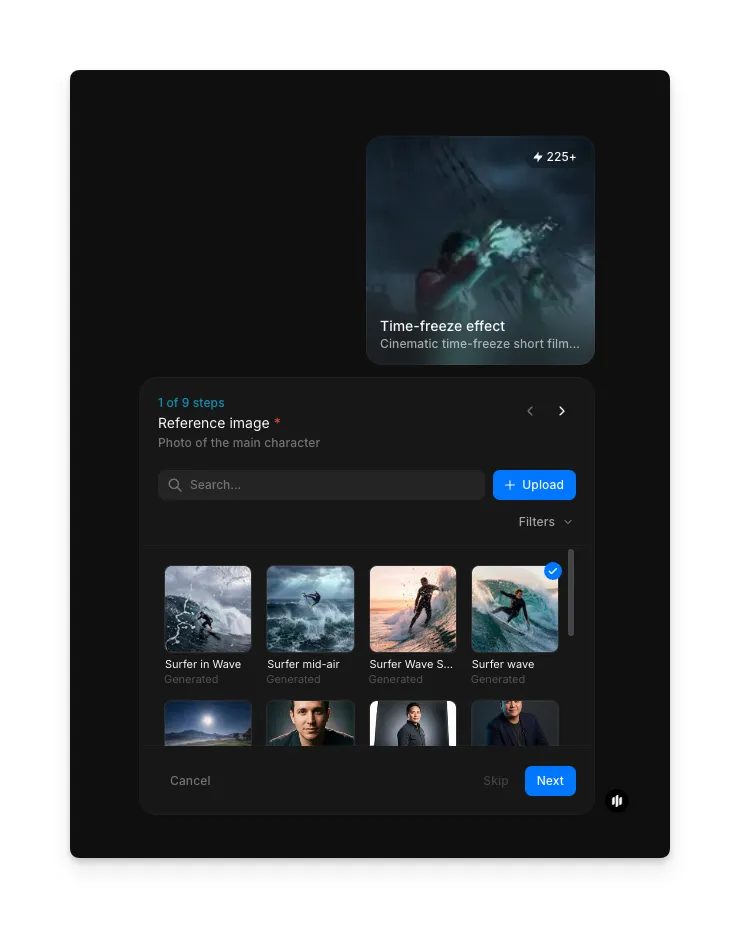
Upload a reference image of your main character
Start by selecting the reference photo of the main character who will appear in the frozen moment. You can upload your own image or pick one from the built-in gallery, which includes surfer shots, mid-air poses, and portraits. Use the search bar or Filters menu to narrow the gallery down quickly. This is a mandatory step, since the workflow anchors the freeze around this character.
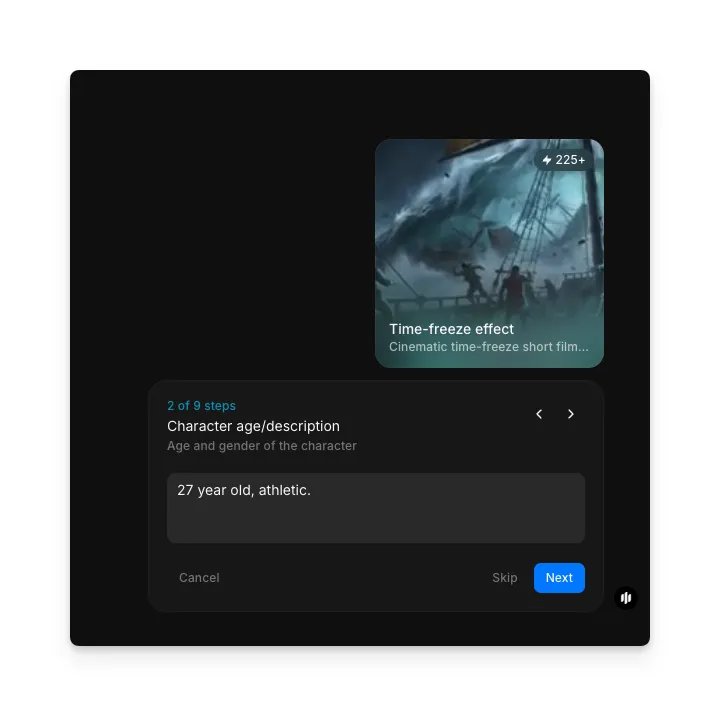
Add a character age and description (optional)
Describe the character's age, build, or gender so the generated video stays consistent with the look you want. In the example, the prompt reads "27 year old, athletic." Skip this step if the reference image alone already captures the character.
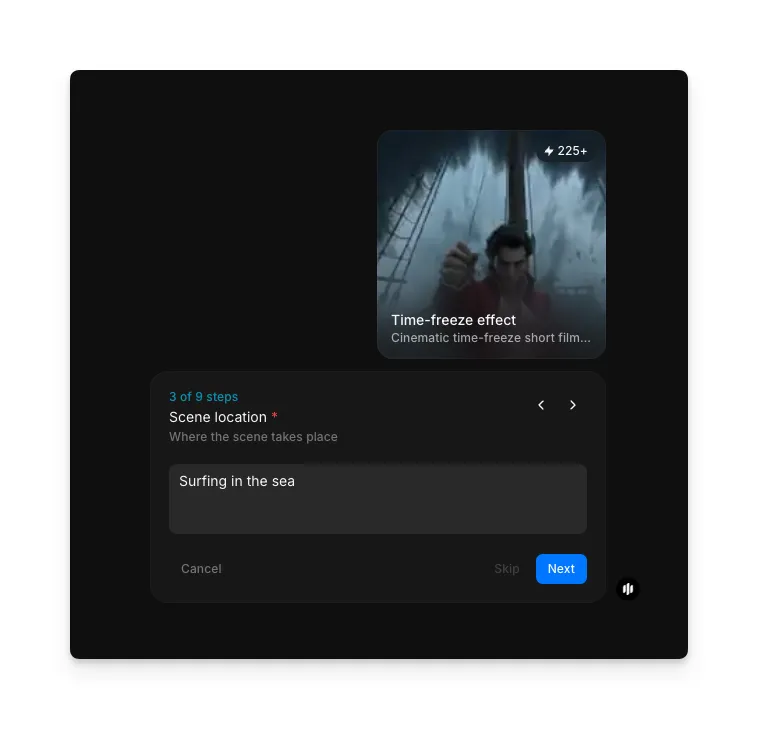
Describe the scene location
Enter where the scene takes place. In the example, this is "Surfing in the sea." Keep it short and concrete, since the workflow uses this line to build the environment around the frozen moment. This step is mandatory.
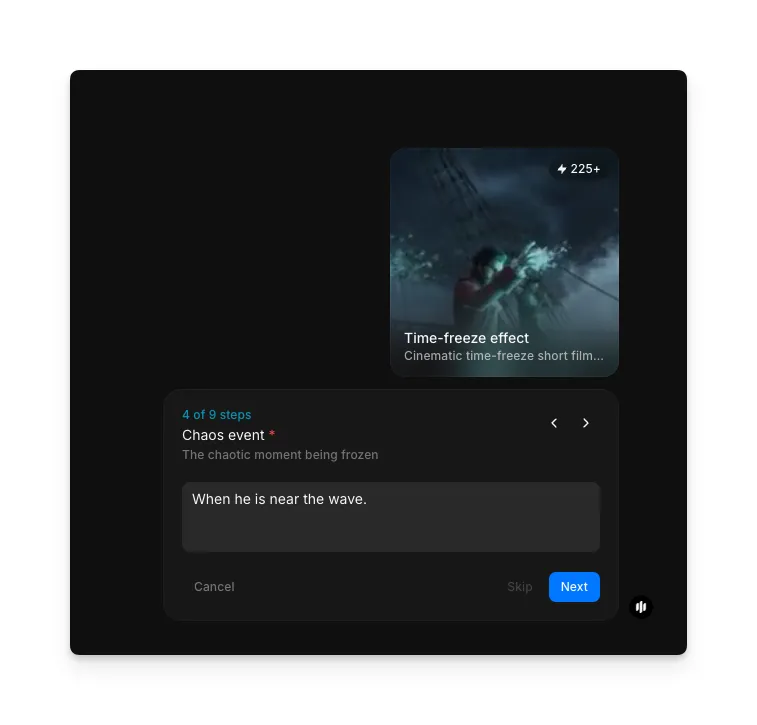
Describe the chaos event you want to freeze
Type the exact moment you want the workflow to freeze in time. The example reads "When he is near the wave." Think of this as the peak beat of the action, the single instant the camera will hold on. This step is mandatory.
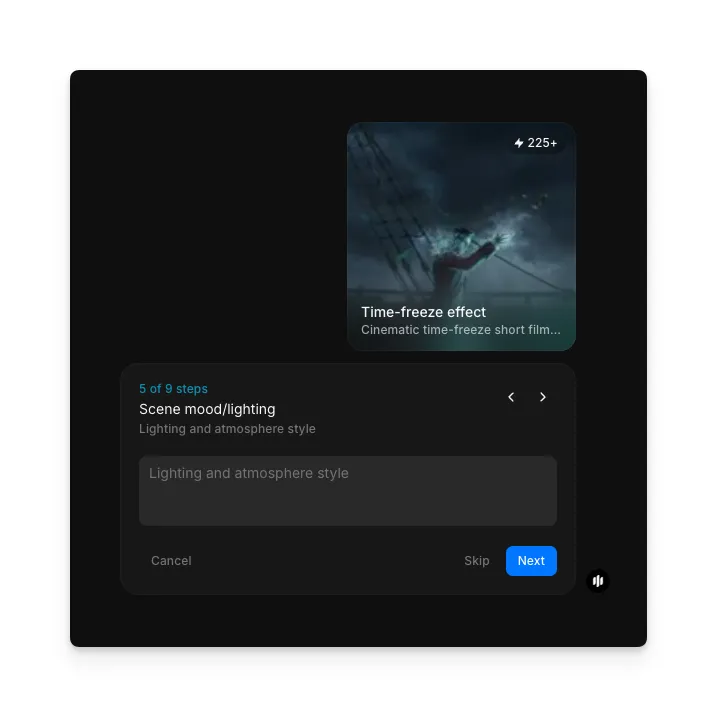
Set the scene mood or lighting (optional)
Describe the lighting and atmosphere style: for example stormy, golden hour, neon, or moody. Leaving this field blank lets the workflow infer the mood from your reference image and scene location.
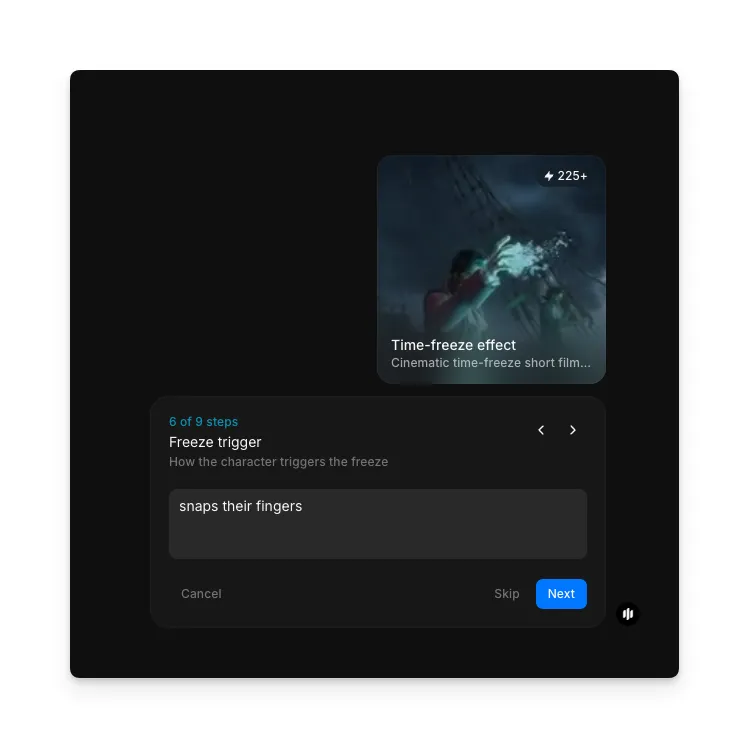
Describe the freeze trigger (optional)
Describe how the character triggers the freeze on screen. The example uses "snaps their fingers," but it could be a clap, a shout, or any gesture. Skip it if you don't want an on-screen trigger.
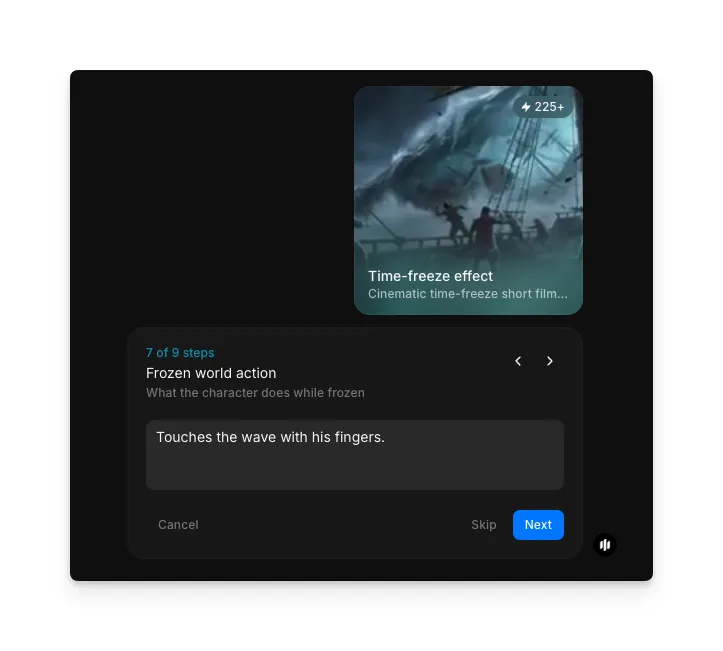
Describe the frozen world action (optional)
Describe what the character does once the world is frozen around them. The example reads "Touches the wave with his fingers." This gives the clip a small narrative beat inside the frozen moment.
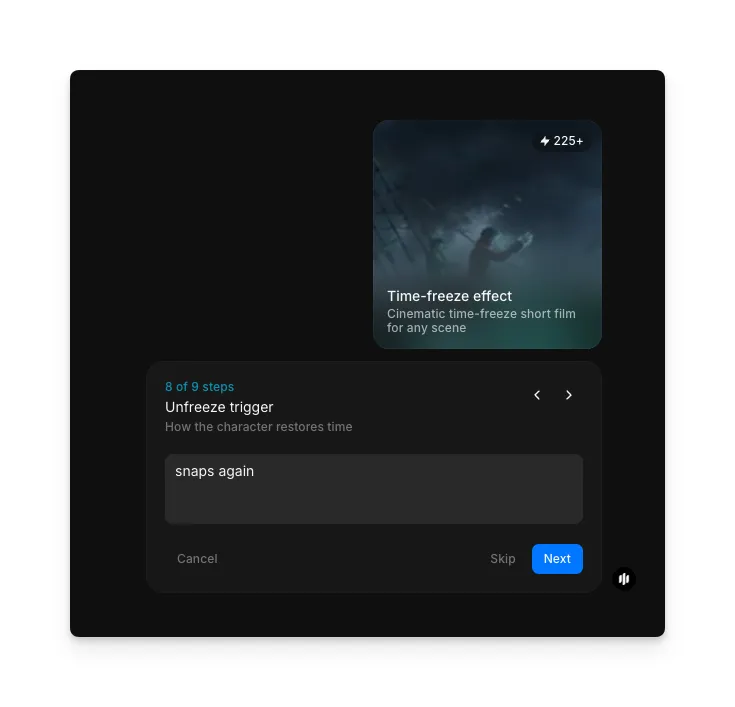
Describe the unfreeze trigger (optional)
Describe how the character restores time at the end of the clip. The example uses "snaps again." Skip this if you want the freeze to hold until the clip ends.
Pick an output aspect ratio and run the workflow
Select the aspect ratio for your final video:
| Ratio | Best for | Use case |
|---|---|---|
| 16:9 | YouTube, website embeds, landscape ads | Cinematic widescreen format for desktop and horizontal displays |
| 9:16 | TikTok, Instagram Reels, YouTube Shorts | Full-screen vertical video for short-form content |
| 1:1 | Instagram feed, Facebook feed | Square format that works across most social platforms |
| 4:3 | YouTube pre-roll, presentations | Classic video frame for desktop and widescreen displays |
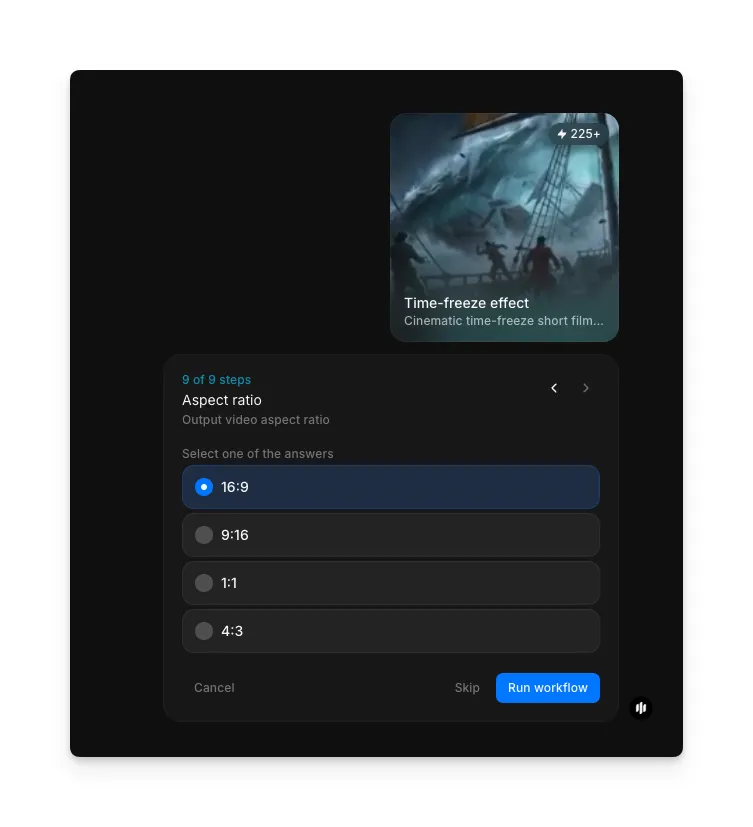
Hit "Run workflow," and Morphic renders a short video clip where the scene freezes on your chosen beat, the camera sweeps through the moment, and the action resolves, all in the aspect ratio you selected:
The finished time-freeze effect clip: the surfer scene freezes on the wave, the camera sweeps through the moment, then time resumes.
What makes a great time-freeze effect
| Quality | What it means | Why it matters |
|---|---|---|
| Dramatic tension | The freeze lands on a meaningful beat, not a random frame | The whole point of the effect is narrative impact, not novelty |
| Scene integrity | Depth, lighting, and detail hold up when the camera moves around the frozen moment | A flat freeze breaks the illusion the second the camera shifts |
| Camera movement | The virtual camera path has clear intent — orbit, push, or pull | Movement is what turns a still frame into a finished video clip |
| Visual impact | Lighting, color, and framing read as cinematic rather than clip-like | This is the difference between a social post and something that looks produced |
The workflow handles the freeze and the camera path automatically, so you only need to provide your scene and the direction.
Time-freeze effect workflow vs. manual VFX production
| Morphic's time-freeze workflow | Manual After Effects approach | |
|---|---|---|
| Time to completion | Minutes | Hours to days per shot |
| Skill required | None — fill in a few prompts | Motion tracking, 3D camera projection, compositing |
| Iteration | Regenerate with different prompts | Each change means re-tracking and re-rendering |
| Consistency | Freeze and camera move auto-aligned | Manual alignment prone to drift |
| Software required | None — runs in the browser on Morphic | After Effects, Nuke, and compositing plugins |
FAQs
Scenes with clear action or emotional weight perform strongest. Fight choreography, sports moments, product reveals, and dramatic landscapes all translate well. Since you provide the scene as a text prompt, you can describe any setting you want, and the workflow outputs the final clip in 16:9, 9:16, 1:1, or 4:3 to match cinematic, vertical, square, or classic formats.
No. The workflow runs entirely in your browser on Morphic, so you don't need After Effects, Nuke, or any external plugin. Upload your reference, fill in the prompts, pick your aspect ratio, and download the finished video directly from Morphic.
Bullet time is a specific style of time-freeze effect, made famous by The Matrix, where the camera orbits around a frozen subject at high speed. A time-freeze effect is the broader category: any shot where the action pauses while the camera keeps moving. Morphic's workflow can produce bullet-time-style shots along with other camera paths like slow pushes, pulls, and orbits.
Yes. Morphic lets you create Matrix-style time-freeze videos online without downloading any software. Provide a reference image of your character, describe the scene and the chaos event you want frozen, pick your aspect ratio, and the workflow renders a short video clip with the time-freeze effect built in.
Morphic offers a dedicated time-freeze effect workflow that handles the freeze and the virtual camera movement automatically, with no VFX experience required. It's a strong fit for creators who want the Matrix-style look without paying for compositing software or hiring a VFX artist.