Shape between the pines
A tall, antlered silhouette standing motionless between snow-laden pines at blue dusk, half-seen through drifting snowfall, its breath the only movement, the forest behind it absolutely still.
Edit prompt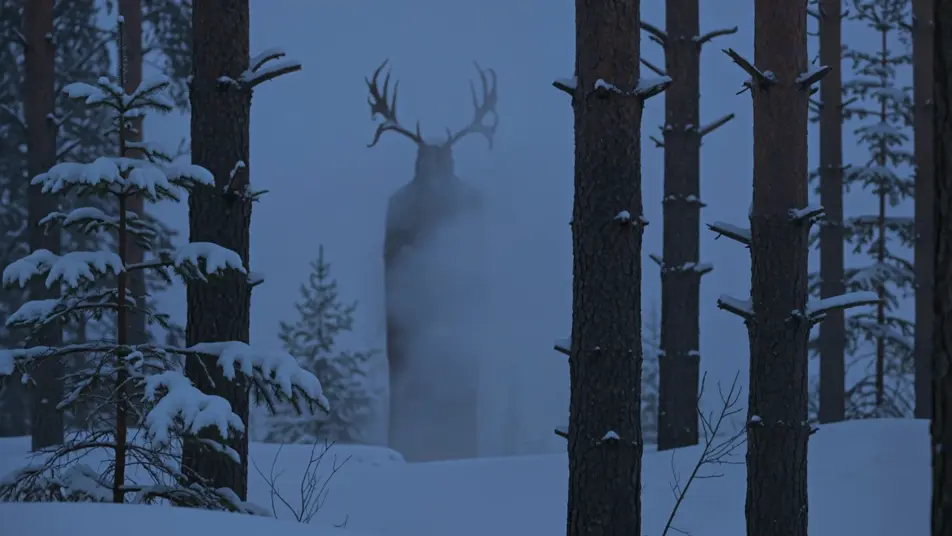
Direct winter's gaunt spirit in your browser with Morphic's Wendigo AI video generator. Generate an antlered shape between snowy pines or a transformation by a dying fire, add narration and a droning score with Speech and Music, then stitch a Wendigo episode.
A tall, antlered silhouette standing motionless between snow-laden pines at blue dusk, half-seen through drifting snowfall, its breath the only movement, the forest behind it absolutely still.
Edit promptA fur-wrapped trapper crouched over a line of long, clawed tracks in fresh snow at the edge of a frozen lake, low grey light, the dark wall of the forest waiting beyond and the prints leading into it.
Edit prompt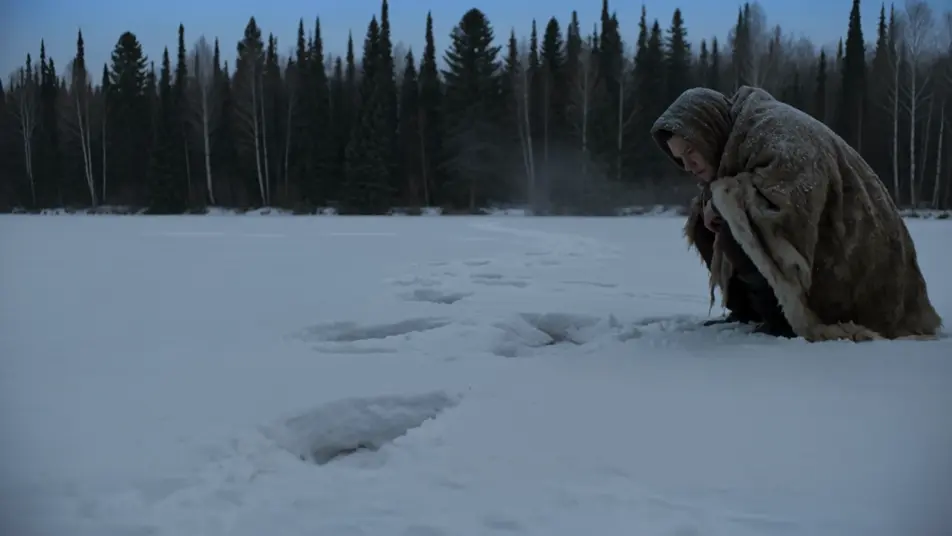
Inside a snowbound cabin, a figure by a guttering fire whose face is hollowing and sharpening, frost creeping across the skin, the firelight throwing a long distorted shadow up the log wall.
Edit prompt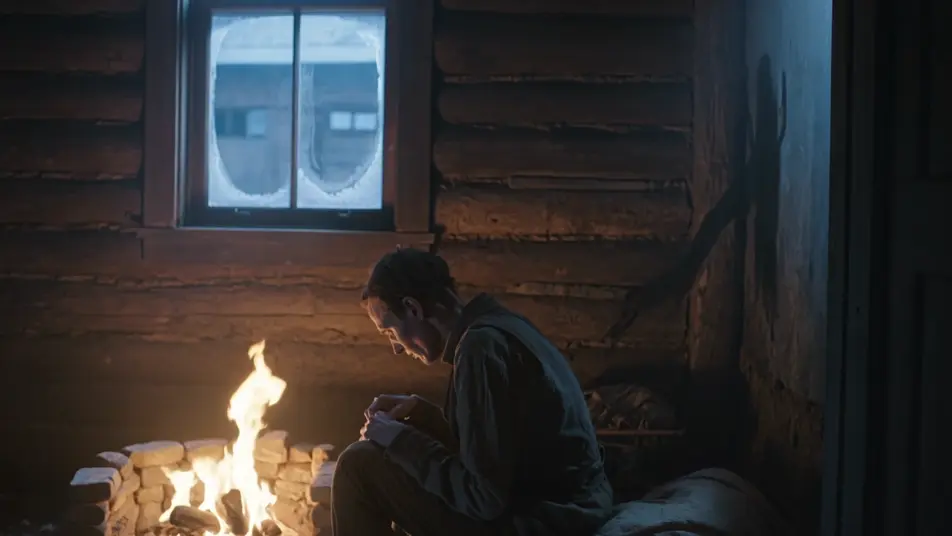
A trapper running through deep snow between black trunks at night, lantern swinging, a long pale antlered shape closing the distance behind in the gaps between the trees, breath fogging the cold air.
Edit prompt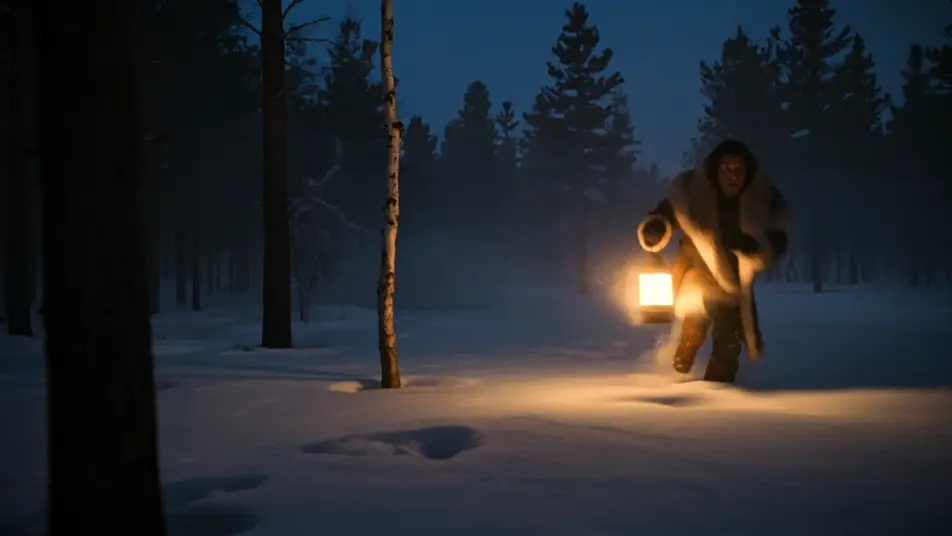
Write the Wendigo scene you want, in plain words.
Morphic generates a cinematic, frame-ready clip on your canvas in seconds.
Tweak the prompt, regenerate variations, then download or share the shot.

Share a scene description with character references. Get a full storyboard with shot angles and mood.
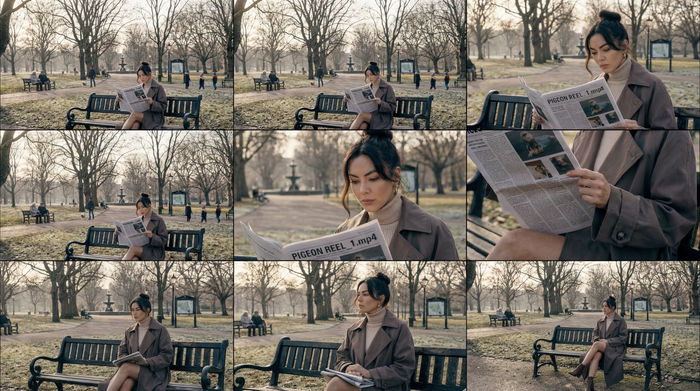
Feed in a single image. Get 9 cinematic beats laid out as a 3x3 storyboard grid.
One image to a 9-scene cinematic video.
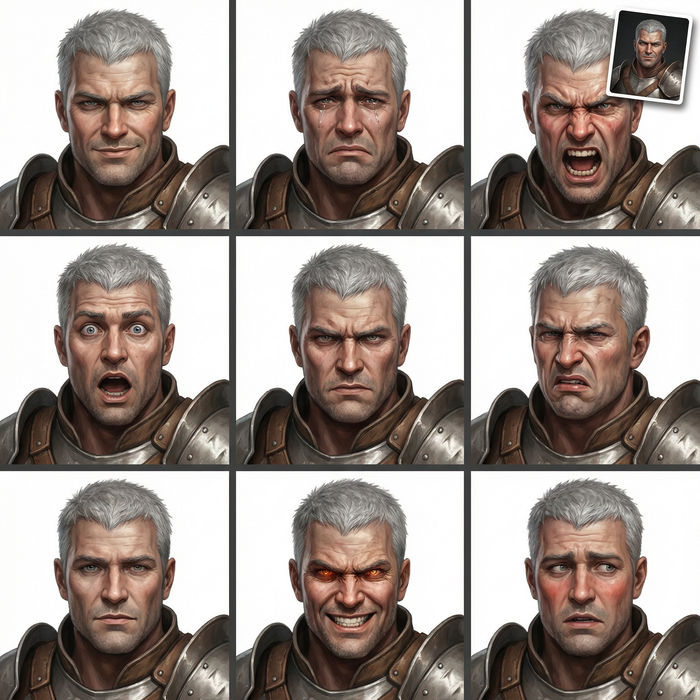
Take any character image and generate 6 distinct facial expressions on a single reference sheet.
Cinematic time-freeze short film for any scene
Drop in a photo of yourself. Get a 12-second cinematic movie with animation and a matched soundtrack.
Native American Mythology AI Videos
Create AI Native American Mythology videos with Morphic. Generate Native American Mythology scenes and visuals for any project in seconds.
Skinwalker AI Videos
Create powerful AI Skinwalker videos with our Skinwalker video generator. Find unique, cinematic Skinwalker scenes for any project in seconds.
Thunderbird AI Videos
Create powerful AI Thunderbird videos with our Thunderbird video generator. Find unique, cinematic Thunderbird scenes for any project in seconds.
Coyote the Trickster AI Videos
Create AI Coyote the Trickster videos with Morphic. Generate Coyote the Trickster scenes and visuals for any project in seconds.
Get started for free today, with the option to upgrade or cancel anytime.
Basic
2400 monthly credits
1 user only
All models
Workflows
Standard
3625 monthly credits
1 user only
All models
Workflows
Pro
6350 shared monthly credits
1 user
All models
Workflows
Max
24650 shared monthly credits
1 user
All models
Workflows
Enterprise
For higher limits
Custom
pricing and billing terms

Free
For playing around
$0
forever free