What is previs, and why do it before you generate?
Previs, short for previsualization, is a rough moving version of a scene made before production: who stands where, how they move, where the camera sits. The previz glossary entry covers its history.
With AI video, the cheap moment is before you generate, because a prompt alone leaves the staging to the model. In Morphic, the previs is a 3D scene on the Canvas, and its blocking video becomes the reference for the shot. To plan with boards and generated frames instead, see AI previsualization.
 Generated shot
 3D Scene previs
Block a previs shot by describing it, then refine it by hand
Describe the shot to Copilot
Brief it like a crew: a loading dock at night, a courier by a van, a guard leaving a side door, a wide that cuts closer. Copilot builds the location, cast, movement and cameras from the 3D tab or any chat.
Refine the previs by hand
Drag a figure, redraw a path, pose a body part, or keyframe a camera at an exact frame and set its lens and roll. Add props from the model library or upload your own .glb, .gltf or .obj models. Scene edits cost no credits.
Previs for dialogue, action and stunts, choreography, product and vehicle studies
Dialogue previs: coverage before the scene exists
Set up a two-shot, an over-the-shoulder each way and a close-up, then cut between them. The editor flags a camera that crosses the 180-degree line, so the coverage is checked before a single shot is generated.
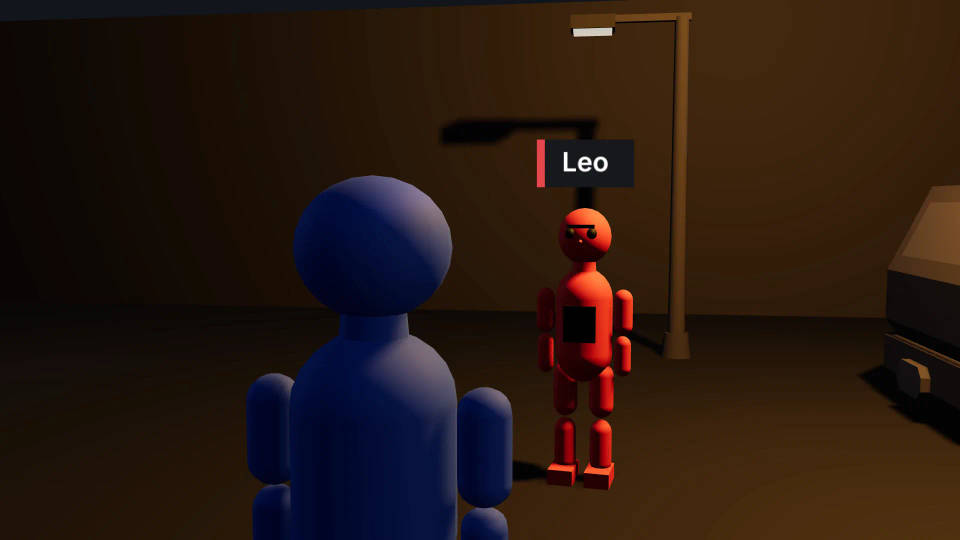
Action and stunt previs with paths and Follow
Give each performer a path to walk or run, time the moment they cross, and set a camera to Follow the runner. Group action adds ready-made fight movement for a scuffle.
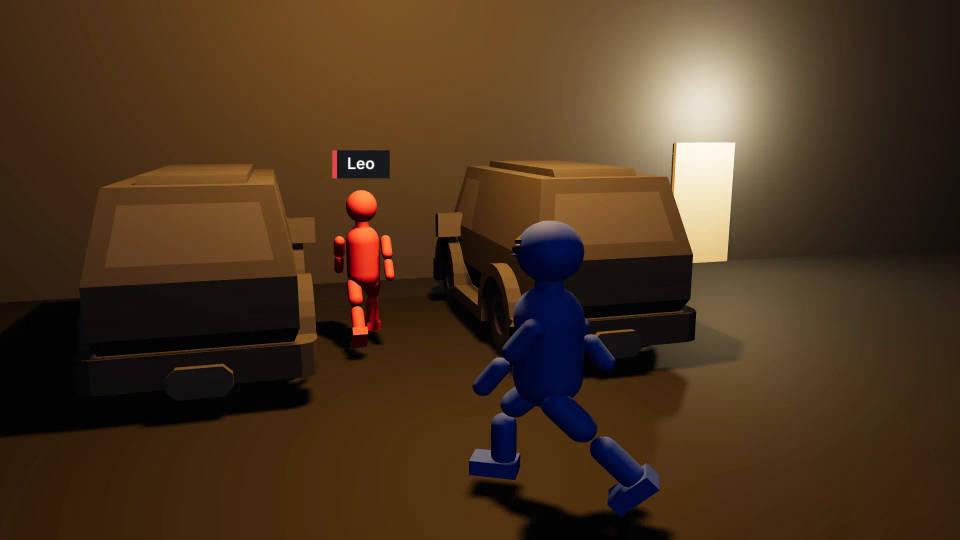
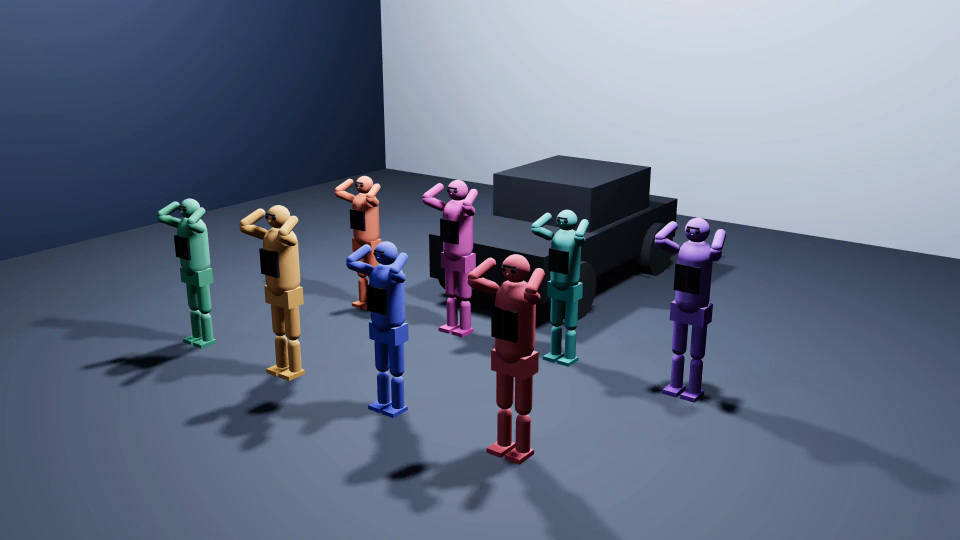
Choreography previs for a group
Group action places a whole cast with ready-made dance movement in one step, and Formations save the arrangement. Adjust any dancer, then try the camera from the front, the side and above.
Product and vehicle previs
Upload the product or vehicle as a model, orbit a camera around it, and light it with a Light setup and a Mood. Agencies can agree the angles on the client's own model first.
Continuity checks in your previs: the 180-degree line and movement speed
The 3D Scene editor flags two problems on the timeline, at the frame where they happen. The 180-degree rule guide covers when crossing the line on purpose works.
- 180-degree lineA camera that crosses the line between two characters gets a warning, because the cut would flip their looks.
- Movement speedA walk that covers ground at sprint pace gets a warning too.
 Fix it in 3DMoving a camera or retiming a path costs no credits.
Previs vs storyboard vs animatic
Many productions use all three: board the story with the AI storyboard generator, time it with the 3D storyboard and animatic maker, and block the camera work in 3D.
| Storyboard | Animatic | Previs | |
|---|---|---|---|
| What it is | Drawn or generated frames, one or more per shot | Storyboard frames timed to sound | A moving 3D scene with set, cast and cameras |
| What it answers | What each shot shows | How long each shot holds | Where everyone moves and where the camera goes |
| Camera | Implied by the drawing | Fixed per frame, simple pans | A real lens, height and path |
| Changing a shot | Redraw the frame | Swap frames and retime | Move a figure or camera, render again |
| Best for | Agreeing the story | Testing pace | Action, coverage and camera moves |
From previs blocking video to finished shot
- 01
Block the previs
Describe the shot to Copilot or build it by hand, then set the cameras and the cuts.
- 02
Render the blocking video
Render the video in the editor at no credit cost and add it to the Canvas, or press P to save a snapshot.
- 03
Cast by colour and generate
Attach the video or snapshot as a reference and name each figure by colour in the prompt.
Where Morphic previs stops: modelling and final-pixel rendering
What the previs sets
The blocking video guides the staging, the camera movement and the screen direction. The finished look comes from the generation, so check each shot against the plan. The 3D scene maker page has every feature.
What stays in Blender
3D Scene has no modelling, sculpting, rigging or texture painting. Keep that work in Blender; the free Morphic for Blender add-on sends renders to Morphic in one click.
All on Morphic
3D scene maker
Describe a shot and Copilot builds the set, cast, action and camera in 3D.
Camera blocking tool
Plan where everyone stands and where the camera goes, then check the frame through the lens.
3D storyboard maker
Turn a blocked scene into storyboard frames and a timed animatic.
AI storyboard generator
Board a scene from a script in frames, then block the shots that need it in 3D.