Camera blocking tool for AI video

Two glowing marks on a dark floor joined by a curved path of light, with a translucent camera frame hovering above, the cover for the Morphic camera blocking tool

Place the cast, move the camera in 3D. Generate the shot once the frame works.

What is camera blocking?

Camera blocking is planning where each actor stands and moves in a scene, and where the camera sits and travels to film them. The blocking glossary entry covers the craft in full.

Block a shot in three steps

  1. 01

    Describe or place the scene

    Tell Copilot the set, the cast and the action, or place the figures and props by hand.

  2. 02

    Block actors and camera

    Set each path, time the moves, then set the lens, angle and camera move.

  3. 03

    Render and generate

    Render the blocking, attach it to the shot, and name each figure by colour in the prompt.

Camera blocking by description: tell Copilot the shot

Blocking is the step AI video usually skips, and the cost shows up in rerolls. Block first, and the generation has a plan to follow.

The fastest start is a sentence. Copilot builds the set, cast, movement and cameras from the 3D tab or any chat, at no credit cost for the scene edits.

Copilot brief

A late-night laundromat. A woman folds clothes at the counter, a man walks in from the street and crosses to her. A wide camera that cuts to a two-shot as he arrives.

Block actors and the camera in 3D

Block actors: paths, gaits and timing on the timeline

Give each figure a path and a gait: idle, walk, run or Auto. Time each start, stop and turn on a timeline that zooms to single frames, and pose the stance at each mark.
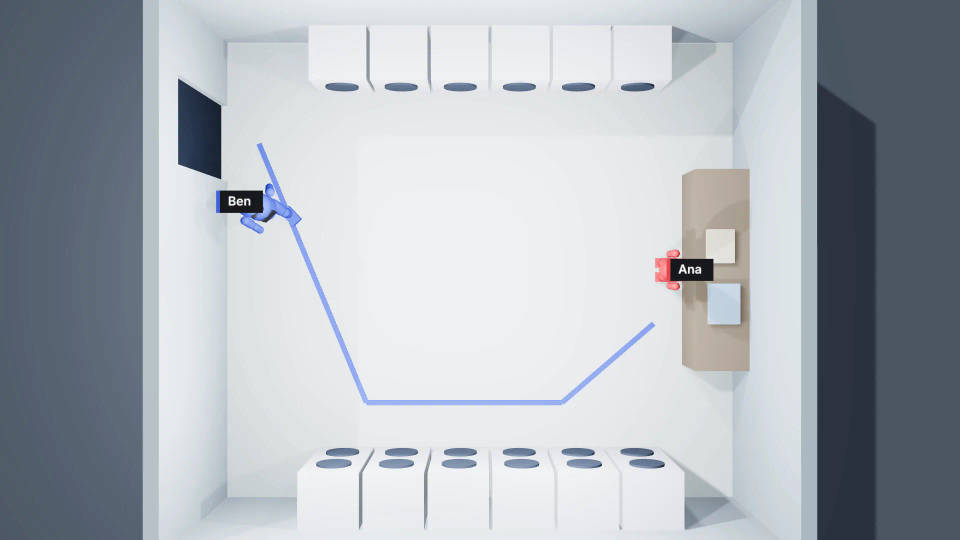
Top view of a 3D Scene laundromat: blue floor tape marks the blue figure's walk from the street door to the counter where the red figure stands

Block the camera: lens, angles and Follow

Pick a lens preset, set the field of view and sensor size, or use a one-click angle that frames the subject for you. Follow keeps a camera on a moving figure.
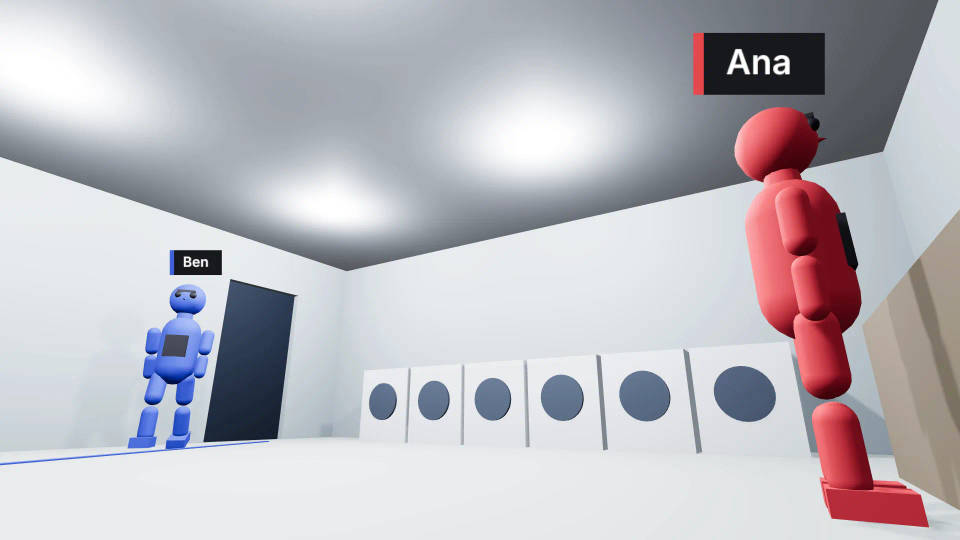
Camera view in 3D Scene: a low angle on the red figure at the laundromat counter, the blue figure standing by the street door across the room

Compare camera angles with several cameras

Put a wide, a two-shot and a close-up on one setup and cut between them. Every camera sees the same performance, so you compare angles on identical blocking.
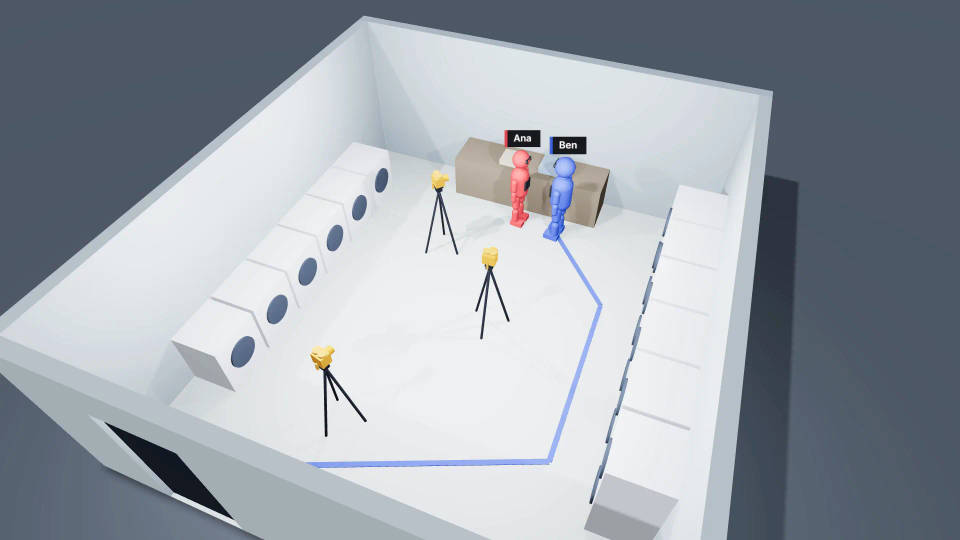
High view of the 3D laundromat with three tripod camera props from the model library marking the setups around the red and blue figures: a wide near the door, a two-shot and a close-up

Camera moves: keyframe one or record it live

Add a camera move, set its Camera style and how much it shakes, or mount the camera on a moving object. Keyframe it at an exact frame, or record one live by steering the view.
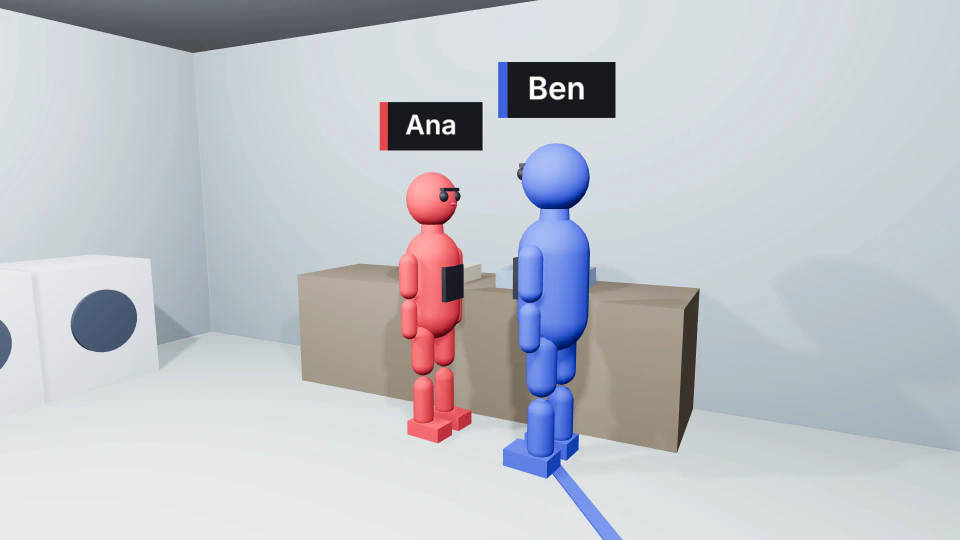
Camera view on the red and blue figures standing face to face at the laundromat counter, a washing machine at the left edge of frame and the blue figure's path taped on the floor

Dialogue blocking: two-shot, over-the-shoulder, reverse and the 180-degree warning

A dialogue scene usually opens on a two-shot, then trades over-the-shoulder shots and a reverse shot. Place a camera for each setup and cut between them.

Keep every camera on one side of the line between the two characters; the editor flags any that crosses it. The 180-degree rule guide covers when crossing on purpose works.

Turn the blocked shot into AI video

Render the blocking video at no credit cost and add it to the Canvas, or press P to save a snapshot. Attach either one to the shot and name each figure by colour. The blocking guides who stands where, which way they face and where the camera sits. For prompt wording, see camera movements and camera movement prompts. The step-by-step guide takes one scene to a finished shot.

Cast-by-colour prompt

Night interior of a laundromat, two-shot. The red figure is a woman in a grey cardigan folding clothes at the counter. The blue figure is a man in a rain-wet jacket arriving beside her.

Finished night two-shot in a laundromat: a woman in a grey cardigan folds clothes at the counter as a man in a rain-wet jacket faces herGenerated shot
3D Scene blocking of a two-shot in a laundromat: the red figure on the left and the blue figure on the right face each other at the counterCamera blocking

All on Morphic

From the plan to the shot

Simple pricing

Get started for free today, with the option to upgrade or cancel anytime.

Basic

$19/ month
billed as $228 per year

2400 monthly credits

1 user only

All models

Workflows

Standard

$24/ month
billed as $288 per year

3625 monthly credits

1 user only

All models

Workflows

Pro

$45/ month
billed as $540 per year

6350 shared monthly credits

1 user

+ up to 4 more at extra cost

All models

Workflows

Max

$170/ month
billed as $2040 per year

24650 shared monthly credits

1 user

+ up to 9 more at extra cost

All models

Workflows

Enterprise

For higher limits

Custom

pricing and billing terms

High-volume credits
Custom seat limits
All models
Workflows
Pricing Gradient

Free

For playing around

$0

forever free

Up to 20 credits
1 user only
Limited models
Workflows

FAQs

What is the difference between blocking and staging?
Staging is the arrangement of the set and the people in it: who is where and what the space looks like. Blocking adds movement and the camera: where each person goes, when they move, and where the camera sits and travels to see it. A camera blocking tool plans both together, shot by shot.
Can I block a dialogue scene?
Yes. Place the two figures, give each setup its own camera, a two-shot and an over-the-shoulder each way, then cut between them on the timeline. Name each figure by colour so the prompt can cast it, and the editor flags any camera that crosses the 180-degree line between them.
Can I compare several camera angles on one setup?
Yes. Add several cameras to the scene and cut between them, all filming the same blocking. Add a camera at the same spot with a different lens or height, then download a still frame from each and lay them side by side on the Canvas to pick the angle that tells the scene.
Will the camera blocking tool warn me if I cross the line?
Yes. The 3D Scene editor flags a camera that crosses the 180-degree line between two characters, on the timeline at the moment it happens. It also flags performers moving at speeds that will read as wrong. Copilot cannot read these warnings, so check the timeline yourself after it edits a scene.
Can I share the blocking with my crew?
Yes. Your crew can work in the same scene with you live, with markers showing who is working where, and changes save automatically. To share outside the editor, render the blocking video, download a still frame, or download the scene file. Scenes have no comments, so talk changes through live or over the render.
Does camera blocking cost credits?
Placing figures, moving cameras and editing the scene cost no credits, and Render video in the editor has no credit cost because it runs in your browser. Copilot replies and the generated shots use credits, so blocking first means those credits go on a shot that already has a plan.

You might also like