Lighting
Set the look of a 3D scene, add a lighting rig, and adjust single lights.
Lighting in a 3D scene is for reading the shot: time of day, where the light comes from, and what falls into shadow. The final look comes from the generation.
Look
- Click the 'Scene' tab
- Scroll to 'Shot settings'
- Open 'Environment' and pick a look: Studio, Dusk, Daylight, Golden hour, Night, Warm interior, Cool interior or Club
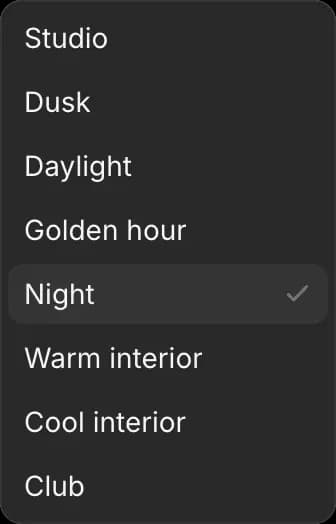
Under it:
- 'Ambient intensity', 'Ambient sky' and 'Ambient ground' set the soft light that fills the shadows
- 'Fog' sets how hazy the distance looks
To change where the sunlight comes from, select 'Sun' in 'Layers' and move or rotate it.
A scene loaded from an example uses default lights instead. There, the dropdown is called 'Lighting', and 'Sun azimuth' and 'Sun elevation' set the sun's direction and height. Click 'Edit default lights' to turn them into 'Sun', 'Fill' and 'Warm glow', which you can select and change.
Lighting rigs
A rig places a set of lights in one go.
- Click the 'Scene' tab
- Under 'Shot settings', open 'Lighting preset' and pick one: Three-point, Soft daylight, Golden hour, Dramatic or Neon
- Click 'Add lights' to add it to the lights you have, or 'Replace lights' to remove the old ones first

Three-point is the standard setup for a person: a main light, a softer fill on the other side, and a light from behind that separates them from the background.
Single lights
- Click 'Sun', 'Fill' or 'Warm glow' in 'Layers'
- Click the 'Selection' tab
- Change 'Type', 'Color' or 'Intensity'. 'Enabled' turns the light off without deleting it, and 'Cast shadows' turns its shadows on or off
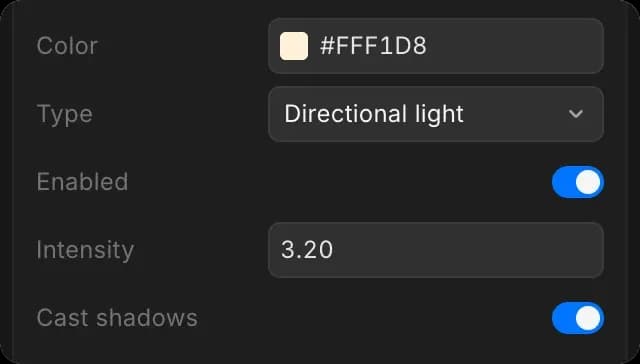
To add a light, click 'Add object', hover over 'Lights', and pick one. A point light shines every way like a bulb, a spotlight throws a cone, and a directional light hits everything from one side like the sun.
That's how to light a 3D scene on Morphic. Pick a look first, then add single lights only where the shot needs them.
If you have any trouble or have any questions, feel free to reach out. We're happy to help. Write to us at support@morphic.com.