Compose
What Compose is, key terms, editing by hand or with Copilot, and a quick start for your first video.
Compose is Morphic's agentic video editor, a full multi-track timeline that turns your clips into a finished video without leaving Morphic. Tell Copilot the edit you want, and it makes the change for you, or edit the timeline yourself.
Here's a quick tutorial with an overview of Compose on Morphic:
Open Compose
- Open a file in Morphic
- Click 'Compose' in the top bar, after 'Canvas' and 'Copilot'
Or go straight to Compose at studio.morphic.com/compose.
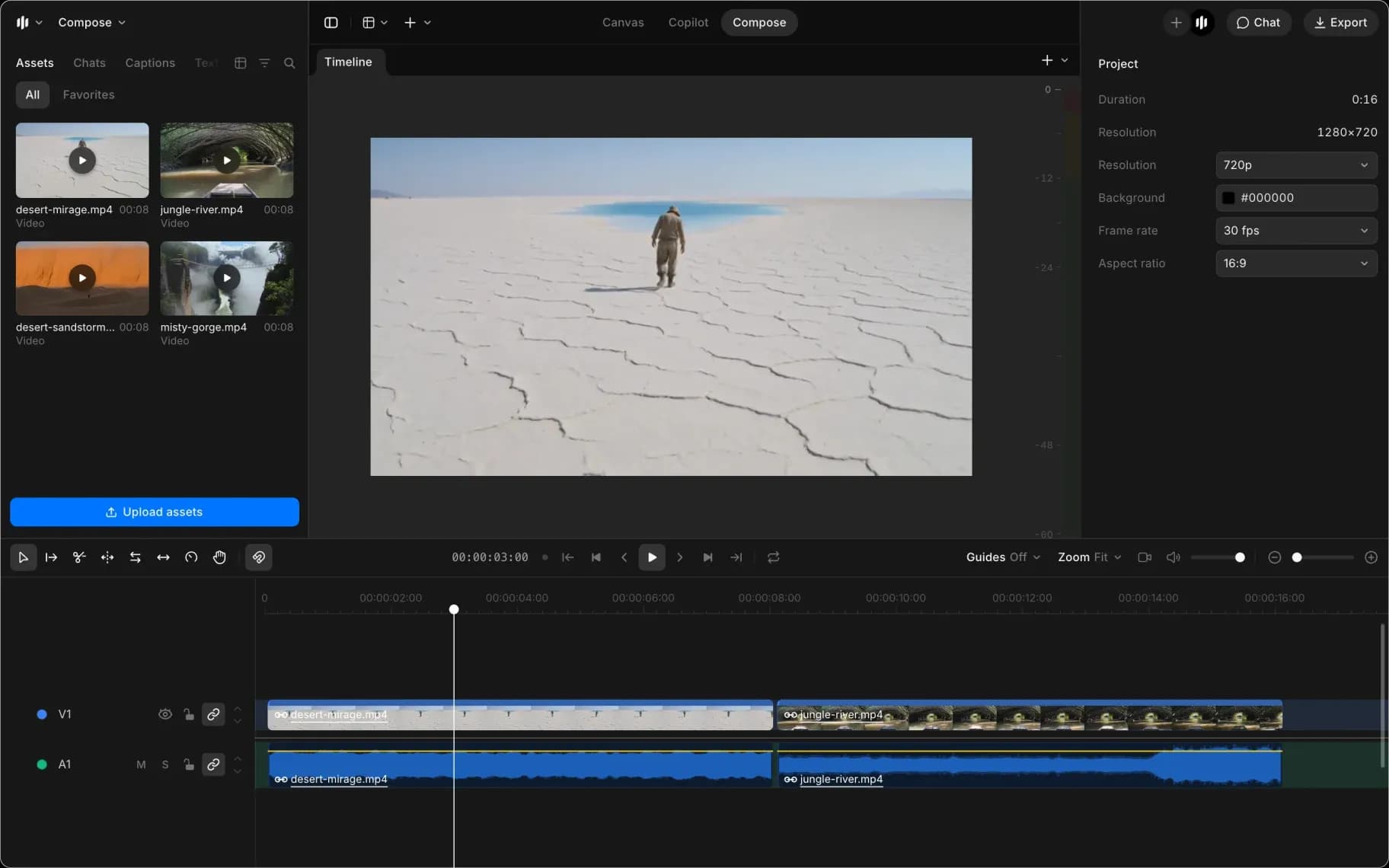
Key terms
| Term | Meaning |
|---|---|
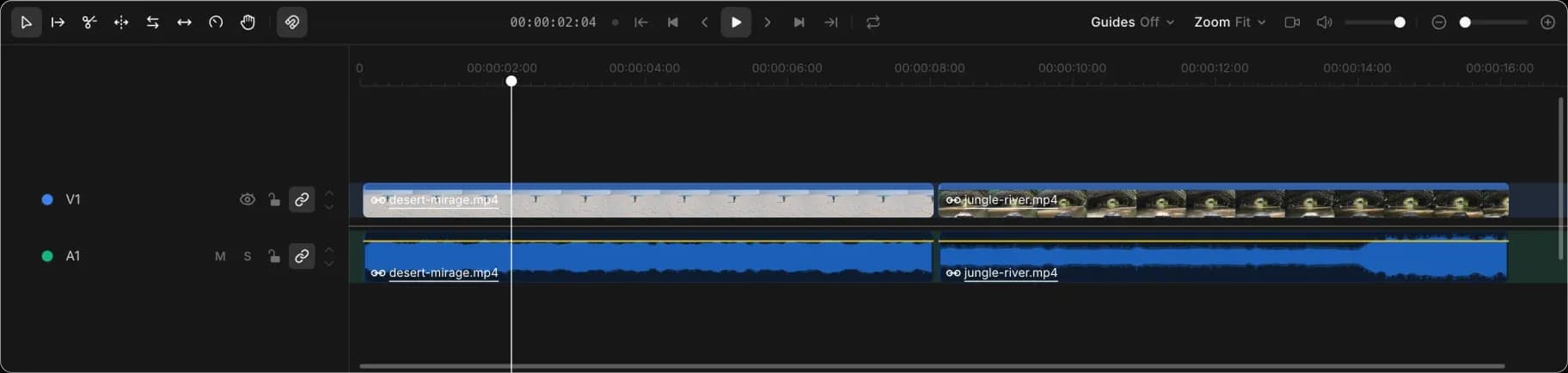
| Timeline | The strip along the bottom. Left is the start of your video, right is the end. |
| Clip | One piece of media on the timeline: a video, image, sound or some text. |
| Lane | One row of the timeline. Video goes in video lanes, sound in audio lanes. |
| Playhead | The vertical line on the timeline. It marks the moment shown in the preview. |
| Trim | Shorten a clip by dragging its end. |
| Export | Turn the timeline into a video, audio or subtitle file, or a project for another editor. |
Manual editing and Copilot
Each one suits different work.
| Manual | Copilot | |
|---|---|---|
| Best for | One change you can see and click | The same change in many places, or a change you cannot find |
| Speed | Instant | Seconds, while it reads the timeline |
| Cost | Free | About 1 credit per step |
| Reach | The controls in the panels | The panels, plus lane and overall levels that have no control of their own |
Most people use both: cut by hand, then ask for the tedious parts. Copilot can also build a timeline for you from any chat in the file, so you can start an edit without opening Compose. Work through the pages below in order, and pick up Edit with Copilot whenever a job sounds repetitive.
Editor layout
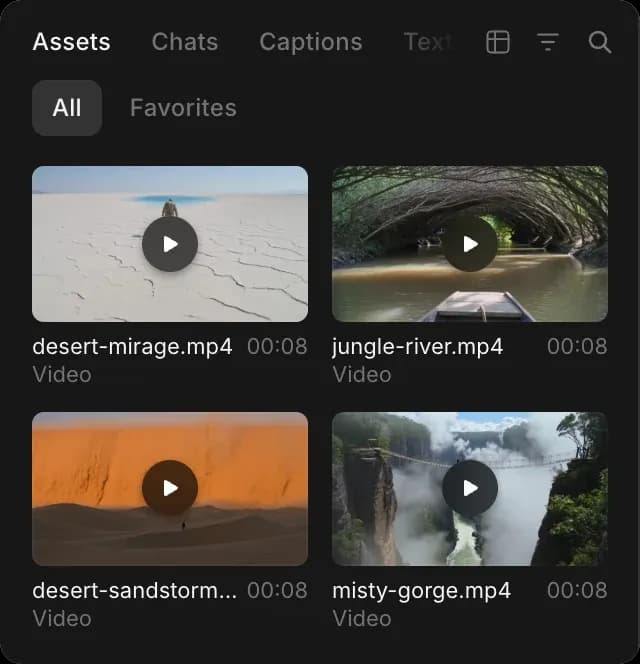
- Left: your media. Drag it onto the timeline.
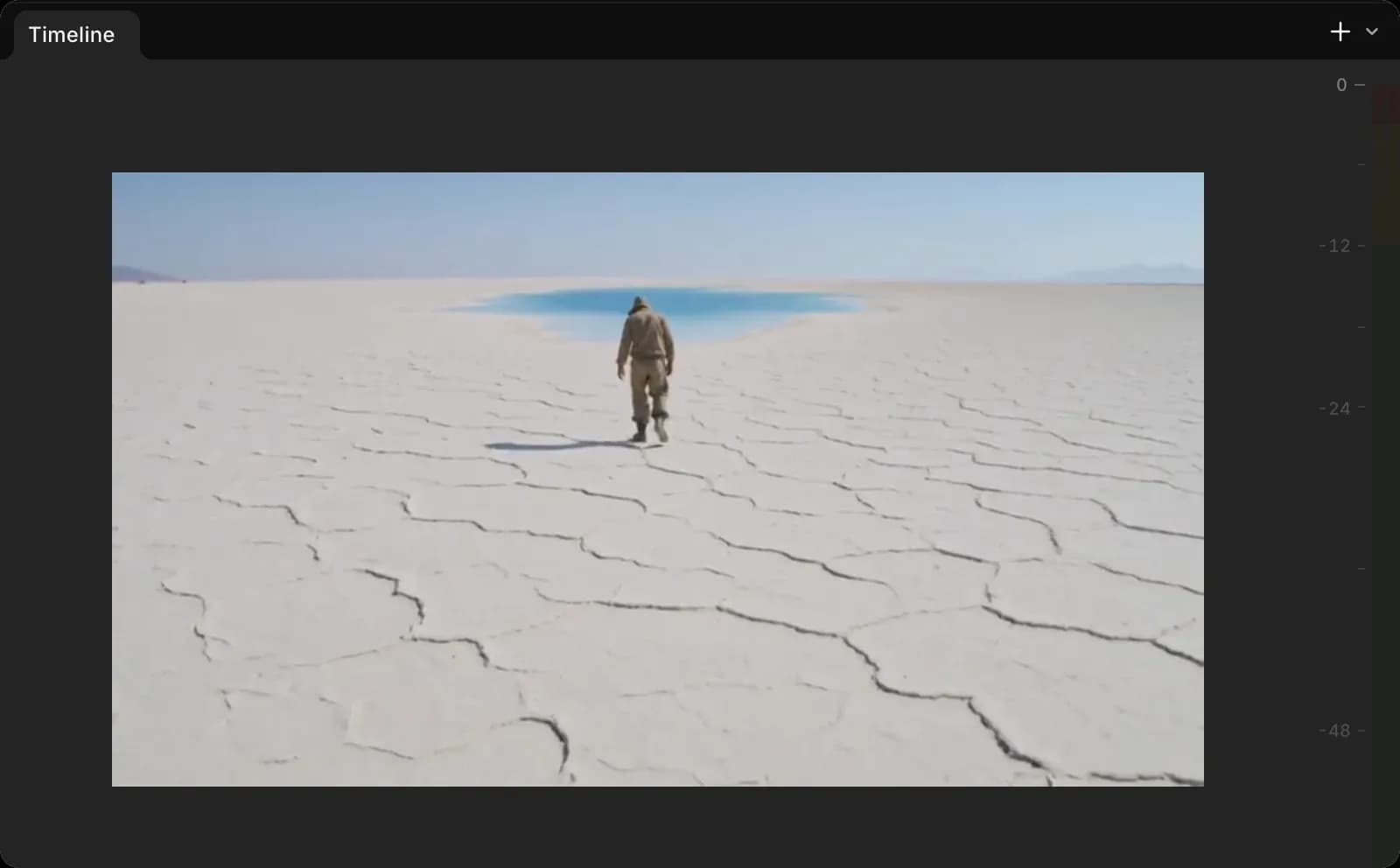
- Middle: the preview.
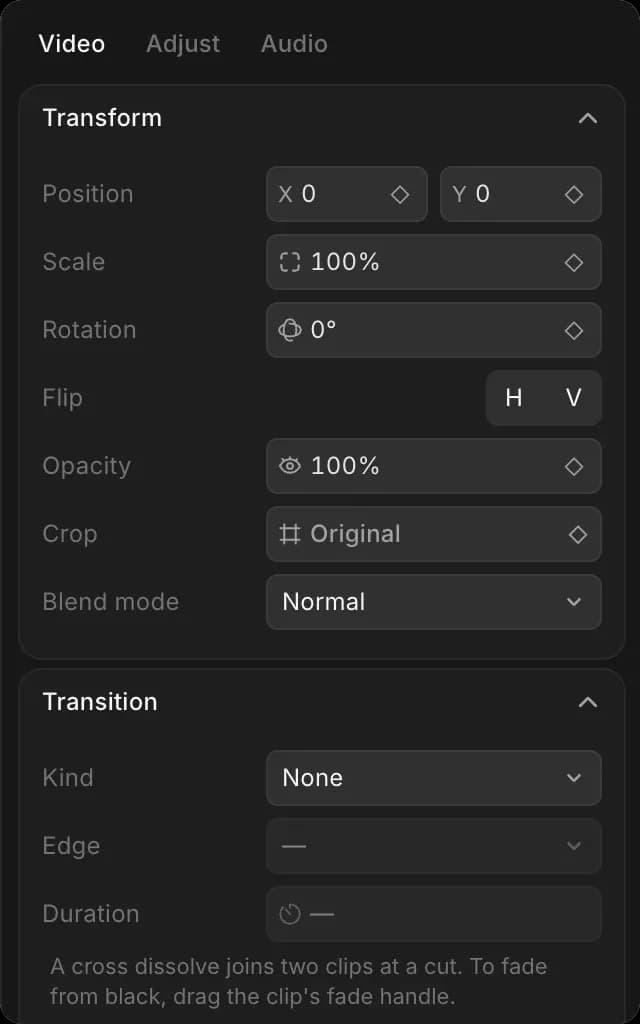
- Right: settings for whatever you have selected, or the chat.
- Bottom: the timeline.
Hide or show a panel from the 'View' menu at the top left.
Quick start
- Drag a clip from the left onto the timeline
- Drag a second clip so it sits after the first
- Click 'Play' to watch them back
- Drag the end of a clip inwards to shorten it
- Click 'Export' at the top right to save it
That is a finished video. The rest of these pages make it better.
All Compose guides
In the order you would actually work:
- Start a project: set the shape of your video, and save and share it
- Add your media: get clips, sound and graphics onto the timeline
- Cut and arrange: trim, reorder, and join your shots
- Motion and framing: move and resize a clip, and animate it
- Color: grade the picture
- Audio: levels, fades, and the mix
- Text and captions: titles, stickers, and subtitles
- Edit with Copilot: what you can ask for, and what it costs
- Writing Copilot requests: phrasing that gets the result you meant
- Export a video: save the finished file
- Keyboard shortcuts: the keys that make editing fast
- Troubleshooting: what to do when something will not work
That's what Compose is on Morphic. Use it when a set of clips needs to become one finished video.
If you have any trouble or have any questions, feel free to reach out. We're happy to help. Write to us at support@morphic.com.