3D Scene
What a 3D scene is, key terms, the editor layout, and a quick start for blocking your first shot.
A 3D scene on Morphic is where you block a shot before you generate it. Place the set, the cast and the camera in 3D, animate who moves where, then use the shot as a reference so the final generation follows your staging. Prompt Copilot to build the scene for you, or set every detail yourself.
Blocking is the film term for working out where people stand, how they move, and where the camera sits. Doing it before you shoot is called previsualization, or previs.
Here's a quick tutorial on 3D Scene, from blocking a basic scene to using it as a reference for your video:
Open a scene
The fastest way is studio.morphic.com/3d. It adds a new scene to the Canvas of the file you last worked in and opens the editor.
To add a scene to a file you have open:
- Open the file. You land on the Canvas
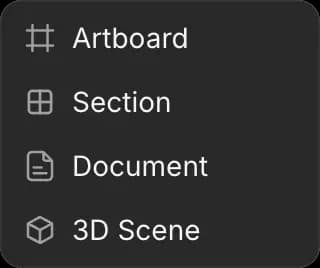
- Click '+' in the toolbar at the top left of the Canvas, then '3D Scene'.
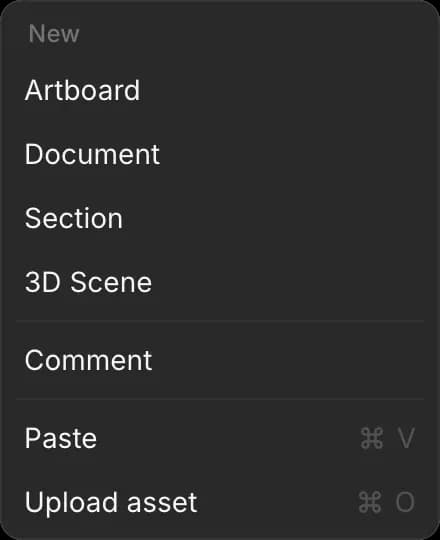
Or right-click an empty spot on the Canvas and click '3D Scene'
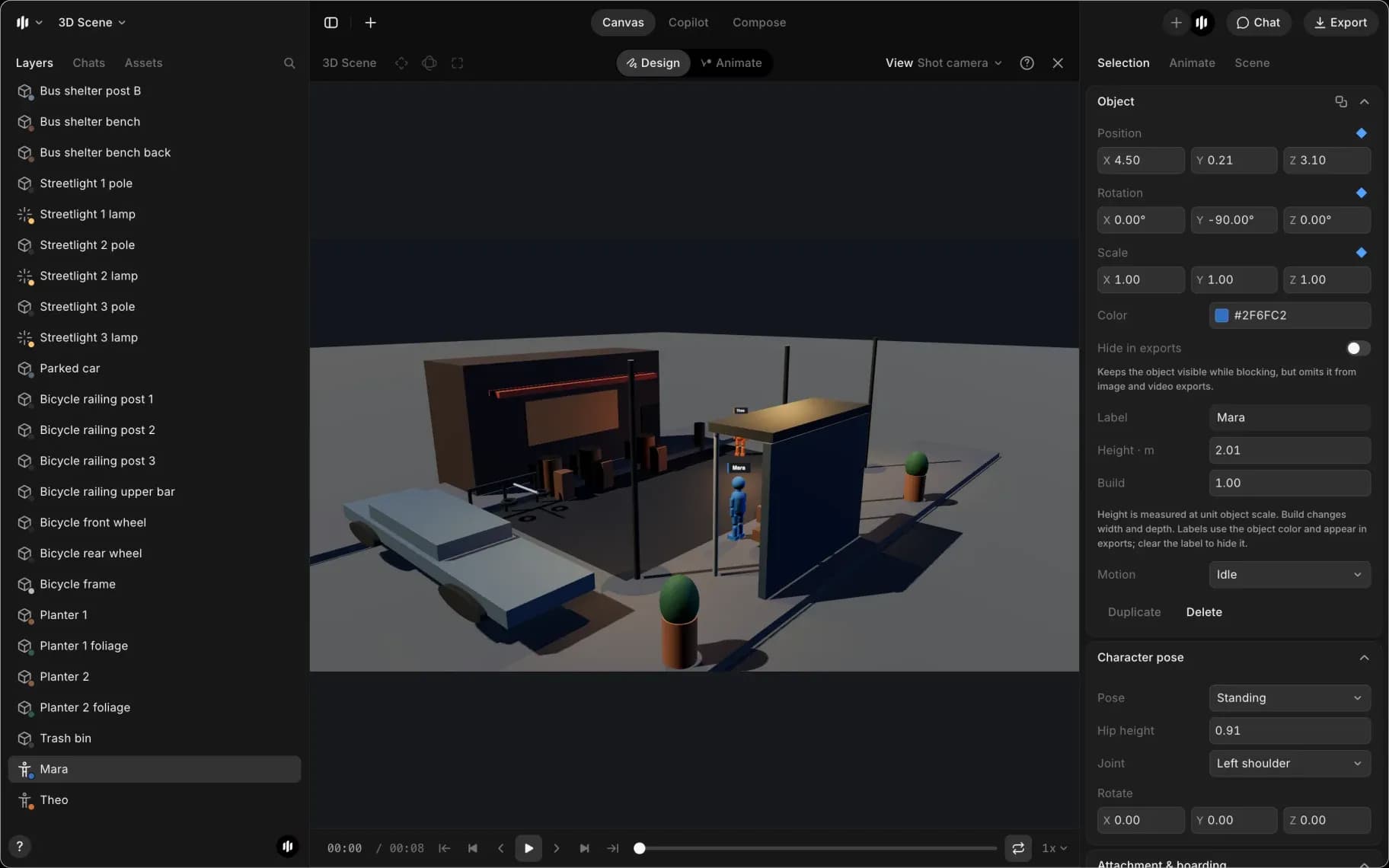
The 3D editor opens with a floor, a shot camera, and three lights already in place.
- To go back to the Canvas, click 'X' at the top right of the editor, or press Esc. The scene stays on the Canvas next to your images and videos
- To open it again, double-click the scene on the Canvas
Key terms
| Term | Meaning |
|---|---|
| Viewport | The 3D view in the middle of the editor |
| Axes | The three directions a scene is measured along: X and Z across the floor, Y up. See Move, rotate and scale |
| Shot camera | The camera your export is taken from. What it sees is what you get |
| Keyframe | A saved position at one moment. Objects move between keyframes |
| Playhead | The current moment in the shot |
| Gait | How a character moves between keyframes: idle, walk or run |
| Action line | An imaginary line between two characters. Keeping the camera on one side keeps them facing the same way on screen |
| Lens | The camera's focal length in millimetres. Lower numbers show more of the scene |
Editor layout
- Top left: the move, rotate and scale tools
- Top centre: the 'Design' and 'Animate' modes. 'Animate' opens the timeline along the bottom
- Top right: the 'View' menu, 'Chat', 'Export', and 'X' to close. 'View' switches between Perspective, Top and Shot camera, and its 'Display' options show or hide the grid, the axes, motion paths and the preview
- Left: 'Layers', a list of everything in the scene, plus 'Chats' and 'Assets'
- Middle: the viewport, with a 'Shot camera' preview in the corner
- Right: the 'Selection' tab for whatever is selected, 'Animate' for motion, and 'Scene' for the whole shot. 'Chat' swaps this panel for Copilot
The editor is available in English, Chinese, Japanese, Korean, German, French, Spanish, Brazilian Portuguese and Indonesian.
Quick start
This blocks a woman walking across the frame, then generates from it. It takes about two minutes.
- Open a scene, as above
- Click 'Add object', the '+' at the top left
- Hover over 'People', then click 'Woman'. She appears on the floor, selected
- In the right panel, click the 'Animate' tab
- Click 'Draw movement path'. The timeline opens along the bottom
- Click three or four points on the floor where she should walk. A dotted line joins them
- Press Esc, or click 'Done' in the banner, to finish the path
- Click the 'Selection' tab, open the 'Motion' dropdown, and pick 'Walk'
- Press Space to play. She walks along the path
- Press 3 to watch it through the shot camera. Press 1 to go back to the normal view
- Click 'Export' at the top right, then 'Export current frame'. A PNG downloads
- Close the editor, add the PNG as a reference in the prompt bar, and generate. See Use the export as a reference
All 3D Scene guides
- Start a scene: example shots, shot length, and working with other people
- Build a set: add objects, place them, and reuse arrangements
- Characters: color, label, size, pose, and riding a vehicle
- Lighting: looks, light rigs, and single lights
- Camera: lens, framing, rigs and camera moves
- Animation: movement paths, keyframes, easing, motion presets and the timeline
- Crowds and action: whole-cast dances, fights and chases
- Continuity checks: the warnings on the timeline, and how to clear them
- Edit with Copilot: build and change a scene with a prompt
- Export and use as a reference: stills, video, scene files, and generating from your blocking
- Keyboard shortcuts: the keys that make blocking fast
- Troubleshooting: what to do when something will not work
That's what a 3D scene is on Morphic. Use it when a shot depends on where people stand and how the camera moves.
If you have any trouble or have any questions, feel free to reach out. We're happy to help. Write to us at support@morphic.com.