API keys
Create, review and revoke your organization's API keys.
An API key lets another system start your workflows over the Partner API — no one has to open Morphic for a run to happen. The API keys tab is visible to admins only.
Go straight there: studio.morphic.com/settings/api-keys
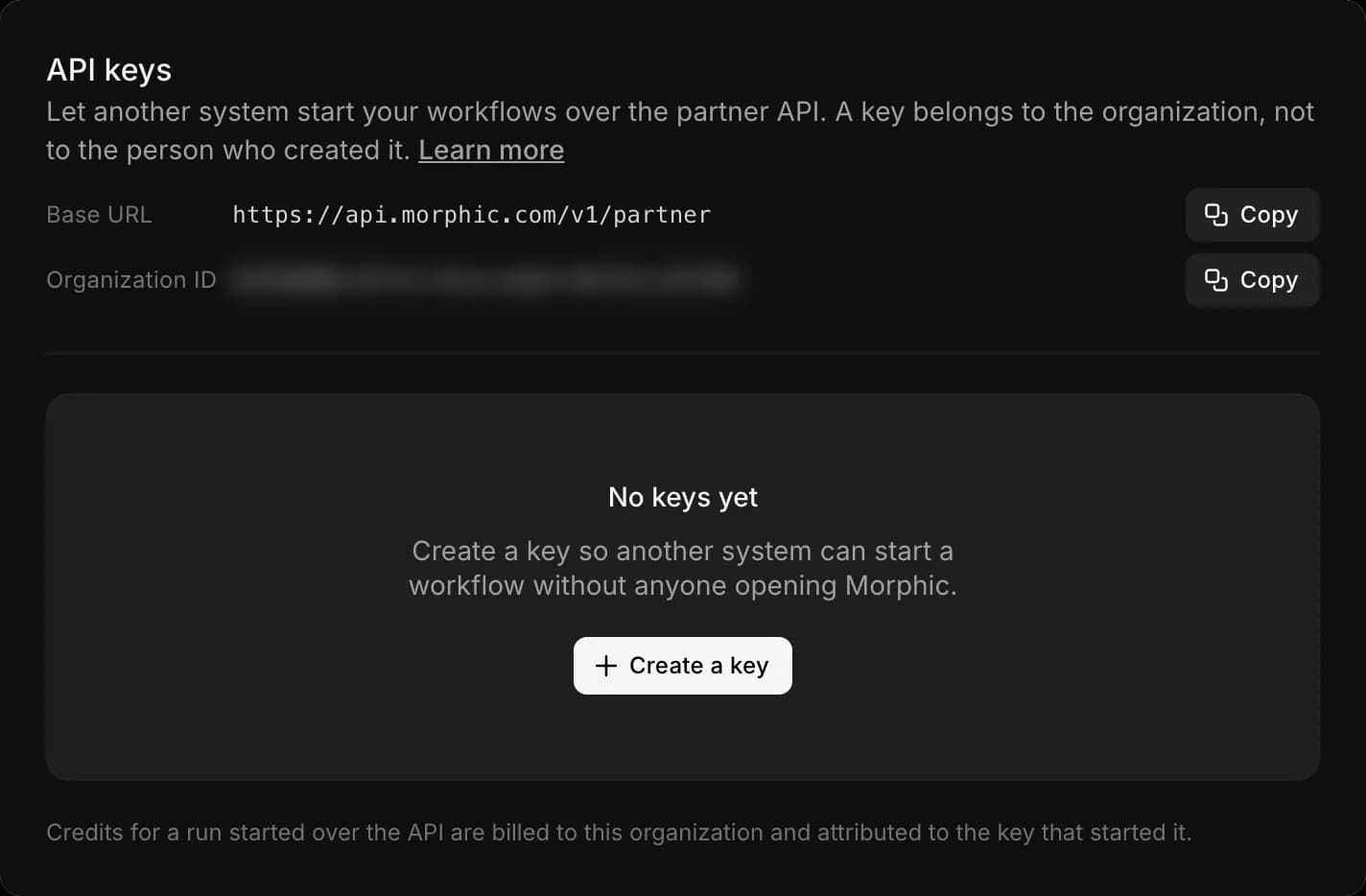
A key belongs to the organization
Not to the person who created it. It keeps working when they leave, every admin sees it listed and can revoke it, and every run it starts is billed to the organization.
Create a key
Open the tab
Open the organization dropdown (the Morphic logo, top-left), select Settings, then click API keys in the left sidebar.
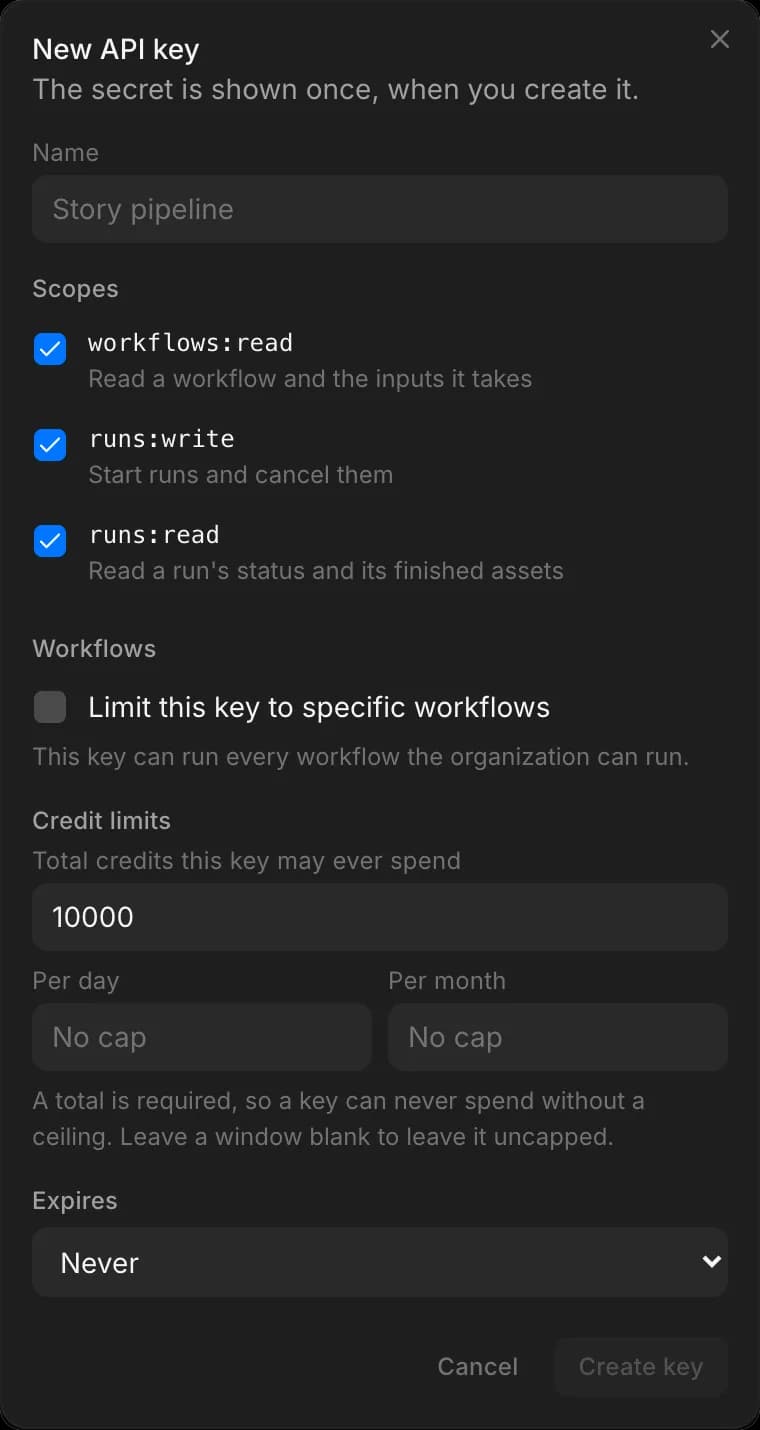
Choose its scopes
Three are offered, and the form starts with all three selected because a partner integration usually needs all three. Deselect what the key should not be able to do.
workflows:read— read a workflow and the inputs it takesruns:write— start runs, and register webhook endpointsruns:read— read a run's status and its finished assets, and list webhook endpoints
Limit it to specific workflows
Optional, and worth doing. Tick Limit this key to specific workflows and pick them. A run of anything else is refused, which contains the damage if the key leaks. Left unticked, the key can run every workflow the organization can.
Set its credit limits
The total is required — a key has to have a ceiling it can never spend past. Per-day and per-month caps are optional; leave one blank to leave that window uncapped.
Pick the total from what the integration should be able to spend before someone looks at it again, not from what it will spend — it is a circuit breaker, not a budget. A window cap cannot be higher than the total, because the total would bind first.
Credits for a run started with the key are billed to the organization and counted against that key's limits. A run the key started keeps counting against it even if somebody later steps into the chat and takes over — otherwise a colleague answering one question would move the rest of the run onto the organization's general pool. That person's own credit limit, if they have one, still applies too.
A day is a UTC day and a month a UTC calendar month. A charge that would take the key past any of its limits is refused, and the message names the key and the limit it hit.
Choose an expiry
Never, 30 days, 90 days or a year. An expired key stops authenticating on its own, which is the cheapest form of rotation.
Copy the secret
The secret is shown once. Morphic keeps only a hash of it, so it cannot be shown again. Copy it into your secret manager before closing the dialog.
Anyone holding the key can start runs that spend your organization's credits. Never commit it, never put it in a browser, never send it over email or chat. If one leaks, revoke it — that is what the tab is for.
What the list shows
Each key shows its name, whether it is a live or test key, the leading characters of its secret (enough to match against your own records), its scopes, how many workflows it can run, its credit limits, and when it was last used. Expired and revoked keys stay listed so you can see what happened to them.
An organization may hold up to 10 keys that can authenticate at once. Expired and revoked keys do not count against that.
Change a key's credit limits
- Find the key in the list.
- Click the '…' menu beside it and select Edit limits.
- Change the total, or a per-day or per-month cap — clear a cap to lift it — and save.
The new limits apply from the key's next charge, including on runs it has already started. That makes this the fix when a run stops on the key's limit, and it works on a revoked key too: its runs still spend against it, so lowering its limits is how you stop them.
Revoke a key
- Find the key in the list.
- Click the '…' menu beside it and select Revoke key.
- Confirm.
Calls using it start failing within seconds. Runs already in flight finish and are still billed. Revoking cannot be undone — to rotate, create the replacement first, move your traffic to it, then revoke the old one.
Where the spend shows up
Credits for a run started over the API are billed to the organization and attributed to the key that started it. See them under Billing & usage → Credit usage.