Billing & usage
Billing tab lets you manage your plan, view and change payment details, check invoice history, and get an overview of your plan and renewal details.
Billing & usage is where you manage everything related to your subscription. From here, you can view or upgrade your plan, cancel your subscription, update your payment method, buy credits, track credit usage, set member credit limits, and download invoices.
Accessing Billing & usage
- In the Dashboard view, click the Org logo in the top-left corner.
- From the dropdown, select Settings.
- In the left sidebar, look under 'Billing & usage'.
'Billing & usage' holds five screens, each with its own link:
| Screen | What is on it |
|---|---|
| Plan details | Your active plan, payment method, and cancellation |
| Credit purchases | Your credit balances, buying credits, and expiry dates |
| Credit usage | Where your credits went, day by day and entry by entry |
| Credit limits | Caps on how many credits each member can spend |
| Invoices | Your invoice history |
Active plan
Open Plan details.
- The Plan section shows the plan you are on, what it costs, and the date it renews.
- To move up a plan, click Upgrade.
Manage payment method
- Open Plan details.
- Under Payment methods, add a card, Link or Amazon Pay. Any saved method can pay when you upgrade.
- Amazon Pay opens Amazon to confirm the payment, then brings you back to Morphic.
- Under Billing details, click Edit to set the email and billing address used on invoices and receipts.
Cancel plan
- Open Plan details.
- Click Cancel Subscription beside your plan and follow the steps.
Members
- The Members section of Plan details shows how many additional members you are paying for.
- Click Manage members to invite people or change their roles.
Buy credits
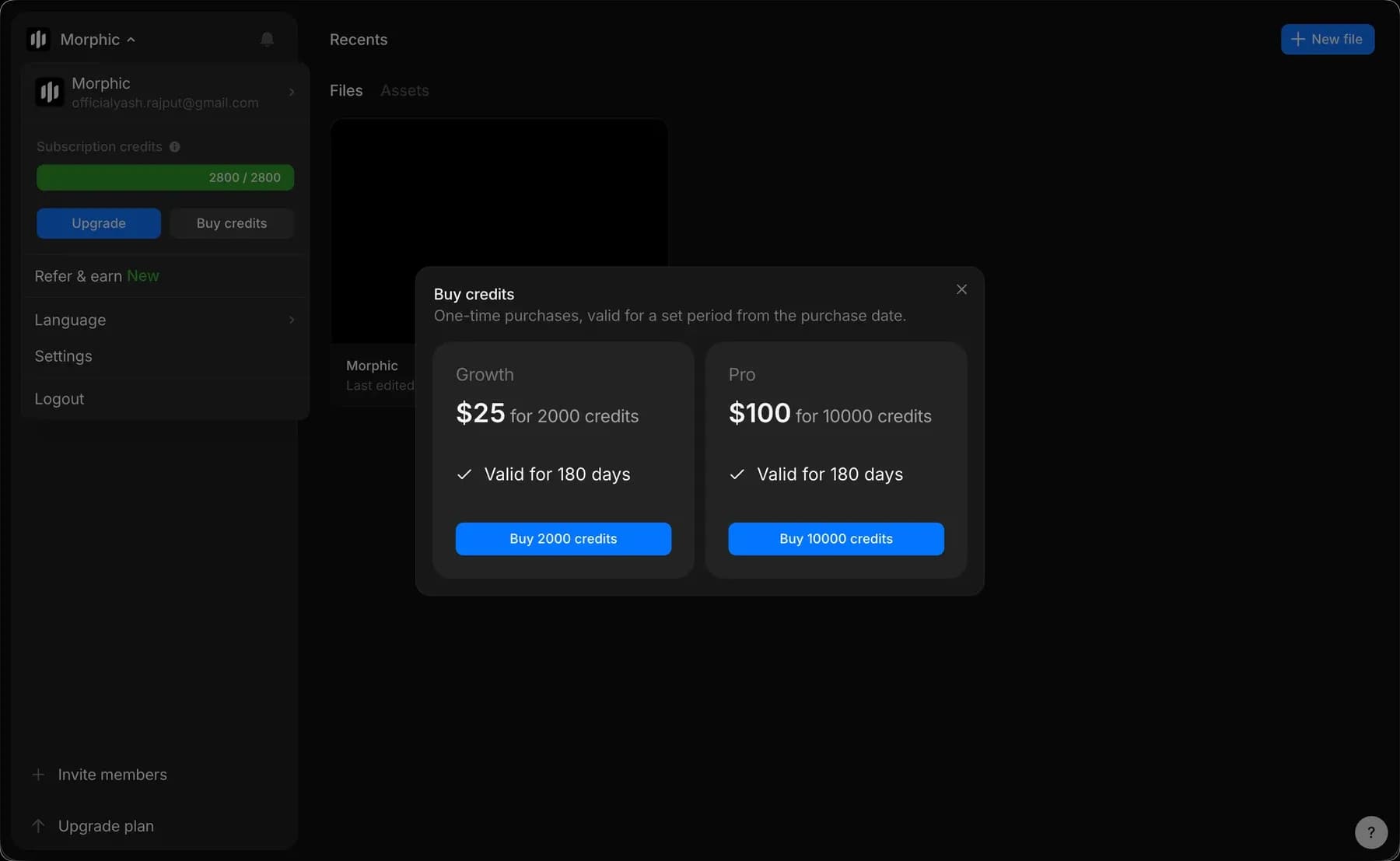
You can purchase credits anytime from Credit purchases, or from the org/account dropdown (click the Morphic logo in the top-left corner).
- Open the org/account dropdown.
- Click Buy credits.
- A pop-up will appear with available plans.
- Click Buy under your preferred plan to complete the purchase.
Credit purchases also shows what you have left, split into two balances:
- Subscription credits come with your plan. They reset each month, on monthly and yearly billing alike, and unused ones expire rather than rolling over.
- Add-on credits are the one-time purchases. Each one is valid for a set period from its purchase date, and the list underneath shows every top-up with the credits it added and the date it expires.
Invoice history
Open Invoices.
- Each row shows the invoice number, its date, the amount, and whether it is paid.
- Click the download icon at the end of a row to save a copy.
- Purchases like plan upgrades or credit top-ups will appear here.
Credit usage
Credit usage is where you see where your credits went. Open Credit usage, or click the Morphic logo in the top-left corner and select 'Billing & usage'.
It has two tabs: Overview for the trend, Usage history for the individual entries.
Overview
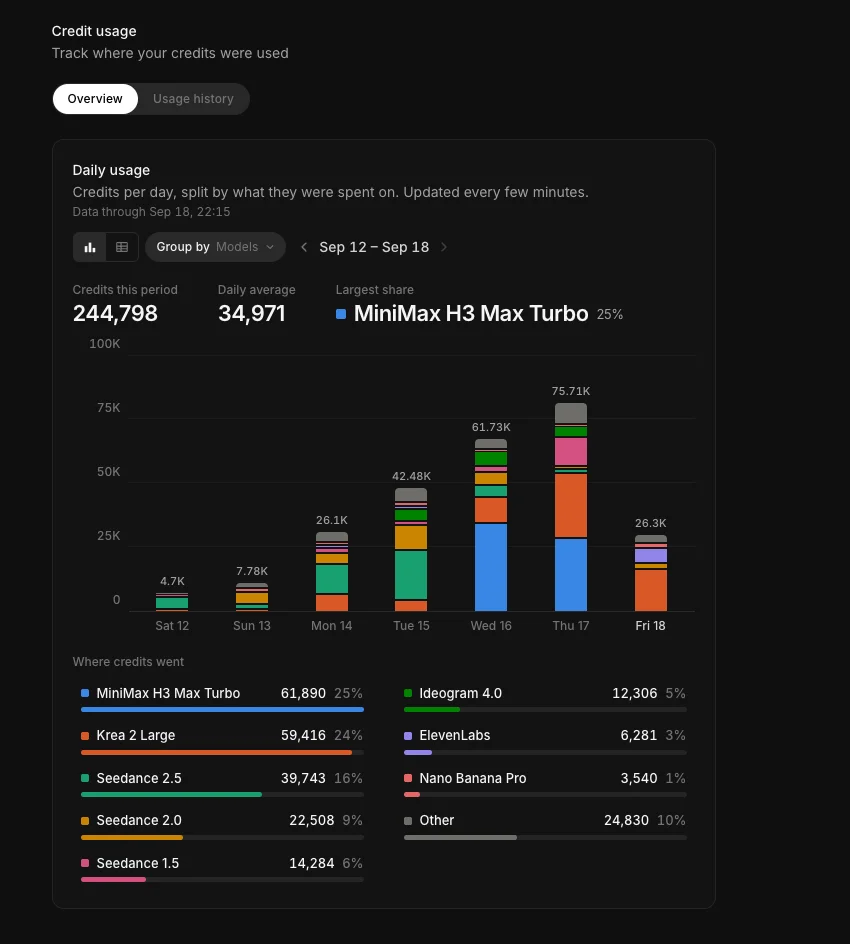
Daily usage shows credits per day, split by what they were spent on. The figures update every few minutes, and the 'Data through' line under the title tells you how current they are.
- Set 'Group by' to Models, Projects, Files, Members, or Chats. The split, the colours, and the breakdown underneath all follow that choice.
- Switch between chart view and list view with the two icons on the left. Chart view stacks each day into a bar. List view is a table with one row per group and one column per day, plus Total and Share columns and an 'All groups' row.
- Use the arrows beside the date range to step back or forward a week.
- Credits this period, Daily average, and Largest share sit above the chart.
- 'Where credits went' ranks the groups for that week, each with its credits and its share of the total. Smaller ones are collected into 'Other'.
Usage history
Usage history is the entry-by-entry record, and it is where the export lives.
- Each entry shows the date and time, member, asset, credits used, and status.
- Filter by Date (Today, Yesterday, This week, This month, Last 3 months, or a custom range), Members, Status, or Projects.
- Switch between All, By project, By file, or By member views.
- The total for whatever you have filtered to is shown above the table, and page size and paging sit below it.
- Click Download CSV to export what you are looking at.
That's how you manage billing and usage on Morphic. It gives you one place for your plan, your credits, and a record of where they went.
If you have any trouble or have any questions, feel free to reach out. We're happy to help. Write to us at support@morphic.com.