Model access
How to turn models on and off for your workspace, and how to cap the resolution each one is allowed to output.
Model access on Morphic lets you choose which models members can use in your workspace. Turn a model off and it is no longer available to your team. Turn it on and anyone in the workspace can pick it.
Use it when you want a team working from the same set of models, and when you want to keep an eye on what the costly ones are spending.
Here's a quick tutorial on how to manage model access on Morphic:
Accessing Model access
- In the Dashboard view, click the Org logo in the top-left corner.
- From the dropdown, select Settings.
- Under 'Organization' in the left sidebar, click 'Model access'.
Or go straight there: studio.morphic.com/settings/model-access
Turn a model on or off
- Open 'Model access'
- Pick the task type along the top, such as 'Text to image' or 'Image to video'. Each type has its own list of models, and the row of tabs scrolls sideways for the ones that do not fit
- Find the model you want, or type its name into 'Search models...'
- Use the toggle on the right to turn it on or off
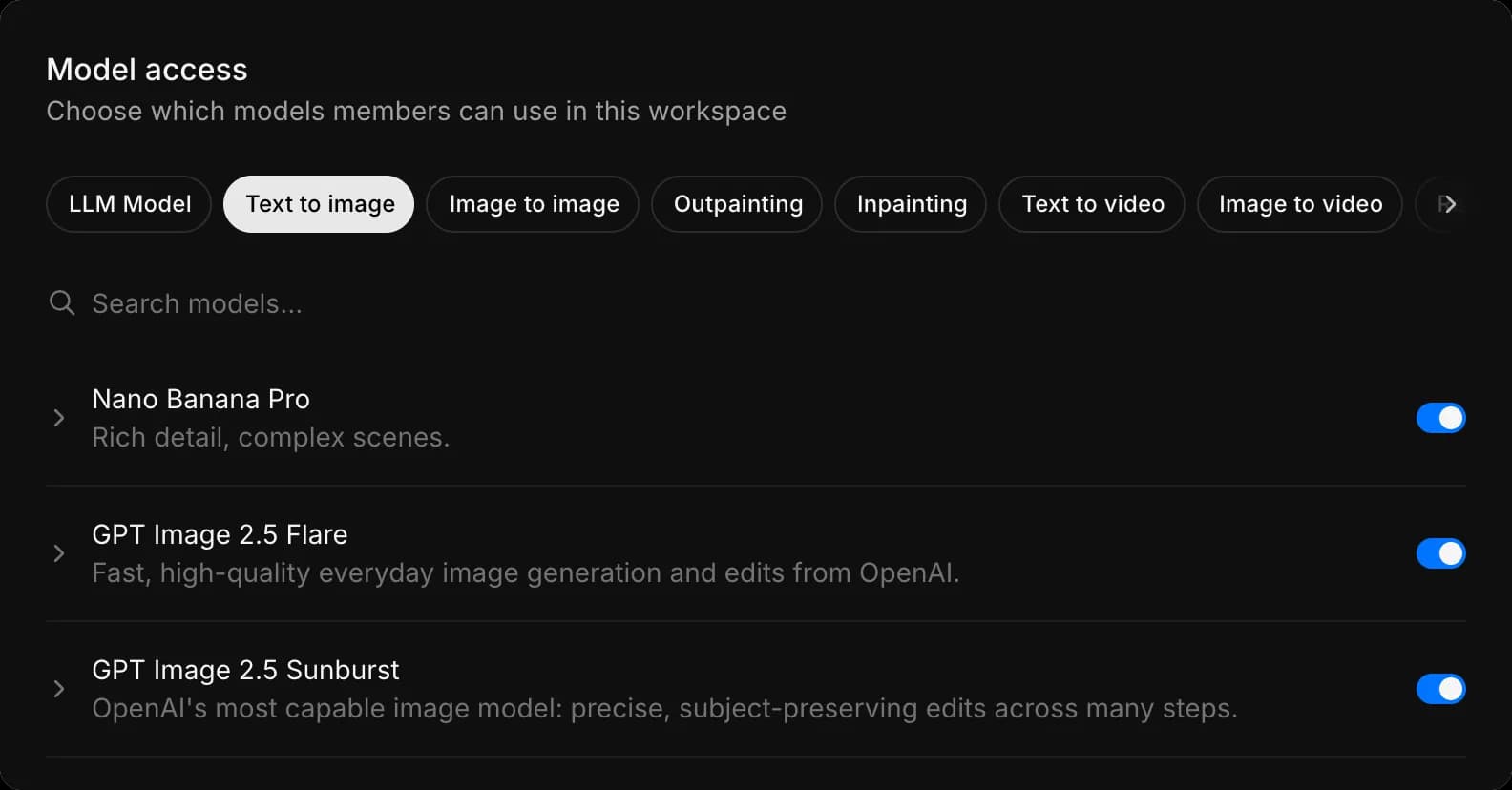
Every model carries a one-line summary of what it is good at, like 'Best-in-class text rendering and typography' or 'Ultra-fast drafts and iterations', so you can decide without leaving the page.
Task types
Models are grouped by what they do:
| Group | Task types |
|---|---|
| Chat | LLM Model |
| Image | Text to image, Image to image, Outpainting, Inpainting, Upscale, Image enhance |
| Video | Text to video, Image to video, Reference to video, Frames to video, Video to video, Lip sync, Video enhance |
| Audio | Speech, Dialogue, Music, Sound effects, Transcribe, Speech to speech, Stem separation |
'LLM Model', the first tab, is the language models behind Copilot chat rather than a generation type. Turning one off takes it out of the model picker for everyone in the workspace.
A model can appear under more than one task type. Turning it off under one does not turn it off under another, so check each type you care about.
Set a model's limits
Some models carry options of their own.
- Click the arrow beside a model to expand it
- Open the 'Max resolution' dropdown
- Pick the ceiling the model is allowed to output. Each option lists its credit cost beside it, and a checkmark marks the one in force
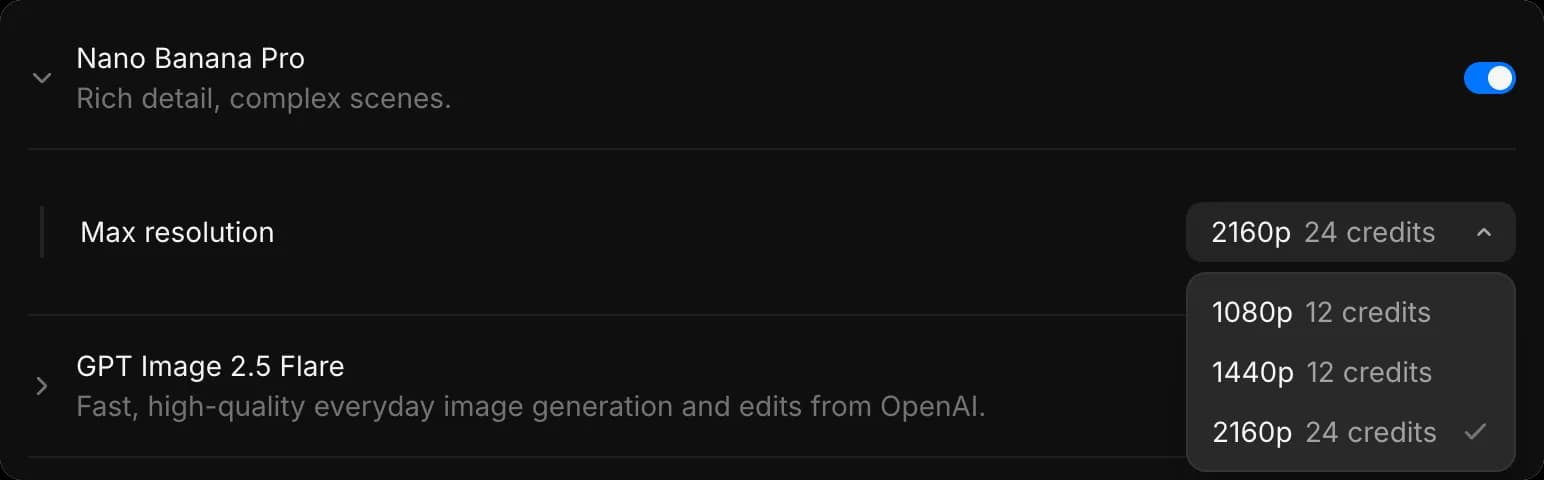
Capping resolution is often a better first move than turning a model off. Your team keeps the model they like, and the most expensive setting is off the table.
That's how you manage model access on Morphic. It keeps your team on the models you want them on, at the settings you are happy to pay for.
If you have any trouble or have any questions, feel free to reach out. We're happy to help. Write to us at support@morphic.com.