Profile
How to update your name, email, and picture, and what happens when you delete your account.
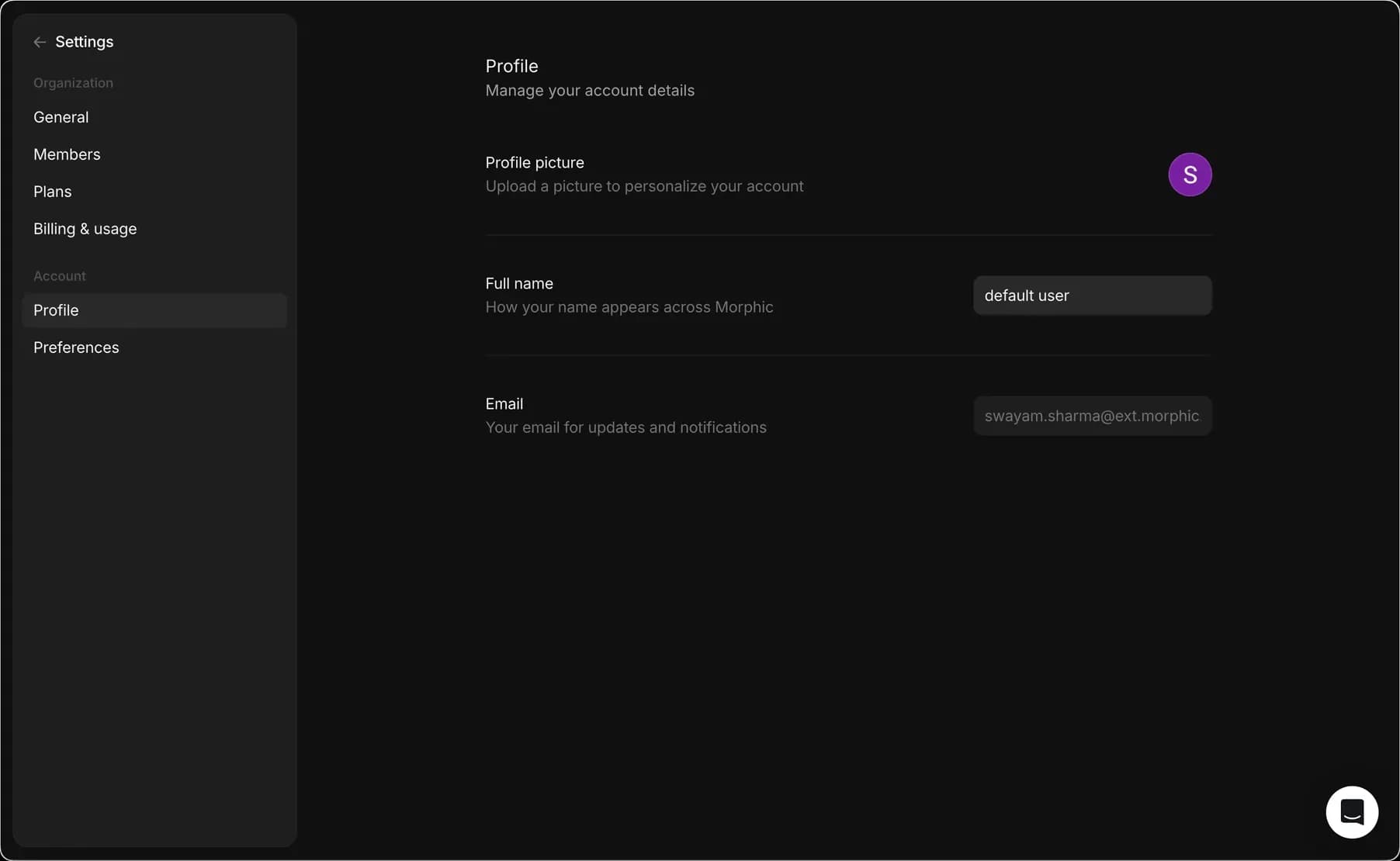
You can update your personal account details in the Profile section of Settings.
Accessing Profile Settings
- Open the org/account dropdown by clicking the Morphic logo in the top-left corner.
- Select Settings.
- Click 'Go to Profile settings' at the bottom of the left sidebar, then click General.
- Manage your personal details, including your name, email, and profile image.
Or go straight there: studio.morphic.com/settings/account/profile
Profile Management
To personalize your account, you can update your profile details:
- Profile Picture: upload an image to represent your account.
- Full Name: update how your name appears across Morphic.
- Email: ensure your email is correct to receive notifications and updates.
- Invite Friends: copy your invite link to share with friends and earn credits when they subscribe.
Account Deletion
You can permanently delete your Morphic account and all associated data from the Profile section. Deletion is confirmed by email, and once completed, it cannot be undone.
- From the dashboard, open the account dropdown in the top-left corner
- Select Settings.
- Click 'Go to Profile settings' at the bottom of the left sidebar, then click General
- Find the Delete account option at the bottom of the page
- Click Delete account
- A confirmation dialog appears. Click Email me the link to proceed
- Open the confirmation email from Morphic and follow the link to complete the deletion.
That's how you manage your profile on Morphic. It holds your personal details and, if you ever need it, the option to delete your account.
If you have any trouble or have any questions, feel free to reach out. We're happy to help. Write to us at support@morphic.com.