Speech to speech
How to re-voice an existing recording on Morphic in a different voice, keeping the original timing, pacing, and delivery.
Speech to speech, also known as a voice changer, re-speaks a recording you already have in a different voice. The words, timing, pauses, emphasis, and emotion all survive the swap. Only who is speaking changes.
That makes it the fastest way to recast a read you are happy with. Record a scratch take yourself and hand it to a finished voice, turn one actor's performance into a second character, or give a placeholder narration its real voice.
How to use Speech to speech
- Open Canvas on Morphic
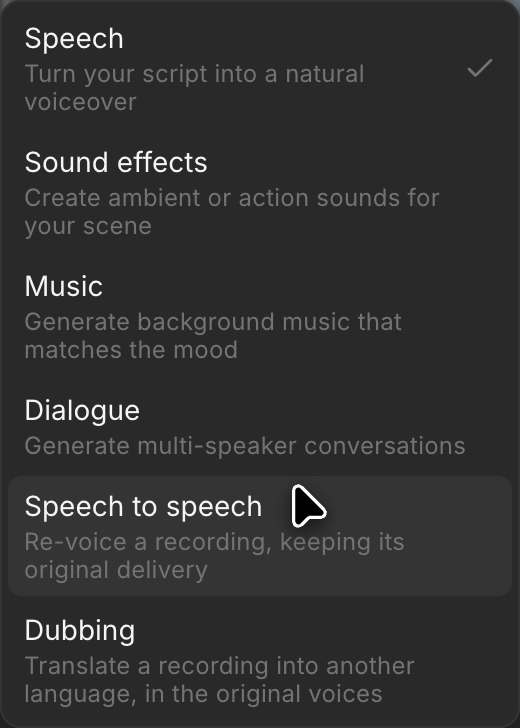
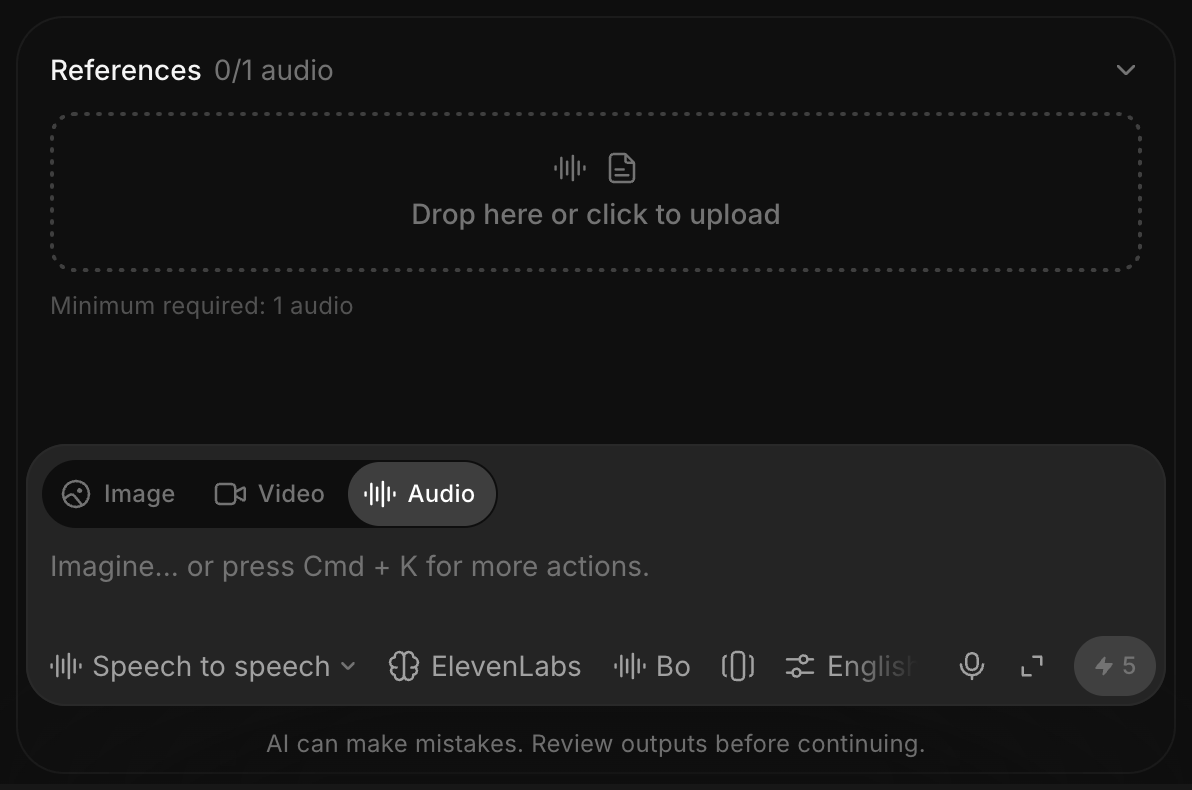
- In the prompt bar at the bottom, switch the mode from 'Image' to 'Audio', then choose 'Speech to speech'
- Add your source recording to References. Drag the file in, click the box to upload from your device, or open the assets picker to reuse a clip already in this project
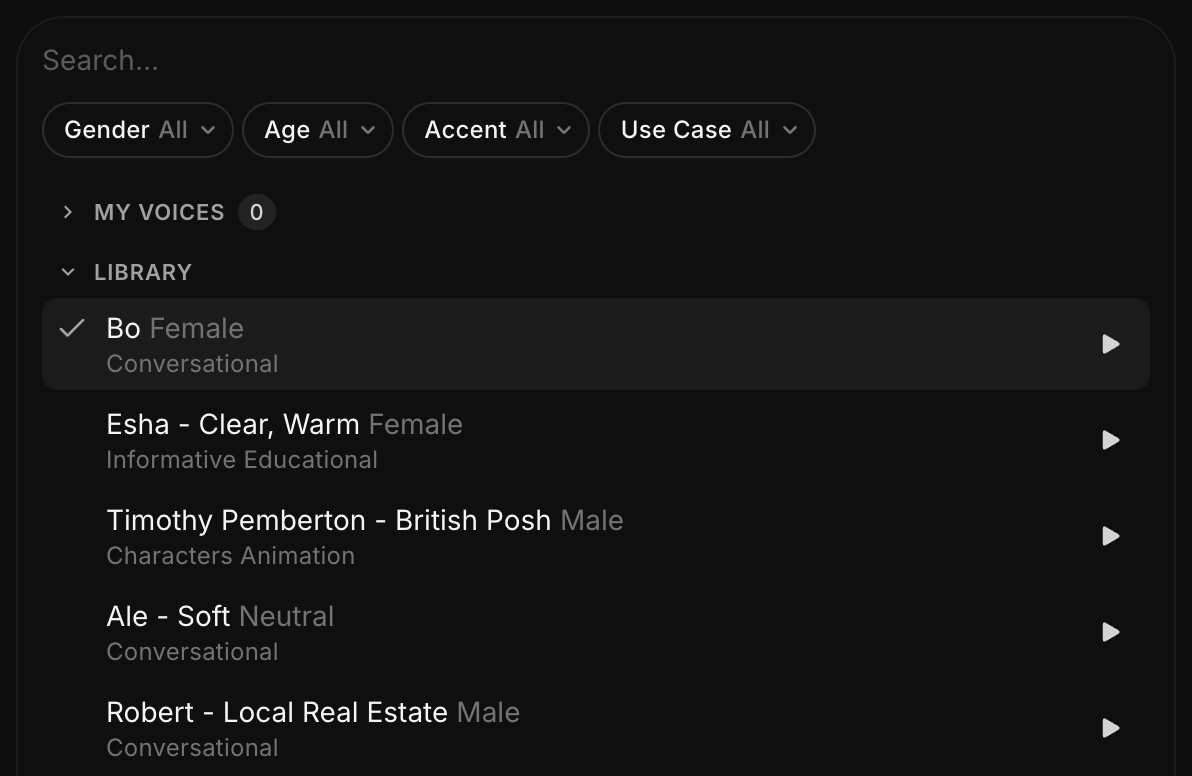
- Click the voice chip and pick the voice you want to hear instead. Filter by gender, age, accent, or use case, and press play on any row to preview it
- Click the blue button in the prompt bar. It shows the credit cost, and only turns blue once your recording is attached
The new take lands on your Canvas as its own audio file, the same length as the one you started with. The original is untouched, so you can try another voice against the same source whenever you want.
Two things worth knowing before your first run:
- Leave the prompt box empty. Speech to speech takes its instructions from the recording, not from text. Anything typed there blocks the generation.
- The cost is shown before you run it. It is calculated from the length of your source recording, so you know it up front.
Already have the clip on your Canvas? Select it and choose 'Use as references' from the details panel on the right. That attaches it in one step.
Tips for better results
- Pick a voice whose natural register already suits the read. The source sets the delivery, so a gentle take stays gentle in every voice.
- Convert ten seconds of a long recording first, then run the whole thing.
- Audition two or three voices against the same source. It stays reusable.
- Use one speaker per clip. Overlapping voices and background music are treated as part of the performance.
- Change one thing at a time when a take comes back wrong.
That's how you use Speech to speech on Morphic. Reach for it when the performance is already right and only the voice needs to change.
If you have any trouble or have any questions, feel free to reach out. We're happy to help. Write to us at support@morphic.com.