Image Outpainting
Outpainting on Morphic allows you to extend an image beyond its original frame using a prompt, generating seamless additions that match and continue the existing scene.
Here’s a quick tutorial on how to use Outpainting on an image in Morphic:
- Upload or generate your image on the Canvas
- Select the image and click Resize, and expand the frame in your desired direction(s)

- Write a prompt describing how the image should extend, or leave it blank for Morphic to auto-complete the scene
- Click the blue button in the prompt bar
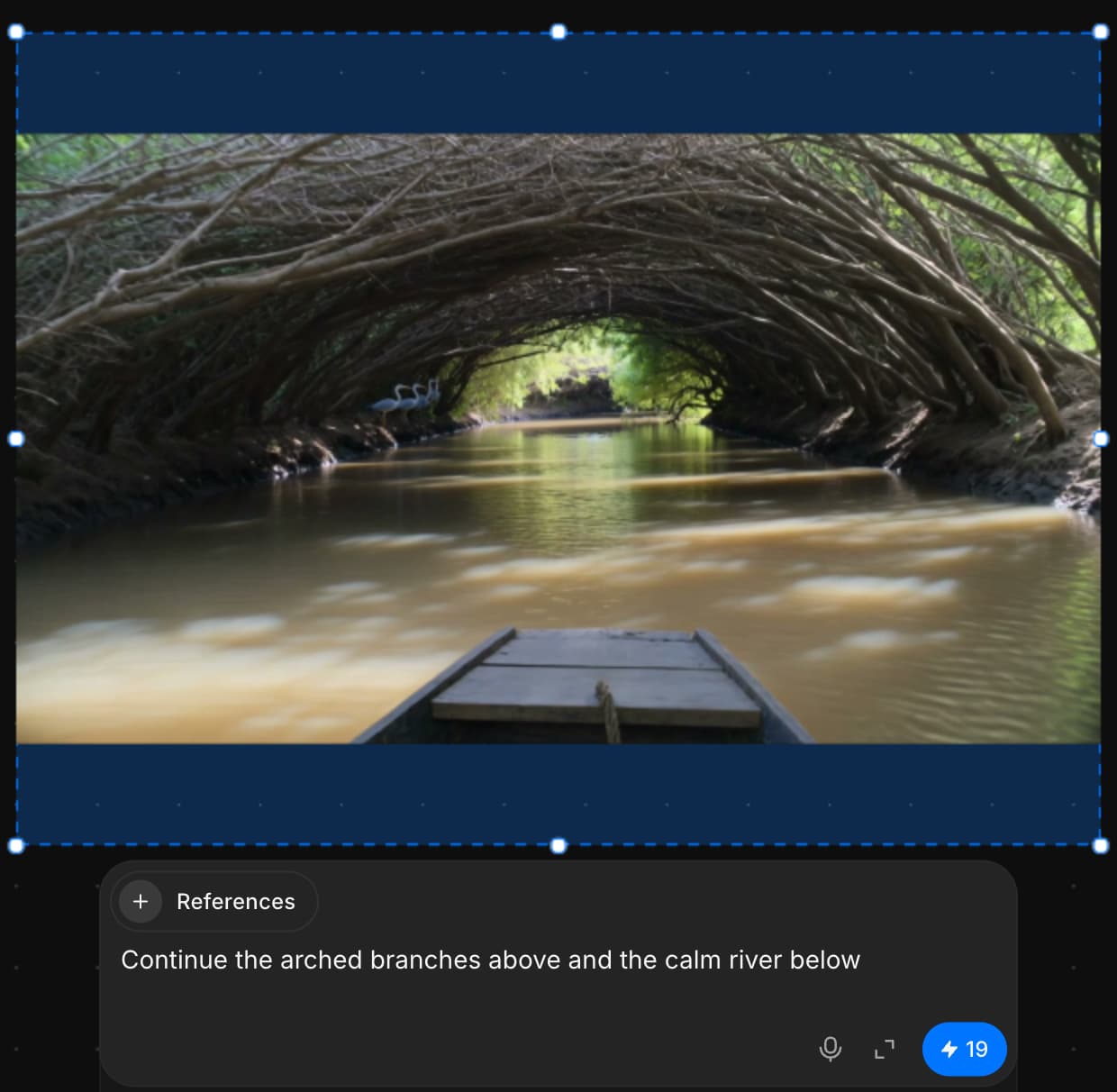
That’s how you use Outpaining to add new visual content beyond the existing frame, blending seamlessly with the original image.
If you have any trouble or have any questions, feel free to reach out. We're happy to help. Write to us at support@morphic.com.