Tags & favorites
How to label assets and mark the ones you keep coming back to, so a large library stays searchable.
Tags and favorites keep your assets organized and easy to find, so a growing library stays quick to move through for you and your team.
You can favorite and tag from anywhere your assets appear: the Assets page in the dashboard, the Assets panel inside any file, the Canvas, and Copilot chat. Your library is shared, so whatever you mark in one place shows up everywhere.
Favorites
Favorites are your personal shortlist, for the hero shots, the voice you keep reusing, or the frames you want to reach again without searching.
- Open
Assetsfrom the left sidebar to see all your assets - Hover an asset card and click the heart in the top-right corner. It fills in to show the asset is favorited
- Click the heart again to remove it, or right-click a card and choose
Remove from favorites - Click the
Favoritesfilter at the top ofAssetsto show only your favorites - You can also favorite from the
Assetspanel inside any file: hover and click the same heart, or switch to the panel'sFavoritestab.
Tags
Tags are shared labels you attach to assets, so a whole team can sort by status or theme, like Approved, In review, Ready for demo, a campaign, or a client.
- Open an asset, then click the tag icon in the top-left to open the tag menu
- Choose
New tag, enter a name, pick a color, setAvailable to orgif teammates should use it too, then clickAdd. It is created and applied in one step - To apply an existing tag, open the same menu and click it. A checkmark shows it is applied, and one asset can hold several tags
- To remove a tag, click it again to clear the checkmark
- Filter by clicking
Tagsat the top ofAssetsand choosing one. Each card shows its tags as pills, so you can read labels at a glance - Manage a tag from the
Tagsmenu: open the...beside it toEdita name or color, change org availability, or delete it for everyone
You can also tag from the Assets panel inside a file: right-click an asset and choose Add tag.
Managing tags from the Dashboard
The Dashboard's left sidebar lists every tag in your organization under Tags, so you can reach tagged work without opening Assets first.
- Open the Dashboard and find
Tagsin the left sidebar - Click a tag to see everything carrying it
- Click the magnifier beside
Tagsto search when the list gets long - Click
+to create a tag without opening an asset first
Tags and favorites on the Canvas
Here's a quick tutorial on how to tag and favorite on the Canvas on Morphic:
- Click an artboard to select it
- Click the tag icon above it, then pick
New tagor an existing tag
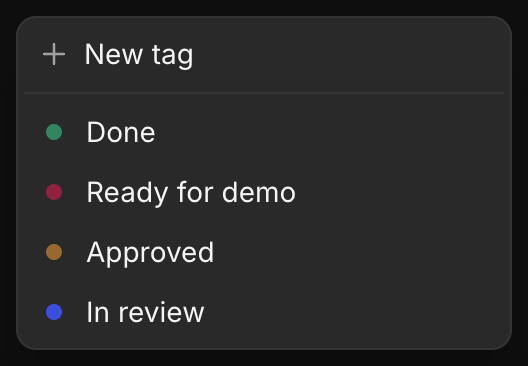
- Click the heart beside it to favorite it
- In the
Layerspanel, switch toFavoritesfor favorited layers only, or openFiltersand pick a tag
Tags and favorites in Copilot
Favorite and tag assets without leaving Copilot, then ask the agent to pull them back later.
Here's a quick tutorial on how to favorite and tag assets in Copilot on Morphic:
- Open
Copilotand generate or pick an asset in a chat - Hover the asset to reveal its toolbar. Click the heart to favorite it, or the tag icon to apply tags
- On some assets, these controls sit under the
...menu instead, asAdd to favoritesandAdd tag. Older and newly generated assets both work - Ask Copilot to bring assets back in plain language. Phrases like
show me my favorited assetsorfind assets tagged Approvedreturn them right in the chat.
Working faster as a team
Tags are shared with everyone in your org so that a team can work from the same labels. Favorites stay personal to you. A few ways to use them together:
- Track review status: Tag assets
In review,Approved, orReady for demo, then filter by that tag to see what needs attention. - Hand off work: Tag the assets a teammate needs, and they can filter to that tag to find them instead of you sending links.
- Separate projects: Tag by client or campaign so a shared library stays sorted.
- Keep your own shortlist: Favorite the assets you reuse most. Favorites are visible only to you.
- Find assets in Copilot: Ask Copilot to show your favorited assets, or assets with a given tag.
If you have any trouble or have any questions, feel free to reach out. We're happy to help. Write to us at support@morphic.com.