Camera angle
How to re-shoot an image you already have from a different camera position.
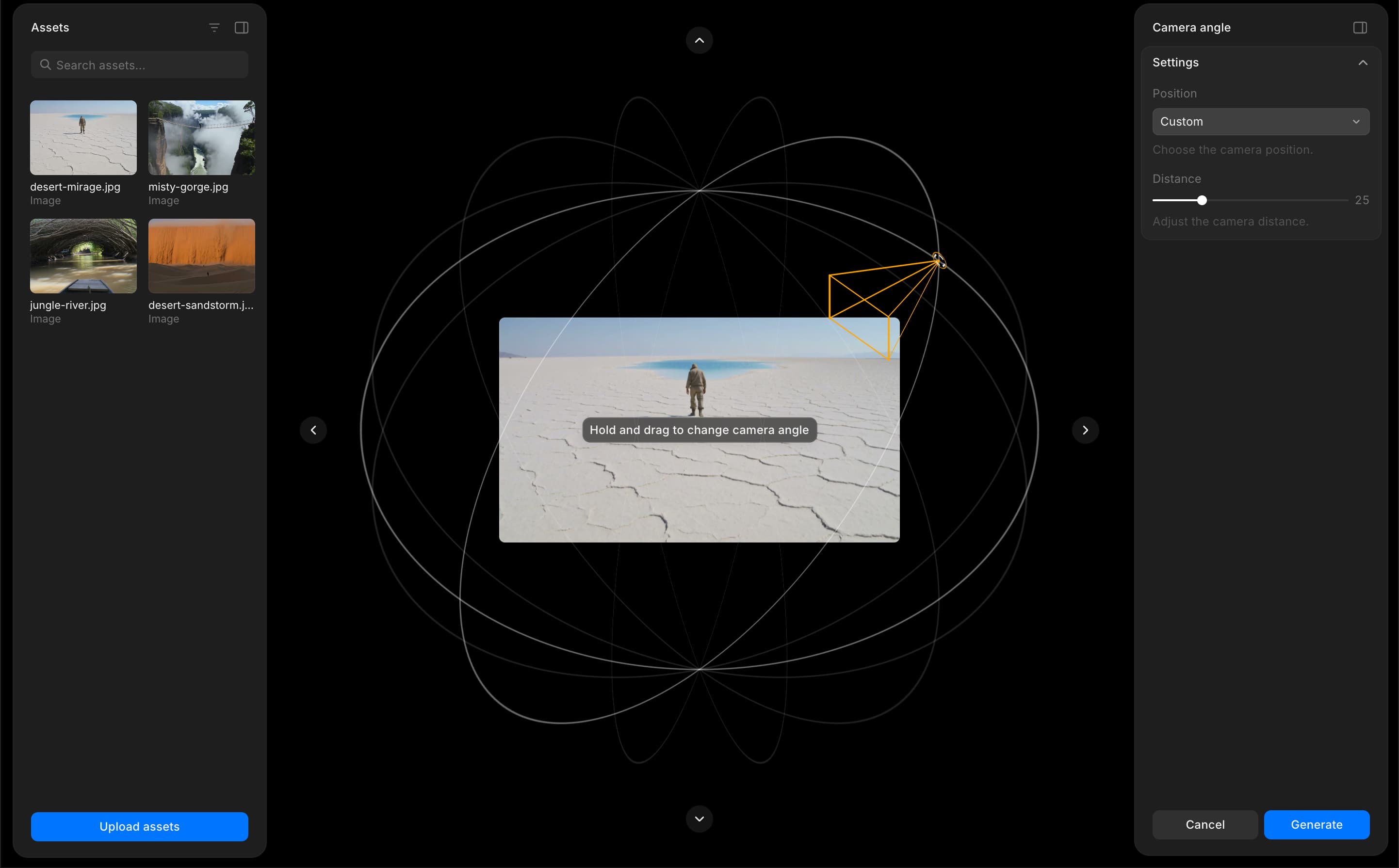
Camera angle on Morphic lets you change the perspective of any image by repositioning the camera. Choose a preset angle or drag to a custom position, adjust the distance, and generate a new version of your image from a different point of view.
Here's a quick tutorial on how to get started with Camera angle:
- Select Camera angle from the Tools tab above the prompt bar, or type
/and choose Camera angle from the Widgets menu - The Camera angle overlay opens on Canvas with a 3D orbital control, a settings panel, and the Assets tab
- Select an image from your assets or upload one
- Set the camera position using any of the following:
- Select a preset from the 'Position' dropdown, such as 'Front', 'Low Angle', 'Bird's Eye', '3/4 Left', 'Dutch Left' or 'OTS Right'
- Drag the camera on the orbital view for a custom angle
- Use the arrow buttons for finer adjustments
- Adjust the distance using the slider
- Click 'Generate'
That's how you use Camera angle on Morphic. Experiment with different angles and distances to find the right perspective for your scene.
If you have any trouble or have any questions, feel free to reach out. We're happy to help. Write to us at support@morphic.com.