Upscale and enhance
Raise the resolution of an image or a video, fix noise, blur or light, convert a clip to HDR, and reframe a clip to another aspect ratio on Morphic.
Upscale and enhance on Morphic finish a shot you already have without generating it again. Upscale raises the resolution of an image or a video. Enhance fixes quality at the same size: noise, blur, light, slow motion, or SDR to HDR. Reframe fits a clip into another aspect ratio. Upscale and Reframe have panels on the Canvas, and Copilot runs all three.
Upscale on the Canvas
-
Select an image or a video on the Canvas. The right sidebar opens on 'Details'
-
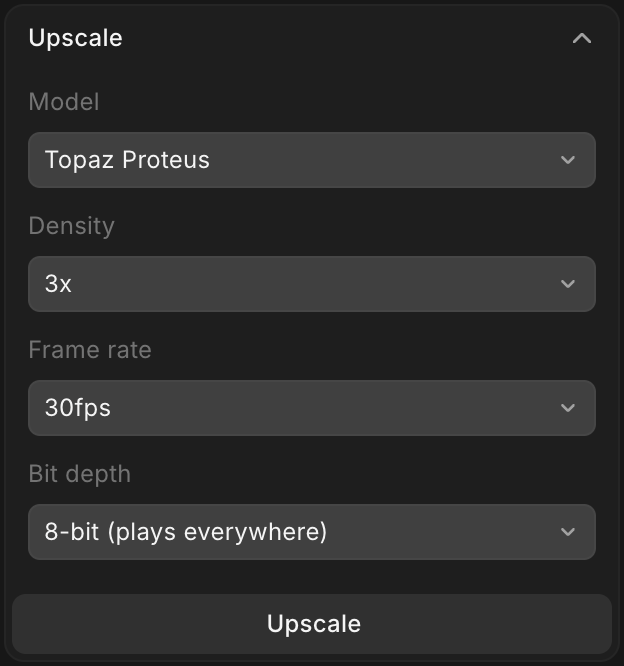
Open the 'Upscale' panel
-
Pick a 'Model'. The list shows the upscalers for the kind of asset you selected
-
Set the options the model offers:
- 'Density': how many times larger, such as 2x or 4x
- 'Frame rate': the frame rate of the upscaled video, on video models that offer it
- 'Bit depth': '8-bit (plays everywhere)' or '10-bit (for color grading)', on video models that can render 10-bit. A 10-bit file may not play in a browser, so pick it only when the clip is going to a grade
-
Click 'Upscale'. The button shows the credit cost
The upscaled copy lands on the Canvas next to the original. If the asset is already at the largest size a model supports, the panel says so.
On the Free plan the panel shows 'Upgrade to use'.
Upscale with Copilot
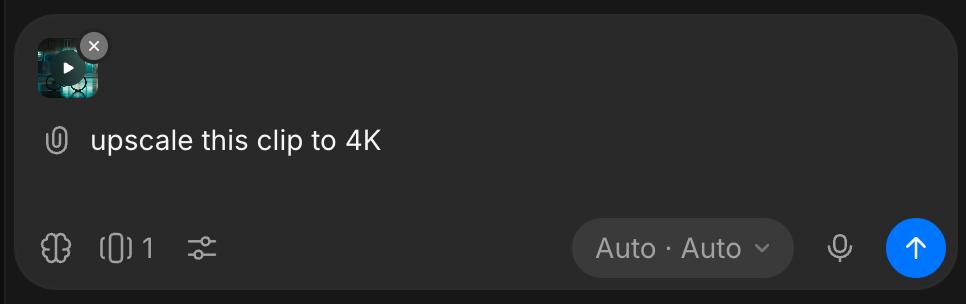
Ask Copilot to upscale an image or a clip, and name a resolution if you need one, for example "upscale this clip to 4K". Copilot picks a fitting upscaler, or the one you name. Ask for LTX 2.5 Upscale to take a clip to a set resolution, 1080p or 4K, rather than by a factor. The target has to be larger than the source.
Enhance and HDR
Enhance keeps the size and fixes the picture. Attach the image or clip in Copilot and say what to fix:
| Ask for | What it does |
|---|---|
| "Remove the noise", "sharpen this", "restore this old photo", "fix the lighting" | Cleans up an image |
| "Remove the grain from this clip" | Removes noise and grain from a video |
| "Fix the motion blur" | Sharpens a video blurred by movement |
| "Make this slow motion", "convert this to 60 fps" | Adds frames for slow motion or a new frame rate |
| "Convert this to HDR" | Turns an SDR clip into HDR |
For HDR, name the delivery format if you need one. Ask for HDR10, HLG or HDR ProRes and Copilot uses Runway Ruby, which takes a source of up to 30 seconds. Ask for LTX 2.5 HDR by name to convert with it instead.
Reframe a clip
Reframe fits a clip into another shape, such as a 16:9 master into 9:16 for phones, keeping its length and sound.
-
Select one or more videos on the Canvas, each 1 to 10 seconds long and up to 200 MB
-
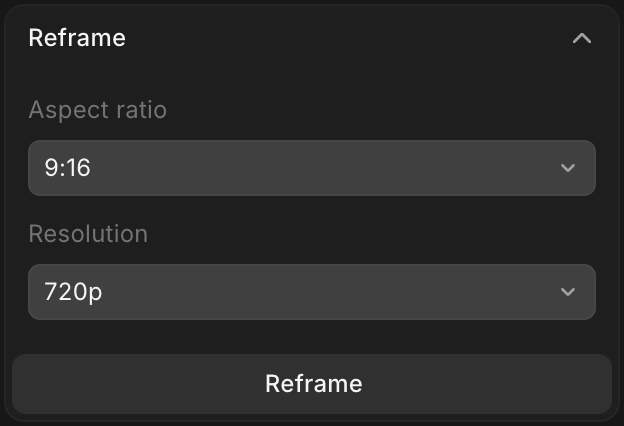
In the right sidebar, open the 'Reframe' panel
-
Pick an 'Aspect ratio': 9:16, 3:4, 1:1, 4:3, 16:9 or 21:9
-
Pick a 'Resolution'. Vertical shapes come out at up to 720p
-
Click 'Reframe'. Videos already in the shape you picked are skipped
The panel runs Luma Ray 3.2 Reframe, which keeps the footage frame for frame, centered in the new shape. For a 4:5 or 5:4 feed cut, or a vertical cut at 1080p, ask Copilot for LTX 2.5 Reframe. To reframe a whole film with subtitles and a logo, see Reframe.
Plans and cost
The 'Upscale' and 'Reframe' panels on the Canvas, and Enhance and HDR, are on paid plans. Each shows its cost before it runs: on the button in the Canvas panels, or in Copilot's reply. Current rates are under Upscale and enhance on Plans & Credits.
That's how you upscale and enhance on Morphic. Reach for it as the last step before delivery, when a shot is right but needs more resolution, a cleaner picture or another shape.
If you have any trouble or have any questions, feel free to reach out. We're happy to help. Write to us at support@morphic.com.