Version history
See every version of a workflow, look at an earlier one, and make it live to put it back in use. Nothing is overwritten, so an edit that did not work out is always reversible.
Morphic keeps a version of a workflow each time it changes. Version history shows every one of them, who made it and when, and lets you put an earlier version back in use.
This is what makes editing a shared workflow safe. If a change did not work out, or a teammate changed something you relied on, the version before it is still there.
Here's a quick tutorial on how to use version history on Morphic:
Open version history
- Go to Workflows
- Hover the workflow you want and click the '···' menu on its card
- Click 'Version history'
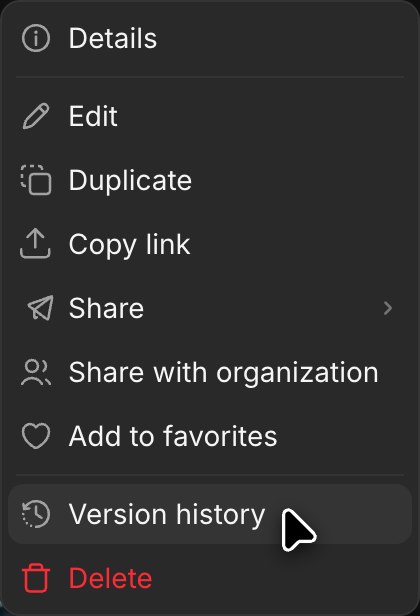
The workflow opens with the version list on the right, newest first and grouped by month. Each entry shows the time it was made and who made it, so on a workflow your team shares you can see who changed what.
Look at an earlier version
- Click any version in the list
- The workflow appears as it was then, with the inputs and steps it had at the time
- A bar at the bottom of the screen shows which version you are viewing
Looking at an old version changes nothing for anyone else. The workflow your team runs stays the current one until you make a different one live.
To stop looking and return to the current version, click 'Cancel' in that bottom bar.
Put an earlier version back in use
- Open the version you want
- Click 'Make live' at the top right. You can also hover the version in the list and click 'Make live' there
- A dialog asks whether to make that version live. Click 'Make live' to confirm
That version becomes the one everyone uses to run the workflow. It moves to the top of the list under 'Live version' and stays in use until you make another version live. To go back to always running the newest version, hover the live version and click 'Switch to latest'.
The versions made after it stay in the list. Going back is not the same as throwing away what came later, so you can move forward again the same way you moved back.
To build on an earlier version without changing what runs, click 'Restore' in the bottom bar instead. It copies that version to the top of the list as a new version, and the live version stays as it is.
Work on a copy instead
When you want to try something without touching a workflow other people are running, duplicate it and work on the copy.
- Hover the workflow and click the '···' menu
- Click 'Duplicate'
The copy is a workflow in its own right. It starts from the version you copied and builds its own history from there, and the original carries on unchanged.
Good to know
- Looking at an old version changes nothing for anyone. Only making a version live does.
- Making an earlier version live does not remove the ones made after it, so you can move forward again the same way you moved back.
- On a workflow your team shares, the list names who made each version, which is the quickest way to find out what changed and who to ask.
That's how version history works on Morphic. Use it to go back to an earlier version, or to try a change on a copy first.
If you have any trouble or have any questions, feel free to reach out. We're happy to help. Write to us at support@morphic.com.