
Halloween video steps at a glance
- Pick a style and plan your shots
- Write a prompt for each shot
- Generate the clips and keep the best takes
- Cut the clips together and add sound in Compose
- Export and share
How to make a Halloween video with AI, step by step
Pick a style and plan your shots
Decide how the video should feel before you write a single prompt. The style sets the light, the palette and the mood of every shot. Our example is cozy and slightly spooky, a style that suits family reels and party invites.
Then plan four shots of about 5 seconds each. This order works for almost any Halloween video:
- Establishing shot: where we are. A street, a porch, a house on a hill.
- Detail shot: one close-up that carries the holiday. A pumpkin being lit, a candle, a costume.
- People shot: a moment with characters. Trick-or-treaters, a party, a reveal.
- Closing shot: a wide image that holds long enough for a title.
Write a prompt for each shot
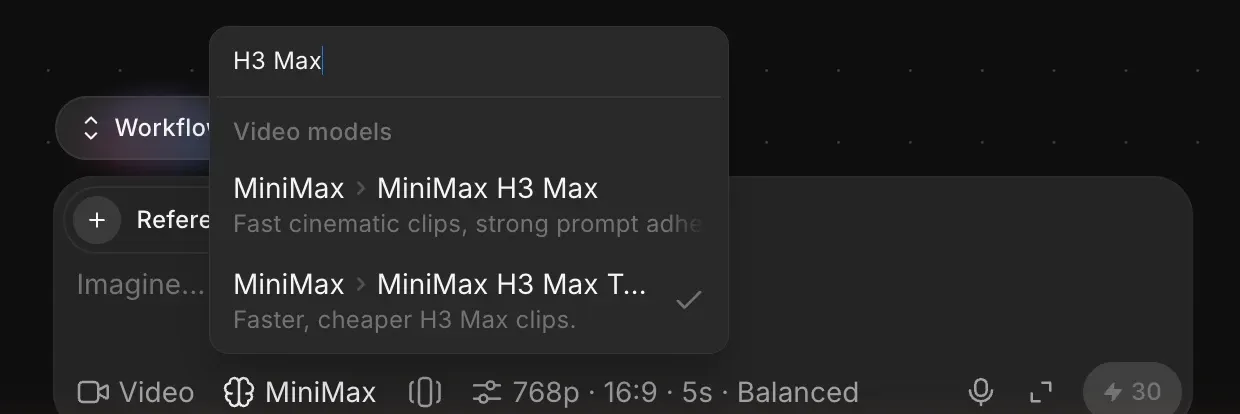
Open Morphic, create a file, and switch the prompt bar from Image to Video. Open the model picker and choose MiniMax H3 Max Turbo, which handled fog, dusk light and glowing pumpkins well in our tests.
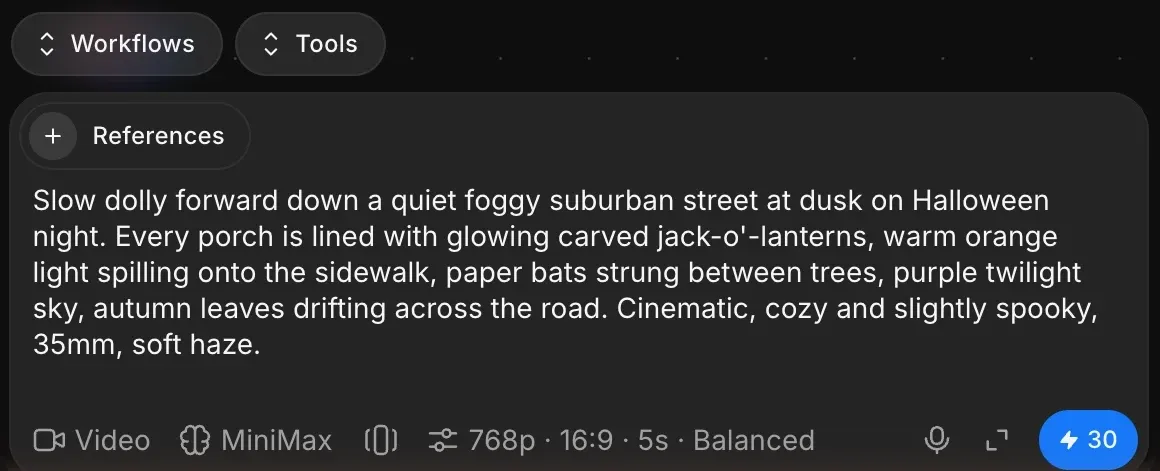
Open the settings next to the model and set 768p, 16:9 and 5 seconds. Then write the first prompt. Name the camera move, the light and the mood in every prompt, because those words keep the four clips looking like one video.
These are the four prompts we used, in order:
Slow dolly forward down a quiet foggy suburban street at dusk on Halloween night. Every porch is lined with glowing carved jack-o'-lanterns, warm orange light spilling onto the sidewalk, paper bats strung between trees, purple twilight sky, autumn leaves drifting across the road. Cinematic, cozy and slightly spooky, 35mm, soft haze.
Children in a shot read best seen from behind or in full costume. It keeps the video friendly and avoids generating identifiable faces.
Generate the clips and keep the best takes
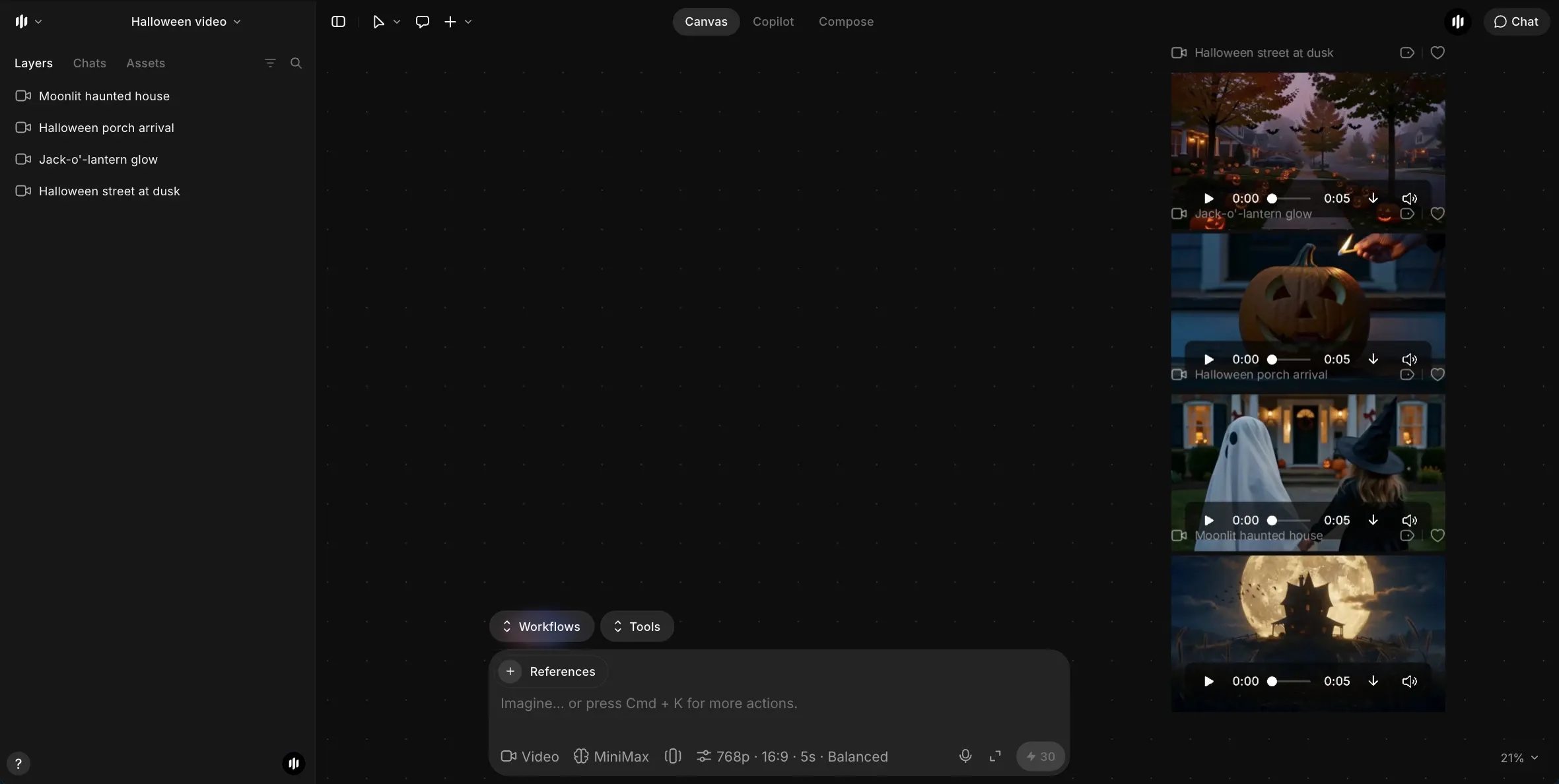
Press generate on the first prompt, then clear the prompt box, paste the next prompt and generate again. Each clip lands on the Canvas as it finishes, usually within a minute or two. Play each one and check three things: the motion matches the prompt, nothing warps or duplicates, and the light matches the other shots.
If a clip misses, generate it again with one change to the prompt rather than rewriting the whole thing. All four of our clips worked on the first take.
Cut the clips together and add sound in Compose
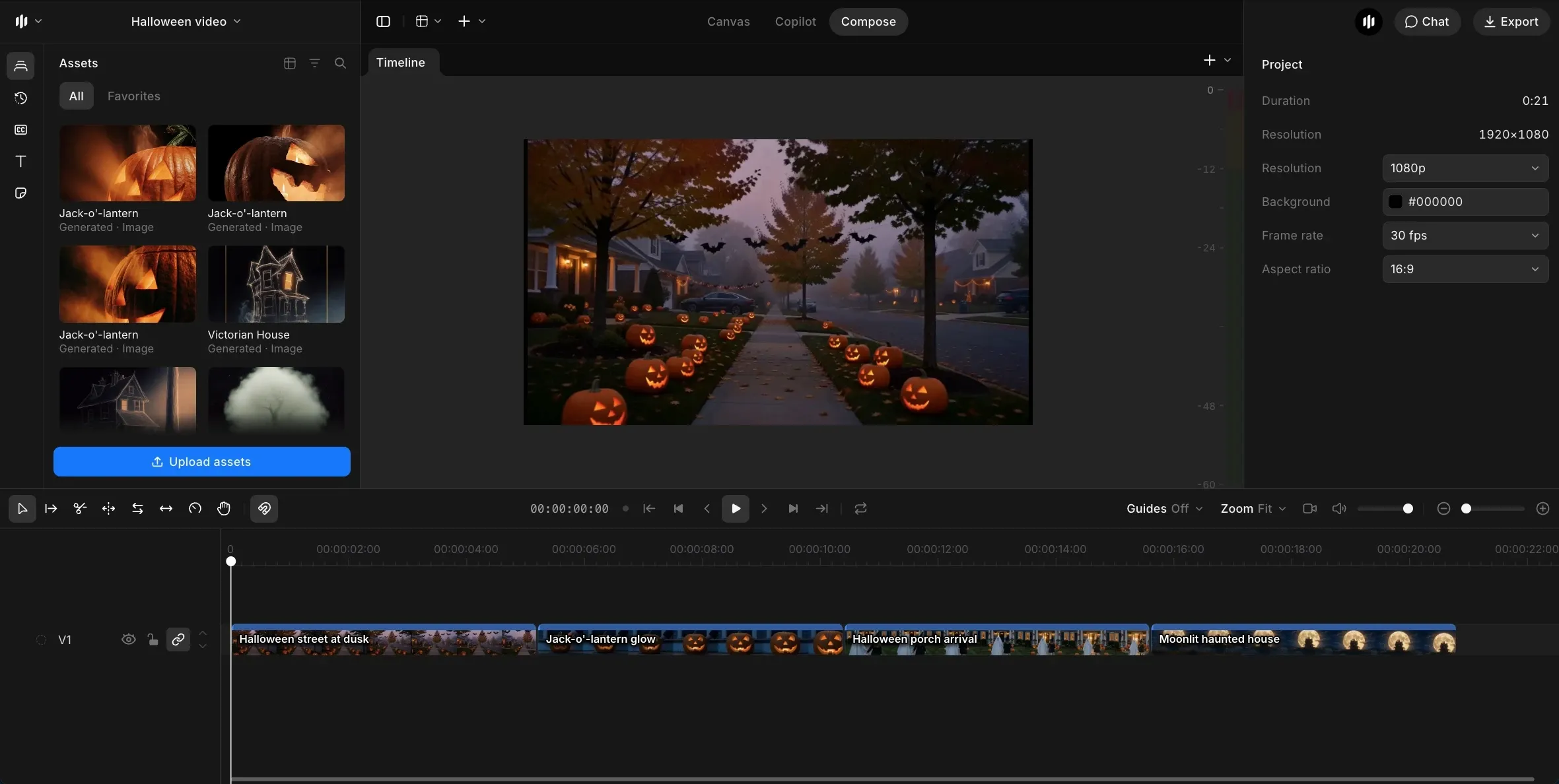
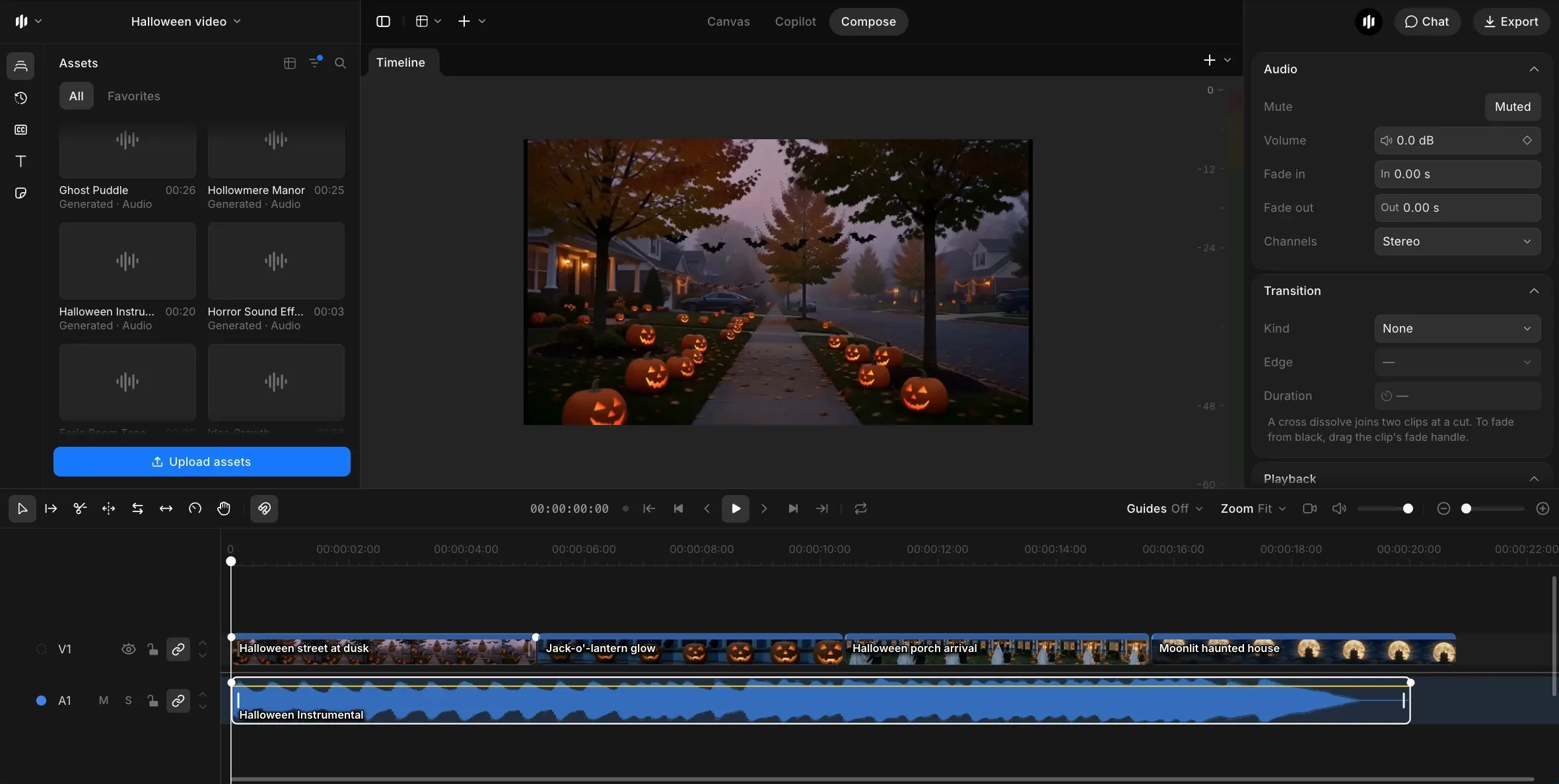
Click Compose at the top of the editor to open the built-in video editor. Drag the four clips from Assets onto the video track in order, or type the order into the Compose chat and let it place them for you. Leave them back to back at full length. Hard cuts suit a short, upbeat Halloween video.
Now add sound. Switch the prompt bar to Audio, generate a short instrumental and place it on the audio track from the start. This is the music prompt we used, at 20 seconds:
Playful spooky Halloween instrumental: plucked pizzicato strings, a bouncy tuba bassline, celesta and a light theremin melody, mischievous and fun, about 110 BPM, builds slightly and ends on a clean final note.
Ask for a clean final note so the music ends with the last shot instead of cutting off mid-phrase. For extra texture, generate a sound effect such as a door creak or a distant cackle and place it where the action happens. Finally, add a title over the closing shot with the text tool. We used "Happy Halloween" in a bold serif for the last 3.5 seconds.
Export and share
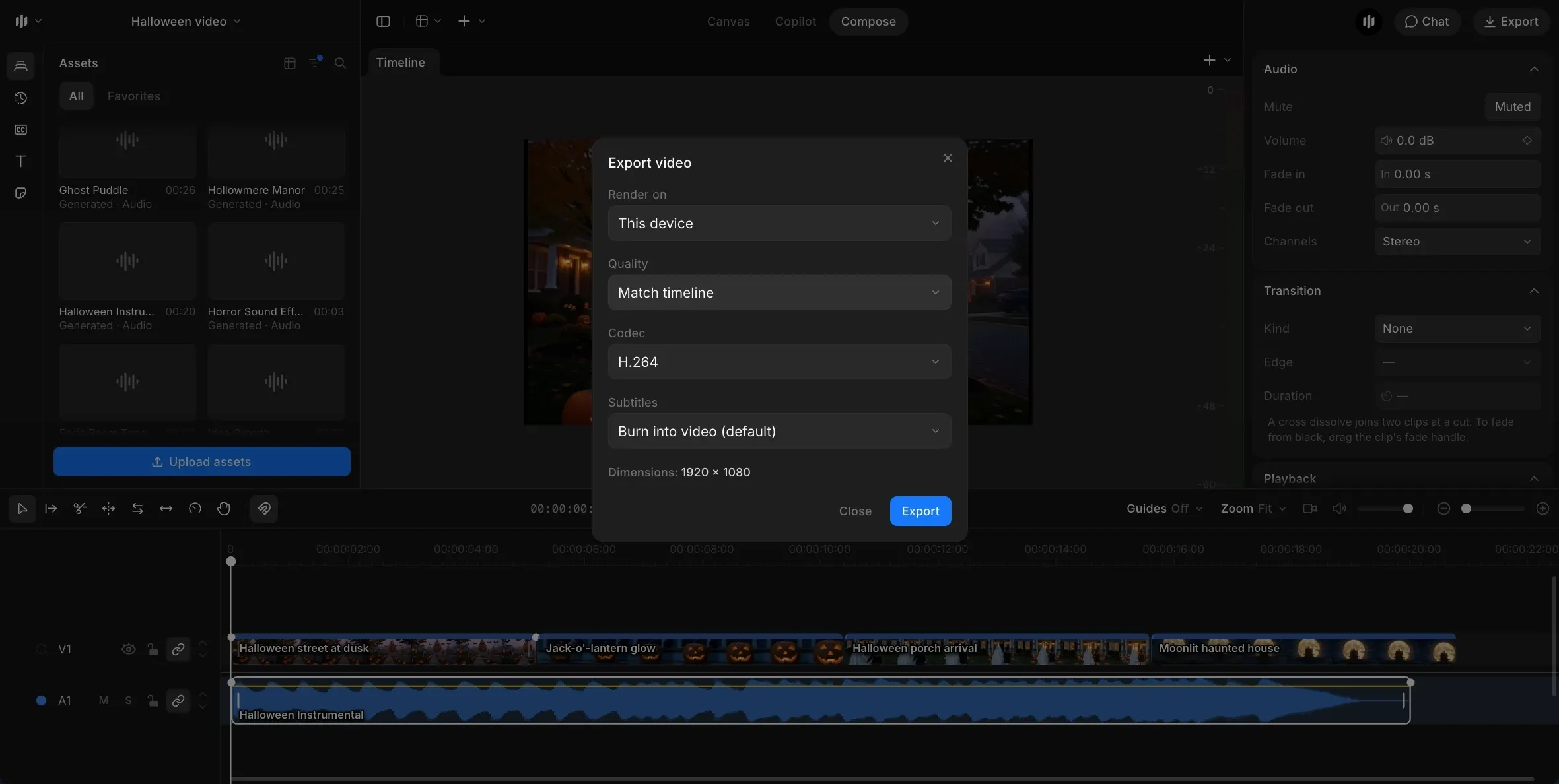
Watch the whole cut once with sound on. Check that the music ends with the picture and the title stays on screen long enough to read. Then click Export in the top right of Compose. Keep Quality on Match timeline and the H.264 codec, which plays everywhere, then export and download the video. For Reels, TikTok and Stories, repeat steps 2 to 4 with the format set to 9:16 so the shots are framed for a phone, rather than cropping a wide video afterwards.
The finished Halloween video, with music. Unmute to hear the soundtrack.
Which Halloween video style should you pick?
Pick the style that suits your audience, then carry its light and palette words into every prompt.
| Style | Best for | Words to put in every prompt |
|---|---|---|
| Cozy and spooky | Family reels, party invites | dusk, glowing jack-o'-lanterns, warm orange light, soft haze |
| Cinematic horror | Short films, horror nights | low-key lighting, cold moonlight, film grain, slow push-in |
| Animated | Kids, classrooms, brands | cartoon, claymation look, bright purple and orange, bouncy motion |
| Retro | Nostalgic posts, themed parties | 1950s monster movie look, faded colors, grainy film |
Tips for a better Halloween video
- Repeat the light in every prompt. "Dusk", "warm orange light" and "purple twilight" in all four shots made our clips match without any color grading.
- Name one camera move per shot. A dolly forward, a push-in, a follow, a tilt up. One clear move looks cinematic, while several in one shot look unsteady.
- Keep shots to about 5 seconds. Short shots keep a Halloween reel moving and give the model less time to drift.
- End on a wide, slow shot. A closing shot with little motion gives a title somewhere calm to sit.
Want something scarier? Follow how to make a jump scare video. For more shot ideas, browse Halloween videos and copy prompts from the Halloween prompt library.