Floating city block
A city block of buildings, streets, cars and trees arranged on a floating isometric tile, true 2:1 projection with parallel axes and soft shading.
Edit prompt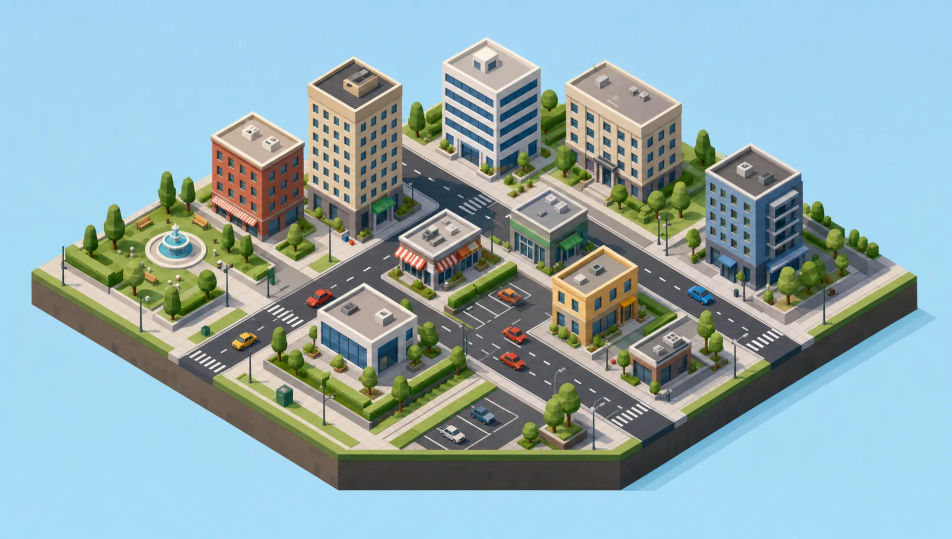
Design isometric illustration images in your browser with Morphic's AI image generator. Generate a cosy bedroom cutaway, a small corner cafe, or a floating city block on a tile. Pair every piece with Style Transfer to lock the projection, then animate any still with Image to Video.
A city block of buildings, streets, cars and trees arranged on a floating isometric tile, true 2:1 projection with parallel axes and soft shading.
Edit promptAn isometric office floor with desks, a meeting room and plants, simple figures at work, clean geometric forms and tidy three-tone shading.
Edit prompt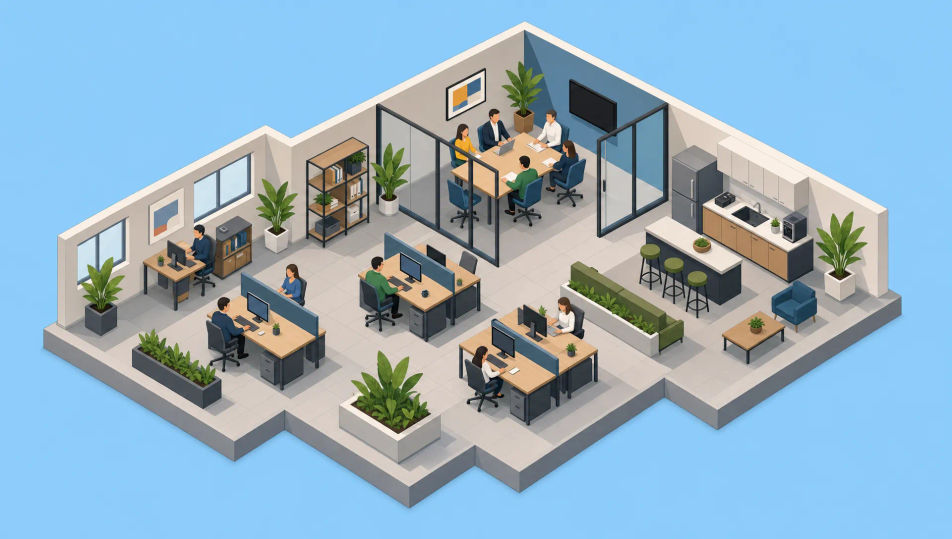
An isometric factory with conveyor belts, crates and machines on a floating platform, parallel axes throughout and a clean industrial palette.
Edit prompt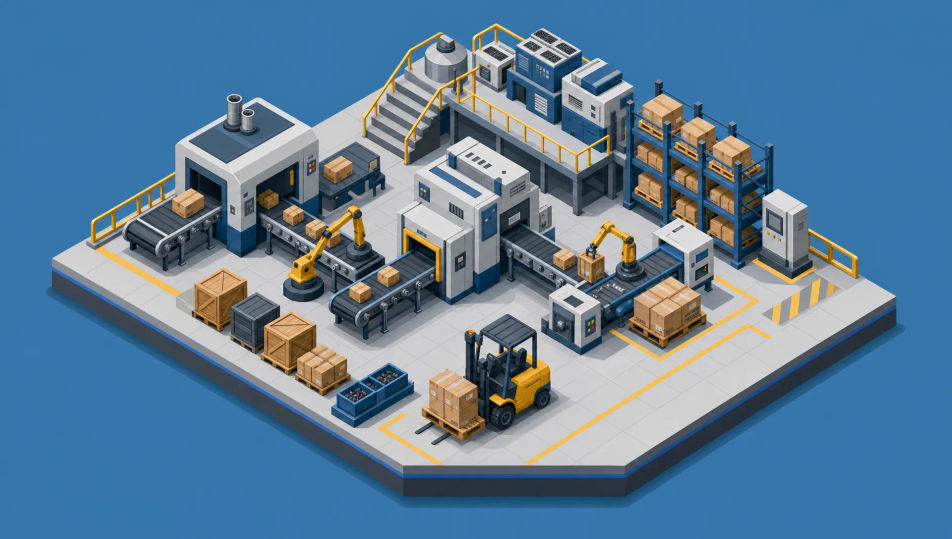
A small floating landmass with a house, trees, a winding path and a thin waterfall off the edge, all built in clean isometric geometry.
Edit prompt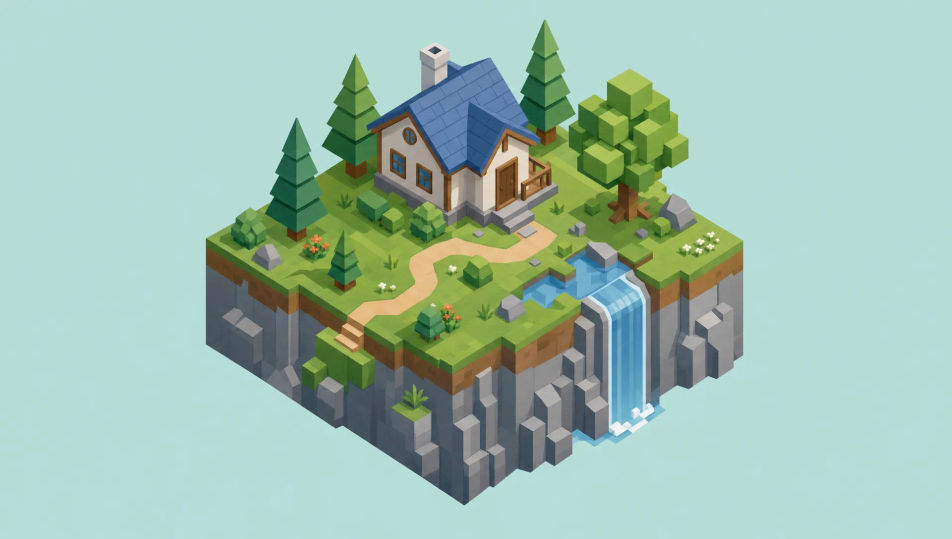
Describe the Isometric illustration you want, in plain words.
Morphic generates a clean, ready-to-publish image on your canvas in seconds.
Tweak the prompt, regenerate variations, then download or share the frame.
Pick a reference image, apply its visual style to your own photo or artwork.
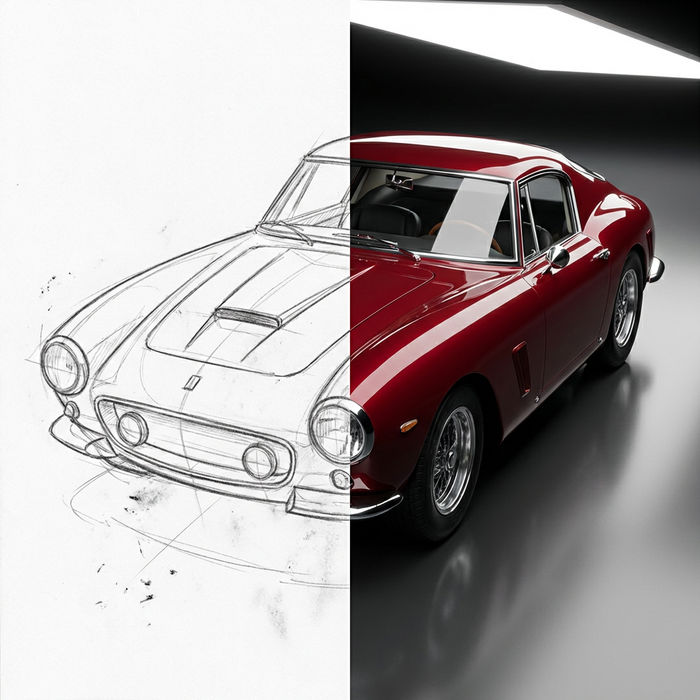
Turn any sketch or drawing into a finished render.
Convert any image to a new aspect ratio. Smart crop or extend the edges to fit.
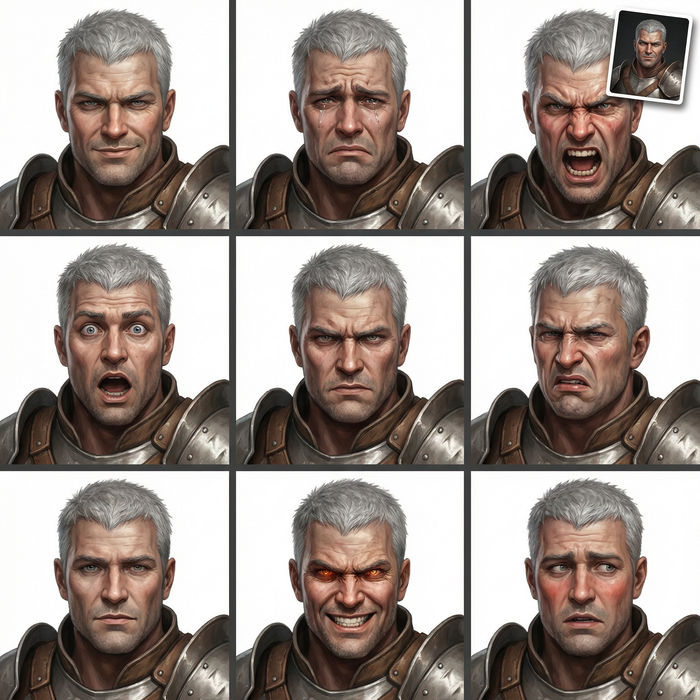
Take any character image and generate 6 distinct facial expressions on a single reference sheet.
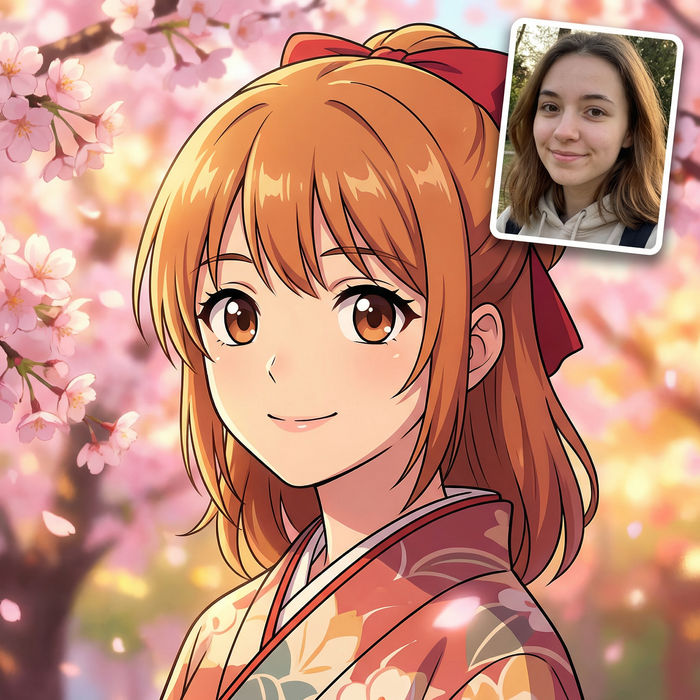
Pick any anime illustration as your style guide. Apply its look to any image.
Reimagine any anime character as a photorealistic, high-fashion live-action portrait.
Vector illustration AI images
Create AI Vector Illustration illustrations with Morphic. Generate Vector Illustration artwork, characters, and scenes for any project in seconds.
Flat design illustration AI images
Create AI Flat Design Illustration illustrations with Morphic. Generate Flat Design Illustration artwork, characters, and scenes for any project in seconds.
Minimalism AI art
Create Minimalism art with Morphic. Donald Judd boxes, Dan Flavin neon tubes, Frank Stella stripes, and gallery-white single-form compositions from a single prompt.
Pixel art AI generator
Create pixel art with Morphic. 16x16 and 32x32 sprites, RPG tile-sets, side-on platformer scenes, and top-down dungeon rooms from a single prompt.
Get started for free today, with the option to upgrade or cancel anytime.
Basic
2400 monthly credits
1 user only
All models
Workflows
Standard
3625 monthly credits
1 user only
All models
Workflows
Pro
6350 shared monthly credits
1 user
All models
Workflows
Max
24650 shared monthly credits
1 user
All models
Workflows
Enterprise
For higher limits
Custom
pricing and billing terms

Free
For playing around
$0
forever free