Sticker sheet
A full printable sheet with several stickers arranged in a tidy grid, even spacing, each one carrying its own white border, ready to cut.
Edit prompt
Design stickers in your browser with Morphic's AI image generator. Generate a die-cut character with a glossy finish, a hand-lettered quote sticker, or an iridescent holographic sticker. Pair every piece with Style Transfer to hold one look across the pack.
A full printable sheet with several stickers arranged in a tidy grid, even spacing, each one carrying its own white border, ready to cut.
Edit promptOne bold sticker centred on its own, a thick white border tracing the outline and a glossy finish, presented as a clean cut-out.
Edit prompt
A matched set of stickers laid out in a grid, one consistent style across every cell, balanced sizes and a unified palette for a pack.
Edit prompt
Finished stickers shown applied to a laptop lid and a water bottle, real-world scale and angles that preview how the decals sit on a surface.
Edit prompt
Describe the Sticker design you want, in plain words.
Morphic generates a clean, ready-to-publish image on your canvas in seconds.
Tweak the prompt, regenerate variations, then download or share the frame.
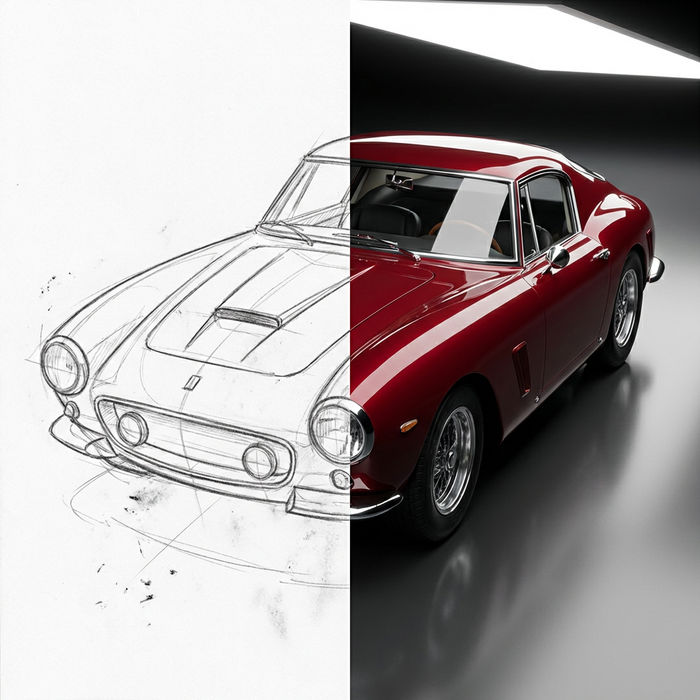
Turn any sketch or drawing into a finished render.
Pick a reference image, apply its visual style to your own photo or artwork.
Convert any image to a new aspect ratio. Smart crop or extend the edges to fit.
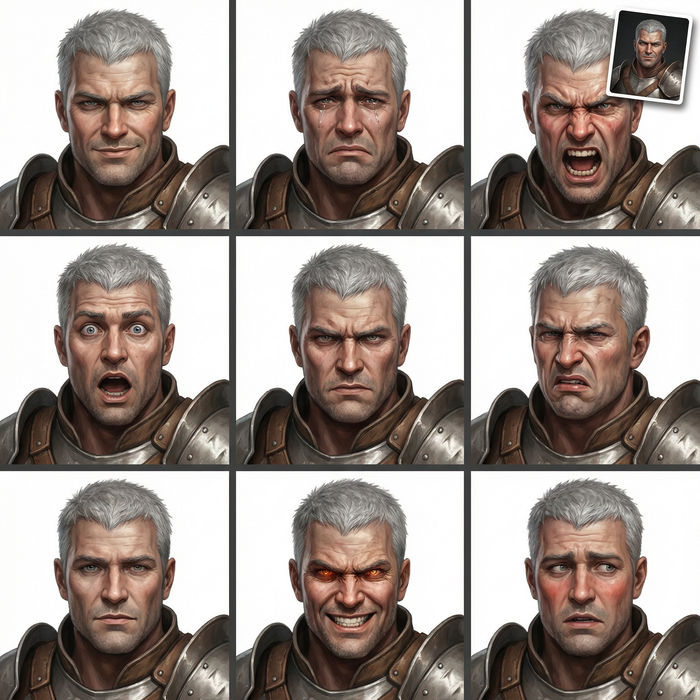
Take any character image and generate 6 distinct facial expressions on a single reference sheet.
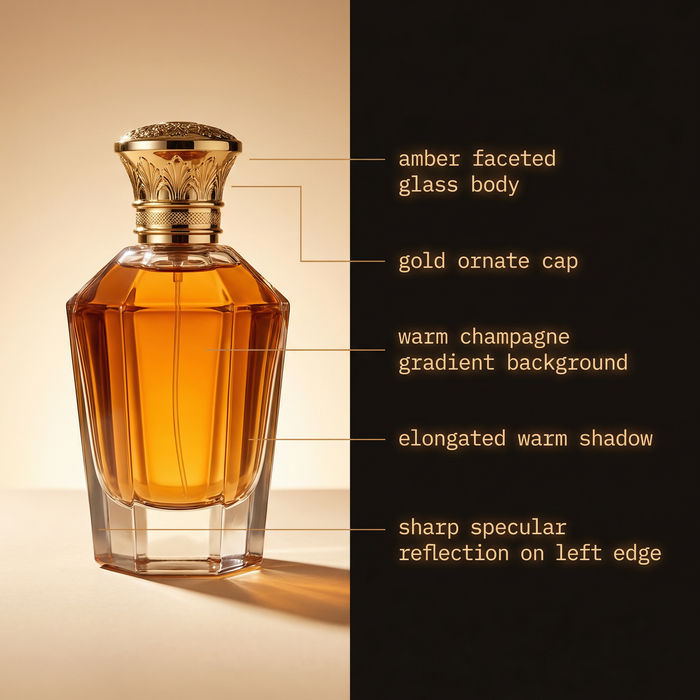
Get a detailed prompt extracted from a reference image, and then a fresh recreation.

Share a scene description with character references. Get a full storyboard with shot angles and mood.
Logo Concept AI Images
Create AI Logo Concept images with Morphic. Generate logo concepts, marks, monograms, and lockups for any project in seconds.
YouTube Thumbnail AI Images
Create AI YouTube Thumbnail images with Morphic. Generate high-contrast thumbnails, title art, and channel visuals for any project in seconds.
Tarot Card AI Images
Create AI Tarot Card images with Morphic. Generate tarot card art, arcana figures, and deck layouts for any project in seconds.
Mood Board AI Images
Create AI Mood Board images with Morphic. Generate mood board collages, palettes, and reference layouts for any project in seconds.
Get started for free today, with the option to upgrade or cancel anytime.
Basic
2400 monthly credits
1 user only
All models
Workflows
Standard
3625 monthly credits
1 user only
All models
Workflows
Pro
6350 shared monthly credits
1 user
All models
Workflows
Max
24650 shared monthly credits
1 user
All models
Workflows
Enterprise
For higher limits
Custom
pricing and billing terms

Free
For playing around
$0
forever free