YouTube Thumbnail AI Images

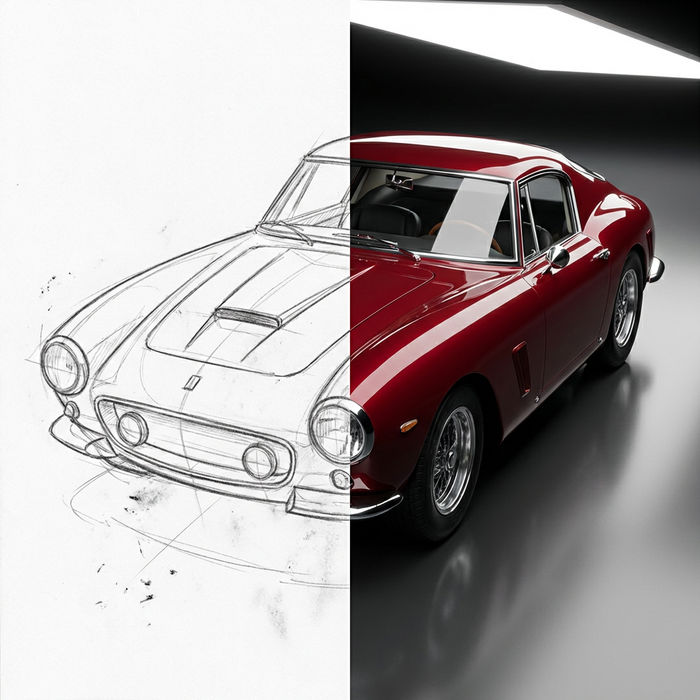
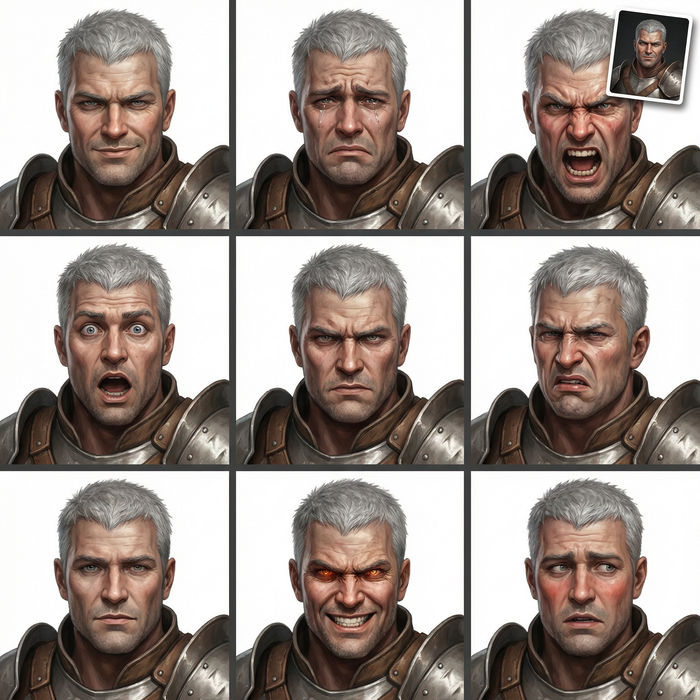
Design YouTube thumbnails in your browser with Morphic's AI image generator. Generate thumbnails like a reaction frame with a big expressive face and bold space for text, a tutorial frame with a clear subject and a step or tool, or a high-energy gaming scene with a bold focal subject, every one built widescreen and high-contrast so it stays readable at small sizes with title space reserved. Pair each piece with the Style Transfer workflow to hold one channel look across a run of thumbnails. Drop the finished frame into the Canvas to add the headline text.

YouTube thumbnail styles you can design

YouTube thumbnail layouts you can compose

Widescreen thumbnail with bold text space

A full 16:9 widescreen frame with a strong focal subject on one side, high contrast against a punchy background, generous bold space reserved on the other side for the headline, readable at small sizes.

Edit prompt
Widescreen thumbnail with bold text space

Face plus product split

A widescreen frame split between an expressive face on one side and a clean product hero on the other, crisp contrast and a confident palette with room held for a short title.

Edit prompt
Face plus product split

Before-and-after split

A 16:9 frame divided into a clear before and after, two contrasting subjects side by side, high contrast and a bold divider with space reserved for a punchy headline.

Edit prompt
Before-and-after split

Big-number listicle layout

A widescreen frame built around a big number with a strong focal subject, high contrast and a punchy palette, deliberate space held for the number and a short title, readable at small sizes.

Edit prompt
Big-number listicle layout

Make YouTube thumbnail in three steps

  1. 01

    Describe your YouTube thumbnail

    Describe the YouTube thumbnail you want, in plain words.

  2. 02

    Generate the image

    Morphic generates a clean, ready-to-publish image on your canvas in seconds.

  3. 03

    Refine your YouTube thumbnail

    Tweak the prompt, regenerate variations, then download or share the frame.

Related workflows

You might also like

Simple pricing

Get started for free today, with the option to upgrade or cancel anytime.

Basic

$0/ month
billed as $0 per year

900 monthly credits

1 user only

All models

Workflows

Standard

$0/ month
billed as $0 per year

3200 monthly credits

1 user only

All models

Workflows

Pro

$0/ month
billed as $0 per year

6200 shared monthly credits

1 user

+ up to 4 more at extra cost

All models

Workflows

Pro Max

$0/ month
billed as $0 per year

24000 shared monthly credits

1 user

+ up to 9 more at extra cost

All models

Workflows

Enterprise

For higher limits

Custom

pricing and billing terms

Unlimited credits
Custom seat limits
All models
Workflows
Pricing Gradient

Free

For playing around

$0

forever free

Up to 20 credits
1 user only
Limited models
Workflows

FAQs

Where can I make YouTube thumbnails with AI?
You can design YouTube thumbnails directly in your browser on Morphic. Open the Image tool, describe the type, the focal subject, the contrast, and the text space, and Morphic produces the thumbnail art. Then add the headline in the Canvas. No installs and no design software needed.
What kinds of thumbnails can I make?
Reaction frames with a big expressive face, tutorial frames with a clear subject and a step or tool, high-energy gaming scenes, warm vlog moments, clean tech review heroes, and bold listicle layouts built around a big number. Name the type and Morphic leans into its conventions.
What makes a thumbnail get the click?
Four things: one clear focal subject, high contrast so it pops in the feed, a composition that stays readable at small sizes, and deliberate space reserved for the headline text. Generate the frame with the text area clear, then add the type in the Canvas so the hierarchy stays clean.
How do I keep a channel look across thumbnails?
Use the Style Transfer workflow to lock the palette and treatment from your first thumbnail, then reference that style card across the run. Each video gets a fresh focal subject while every thumbnail reads as one channel.
Can I add the headline text on Morphic?
Yes. Generate the thumbnail with the text area left clear, then open the Canvas to place the headline, number, or caption. Keeping the type as a layer lets you adjust the hierarchy without regenerating the artwork.
Do I need design experience to make a thumbnail?
No. Morphic runs in your browser and takes plain-language prompts. Anyone who can describe a type, a focal subject, and a text space can produce a finished thumbnail. Photoshop and a stock-photo subscription are not required.