Orthographic sheet
A single part in front, top and side views as white line on a cyan grid, thin dimension lines between views and a callout column reserved down one edge.
Edit prompt
Design technical blueprints in your browser with Morphic's AI image generator. Generate a machine part in three orthographic views, an exploded assembly with callouts, or a floor plan on a cyan grid. Drop the finished art into the Canvas to add dimensions and a title block.
A single part in front, top and side views as white line on a cyan grid, thin dimension lines between views and a callout column reserved down one edge.
Edit promptA device pulled apart into stacked components on a cyan ground, numbered leader callouts fanning out and a title block reserved in the lower corner.
Edit prompt
An overhead plan in white line on cyan with walls, doors and fixtures, dimension strings along two edges and a title block corner reserved for the drawing key.
Edit prompt
A side-profile machine or vehicle in white line on a cyan grid, clean orthographic outline, dimension lines marking key spans and callout space at the base.
Edit prompt
Describe the Technical blueprint you want, in plain words.
Morphic generates a clean, ready-to-publish image on your canvas in seconds.
Tweak the prompt, regenerate variations, then download or share the frame.
Pick a reference image, apply its visual style to your own photo or artwork.
Convert any image to a new aspect ratio. Smart crop or extend the edges to fit.
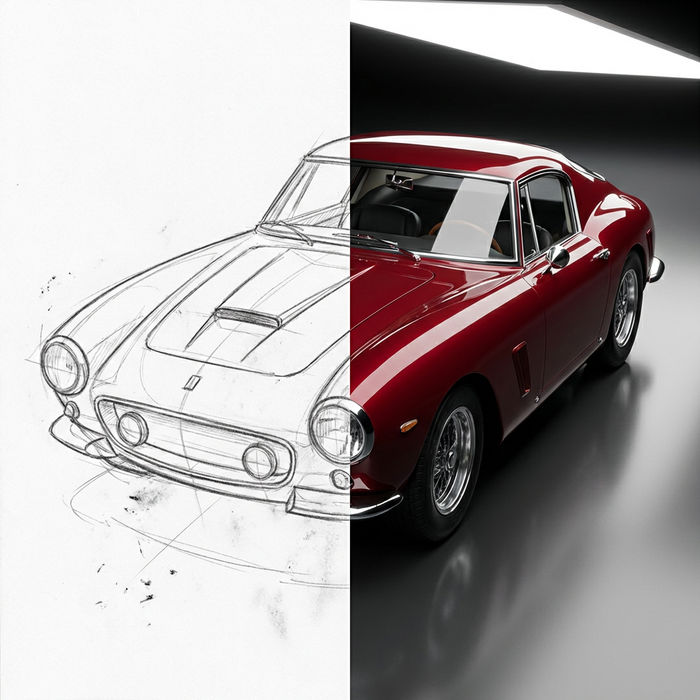
Turn any sketch or drawing into a finished render.
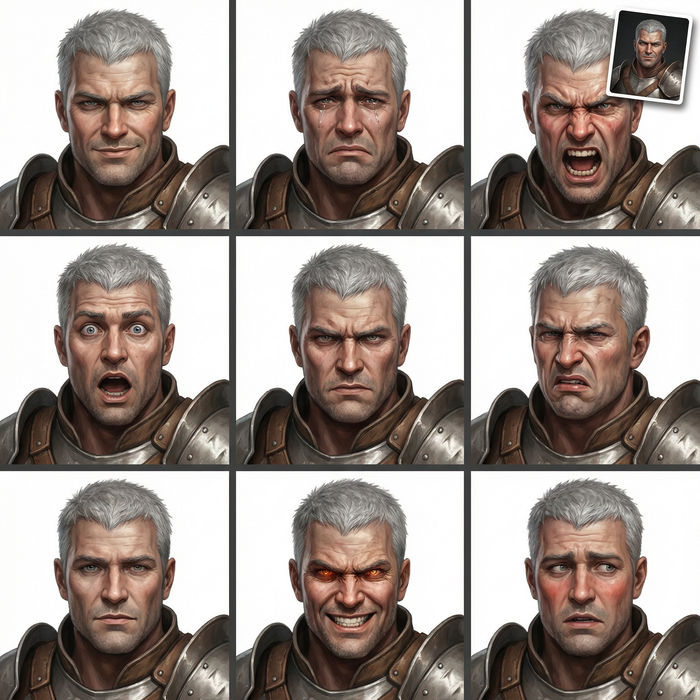
Take any character image and generate 6 distinct facial expressions on a single reference sheet.
Restyle any video in a completely new visual style. Every frame transforms, all motion stays intact.

Pick any anime illustration as your style guide. Apply its look to any image.
Patent drawing AI Images
Create AI patent drawing images with Morphic. Generate authentic patent drawing artwork, scenes, and visuals for any project in seconds.
Architectural drawing AI Images
Create AI architectural drawing images with Morphic. Generate authentic architectural drawing artwork, scenes, and visuals for any project in seconds.
Vintage encyclopedia plate AI Images
Create AI vintage encyclopedia plate images with Morphic. Generate authentic vintage encyclopedia plate artwork, scenes, and visuals for any project in seconds.
Jewelry design AI Images
Create AI jewelry design images with Morphic. Generate authentic jewelry design artwork, scenes, and visuals for any project in seconds.
Get started for free today, with the option to upgrade or cancel anytime.
Basic
2400 monthly credits
1 user only
All models
Workflows
Standard
3625 monthly credits
1 user only
All models
Workflows
Pro
6350 shared monthly credits
1 user
All models
Workflows
Max
24650 shared monthly credits
1 user
All models
Workflows
Enterprise
For higher limits
Custom
pricing and billing terms

Free
For playing around
$0
forever free