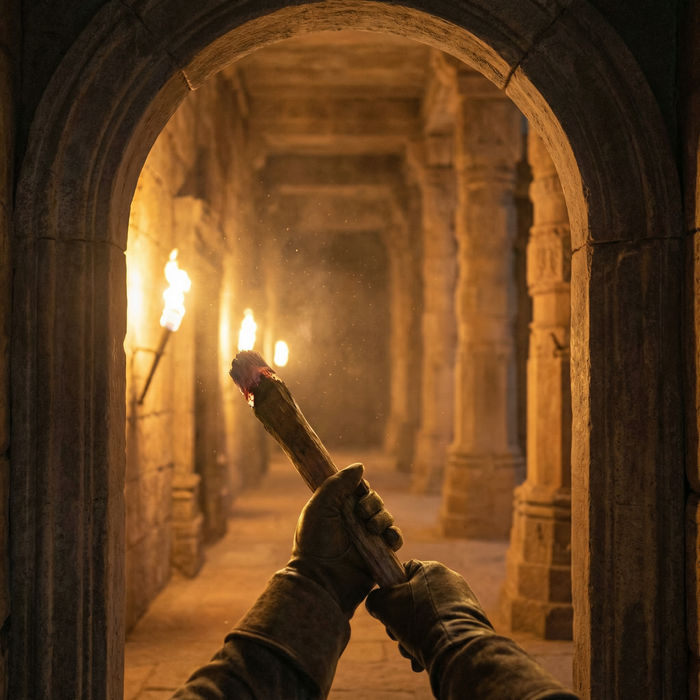
Turn any still into a real moving clip with Morphic's image to video AI. Drop in a piece of concept art, an illustration, a movie poster, a comic panel, a 3D render, or a screenshot, write the motion you want, and Morphic generates a clip with camera moves, character action, and lighting that holds together. Pair the result with the Speech and Music tools to score and narrate the cut, and ship a finished image to video sequence without leaving the Canvas.

image to video clips you can spin up

image to video moments you can drop in

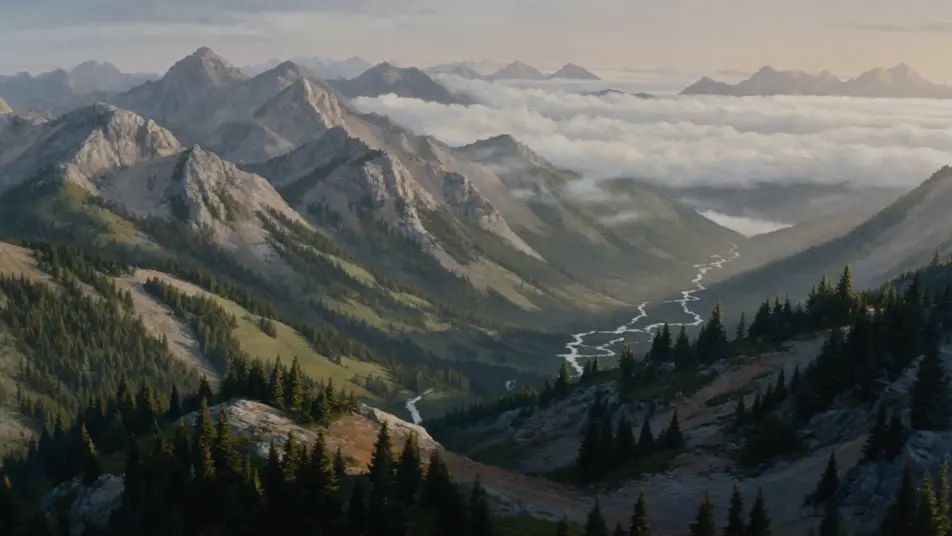
Painted landscape resolves into motion

A wide painted landscape of misty mountain valleys resolves out of a still frame, cloud banks rolling between the peaks, a river catching the morning light, the camera doing a slow lateral drift across the vista. Image to video done at landscape scale, with the painting still reading on every frame.

Edit prompt
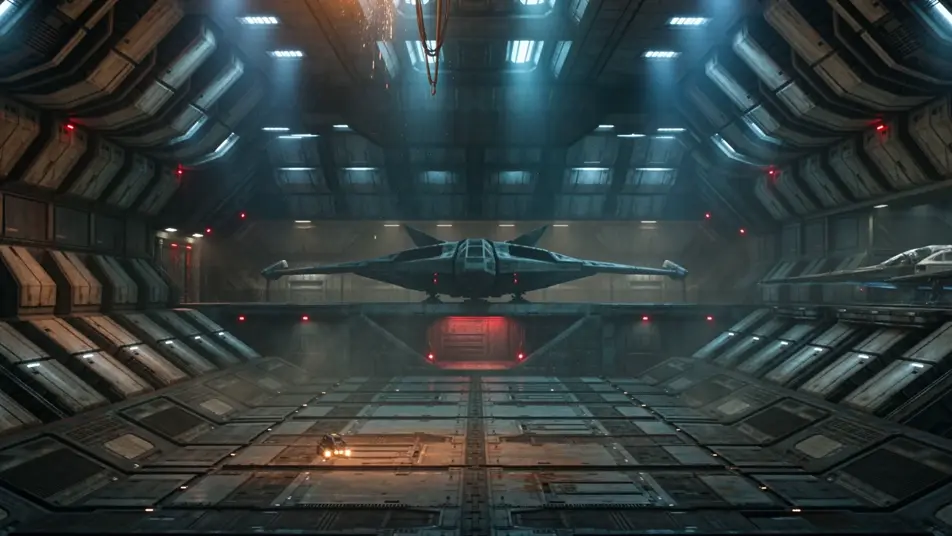
Sci-fi keyframe progresses into a shot

A sci-fi keyframe of a derelict starship bay locks in, then progresses: a service drone glides past, sparks fall from a severed cable, distant warning lights pulse on the bulkhead. The single concept frame extends into a held cinematic beat with depth and atmosphere.

Edit prompt

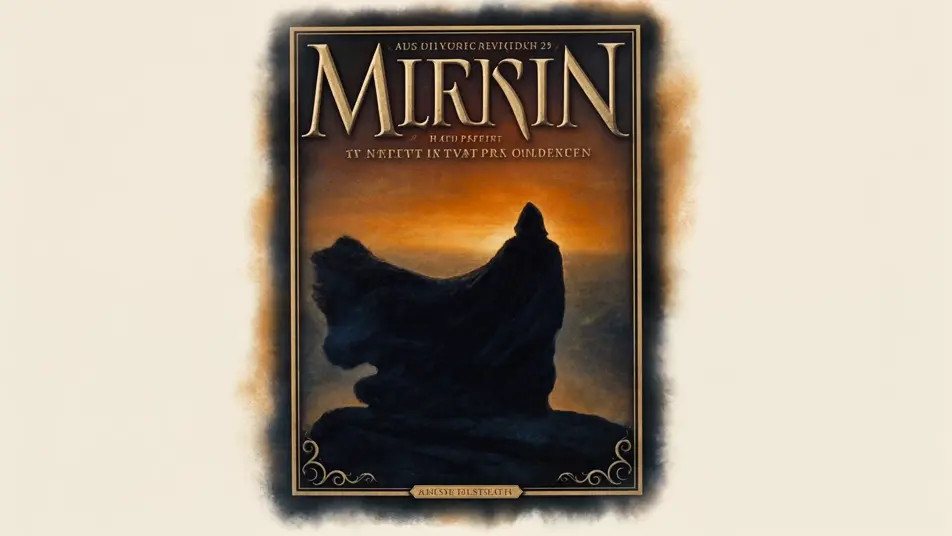
Fantasy book cover unfolds

A fantasy book cover of a hooded figure on a clifftop opens out into a moving shot: the cloak shifts in the wind, distant dragons cross a blood-orange sky, the camera pulls back to reveal a ruined kingdom below. The cover composition becomes a teaser opening shot.

Edit prompt

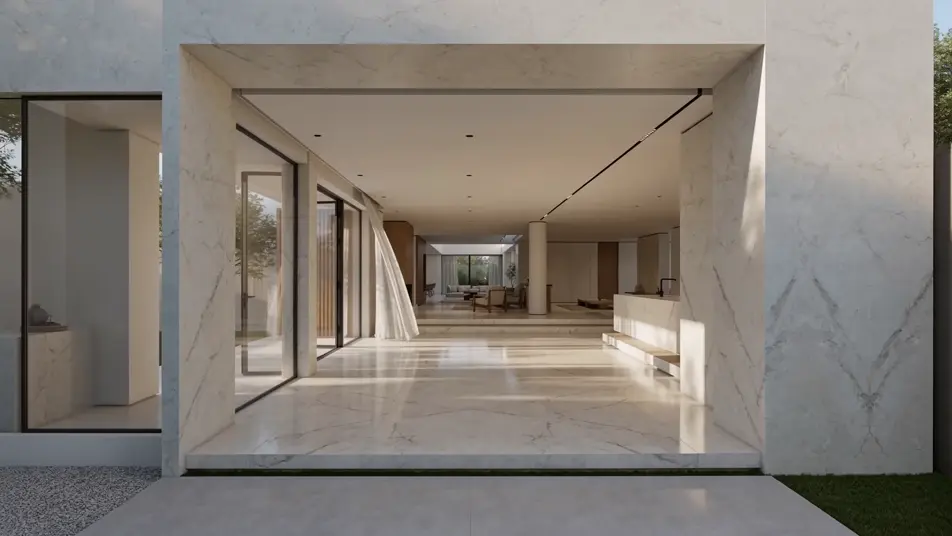
Architectural render walks the camera through

A still architectural render of a sunlit modern villa becomes a walkthrough, the camera drifting through the entryway, daylight tracking across the marble floor, a curtain stirring at an open glass door. The render quality holds while the shot moves the viewer through the space.

Edit prompt

Make image to video videos in three steps

  1. 01

    Describe your image to video scene

    Write the image to video scene you want, including the moment, location, and camera direction.

  2. 02

    Generate the video

    Morphic generates a cinematic, frame-ready clip on your canvas in seconds, no editing software required.

  3. 03

    Refine your image to video video

    Tweak the prompt, regenerate variations, then download or share the moment the shot lands.

Related workflows

You might also like

FAQs

What is image to video AI?
Image to video AI takes a still image as the starting point and generates a real video clip from it, adding character motion, camera moves, and lighting changes. On Morphic, you bring the image and describe the motion you want, and the model produces a clip that keeps the source frame on model.
What kinds of images work with image to video AI?
Almost any flat image works as a source: concept art, illustrations, movie posters, comic panels, 3D renders, screenshots, key art, book covers, and architectural mockups. Morphic reads the composition and animates inside it, so the image to video clip looks like the still extended into a real shot.
How is image to video AI different from a still with a pan?
A pan-and-zoom moves the camera across a frozen image. Image to video AI generates new motion inside the frame itself, such as a character turning, fabric shifting, rain falling, a vehicle rotating. The source image is the starting point, not the only thing that moves.
How do I write a good image to video prompt?
Name three things in your prompt: the type of source image, the motion you want inside the frame, and the camera move. A line like "animate this comic panel with a slight head turn and a slow push-in" gives Morphic the source, the action, and the framing for a clean image to video result.
Can I keep my character or style consistent across image to video clips?
Yes. Use the Character Lineup workflow to lock a subject from one image, then reference that card on the next image to video prompt. Morphic holds the wardrobe and look steady while you generate the next clip from a different source frame.
Can I add narration and music to my image to video clips?
Yes. Run the Speech tool to generate voiceover in the voice you pick, then score the cut with the Music tool. Stack both onto your image to video clips on the Canvas to publish a finished sequence with sound.