Direct cinema-grade visual effects in your browser with Morphic's AI VFX video generator. Generate VFX shots like a shockwave tearing through a city street, blue energy crackling around a raised hand, or a glass tower folding into rubble, and pair them with the Music tool to score every impact. Composite-free, no green screen needed, the finished VFX sequence comes together on the Canvas.

VFX shots you can render

VFX scenes you can direct

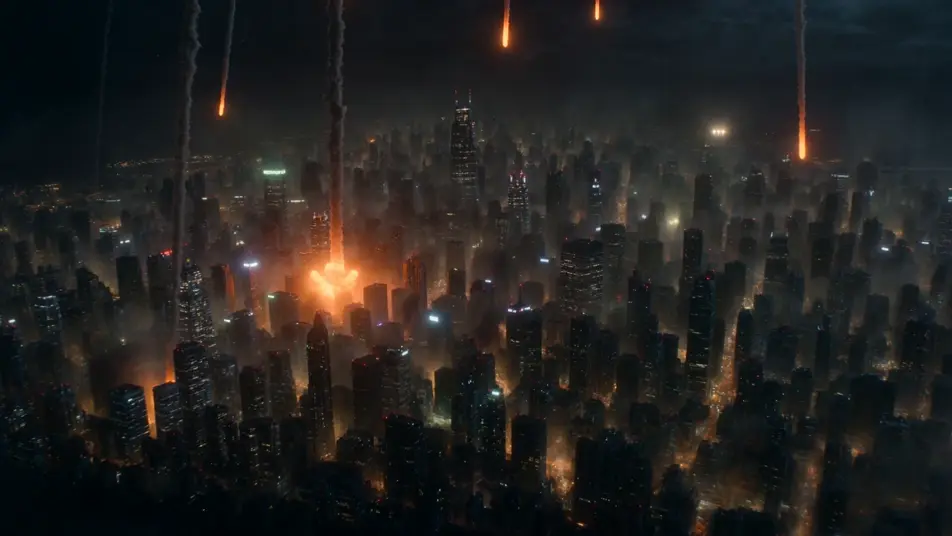
Sci-fi city under aerial bombardment

A neon megacity at night takes a barrage of energy fire from above, towers erupting in orange blooms while shockwave rings ripple between the buildings, drifting smoke catching the city glow, slow aerial push-in.

Edit prompt
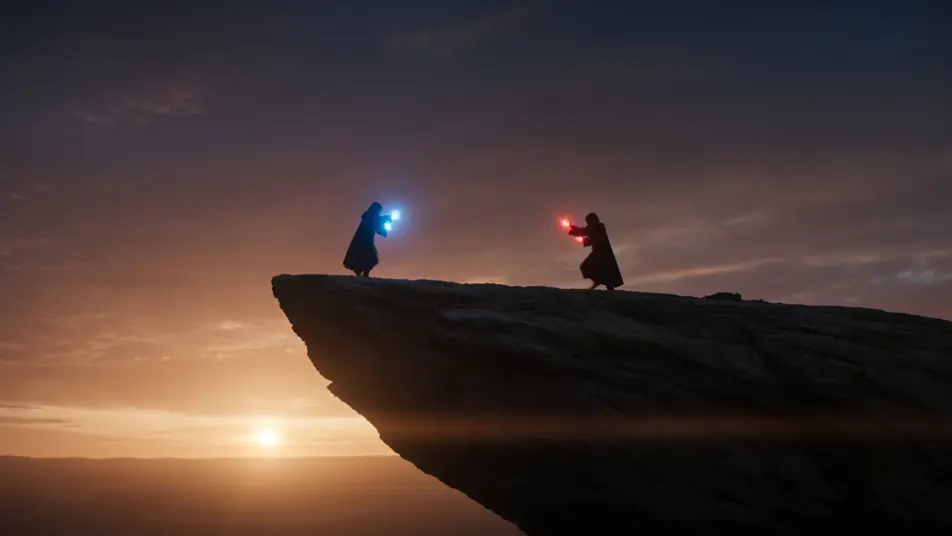
Sorcerer duel with clashing energy effects

Two robed figures face off on a cliff edge at dusk, beams of blue and crimson energy colliding in a spray of sparks at the midpoint, ground cracking and dust lifting, low wide shot framing both casters.

Edit prompt

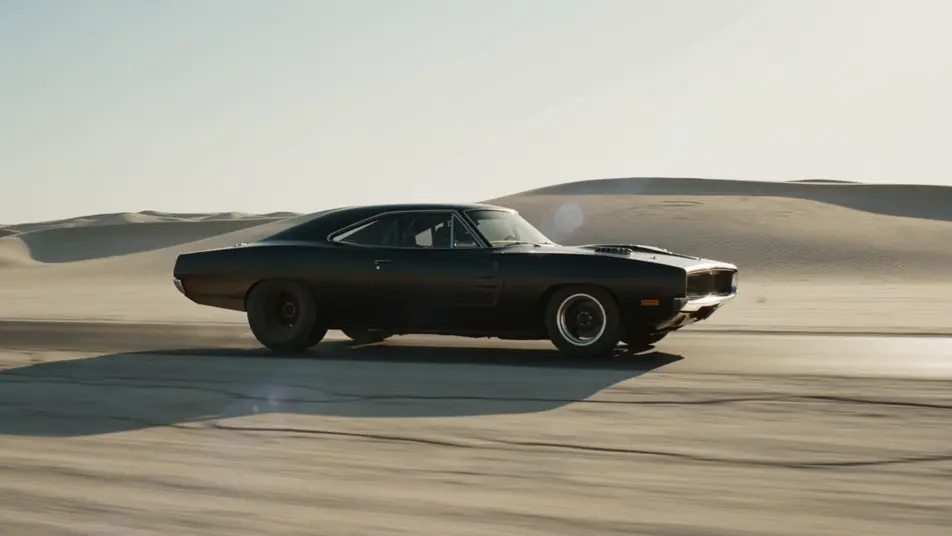
Highway chase with rolling explosions

A muscle car races down a desert highway as fireballs erupt behind it in sequence, a wall of flame and black smoke chasing the bumper, debris bouncing across the asphalt, fast tracking side shot.

Edit prompt

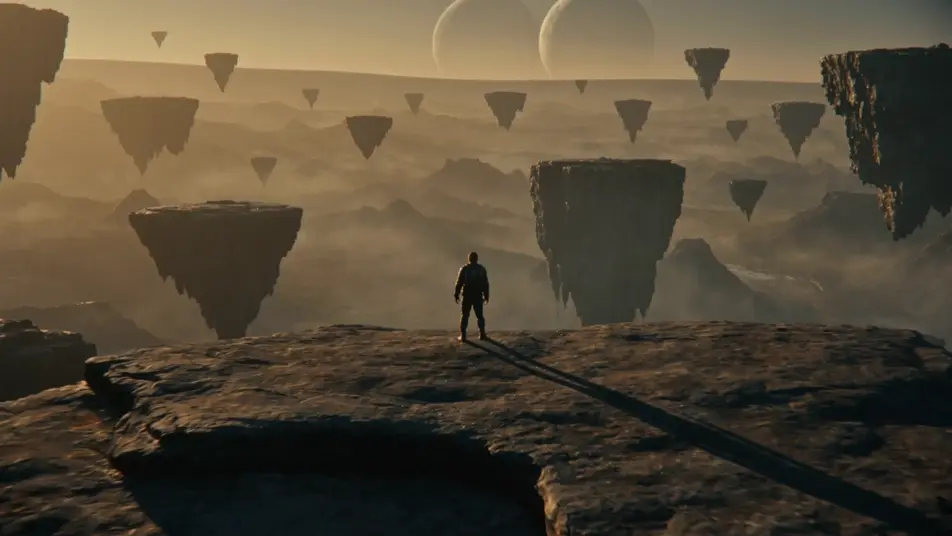
Set-extension reveal of a vast alien valley

A lone explorer stands on a ridge as the camera pulls back to reveal a colossal alien valley, floating rock islands and twin moons stitched cleanly into the foreground terrain, golden haze across the horizon.

Edit prompt

Make VFX videos in three steps

  1. 01

    Describe your VFX scene

    Write the VFX scene you want, including the moment, location, and camera direction.

  2. 02

    Generate the video

    Morphic generates a cinematic, frame-ready clip on your canvas in seconds, no editing software required.

  3. 03

    Refine your VFX video

    Tweak the prompt, regenerate variations, then download or share the moment the shot lands.

Related workflows

You might also like

FAQs

Where can I make AI VFX videos with AI?
You can create VFX shots directly in your browser on Morphic. Open the Text to Video tool, describe the effect, the physics, and the camera move, and Morphic produces the clip. No green screen, no compositing software, and no installs needed.
What kinds of VFX shots work best with AI video?
Explosions and blast waves, energy and magic effects, sci-fi destruction like collapsing buildings, particle and ember swarms, set extensions, and creature transformations all render well. Name the effect and the physics that sell it, and Morphic generates the VFX shot directly from the prompt.
Do I need green screen or compositing software for AI VFX videos?
No. Morphic generates the visual effect as part of the shot, so there is no green screen to key and no compositing rig to set up. Describe the explosion, the energy effect, or the destruction in plain language and the VFX comes back inside the finished clip.
How do I write a good prompt for a VFX shot?
Name the effect, then describe the physics that make it believable. For an explosion, specify the blast direction, the debris arc, and how the dust settles. For an energy effect, specify the color, where it gathers, and where it discharges. Adding a camera move grounds the VFX in a real shot.
How do I keep effects consistent across a VFX sequence?
Use the Character Lineup workflow to lock the look of any figure tied to an effect, then reference the same color, scale, and style language in every prompt. Morphic holds the energy palette and the destruction grammar across shots so the VFX sequence stays on-style.
Can I add a score and sound to my AI VFX videos?
Yes. The Music tool produces an original soundtrack that lands every impact and swell, and the Speech tool generates voiceover in the voice you choose. Layer both onto the generated VFX shots to publish a complete sequence without leaving the Canvas.