Real estate photo into a slow dolly through the room
A still listing photo of a sunlit living room comes alive as a slow dolly forward, light pooling on the floor, sheer curtains drifting, the kitchen opening up at the back of the frame.
Edit prompt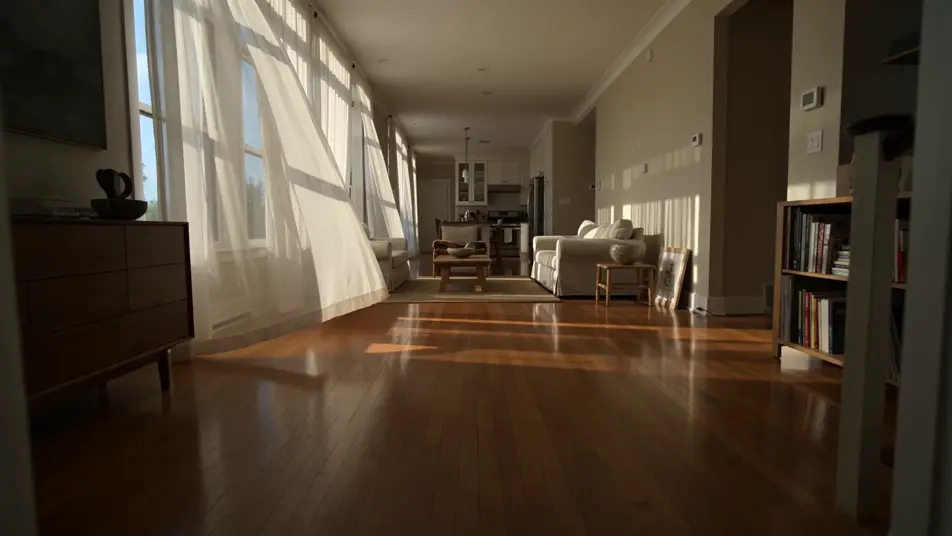
Turn real photos into moving clips in your browser with Morphic's photo to video AI generator. Generate a wedding photo walking down the aisle or a vacation snapshot with moving waves, add narration with Speech, and finish the sequence on the Canvas.
A still listing photo of a sunlit living room comes alive as a slow dolly forward, light pooling on the floor, sheer curtains drifting, the kitchen opening up at the back of the frame.
Edit promptA clean studio product still becomes a hero ad shot, the bottle rotating slowly under a soft key light, droplets catching a glint, the white sweep holding cleanly behind it.
Edit prompt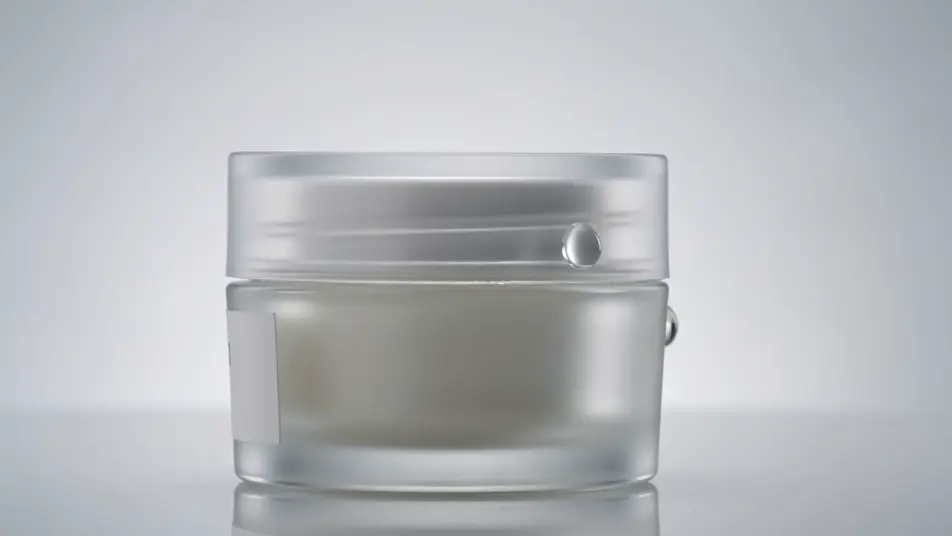
A frozen action photo of a striker mid-kick resumes, the ball rocketing off the boot, defenders reacting a beat late, the crowd blur sharpening as the camera tracks the shot.
Edit prompt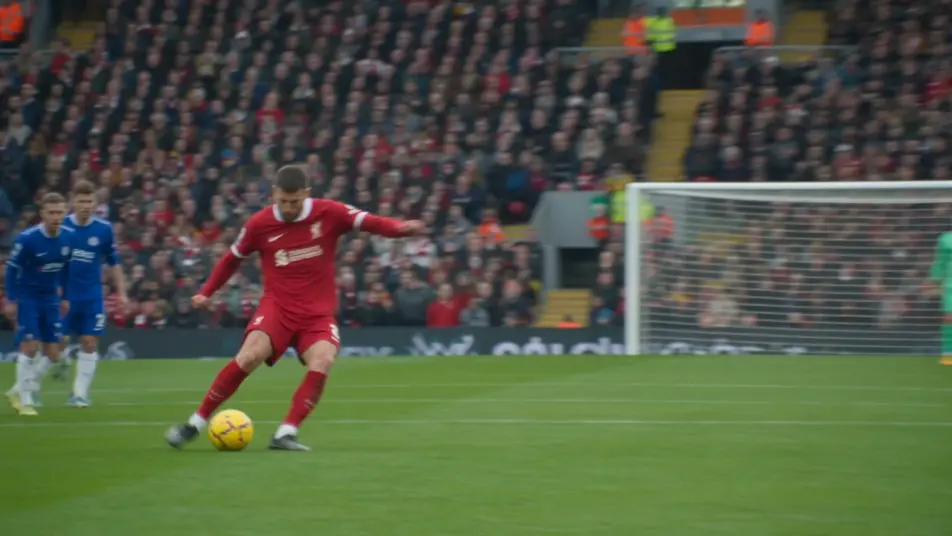
A wide travel photo of a mountain valley opens into a slow forward push, low clouds drifting across the ridge, grass moving in the foreground, the light shifting as the sun edges out.
Edit prompt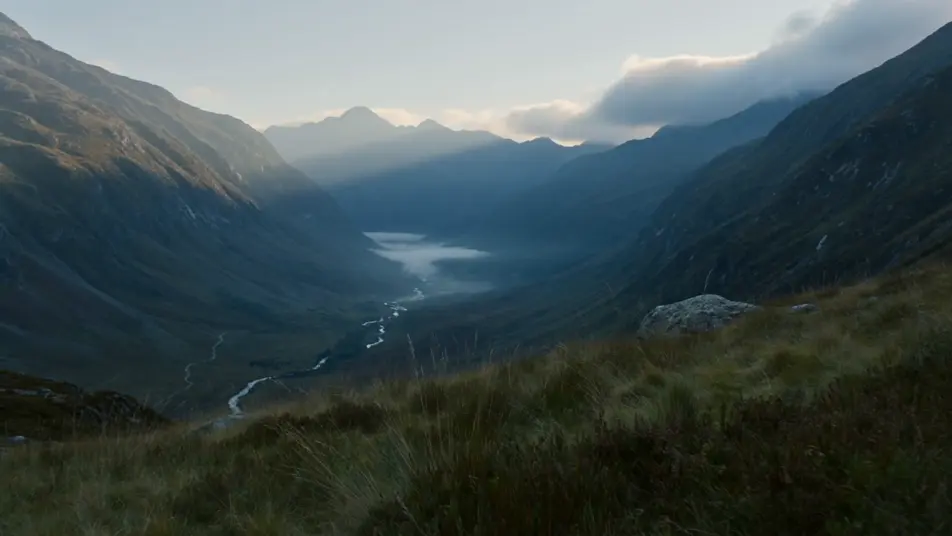
Write the photo to video scene you want, in plain words.
Morphic generates a cinematic, frame-ready clip on your canvas in seconds.
Tweak the prompt, regenerate variations, then download or share the shot.
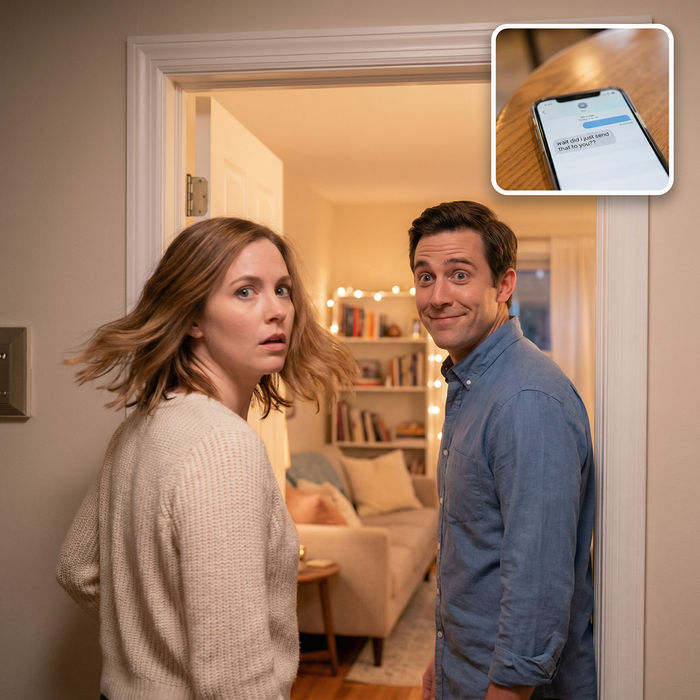
Dramatize any text conversation into a cinematic multi-shot video.
Cinematic time-freeze short film for any scene
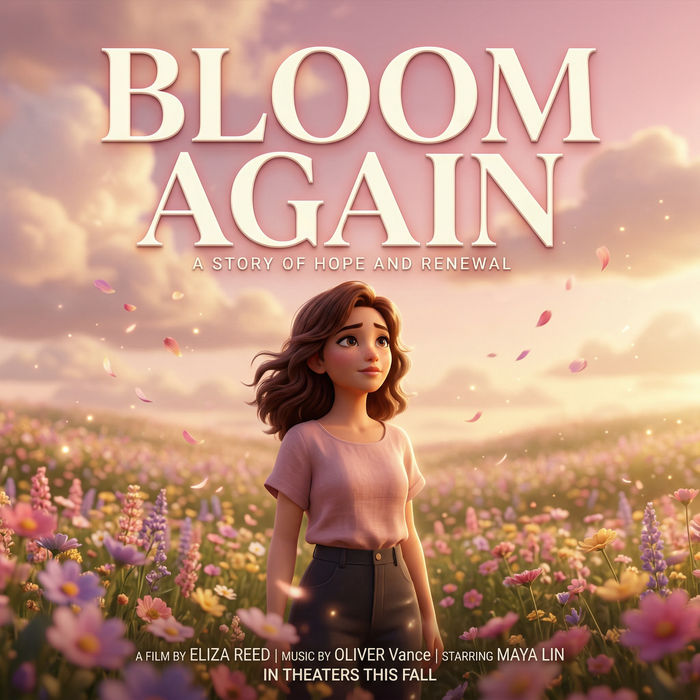
Generate a professional film title card from scratch, with optional cinematic animation.
Photo of any real-estate becomes a cinematic renovation timelapse video with construction SFX and music.
One image to a 9-scene cinematic video.
Drop in a photo of yourself. Get a 12-second cinematic movie with animation and a matched soundtrack.
Image to Video AI
Make image to video AI clips with Morphic. Animate concept art, posters, comic panels, and 3D renders into real moving shots with camera moves and action.
Photo Animation AI
Make AI photo animations with Morphic. Bring drifting dust, candle flicker, curtain sway, and parallax depth back to any still photo. Subjects hold the pose.
AI Story Time videos
Make AI story time videos with Morphic. Narrated storytelling over matching visuals, faceless format, AI voiceover, and ready-to-run scene prompts.
AI Lyric videos
Make AI lyric videos with Morphic. Kinetic typography, handwritten lyrics over moody footage, neon word art, and scene prompts that sync words to your track.
Get started for free today, with the option to upgrade or cancel anytime.
Basic
2400 monthly credits
1 user only
All models
Workflows
Standard
3625 monthly credits
1 user only
All models
Workflows
Pro
6350 shared monthly credits
1 user
All models
Workflows
Max
24650 shared monthly credits
1 user
All models
Workflows
Enterprise
For higher limits
Custom
pricing and billing terms

Free
For playing around
$0
forever free