A raking-light fabric weave
A macro frame where a tight cloth weave fills the screen and slow raking light travels across it, lifting each thread into relief as the fabric shifts a fraction, the focus holding shallow and precise
Edit prompt
Direct a material close up video in your browser with Morphic's material close up video generator. Render macro passes over woven fabric, brushed metal, full-grain leather, and a slow liquid pour so the texture reads before a word is spoken. Score it with Music, then assemble the passes into one tactile sequence on Compose.
A macro frame where a tight cloth weave fills the screen and slow raking light travels across it, lifting each thread into relief as the fabric shifts a fraction, the focus holding shallow and precise
Edit promptA cool studio frame where a brushed metal edge turns slowly and a soft highlight sweeps down the machined grain, the surface flaring and dimming as it rotates under clean even light
Edit prompt
A warm macro frame drifting over supple full-grain leather, pores and creases catching a low golden side light while the shallow focus rolls softly across the hide, holding a rich premium feel
Edit prompt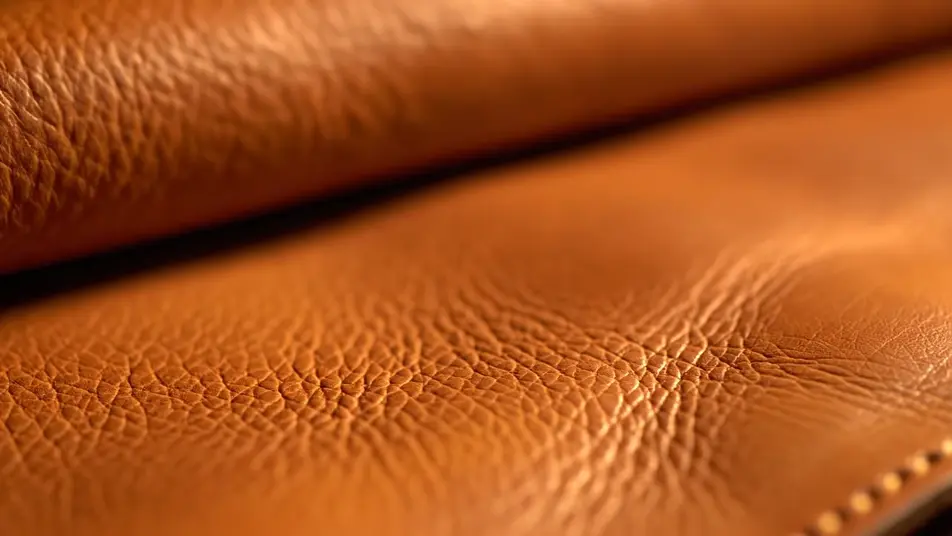
A bright frame where a clear stream pours onto a smooth surface and breaks into slow beading droplets, a crisp rim light tracing each bead as the liquid spreads and settles under high-speed motion
Edit prompt
Write the material close up video scene you want, in plain words.
Morphic generates a cinematic, frame-ready clip on your canvas in seconds.
Tweak the prompt, regenerate variations, then download or share the shot.

Dramatize any text conversation into a cinematic multi-shot video.
Cinematic time-freeze short film for any scene

Generate a professional film title card from scratch, with optional cinematic animation.
Photo of any real-estate becomes a cinematic renovation timelapse video with construction SFX and music.
One image to a 9-scene cinematic video.

Describe a first-person scenario. Get sequential POV frames animated into video clips with audio.
AI Product feature videos
Produce a product feature video with Morphic. Render rotations, macro details, and in-use shots for the whole catalogue, then export for social or web.
AI Styling videos
Generate AI styling videos with Morphic. Styled flat-lays, on-model looks, and detail beats that show a product from every angle and publish the same day.
AI Product comparison videos
Make a product comparison video with Morphic. Set two unbranded products side by side and show the difference in form and finish, no crew or samples.
AI Packaging reveal videos
Create a packaging reveal video with Morphic. Film unbranded boxes opening, lids lifting, and tissue folding back, then refresh it each season, no reshoot.
Get started for free today, with the option to upgrade or cancel anytime.
Basic
2400 monthly credits
1 user only
All models
Workflows
Standard
3625 monthly credits
1 user only
All models
Workflows
Pro
6350 shared monthly credits
1 user
All models
Workflows
Max
24650 shared monthly credits
1 user
All models
Workflows
Enterprise
For higher limits
Custom
pricing and billing terms

Free
For playing around
$0
forever free