Continuity checks
What the continuity warnings in a 3D scene mean, the 180-degree rule, and how to clear each warning.
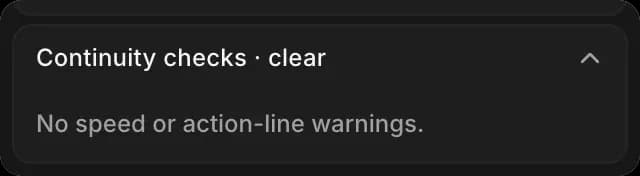
Continuity checks watch for two mistakes that make a shot hard to follow. They sit at the bottom of the 'Animate' tab, and read 'Continuity checks · clear' when nothing is wrong. They are warnings only; they never change your scene.
Where warnings show
Each warning is listed under 'Continuity checks' with the character, the frames, and a fix such as "Try run". The keyframes involved are marked on the timeline.
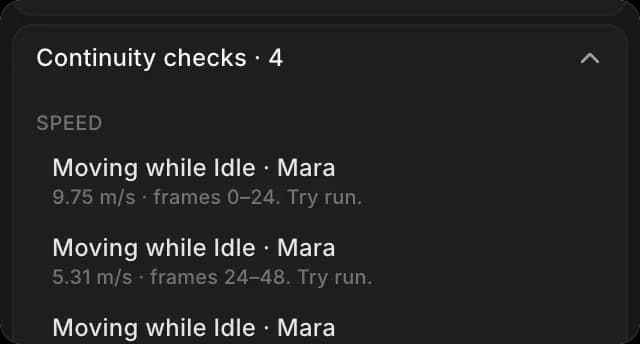
Speed warnings
A speed warning means a character moves too fast or too slow for its 'Motion' setting, or moves while set to 'Idle'. To clear it:
- Click the character in 'Layers'
- In the 'Selection' tab, set 'Motion' to the gait the warning suggests, such as 'Run'
- If it still shows, drag its keyframes further apart on the timeline, so the move slows down
The warning disappears once the speed fits, and the tab reads 'Continuity checks · clear'.
Action-line crossings
Picture a line through two characters facing each other. While the camera stays on one side of it, each character keeps facing the same way on screen. If the camera jumps across, they seem to swap sides. Filmmakers call this the 180-degree rule.
A red keyframe on the 'Shot camera' row marks where a camera move crosses that line. To clear it:
- Keep the camera keyframes on one side of the two characters
- Or cross in one continuous move, so the viewer sees the camera travel
The check needs two visible characters. With fewer, the tab reads 'The 180° check needs two visible characters.'
Copilot runs its own checks for overlapping objects and camera problems after each change it makes. See Scene checks.
That's how continuity checks work in a 3D scene on Morphic. Clear them before you export, so the reference you generate from is easy to read.
If you have any trouble or have any questions, feel free to reach out. We're happy to help. Write to us at support@morphic.com.