Edit with Copilot
Build and change a 3D scene with Copilot, choose whether it asks first, and undo its changes.
Copilot can build and change a 3D scene for you. Describe the shot and it places the set, the cast and the camera, then checks its own work. Everything it makes stays editable by hand.
Send a prompt
- Click 'Chat' at the top right of the editor. Copilot opens in place of the right panel
- Type what you want in the prompt bar at the bottom, such as "add a woman walking to the door"
- Press Enter, or click the send arrow
- Copilot reads the scene, makes the change, and says what it did. The change appears in the viewport
- To get the right panel back, click 'X' at the top of the chat
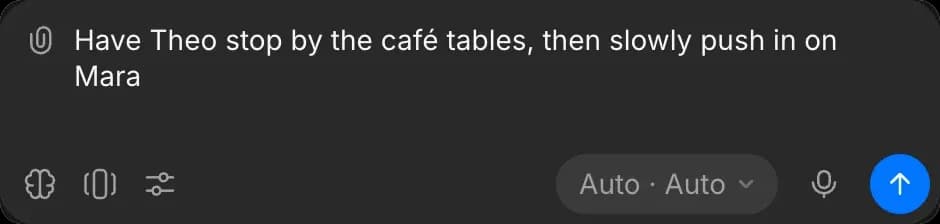
Scene edits change the scene only. To generate the final shot from your blocking, see Export and use as a reference.
Example prompts
- A set: "an office with two desks and a window"
- Objects by name: "add a police car" or "put a double bed against the back wall". Copilot searches thousands of extra kit models on top of the built-in library
- Action: "have the woman walk to the door and stop"
- Camera: "slow dolly in, ending on a medium close-up", or "orbit the camera around the car"
- Lighting: "make it dusk", or "add a three-point rig"
- Fixes: "fix the continuity warnings"
- Display: "hide the grid", or "play it from three seconds"
Chat modes
The mode decides whether Copilot asks before it changes the scene.
- Click the button at the bottom right of the prompt bar. It reads 'Auto · Auto' by default
- Under 'Mode', pick one:
- 'Automatically generate': Copilot changes the scene straight away
- 'Ask before generating': Copilot shows each change on a card and waits for your approval
- 'Plan only': Copilot explains what it would change, and changes nothing
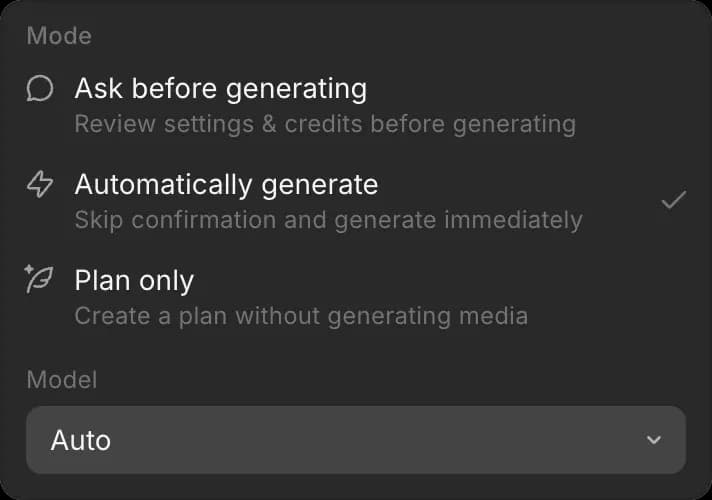
See Chat modes.
Scene checks
After each change, Copilot checks the scene for:
- Objects that overlap
- The camera inside an object, passing through one, or below the ground
- Objects below the ground or tipped over
- Objects stretched out of proportion or at an unlikely size
If its change caused one of these, or made one worse, Copilot fixes it or tells you.
Undo
To take back a change Copilot made, prompt it: "undo that". Edits other people made in the meantime are kept.
Plans and credits
Copilot can edit a scene on every paid plan. Scene edits cost no credits, and Copilot's replies use credits like any chat. See Copilot on Plans & Credits.
That's how to edit a 3D scene with Copilot on Morphic. Prompt for the first draft of a shot, then refine the details by hand.
If you have any trouble or have any questions, feel free to reach out. We're happy to help. Write to us at support@morphic.com.