Export and use as a reference
Export a still or a video from a 3D scene, upload the still as a reference for a generation, and save the scene as a file.
A blocked shot is a reference. Generate the final shot from it so the model follows your staging and camera.
Export a still or a video
- Move the playhead to the frame you want, for a still
- Click 'Export' at the top right of the editor
- Pick the 'Aspect ratio': 16:9, 9:16, 2.39:1, 4:3 or 1:1
- Pick the 'Resolution': 720p or 1080p
- Pick the 'Frame rate': 24, 25, 30, 50 or 60 fps. 'Output' shows the size you will get
- Click 'Export current frame' for a PNG of that frame, or 'Export video' for an MP4 of the whole shot. The file downloads to your computer
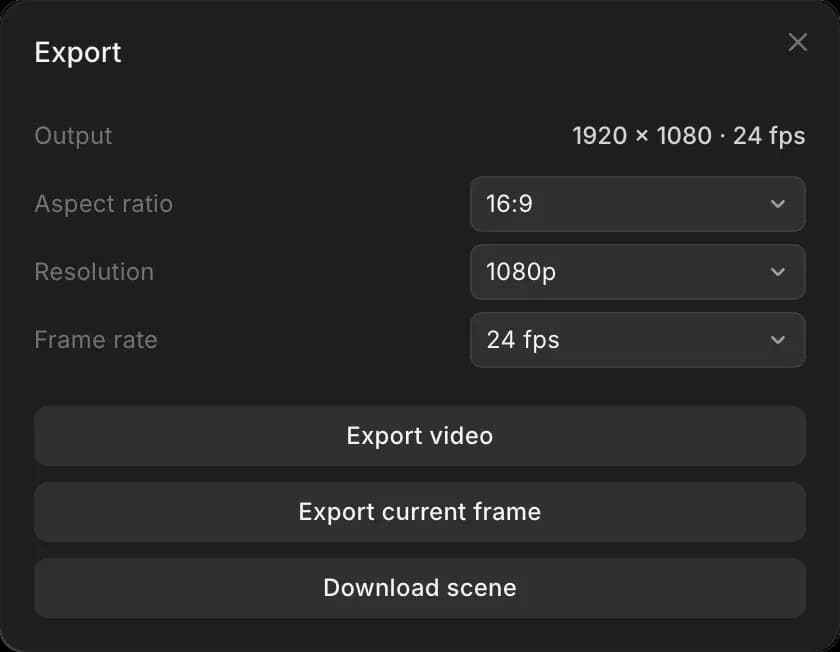
Video renders in your browser, so use a current version of Chrome, Edge or Safari and keep the tab open until it finishes. Objects with 'Hide in exports' on are left out; character labels stay in.
Use the export as a reference
Export a still or the whole shot, as above, then add the file as a reference in the prompt bar and generate:
- A still (PNG): see Multiple Image Reference
- The whole shot (MP4): see Reference to Video
The export is what the model sees, so press 3 and check the frame before you export.
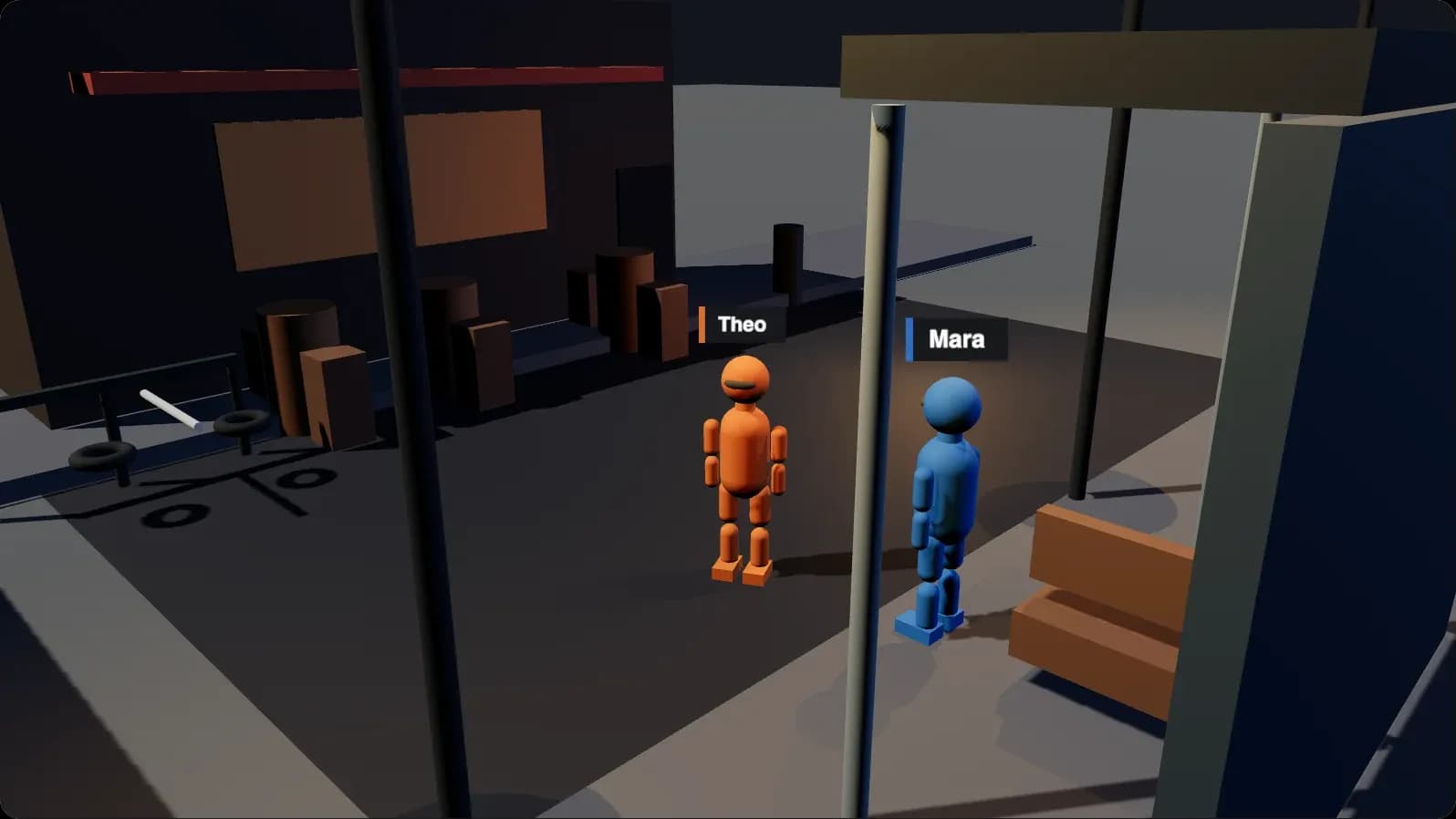
Cast by color
Name each mannequin by its color in the prompt, so the model puts the right person in the right place. For example: "The red mannequin is a woman in a yellow raincoat. The blue mannequin is an older man in a grey suit."
Scene files
A scene file holds the whole scene: set, cast, camera and animation. Use it to reuse a set in another project, or to hand a blocked shot to someone else.
To save one, do any of these:
- In the editor, click 'Export', then 'Download scene'
- In the editor, press Cmd + S
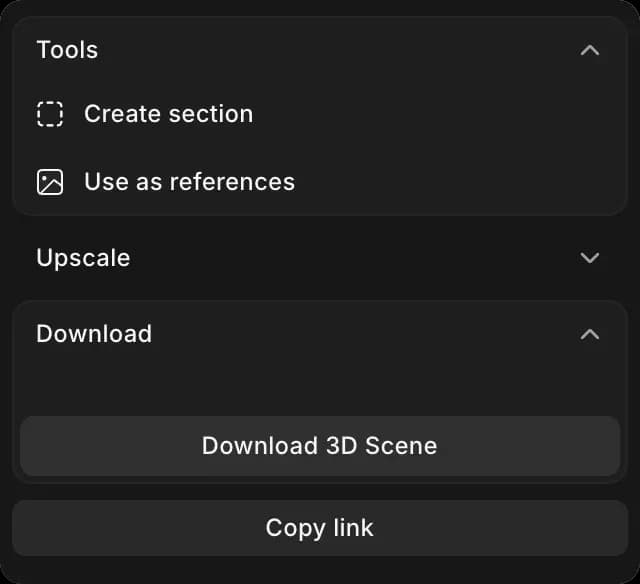
- On the Canvas, select the scene and click 'Download 3D Scene' in the right panel
To load one:
- Open a scene
- Click the 'Scene' tab
- Click 'Import scene' at the top, and choose the file. It can be up to 10 MB
To make a new scene from a file instead, drop it on the Canvas, or upload it there.
That's how to turn a 3D scene into a reference on Morphic. Export a still to check the framing, then the video once the timing works.
If you have any trouble or have any questions, feel free to reach out. We're happy to help. Write to us at support@morphic.com.