Generate images, video and 3D
Generate images, videos and 3D models from Blender's sidebar, see the price before you start, and get the result placed in your scene.
The 'Image', 'Video' and '3D' tabs generate with Morphic's models without a chat. Write a prompt, check the price on the button, click it, and the result is placed at the 3D cursor when it is ready.
Generate
- Press N in the 3D viewport and click the 'Morphic' tab, then 'Image', 'Video' or '3D'
- Write a prompt and pick your settings (see below)
- Wait a moment for the price. The button changes to 'Generate · 3 credits' (for example). If it stays grey, the note above it says what to change
- Click the button. The generation appears under 'Generations' and moves from 'Queued…' to 'Generating…' to 'Done'
- When it is done, the result is added to the scene at the 3D cursor and selected
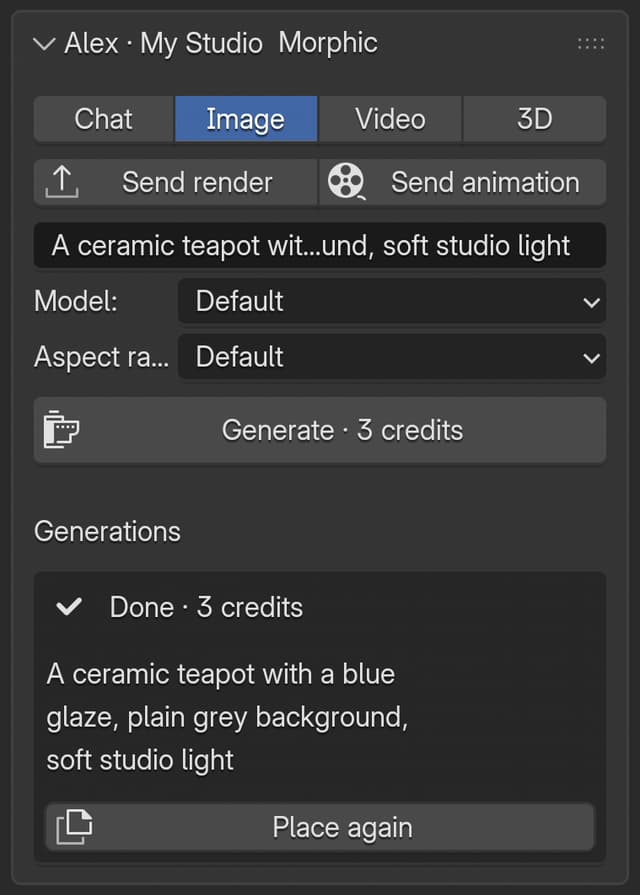
The top of each tab shows your organization's 'Credits left'. The price is an estimate before you start; nothing is charged until you click 'Generate'. You can start several generations, on any tab, while others run, and keep working in Blender while they do.
Image
| Setting | What it does |
|---|---|
| Prompt | What the image shows |
| Model | 'Default' lets Morphic pick, or choose a model your plan includes |
| Aspect ratio | The shape: 16:9, 4:3, 3:2, 1:1, 2:3, 3:4, 9:16, 21:9, 9:21, 2:1 or 1:2 |
The image is placed on an upright plane, 2 m on its longest side, at the 3D cursor. Use it as a reference board, a backdrop or a matte painting.
Video
| Setting | What it does |
|---|---|
| Prompt | The shot: subject, motion and camera, for example "slow orbit around the red cube, soft studio light" |
| Model | 'Default', or a video model your plan includes |
| Duration | 4 to 15 seconds. Each model supports its own lengths; the note says when the one you picked does not |
| Aspect ratio | The shape of the video |
| Use active camera view as first frame | Captures what your active camera sees and animates it: the video starts from your scene |
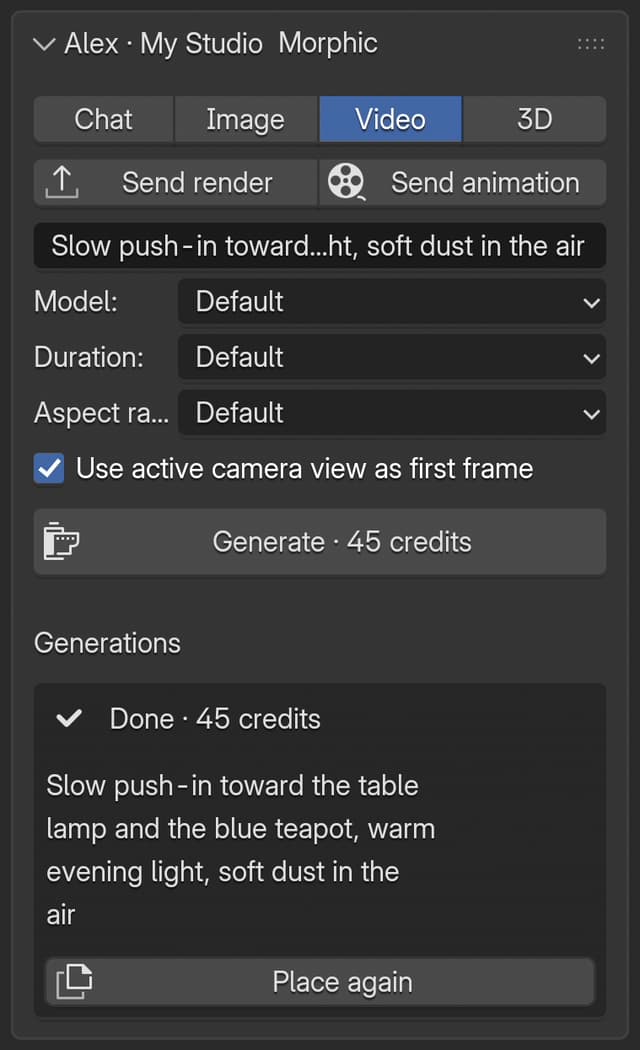
The video is placed on an upright plane with the video as its texture. Scrub the timeline to play it in the viewport. When the .blend is saved, the video file is copied into a 'morphic_media' folder next to it, so the .blend keeps working when you move both together.
With 'Use active camera view as first frame', set up the camera and the look you want first. The capture is taken the moment you click 'Generate'.
3D
| Setting | What it does |
|---|---|
| Prompt | Optional notes on the object, for example "weathered wood with iron hoops" |
| Reference | Required. 'Selected image' uses the active object's image texture, or the image open in the Image Editor. 'Viewport capture' uses what the viewport shows |
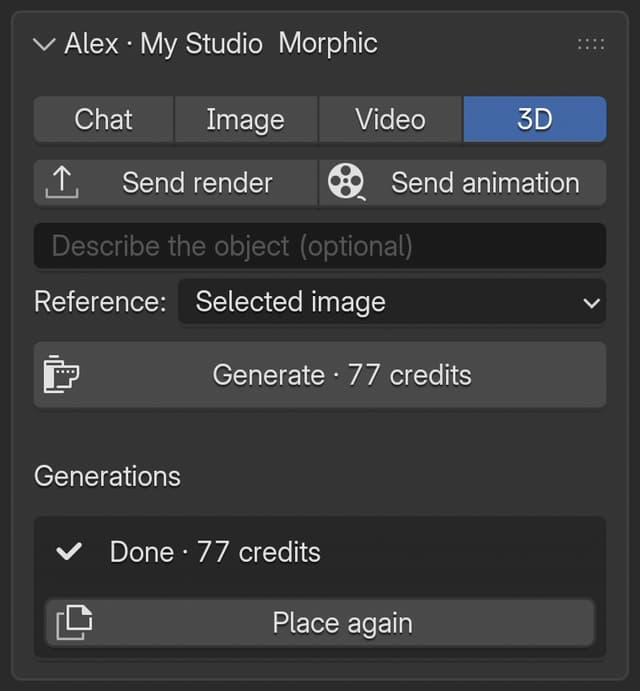
The model is imported at the 3D cursor from a GLB file, with its materials. It goes into the active collection.
A 3D model is always made from an image. To model something you only have in words, generate an image of it on the 'Image' tab first, select the plane it lands on, then generate on the '3D' tab with 'Selected image'.
Results
- Each placed result is one undo step, named after its prompt
- Click 'Place again' on a finished generation to add another copy at the 3D cursor
- Every result is also saved in the Morphic file for this .blend, in Studio's 'Assets'. See Where your work goes
- A generation keeps running even if you close Blender. Find it in Studio's 'Assets' when it is done
- If a generation fails, its row says why
If you have any trouble or have any questions, feel free to reach out. We're happy to help. Write to us at support@morphic.com.