Sign in
Sign Blender in to your Morphic account, choose the organization it works in, find where your chats and files go, and disconnect it.
Blender signs in to Morphic through your browser, the same way an AI app connects with MCP. You never type your password into Blender.
Sign in
-
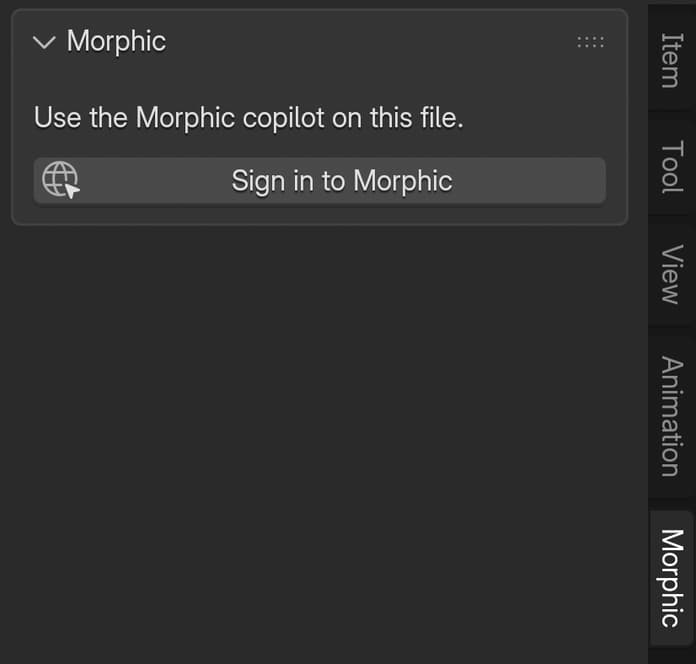
In the 3D viewport, press N and click the 'Morphic' tab
-
Click 'Sign in to Morphic'. Your browser opens on Morphic's 'Connect Blender to Morphic' page
-
Sign in to Morphic if you are not already
-
Under 'Choose organization', pick the organization to work in. Credits for generations come from this organization
-
Check what Blender will be able to do, then click 'Allow access'
-
Go back to Blender. The panel header shows your first name and the organization
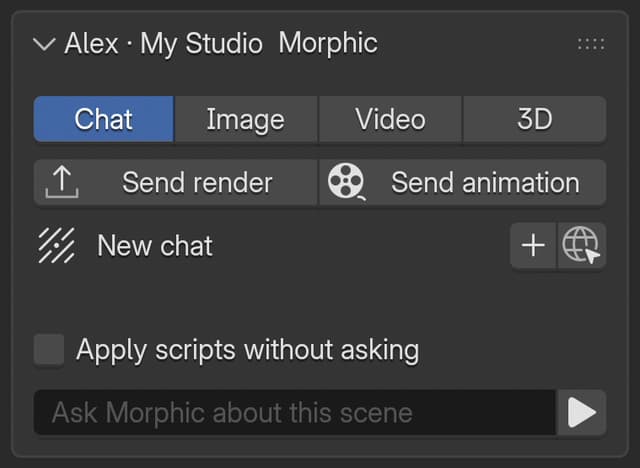
Finish within five minutes of clicking the button. If you take longer, click 'Sign in to Morphic' again.
What Blender can do
The page you approve lists everything Blender can do with your account:
| Permission | Used for |
|---|---|
| View your projects | Finding the project your chats and files go in |
| View your assets | Pricing generations and following them while they run |
| Add files to your assets library | Uploading renders, viewport captures and reference images |
| Generate images and videos with your credits | The Image, Video and 3D tabs |
| Chat with the Morphic copilot for you | The Chat tab, including generations Copilot starts there |
Your plan and your organization's Model access settings decide which models you can pick, and member credit limits apply.
Where your work goes
Each .blend file gets its own Morphic file, named 'Blender · ' followed by the .blend's name (for example 'Blender · shot_010.blend'). Its chats, generations and renders all go there. The file is created in a project the first time you chat, generate or send a render from that .blend:
- in the newest project you created yourself, or
- if you have not created one, in your organization's default project
The link to the Morphic file is stored in the .blend. Save the .blend after your first chat, so reopening it brings back the same chats and the same Morphic file. A copy of the .blend shares its Morphic file with the original.
To see the file in Studio, click the globe icon beside the chat title in the 'Chat' tab. Studio opens the file with the chat beside it. Generations and renders are in that file's 'Assets'.
Switch organization
The add-on works in the organization you chose when you signed in. To use another one, disconnect Blender (below), then click 'Sign in to Morphic' and choose the other organization.
Sign out and disconnect
Blender stays signed in between sessions. To disconnect it:
- Open the MCP settings page in Studio and click the 'Connections' tab
- Find 'Blender' and click 'Revoke' beside the session, or 'Revoke all' to disconnect every Blender you signed in from
Blender stops working with Morphic at its next request and shows 'Sign in to Morphic' again. A connection you do not use for 30 days ends on its own.
If you have any trouble or have any questions, feel free to reach out. We're happy to help. Write to us at support@morphic.com.