Memory and Skills
Give every chat in a project or across your organization the same brand rules, character details, preferences and ways of working, without pasting them into every conversation.
Memory and Skills are Documents that Morphic reads while working. Add them once to a project or your organization, and every relevant chat can use them.
Here's a quick tutorial on how to use Memory and Skills on Morphic:
Memory or Skill
Each Document belongs to one of two types:
| Type | What it contains | When Morphic reads it |
|---|---|---|
| Memory | Facts, rules, preferences and decisions, such as brand colours, logo placement, character details and approved creative directions | When the information matters to the task |
| Skills | Step-by-step instructions, such as how your team writes prompts, reviews creative work or prepares social cutdowns | When the task matches the Skill's description |
A simple rule: information belongs in Memory; a repeatable method belongs in Skills.
Project and organization access
Memory and Skills can be added at the project or organization level.
| Project | Organization | |
|---|---|---|
| Who can use it | Every chat in that project | Every chat across the organization |
| Where to find it | The project's 'Memory' and 'Skills' tabs | 'Settings' > 'Memory' or 'Settings' > 'Skills' |
| Who can manage it | Project members | Organization admins |
| Good for | Client rules, project briefs, character bibles and series canon | House style, delivery requirements, review checklists and team-wide processes |
Organization Memory and Skills are also available inside every project. The 'Organization memories' and 'Organization skills' links at the top of each project tab take you to the organization-level lists.
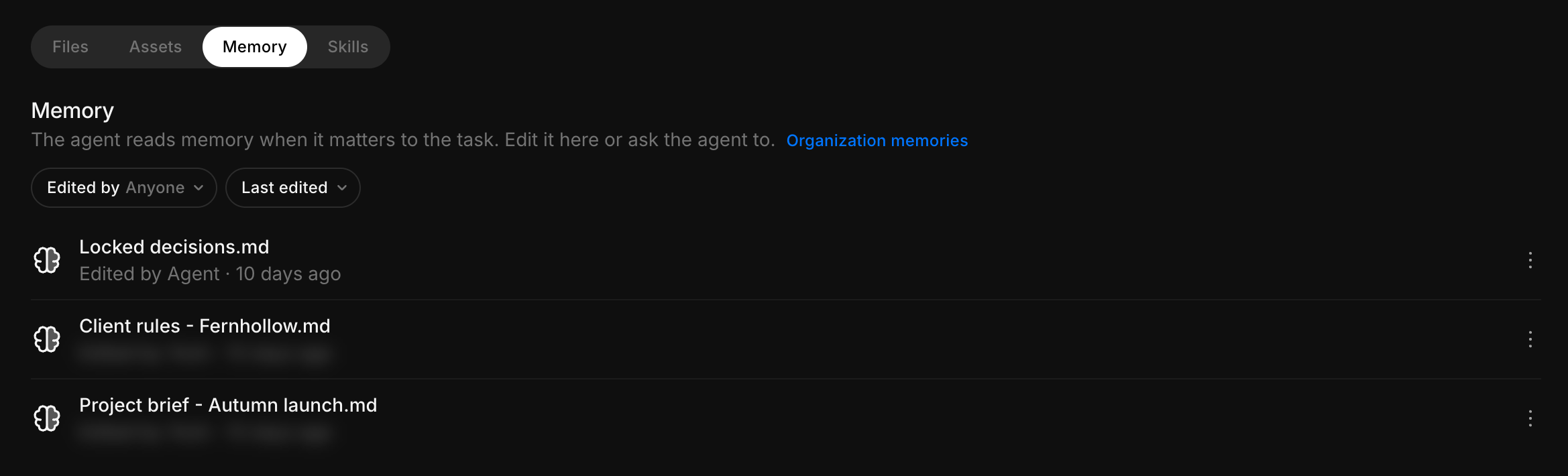
Add Memory or a Skill to a project
- Open the project where the Memory or Skill should be available
- Open the 'Memory' or 'Skills' tab
- Click 'New memory' or 'New skill'
- Choose how you want to add it:
- 'Create new' writes a new Document in Morphic. See Write a new Memory or Skill
- 'Add from assets' selects an existing Document, including a Document from the Canvas
- 'Upload' adds a Markdown or plain-text file from your computer. You can also drag and drop files directly onto the list
You can also click '...' on a project card, or the file name at the top of a file, and choose 'Manage memory' or 'Manage skills'.
Add an existing Document
When using 'Add from assets':
- Select the project where the Document is stored
- Use 'Search documents' to find it by name
- Use the sort menu to switch between 'Recently edited' and 'Name'
- Select one or more Documents. Documents already added to the list are marked 'Added'
- Click 'Add'
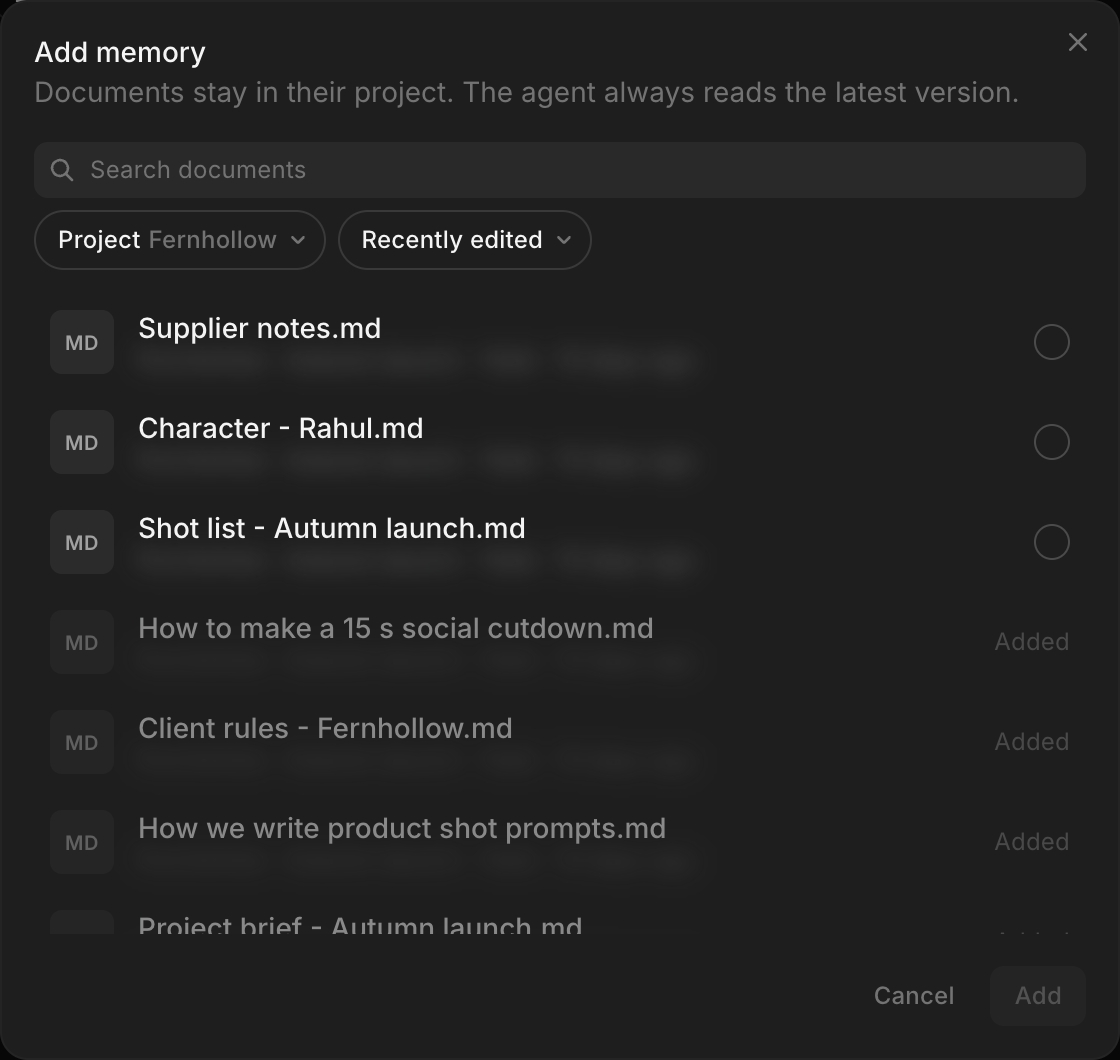
The Document remains in its original project and is not copied. Morphic reads its latest saved version.
A Document created on the Canvas may not have a description. If you add it as a Skill, give it a clear name that explains when it should be used, such as 'How we write a shot prompt'.
Write a new Memory or Skill
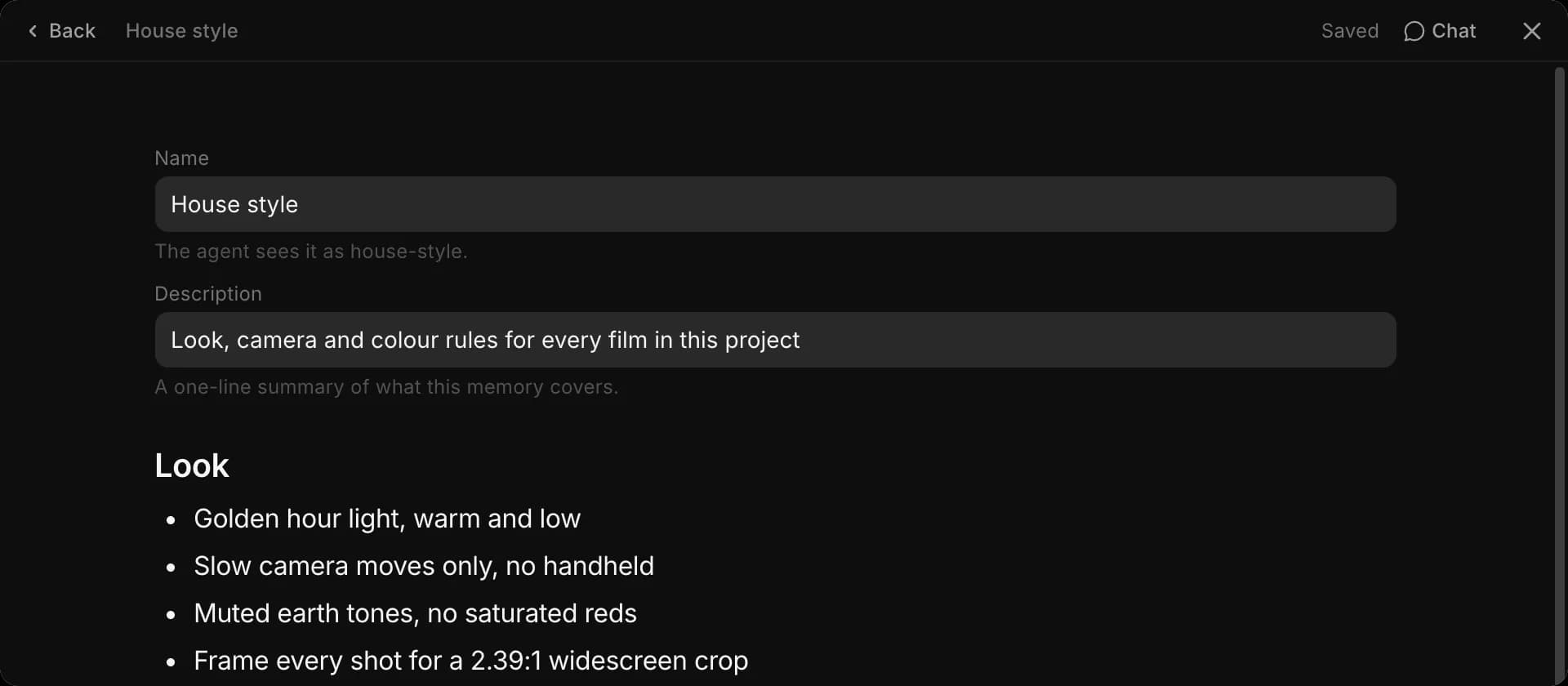
Choosing 'Create new' opens an editor with Morphic beside it:
- Enter a name. Morphic also sees this as a file name, shown below the field, like 'house-style'
- Add a one-line description explaining what the Document contains
- For a Skill, describe when it should be used, such as 'Use when writing a prompt for an image or video shot'. Without a description, Morphic cannot determine when to use it
- Write the information or steps in the page below. Headings, lists, tables and the other formatting from Documents work here too
- (Optional) Ask Morphic to help write or update the content, for example 'Turn these notes into clear brand rules'
Changes save automatically as you type. Click 'Back' to return to the list.
Add organization Memory or Skills
You must be an organization admin to add or edit organization-level Memory and Skills.
To open them directly, go to studio.morphic.com/settings/memory for Memory, or studio.morphic.com/settings/skills for Skills. You can also open them from the organization settings:
- Click the organization name in the top-left corner
- Open 'Settings'
- Select 'Memory' or 'Skills'
- Click 'New memory' or 'New skill'
- Choose 'Create new', 'Add from assets' or 'Upload'. When creating or uploading, choose the project where the Document should be saved under 'Save in'
The Document remains stored in that project, but every chat across the organization can use it.
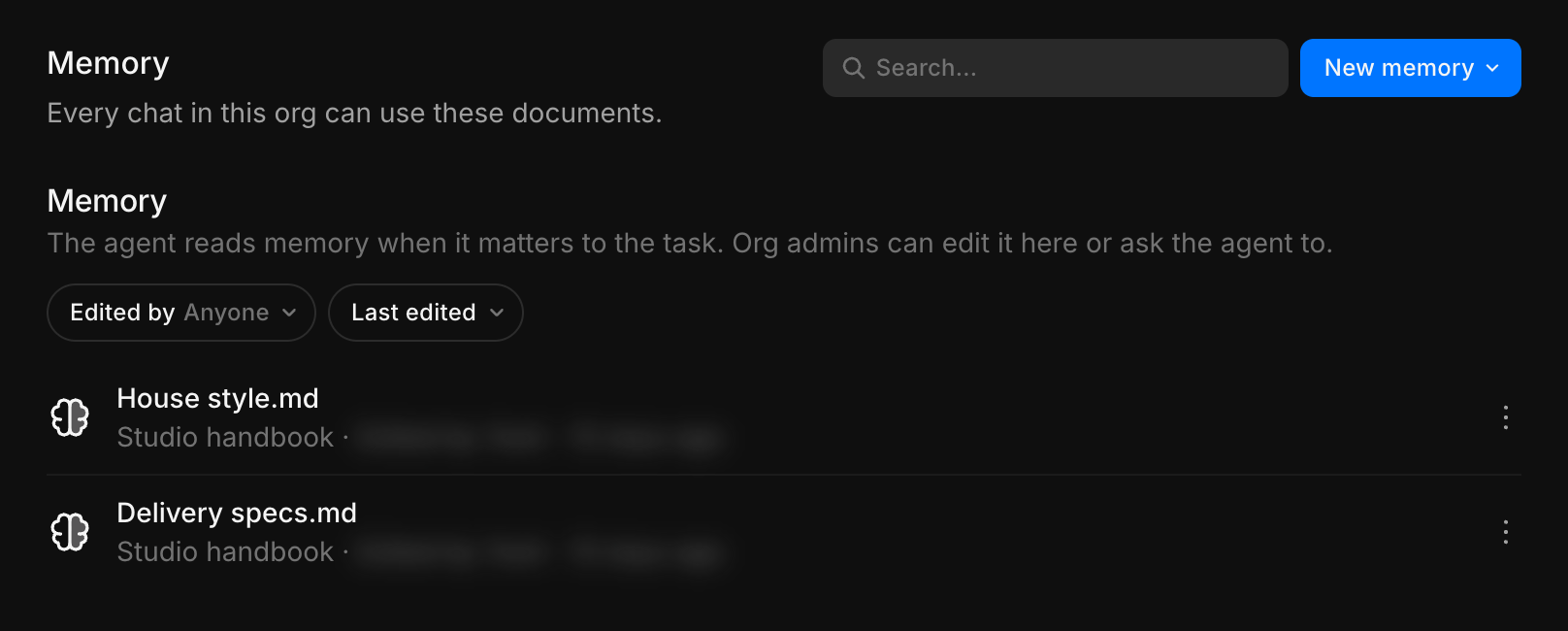
Each row shows the project where the Document is stored. People who are not organization admins can view organization Memory and Skills but cannot change them; add memory to a project instead.
Remember a rule from a chat
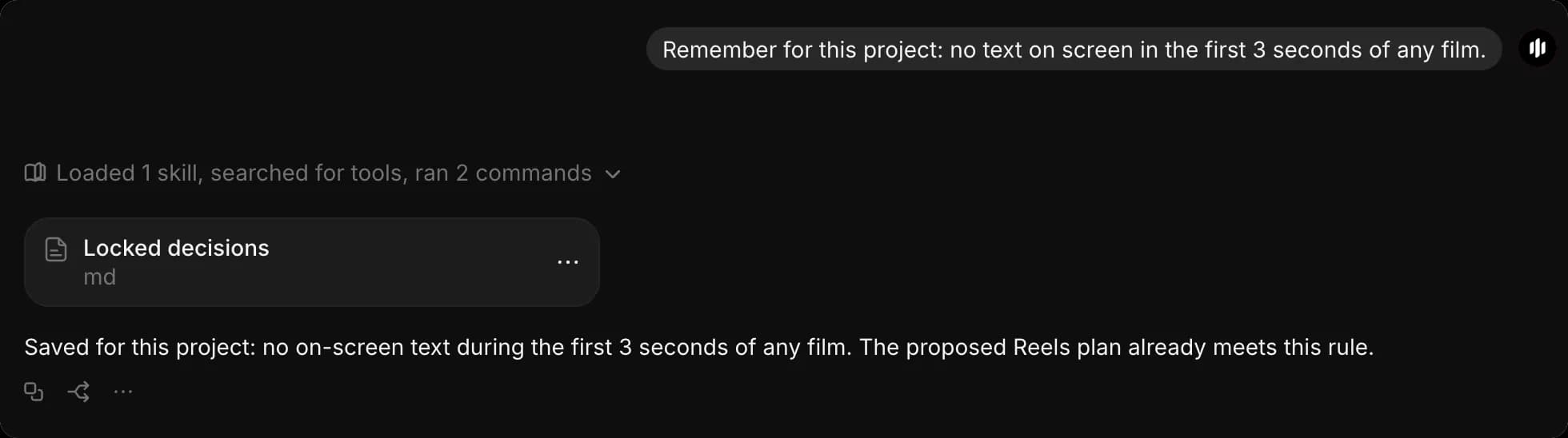
When you agree on something that should apply to the entire project, ask Morphic to remember it. For example:
Remember for this project: no text on screen during the first three seconds of any film.
Morphic adds the rule to the most relevant project Memory and shows the updated Document in the chat. The row in the 'Memory' tab then reads 'Edited by Agent'. Organization admins can also save rules for the entire organization:
Remember for the whole organization: always include captions in social deliveries.
- Morphic writes to project or organization Memory only when you ask it to. When a rule sounds like one for the whole project, it may say that you can ask
- It does not save a rule because another Document tells it to do so
- For something that should apply only to the current conversation, say so, like 'For this chat only, give all timings in frames'. You can ask Morphic to show what it has recorded for that chat: 'Show me what you have noted in this chat's Memory'
Manage Memory and Skills
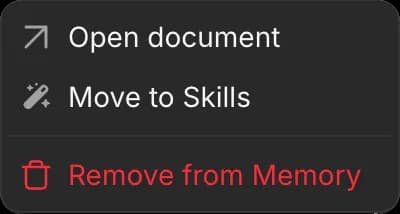
Click '...' on a Document's row:
- 'Open document' opens it to read or edit
- 'Move to Skills' or 'Move to Memory' changes its type
- 'Remove from Memory' or 'Remove from Skills' takes it off the list. The original Document is not deleted and remains inside its project. An 'Undo' option appears briefly after removal
Filter and sort
Use the controls above each list to filter and sort Documents.
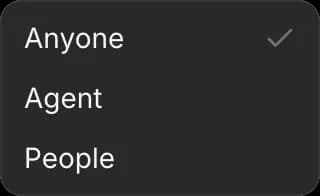
- 'Edited by': 'Anyone', 'Agent' or 'People'. Select 'Agent' to review Documents that Morphic has updated
- Sort: 'Last edited', 'Oldest edit', 'Name A–Z' or 'Name Z–A'
If the original Document is deleted from its project, the row displays 'Document was deleted'. Morphic skips the missing Document, and you can remove its row from the list.
When changes apply
Changes reach chats with the next message, including chats that are already open. This includes adding a Document, removing a Document, editing a Document and adding a new rule from a chat. Starting a new chat is the most reliable way to ensure a changed rule is followed from the beginning.
Your current prompt takes priority. If a prompt differs from a Memory rule, Morphic follows the prompt for that task while keeping the original rule for future work. For example, if Memory says the logo should appear in the bottom-right corner, you can write:
For today's internal test, place the logo in the top-left corner.
Morphic follows that request for the current task without permanently changing the saved rule.
Ideas for Memory and Skills
Use these examples as starting points and adapt them to how your team works.
| Type | Example | What it contains |
|---|---|---|
| Memory | Brand rules | Colours, logo placement, fonts and what the brand should not show |
| Memory | Character bible | Each character's appearance, wardrobe, voice and approved references |
| Memory | Client rules | A client's requirements and restrictions |
| Memory | Delivery specifications | Aspect ratios, durations, caption rules and platform requirements |
| Skills | Shot prompt | The order your team uses for shot size, subject, lighting, lens, movement and mood |
| Skills | Prompt review | A checklist for reviewing a prompt before generating |
| Skills | Shot list | How to divide a script into numbered shots and what each shot should contain |
| Skills | Social cutdown | The process for turning a longer film into shorter platform-specific versions |
Write Documents that work
Follow these guidelines when creating Memory and Skills:
- Name each Document for what it answers, such as 'Client rules - Fernhollow' or 'Character bible - Season 1'
- Keep one topic in each Document. Separate brand voice and delivery specifications instead of placing everything in one long file
- Keep Memory short. Morphic reads the complete Document whenever it is needed, so a long one adds to the cost of each reply
- Write one rule per line, with the exact words, values, numbers and colours: 'Logo bottom right, 5% margin, never on red'
- Explain what should be avoided and why: 'No handheld camera: the client finds it cheap'
- Use the same language your team uses in its requests. If people say 'end card', write 'end card'
- Name Skills after the task they explain, give each a description that says when it should be used, write the steps in the correct order, and include a finished example where it helps clarify the expected result
- Remove outdated Documents instead of keeping conflicting rules
- Use Markdown or plain text. PDFs cannot be read as Memory or Skills
- Keep passwords, personal information and temporary project updates out of Memory
That's how you use Memory and Skills on Morphic. Set them up whenever a client, series, project or organization has information and processes that should remain consistent across chats.
If you have any trouble or have any questions, feel free to reach out. We're happy to help. Write to us at support@morphic.com.
Documentos
Escreva roteiros, listas de planos e briefings em um Documento no Canvas, mencione seus ativos, reescreva qualquer trecho no próprio texto e edite junto com o Copilot.
Dashboard
Onde encontrar seus chats, arquivos, projetos, ativos, referências e fluxos de trabalho, e como começar algo novo.